Screens 5: VNC Remote Desktop

Screens 5: VNC Remote Desktop

Herunterladen auf App Store
Logo von Screens 5: VNC Remote Desktop

Screens 5: Ultimativer Fernzugriff für Ihren gesamten Arbeitsplatz

Übernehmen Sie die volle Kontrolle über Ihre Mac-, Windows- und Linux-Computer von überall auf der Welt. Erleben Sie eine sichere, hochperformante Remote-Desktop-Verbindung auf Ihrem iPhone, iPad und Vision Pro – entwickelt für Profis, die Desktop-Präzision und absolute Privatsphäre verlangen.

Herausgeber

Edovia Inc.

Kategorie

Utilities

Downloads

20K+

Bewertung

4.2/5

Bewertungen gesamt

700

Sprachen

17

Erleben Sie wahre Kontrolle

Entdecken Sie die Oberfläche, die von 20K+ Nutzern verwendet wird.
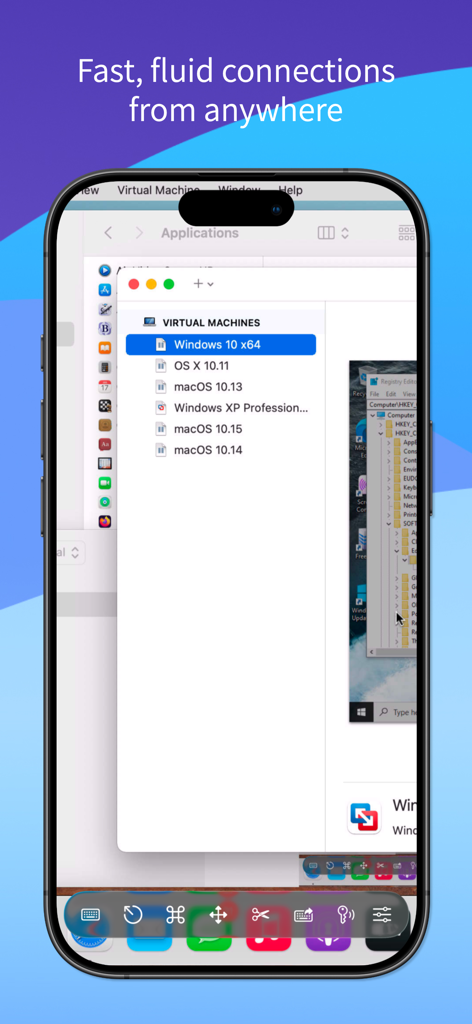
Screens 5 mobile Benutzeroberfläche, die einen entfernten Mac-Desktop mit einer Liste virtueller Maschinen anzeigt

Screens 5 mobile Benutzeroberfläche, die einen entfernten Mac-Desktop mit einer Liste virtueller Maschinen anzeigt

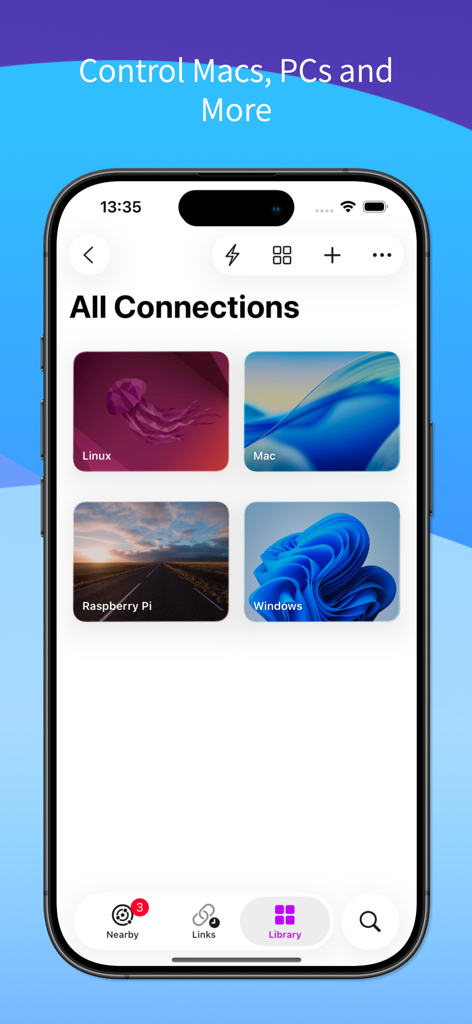
Screens 5 mobile App-Oberfläche, die eine Liste gespeicherter Remote-Desktop-Verbindungen für Mac, Windows, Linux und Raspberry Pi anzeigt.

Screens 5 mobile App-Oberfläche, die eine Liste gespeicherter Remote-Desktop-Verbindungen für Mac, Windows, Linux und Raspberry Pi anzeigt.

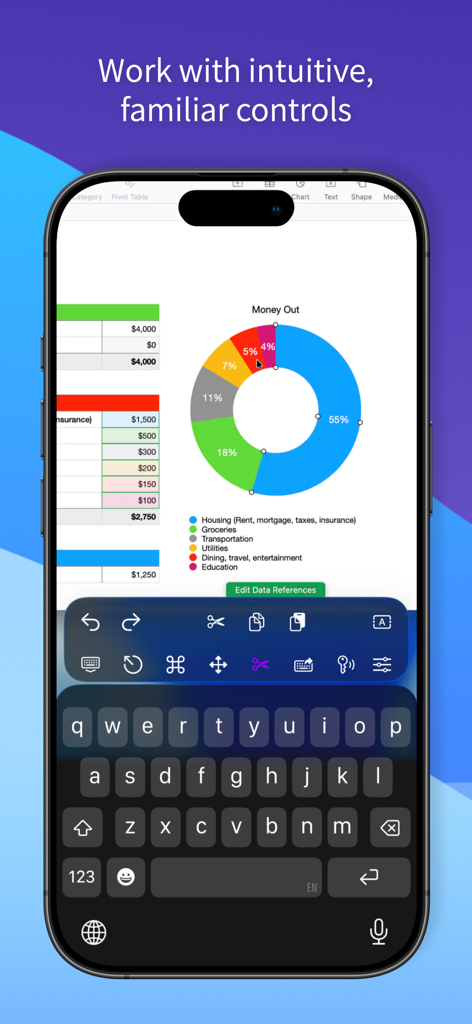
iPhone zeigt eine Remote-Desktop-Sitzung mit einer Tabellenkalkulation und spezialisierten Produktivitätskontrollen.

iPhone zeigt eine Remote-Desktop-Sitzung mit einer Tabellenkalkulation und spezialisierten Produktivitätskontrollen.

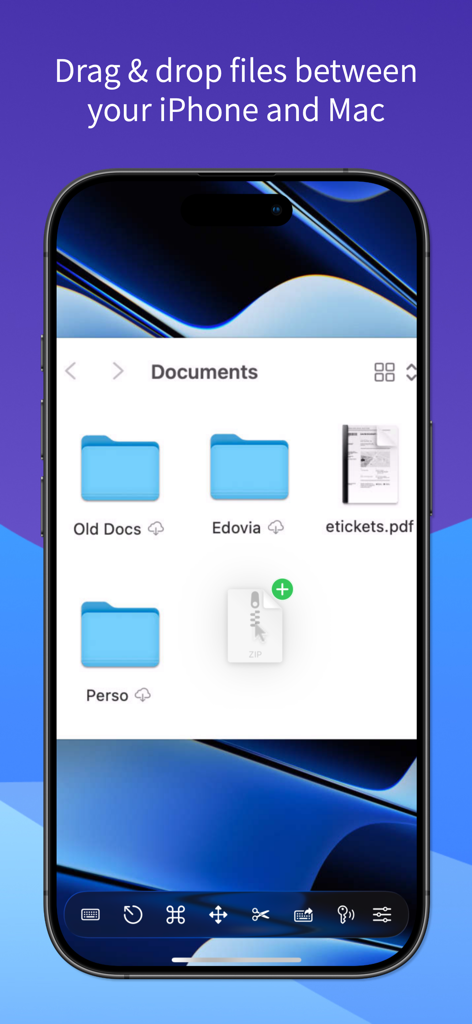
Ziehen und Ablegen von Dateien zwischen iPhone und Mac mit Screens 5

Ziehen und Ablegen von Dateien zwischen iPhone und Mac mit Screens 5

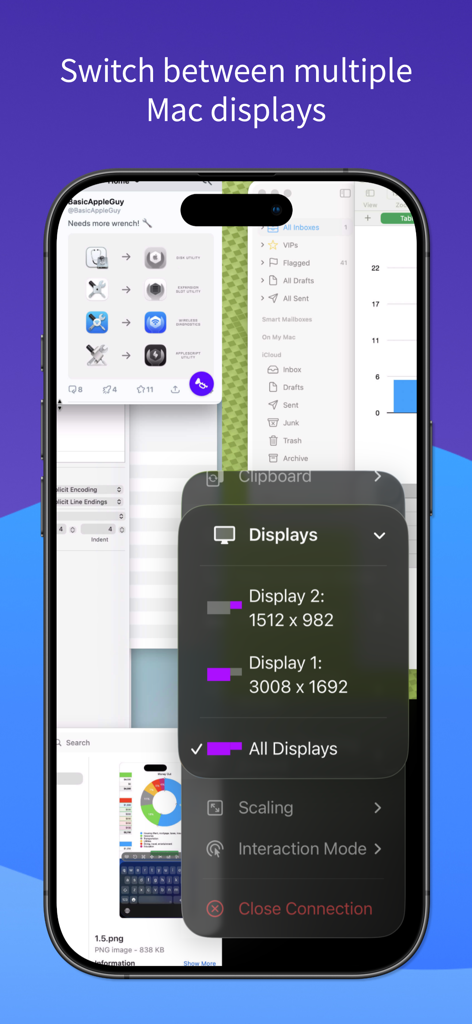
iPhone-Oberfläche der Screens 5 App, die die Auswahl und Auflösungseinstellungen für mehrere Remote-Displays demonstriert.

iPhone-Oberfläche der Screens 5 App, die die Auswahl und Auflösungseinstellungen für mehrere Remote-Displays demonstriert.

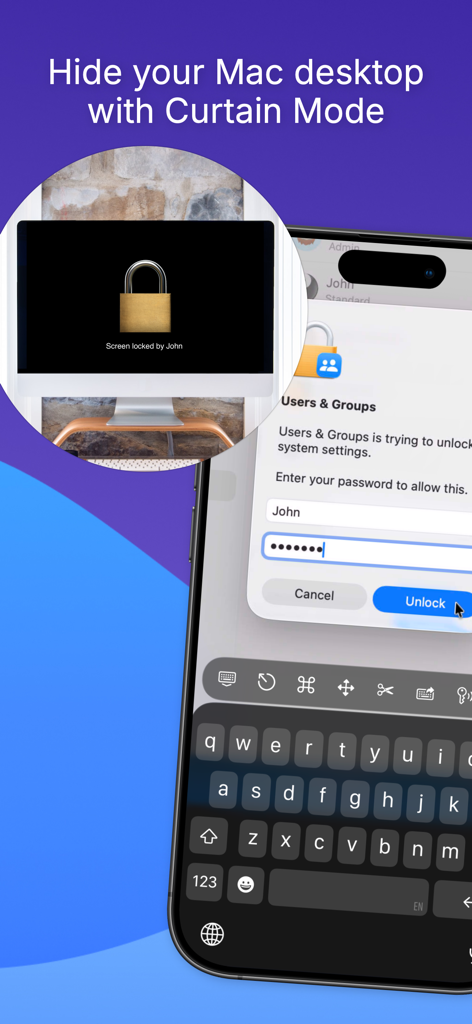
Screens 5 App zeigt den Curtain Mode, um einen entfernten Mac-Desktop zu verbergen, während er von einem iPhone aus darauf zugegriffen wird.

Screens 5 App zeigt den Curtain Mode, um einen entfernten Mac-Desktop zu verbergen, während er von einem iPhone aus darauf zugegriffen wird.

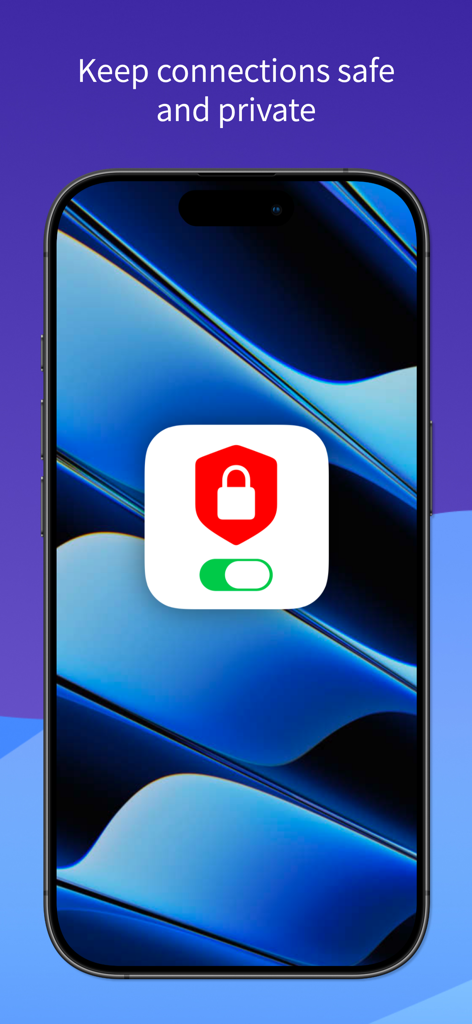
Sichere und private Remote-Desktop-Verbindungen auf dem iPhone mit der Screens 5 App

Sichere und private Remote-Desktop-Verbindungen auf dem iPhone mit der Screens 5 App

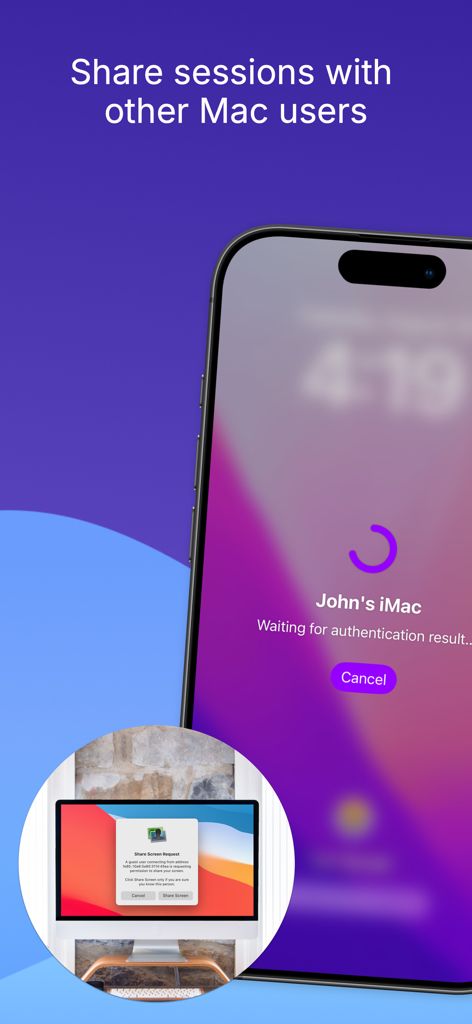
iPhone App-Oberfläche, die eine Remote-Desktop-Sitzung mit einem anderen Mac-Benutzer anfordert

iPhone App-Oberfläche, die eine Remote-Desktop-Sitzung mit einem anderen Mac-Benutzer anfordert

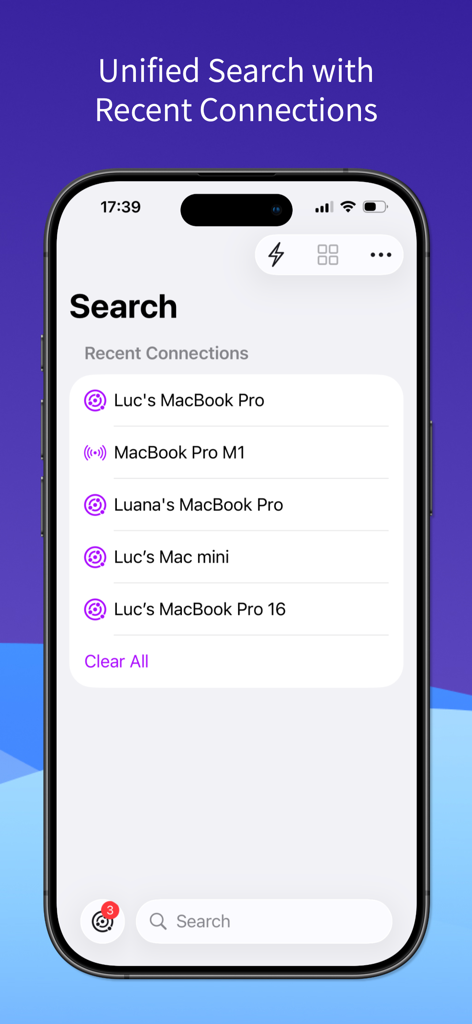
Screens 5 App-Oberfläche, die eine einheitliche Suche und aktuelle Remote-Verbindungen auf einem iPhone anzeigt.

Screens 5 App-Oberfläche, die eine einheitliche Suche und aktuelle Remote-Verbindungen auf einem iPhone anzeigt.

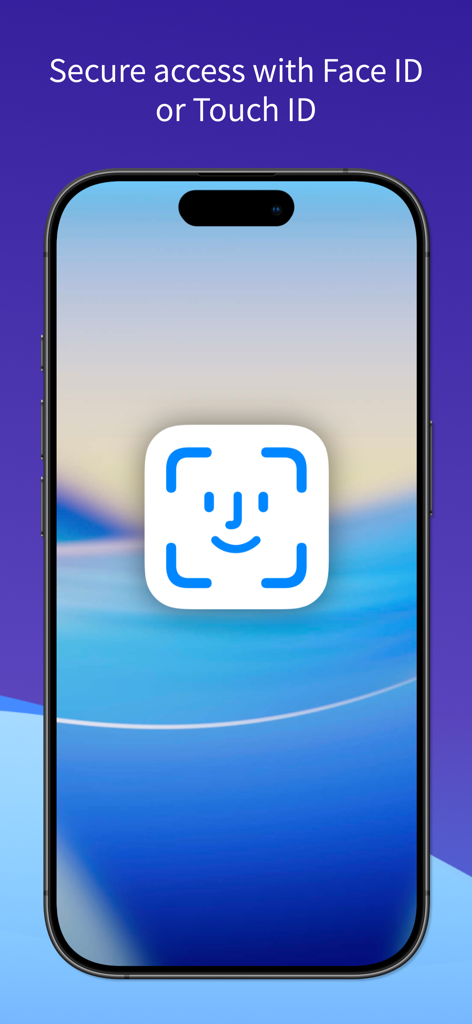
iPhone-Bildschirm, der die Face ID-Authentifizierung für sicheren Remote-Desktop-Zugriff anzeigt

iPhone-Bildschirm, der die Face ID-Authentifizierung für sicheren Remote-Desktop-Zugriff anzeigt

Beherrschen Sie Ihren Arbeitsplatz von jedem Gerät aus

Die Tools, die diese App auszeichnen, gewählt von 20K+ Nutzern.

🌐

Überall und jederzeit verbinden

Greifen Sie mühelos über Screens Connect und Tailscale-Integration auf Ihren Mac-, Windows- oder Linux-PC von Ihrem iPhone, iPad oder Vision Pro aus zu.

⌨️

Interaktion auf Desktop-Niveau

Erleben Sie native Steuerung mit voller Unterstützung für Magic Keyboards, Apple Pencil und Multi-Display-Konfigurationen, um Ihr iPad in ein mobiles Kraftpaket zu verwandeln.

🔒

Professionelle Sicherheit

Halten Sie Ihre Verbindungen mit SSH-Verschlüsselung und Curtain Mode privat und stellen Sie sicher, dass Ihre Remote-Aktivitäten sicher und nur für Ihre Augen bestimmt sind.

Über die App

Alles, was Sie über wissen müssen Screens 5: VNC Remote Desktop.

Beschreibung

Take control of your computers, wherever you are. Screens 5 lets you remotely access your Mac, Windows PC, Linux PC, or Raspberry Pi from anywhere—whether you’re at home, in a coffee shop, or on the other side of the world. With speed, security, and reliability, Screens delivers a seamless remote desktop experience on iPhone, iPad, Mac, and Vision Pro. Here's what makes Screens your ideal choice: Connect from Anywhere Install Screens Connect on your Mac or Windows PC for effortless access worldwide. Need to connect to a Linux PC or Raspberry Pi? Screens fully integrates with Tailscale for secure, hassle-free remote connections. Curtain Mode Maintain privacy by masking the remote Mac’s display when connected, perfect for shared environments. Secure & Effortless Connections Enable Remote Login on your Mac or configure your Windows PC, Linux PC, or Raspberry Pi for SSH support. Screens also supports SSH keys for added security. Fast & Convenient Logins Screens automates password entry, letting you connect quickly and efficiently. Multi-Display Support Easily select which display to view on multi-screen Macs or show them all. Screens remembers your preference. Clipboard Sharing Seamlessly transfer rich text, URLs, images, and more between your local and remote clipboards. Session Selection When someone is logged into a remote Mac, you can either share their screen or start a new session. Raspberry Pi 5 Compatibility Screens fully supports Bookworm and WayVNC via RSA-AES authentication for smooth performance. Assist Friends & Family With the free Screens Assist utility (Mac), you can help troubleshoot, update apps, and more remotely. External Keyboard & Input Support Enhance control with a Magic Keyboard or any compatible external keyboard and pointing device. Transfer Files Share files between your iPhone or iPad and your Mac using simple drag and drop. Apple Pencil Interact with remote content naturally using Apple Pencil Additional Features: • Adaptive and Full display quality • Control or observe the remote computer • iCloud Synchronization • Full URL Schemes support • Secure content with Touch ID, Face ID, Apple Watch, or a password Requirements: • Windows PC connections require a VNC server like UltraVNC or TightVNC. • Clipboard sharing on Windows and Linux PCs supports text and URLs only. • Sound transmission is not supported due to VNC protocol limitations. • Screens Connect requires macOS 10.13 High Sierra or later, or Windows 10 SP1 or later. A free Screens ID is required. • Screens supports remote access from iPhone, iPad, Mac, and Vision Pro but does not support connections to iOS or iPadOS devices. Screens is your trusted remote control companion, ensuring accessibility, security, and full control over your devices—anytime, anywhere. Privacy Policy: https://screens.app/privacy Terms of Use: https://screens.app/terms

Neueste Version

5.8

Größe

52.9 MB

Erstveröffentlichung

6. Dez. 2023

Entfesseln Sie die volle Leistung Ihres Macs, überall.

Schließen Sie sich Tausenden von Profis an, die Screens 5 für sicheren Fernzugriff auf Desktop-Niveau vertrauen. Sind Sie bereit, Ihr iPad oder Vision Pro in die ultimative mobile Workstation zu verwandeln?

Herunterladen auf App Store

App information, icons, screenshots, and descriptions displayed on this page are sourced from the Apple App Store and are the property of their respective developers. Download estimates and rankings are based on MWM's proprietary models and may not reflect actual figures. This page is provided for informational and analytical purposes only.

Believe this page infringes your intellectual property? File a dispute