Data Drop: Trasferimento File Istantaneo da iPhone a Qualsiasi Computer
Salta account, cavi e moduli di accesso. Condividi in modo sicuro foto, video e documenti su qualsiasi PC o computer pubblico in pochi secondi con una semplice scansione QR.
Editore
Ion Postolachi
Categoria
Productivity
Download
13K+
Valutazione
5.0/5
Valutazioni totali
0
Lingue
1
Condivisione Fluida Visualizzata
Scopri l'interfaccia usata da 13K+ utenti.
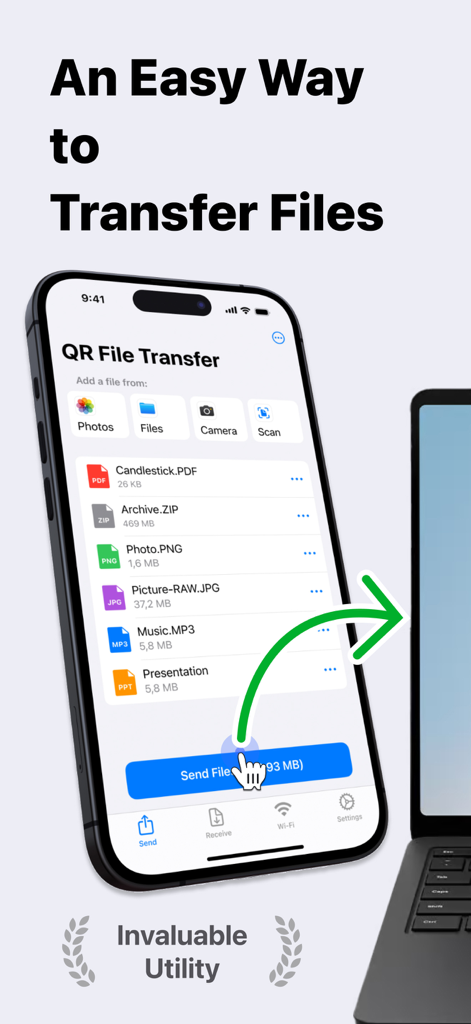
Screenshot dell'interfaccia dell'app Data Drop che mostra il trasferimento di file wireless da un iPhone a un laptop con vari tipi di file
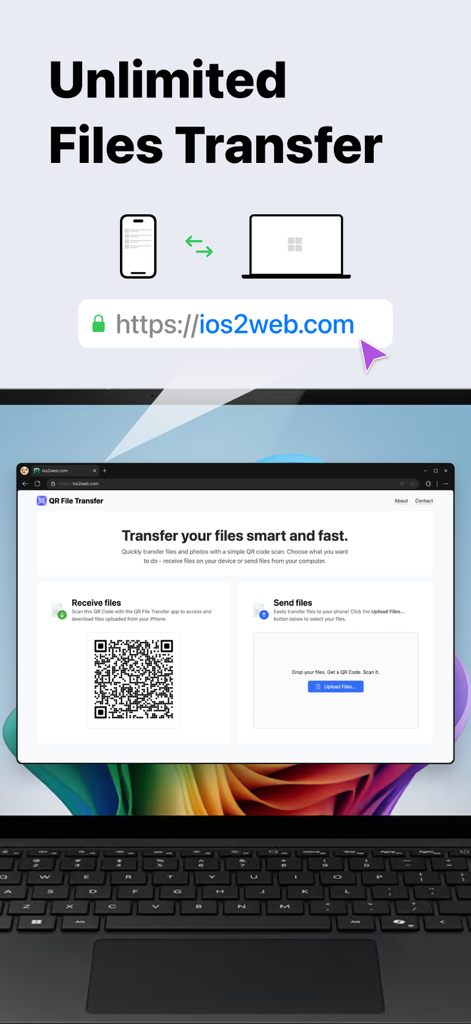
App Data Drop che mostra il trasferimento illimitato di file tra iPhone e computer utilizzando la scansione di un codice QR
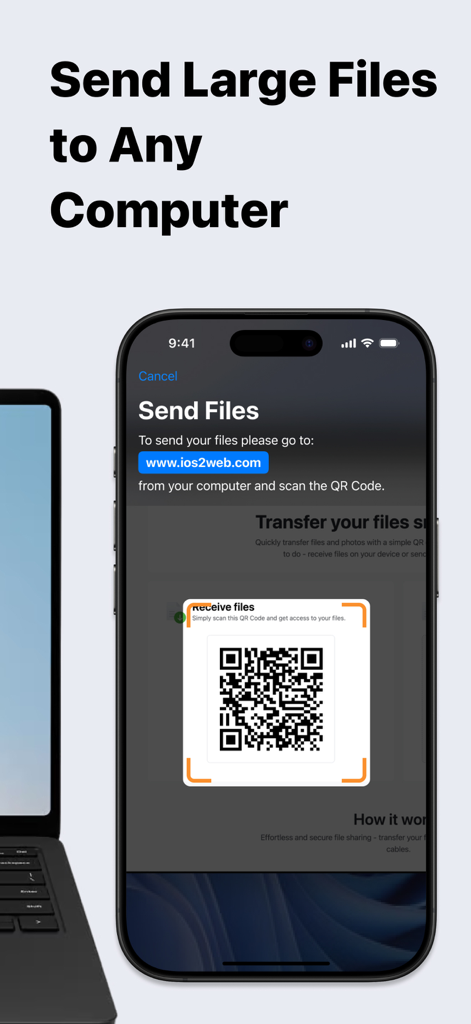
Schermata dell'iPhone che mostra l'app Data Drop mentre scansiona un codice QR per trasferire file a un laptop nelle vicinanze
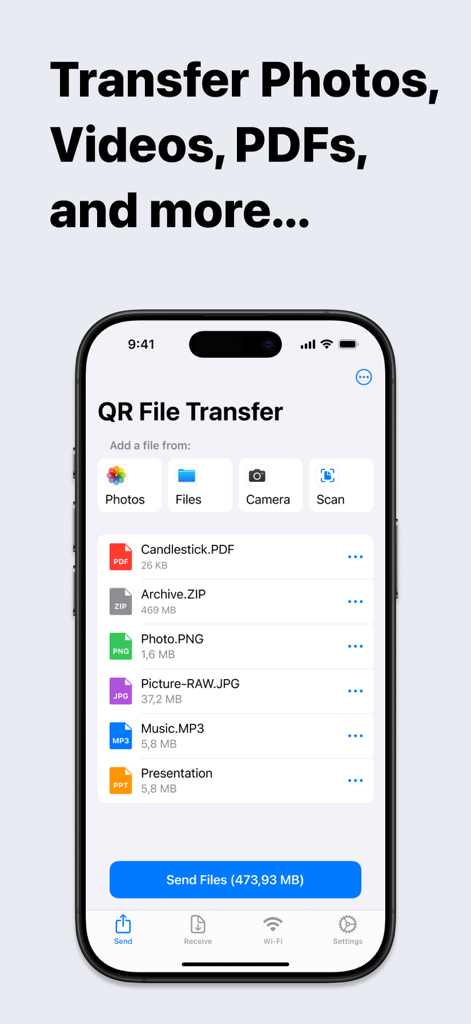
Interfaccia dell'app mobile Data Drop che mostra un elenco di file selezionati pronti per il trasferimento
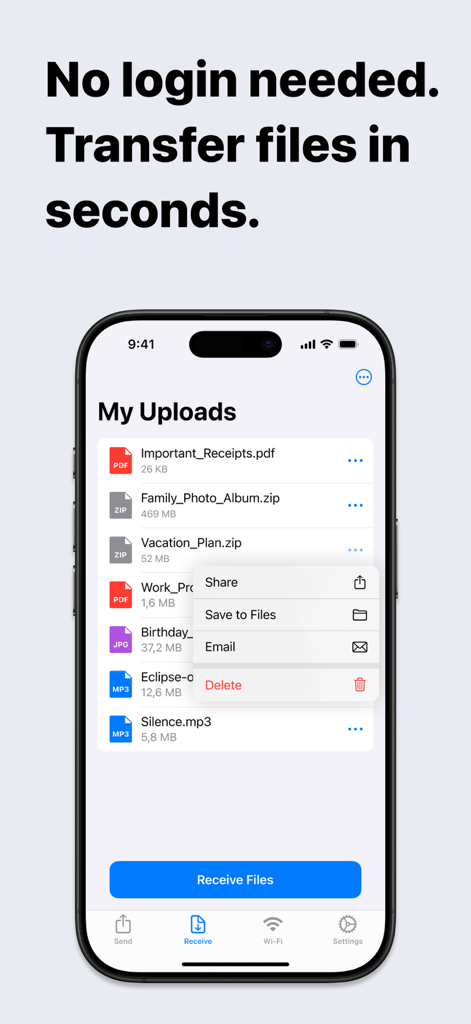
Schermata dell'iPhone che mostra l'app Data Drop con un elenco di file caricati e un menu di condivisione
Condivisione Fluida tra iPhone e Qualsiasi PC
Gli strumenti che rendono questa app unica, scelti da 13K+ utenti.
⚡
Trasferimento Senza Attriti
Evita il fastidio di account e password. Scansiona semplicemente il codice QR per spostare i tuoi file in pochi secondi, perfetto quando hai fretta a scuola o al lavoro.
💻
L'AirDrop per Windows
Colma il divario tra il tuo iPhone e il tuo PC. Trasferisci foto ad alta risoluzione, video 4K e archivi di grandi dimensioni su qualsiasi browser senza bisogno di un Mac.
🛡️
Accesso Pubblico Sicuro
Proteggi la tua privacy sui computer condivisi. Condividi file senza mai accedere al tuo account email personale o cloud su terminali pubblici.
Info sull'app
Tutto quello che devi sapere su Data Drop: QR File Transfer.
Descrizione
Effortless File Sharing Made Simple
Sharing files, photos, and documents between your iPhone and any computer has never been easier. With QR File Transfer, you can securely transfer your files in just a few simple steps— no login or complicated setup required.
How It Works:
Upload Your Files: Use the app to quickly upload the files you want to share.
Scan the QR Code: Open a browser on your PC or any device and visit ios2web.com.
Instant Access: Scan the QR code displayed on the website, and instantly access your files.
Why Choose QR File Transfer?
– No Account Required:
Skip the hassle of creating accounts or remembering passwords. Just scan and go!
– Secure and Private:
We prioritize your privacy. Files are shared directly and securely between your devices.
– Universal Access:
Works with any computer or device — Windows PCs, public computers, or even tablets.
– Supports All Popular File Types: QR File Transfer makes sharing all types of files seamless.
Photos and Images: JPG, PNG, GIF, HEIC, BMP, TIFF, WEBP
Videos: MOV, MP4, AVI, MKV, FLV, WMV, 3GP, M4V
Audio: MP3, WAV, M4A, AAC, OGG, FLAC
Documents: PDF, DOC, DOCX, XLS, XLSX, PPT, PPTX, TXT, RTF, ODT, CSV
Archives: ZIP, RAR, 7Z, TAR, GZ, ISO, DMG
If you encounter a file format that is not supported, please let us know by contacting our team.
– Easy-to-Use Interface: Designed for simplicity so anyone can share files with ease.
– No Cables, No Limits: Enjoy a wireless file-sharing experience without the need for USB drives or adapters.
Perfect For:
– Quickly sharing work documents between your iPhone and office computers.
– Uploading personal files to access on a friend’s laptop or public computer.
– Sharing photos, videos, and memories with family and friends without email or messaging limitations.
Getting Started is Easy:
Download QR File Transfer from the App Store.
Install and open the app on your iPhone.
Upload files, visit ios2web.com on any computer, and scan the QR code to transfer your files instantly.
Common Use Cases:
Question:
How can I quickly send files from my phone to a school computer without needing to log in?
Answer:
To send files from your phone to a school computer without logging in, you can use QR File Transfer:
Open the app on your phone and upload the files you want to share.
On the school computer, visit ios2web.com in a browser.
Scan the QR code shown on the website using the app.
Your files will be instantly accessible on the computer.
Question:
How can I quickly send files from a school computer to my phone without needing to log in?
Answer:
To transfer files from a school computer to your phone, use QR File Transfer:
On the computer, go to ios2web.com in a browser and upload the files.
Open the app on your phone and scan the QR code displayed on the website.
The files will be instantly downloaded to your phone.
Why Users Love It:
"No frills, no logins — just quick file sharing when I need it."
"A lifesaver when working on public computers."
"So simple, even my parents figured it out!"
Download QR File Transfer Today
Simplify file sharing and enjoy the freedom to transfer your files anywhere, anytime. Whether you're at work, at home, or on the go, QR File Transfer is the easiest way to keep your files accessible without compromising security or convenience.
– A Great Alternative to Popular Apps:
QR File Transfer is an excellent alternative to apps like Shareit: Transfer, Share Files, Zapya - File Sharing, WeTransfer: Transfer Files, Xender: File Share, Share Music, Send Anywhere - File Transfer, and Transfer my data - MobileTrans, File Transfer - Snapdrop, Copy my data - Smart Transfer, AirDroid - File Transfer&Share, Air Transfer,
Links:
Privacy Policy – https://ios2web.com/privacy-policy/
Terms of Use – https://ios2web.com/terms-of-service/
Get started now and experience the easiest file-sharing solution on the App Store!
Ultima versione
2.4.1
Dimensione
38.1 MB
Data di lancio
15 apr 2021
Smetti di inviarti email. Inizia a condividere all'istante.
Unisciti a oltre 13.000 utenti che spostano foto, documenti e video tra qualsiasi dispositivo in pochi secondi, senza account, senza cavi e senza complicazioni.
App information, icons, screenshots, and descriptions displayed on this page are sourced from the Apple App Store and are the property of their respective developers. Download estimates and rankings are based on MWM's proprietary models and may not reflect actual figures. This page is provided for informational and analytical purposes only.
Believe this page infringes your intellectual property? File a dispute