Highlighted Large Keyboard

Highlighted Large Keyboard

ダウンロード: App Store
ロゴ: Highlighted Large Keyboard

ハイライトされた大型キーボード:クリアで大きく簡単なタイピング

小さなボタンでの苦労はやめましょう。標準より37%大きいキー、スマートな予測ヒント、そしてデータアクセス不要の完全なプライバシーをお楽しみください。

開発元

Huixiu Wu

カテゴリ

Utilities

ダウンロード

43K+

ユーザー評価

3.1/5

評価数

0

対応言語

1

大きなキー、大胆な明瞭さ

このインターフェースを利用する 43K+ 人のユーザー.

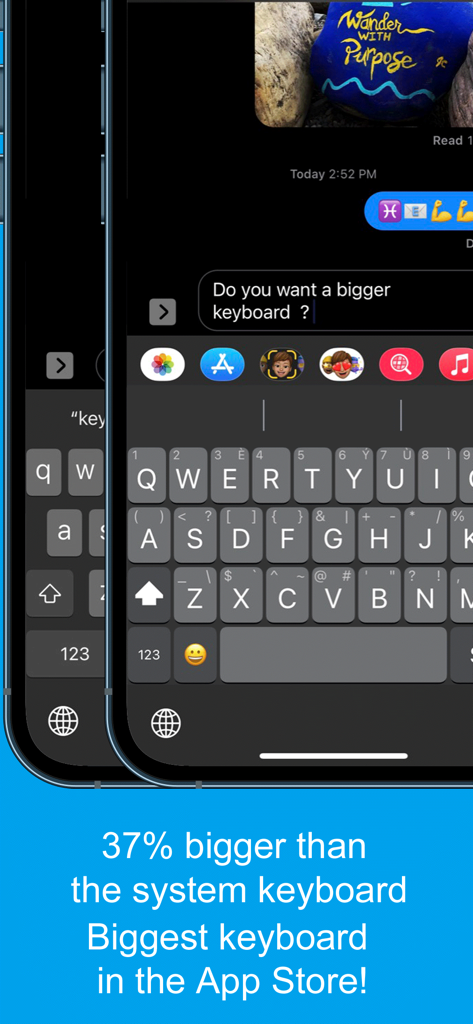
ハイライトされた大型キーボードアプリのスクリーンショット。標準のシステムキーボードより37%大きいキーが表示され、アクセシビリティに対応しています。

ハイライトされた大型キーボードアプリのスクリーンショット。標準のシステムキーボードより37%大きいキーが表示され、アクセシビリティに対応しています。

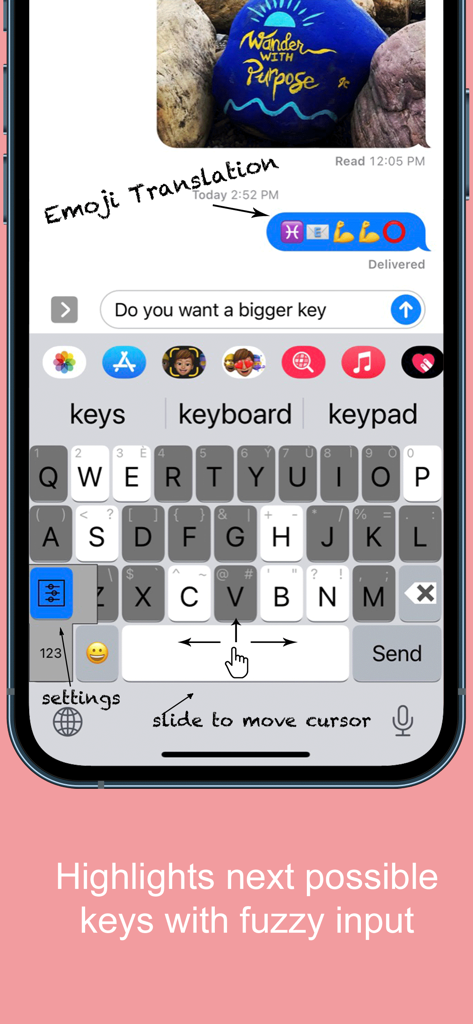
ハイライトされた大型キーボードアプリのインターフェイス。大きなキーと、カーソルを移動するためのスライド機能が表示されています。

ハイライトされた大型キーボードアプリのインターフェイス。大きなキーと、カーソルを移動するためのスライド機能が表示されています。

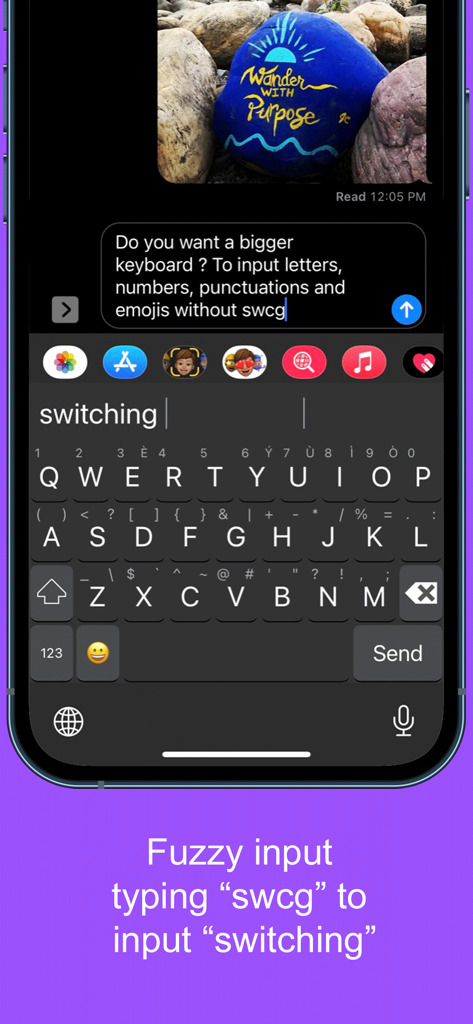
ハイライトされた大型キーボードアプリでのあいまい入力のスクリーンショット。swcgと入力すると、切り替えが提案されます。

ハイライトされた大型キーボードアプリでのあいまい入力のスクリーンショット。swcgと入力すると、切り替えが提案されます。

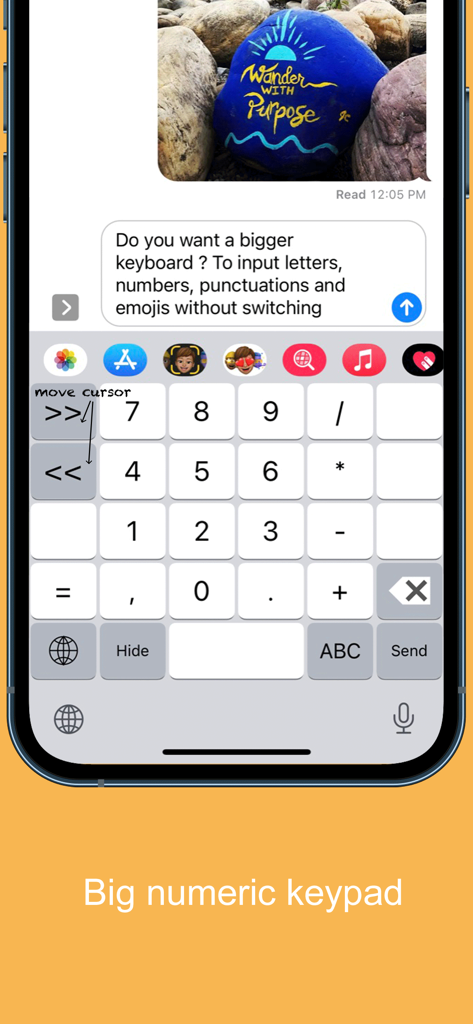
ハイライトされた大型キーボードモバイルアプリ用の大きなテンキーインターフェイス。

ハイライトされた大型キーボードモバイルアプリ用の大きなテンキーインターフェイス。

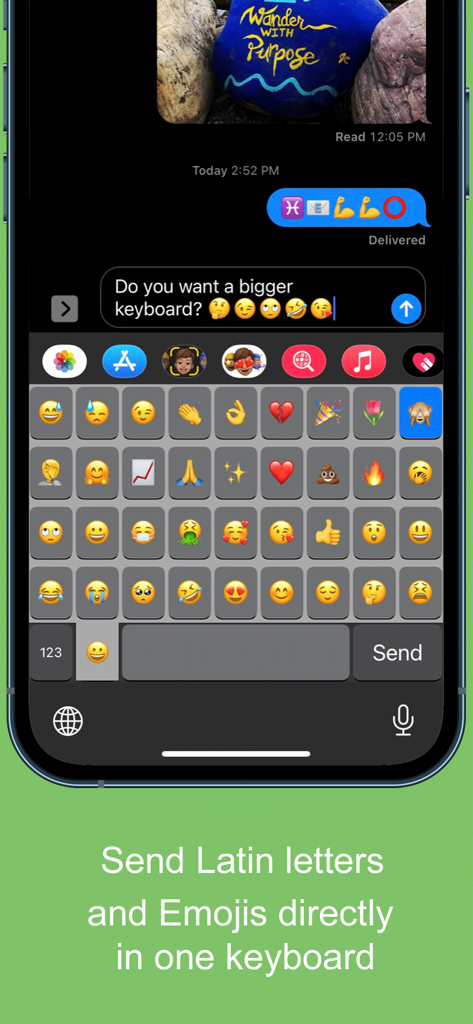
ハイライトされた大型キーボードアプリのインターフェイスに、大きな絵文字グリッドが表示されたモバイルスクリーンショット。

ハイライトされた大型キーボードアプリのインターフェイスに、大きな絵文字グリッドが表示されたモバイルスクリーンショット。

ついに、あなたの快適さのために作られたキーボード

このアプリを際立たせるツール、 43K+ 人のユーザーが選択.

⌨️

標準より37%大きいキー

小さなボタンでの苦労はやめましょう。当社の特大キーは、指の大きい方や目に優しいように設計されており、タイプミスやイライラを軽減します。

↔️

簡単なカーソルコントロール

文字の間をタップしようとしてうんざりしていませんか?スペースバーを指でスライドさせるだけで、カーソルを必要な場所に正確に移動できます。

🔒

100%プライベート&セキュア

あなたの安全が私たちの最優先事項です。このキーボードは「フルアクセス」を必要とせずに機能するため、個人メッセージやデータがデバイスから離れることはありません。

アプリについて

について知っておくべきこと Highlighted Large Keyboard.

説明

Do you want a bigger keyboard? With the smart highlighted next key hints and fuzzy input? And full Emoji supported? Try out this Biggest keyboard in the App Store! ** Biggest Keyboard in the App Store Keys are 37% bigger than the system keyboard. It is good for people who have big thumbs. Also people who want to preserve their vision will benefit from this keyboard. ** Fuzzy input If you use the Apple's system keyboard to input "determination", you won't see it in the suggestion list until typing "determina". With the highlighted keyboard, you can just type "dtmnn" to have it show in the suggestion bar. Another example is that once I wanted to input "anthropology" but I forgot the spelling, all I remembered was it started with "an" something and ended with "logy", I then typed “anlg” in the Highlighted keyboard and I saw “anthropology” in the suggestion list. ** Highlighted next possible keys After you type one key the keyboard will smartly highlights the possible next keys that you want to input. Also it has the suggestions that you can select from the top of the keyboard. ** Latin letters supported You can type the latin letters directly from the keyboard. You can also type "£" & "€" as well. ** Emoji translation Translate the word that you select in the suggestion bar into Emoji characters. It is a fun way to communicate with your friends and family. It is disabled by default and you need to use the "Keyboard Setting" page to enable this feature. ** Slide to move the input cursor Sliding from the Space key to left/right to move the current input cursor to left or right. Sliding up to move the current cursor to the beginning of the sentence and sliding down to move the current cursor to the end of the sentence. It makes your life much easier when editing text on the iPhone/iPad. ** 36 most common emojis in the same keyboard without switching UI Long press on the "happy face" emoji key and it will popup the36 most common emojis. You can then input directly from there. ** Full Emoji keys supported It is very convenience to input Emoji characters with this keyboard when you are using Facebook, Twitter, iMessage, Wechat, Text Message, SMS, etc. Just long press on the key that has sub-menu and more Emoji characters will pop up. The Emoji characters are well categorized and you can input the Emoji and Text together in one keyboard! ** Numeric Keypad This keyboard supports the traditional numeric keypad layout with big number keys. It is useful for entering long sequences of numbers quickly. ** Keyboard Settings Long press on the "globe"/"123" key to pop up the sub-menu. Select the "Tool" key to launch the setting page. You can enable/disable the Highlight Next key feature. You can also enable/disable the "Emoji translation" feature. ** NO Full Access required ** How to use 1. After install you need to enable it in the "Settings" App in your iPhone/iPad. Launch "Settings", click on "General" -> "Keyboard" -> "Keyboards" -> "Add New Keyboard" -> Select the "HighlightedKeyboard". 2. Switch the keyboard to "Highlighted Keyboard" when you are inputting. 3. Long press on one key to input the keys in the pop-up menu including 0-9 and punctuation marks. You may try to long press on keys to find the hidden sub menus. For example, if you want to hide the keyboard, long press on the "globe" key and the sub-menu will pop up. Keep holding and move to select the "Hide" key. The keyboard will hide after you release your finger. Please send any feedback, bug reports or feature request to: feedback.southfun at gmail.com Thanks for viewing!

最新バージョン

1.2.1

サイズ

1.9 MB

リリース日

2014年11月12日

目を細めるのをやめて、自信を持ってタイピングしましょう。

標準より37%大きいキーにアップグレードした43,000人以上のユーザーに加わりましょう。あなたの快適さ、視覚、そして完全なプライバシーのために設計された、App Store最大のキーボードを体験してください。

ダウンロード: App Store

App information, icons, screenshots, and descriptions displayed on this page are sourced from the Apple App Store and are the property of their respective developers. Download estimates and rankings are based on MWM's proprietary models and may not reflect actual figures. This page is provided for informational and analytical purposes only.

Believe this page infringes your intellectual property? File a dispute