Highlighted Large Keyboard

Highlighted Large Keyboard

다운로드: App Store
로고: Highlighted Large Keyboard

하이라이트 대형 키보드: 명확하고 크고 쉬운 타이핑

작은 버튼 때문에 힘들어하지 마세요. 37% 더 큰 키, 스마트한 예측 힌트, 데이터 액세스가 필요 없는 완벽한 개인 정보 보호를 즐기세요.

개발사

Huixiu Wu

카테고리

Utilities

다운로드

43K+

사용자 평점

3.1/5

총 평가 수

0

지원 언어

1

큰 키, 굵은 선명함

이 인터페이스를 사용하는 43K+ 명의 사용자.

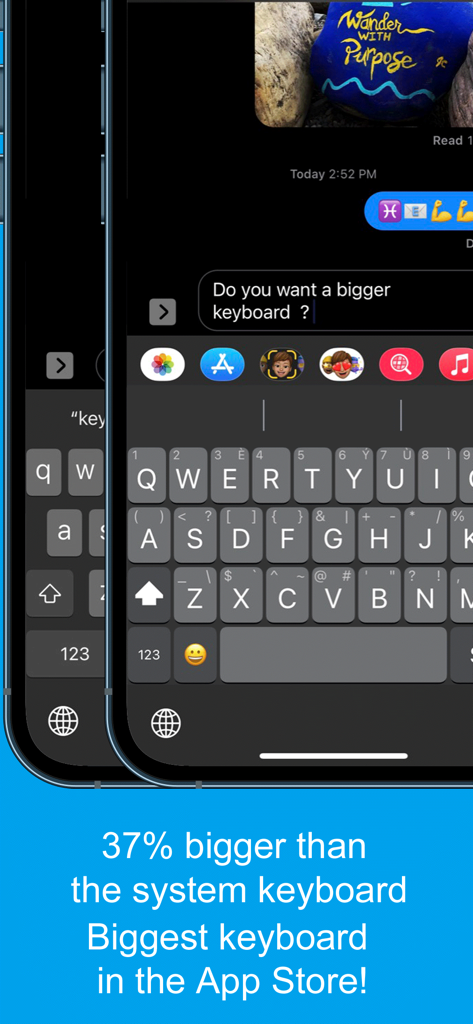
하이라이트 대형 키보드 앱의 스크린샷으로, 접근성을 위해 표준 시스템 키보드보다 37% 더 큰 키를 보여줍니다.

하이라이트 대형 키보드 앱의 스크린샷으로, 접근성을 위해 표준 시스템 키보드보다 37% 더 큰 키를 보여줍니다.

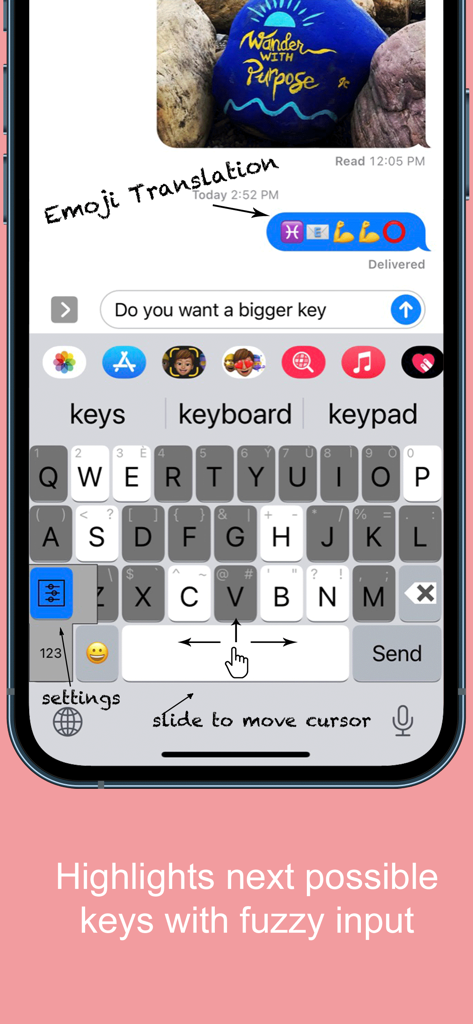
하이라이트 대형 키보드 앱 인터페이스로, 큰 키와 커서 이동 기능을 위한 슬라이드 기능을 보여줍니다.

하이라이트 대형 키보드 앱 인터페이스로, 큰 키와 커서 이동 기능을 위한 슬라이드 기능을 보여줍니다.

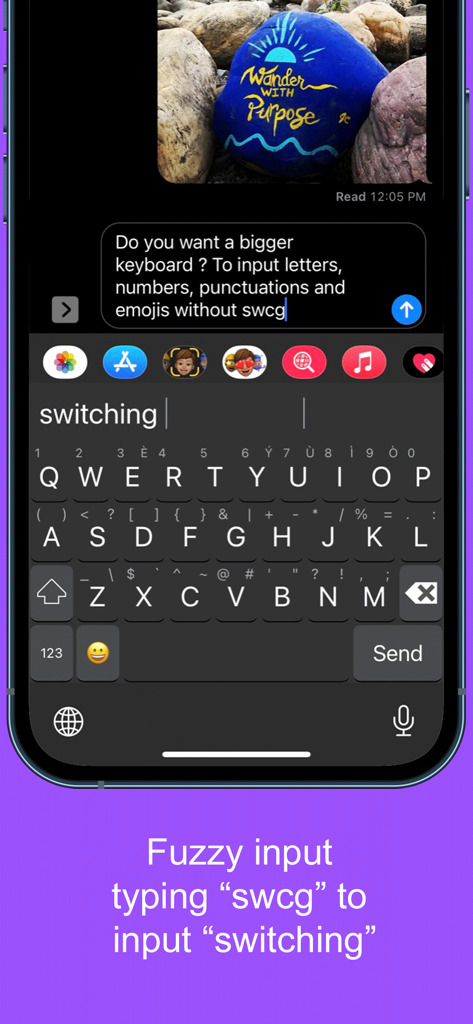
하이라이트 대형 키보드 앱에서 퍼지 입력 기능을 보여주는 스크린샷으로, swcg 타이핑 시 전환을 제안합니다.

하이라이트 대형 키보드 앱에서 퍼지 입력 기능을 보여주는 스크린샷으로, swcg 타이핑 시 전환을 제안합니다.

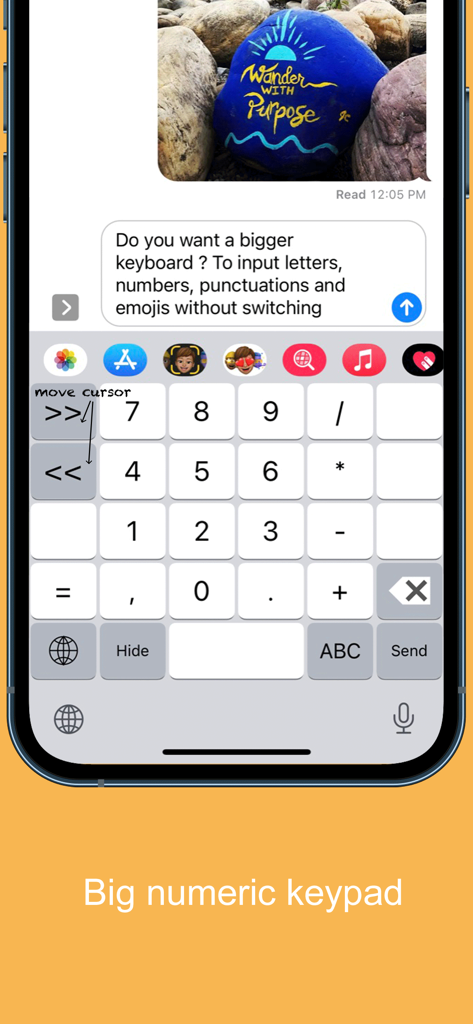
하이라이트 대형 키보드 모바일 앱의 큰 숫자 키패드 인터페이스.

하이라이트 대형 키보드 모바일 앱의 큰 숫자 키패드 인터페이스.

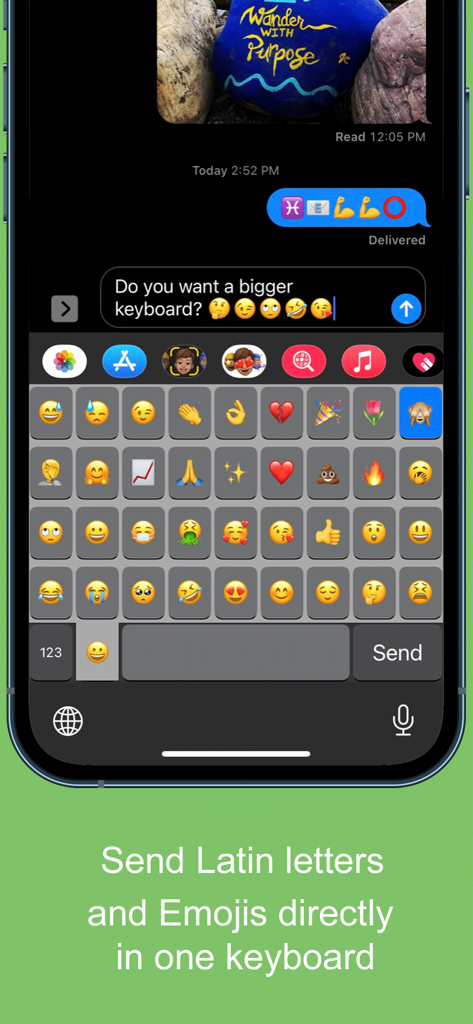
하이라이트 대형 키보드 앱 인터페이스에서 큰 이모티콘 그리드를 보여주는 모바일 스크린샷.

하이라이트 대형 키보드 앱 인터페이스에서 큰 이모티콘 그리드를 보여주는 모바일 스크린샷.

마침내 편안함을 위해 만들어진 키보드

이 앱을 돋보이게 하는 도구, 43K+ 명의 사용자가 선택.

⌨️

37% 더 큰 키

작은 버튼 때문에 힘들어하지 마세요. 저희의 초대형 키는 엄지손가락이 큰 사용자와 눈의 편안함을 위해 디자인되었으며, 오타와 좌절감을 줄여줍니다.

↔️

쉬운 커서 제어

글자 사이를 탭하려고 애쓰는 데 지치셨나요? 스페이스바를 손가락으로 밀기만 하면 커서를 원하는 정확한 위치로 이동할 수 있습니다.

🔒

100% 개인 정보 보호 및 보안

귀하의 안전은 저희의 우선순위입니다. 이 키보드는 "전체 접근"을 요구하지 않고 작동하여 개인 메시지와 데이터가 기기를 벗어나지 않도록 합니다.

앱 소개

에 대해 알아야 할 모든 것 Highlighted Large Keyboard.

설명

Do you want a bigger keyboard? With the smart highlighted next key hints and fuzzy input? And full Emoji supported? Try out this Biggest keyboard in the App Store! ** Biggest Keyboard in the App Store Keys are 37% bigger than the system keyboard. It is good for people who have big thumbs. Also people who want to preserve their vision will benefit from this keyboard. ** Fuzzy input If you use the Apple's system keyboard to input "determination", you won't see it in the suggestion list until typing "determina". With the highlighted keyboard, you can just type "dtmnn" to have it show in the suggestion bar. Another example is that once I wanted to input "anthropology" but I forgot the spelling, all I remembered was it started with "an" something and ended with "logy", I then typed “anlg” in the Highlighted keyboard and I saw “anthropology” in the suggestion list. ** Highlighted next possible keys After you type one key the keyboard will smartly highlights the possible next keys that you want to input. Also it has the suggestions that you can select from the top of the keyboard. ** Latin letters supported You can type the latin letters directly from the keyboard. You can also type "£" & "€" as well. ** Emoji translation Translate the word that you select in the suggestion bar into Emoji characters. It is a fun way to communicate with your friends and family. It is disabled by default and you need to use the "Keyboard Setting" page to enable this feature. ** Slide to move the input cursor Sliding from the Space key to left/right to move the current input cursor to left or right. Sliding up to move the current cursor to the beginning of the sentence and sliding down to move the current cursor to the end of the sentence. It makes your life much easier when editing text on the iPhone/iPad. ** 36 most common emojis in the same keyboard without switching UI Long press on the "happy face" emoji key and it will popup the36 most common emojis. You can then input directly from there. ** Full Emoji keys supported It is very convenience to input Emoji characters with this keyboard when you are using Facebook, Twitter, iMessage, Wechat, Text Message, SMS, etc. Just long press on the key that has sub-menu and more Emoji characters will pop up. The Emoji characters are well categorized and you can input the Emoji and Text together in one keyboard! ** Numeric Keypad This keyboard supports the traditional numeric keypad layout with big number keys. It is useful for entering long sequences of numbers quickly. ** Keyboard Settings Long press on the "globe"/"123" key to pop up the sub-menu. Select the "Tool" key to launch the setting page. You can enable/disable the Highlight Next key feature. You can also enable/disable the "Emoji translation" feature. ** NO Full Access required ** How to use 1. After install you need to enable it in the "Settings" App in your iPhone/iPad. Launch "Settings", click on "General" -> "Keyboard" -> "Keyboards" -> "Add New Keyboard" -> Select the "HighlightedKeyboard". 2. Switch the keyboard to "Highlighted Keyboard" when you are inputting. 3. Long press on one key to input the keys in the pop-up menu including 0-9 and punctuation marks. You may try to long press on keys to find the hidden sub menus. For example, if you want to hide the keyboard, long press on the "globe" key and the sub-menu will pop up. Keep holding and move to select the "Hide" key. The keyboard will hide after you release your finger. Please send any feedback, bug reports or feature request to: feedback.southfun at gmail.com Thanks for viewing!

최신 버전

1.2.1

크기

1.9 MB

출시일

2014년 11월 12일

눈을 가늘게 뜨는 것을 멈추고 자신 있게 타이핑하세요.

37% 더 큰 키로 업그레이드한 43,000명 이상의 사용자와 함께하세요. 편안함, 시력, 완벽한 개인 정보를 위해 디자인된 앱 스토어에서 가장 큰 키보드를 경험하세요.

다운로드: App Store

App information, icons, screenshots, and descriptions displayed on this page are sourced from the Apple App Store and are the property of their respective developers. Download estimates and rankings are based on MWM's proprietary models and may not reflect actual figures. This page is provided for informational and analytical purposes only.

Believe this page infringes your intellectual property? File a dispute