Stop Motion Plus

Stop Motion Plus

다운로드: App Store
로고: Stop Motion Plus

Stop Motion Plus: 전문가 수준의 애니메이션을 손쉽게 제작하세요

LEGO, 클레이, 장난감을 4K 시네마틱 스토리로 만드세요. 음성 제어 캡처, 양파 껍질, 고급 객체 제거 도구로 애니메이션 기술을 마스터하세요.

다운로드: App Store

개발사

Heng Jia Liang

카테고리

Photo & Video

다운로드

1K+

사용자 평점

3.8/5

총 평가 수

0

지원 언어

1

프레임별 완벽함

이 인터페이스를 사용하는 1K+ 명의 사용자.

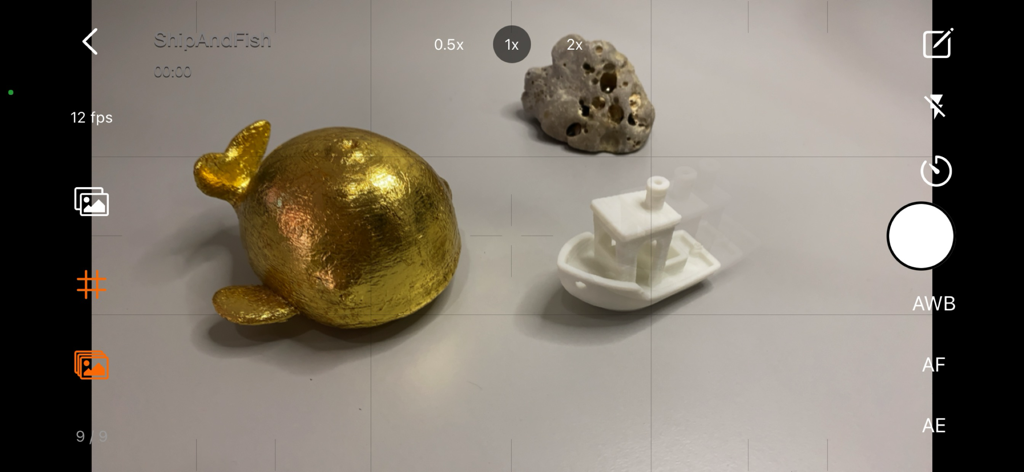
양파 껍질 기능을 보여주는 Stop Motion Plus 앱의 카메라 인터페이스로 금붕어와 보트를 애니메이션합니다.

양파 껍질 기능을 보여주는 Stop Motion Plus 앱의 카메라 인터페이스로 금붕어와 보트를 애니메이션합니다.

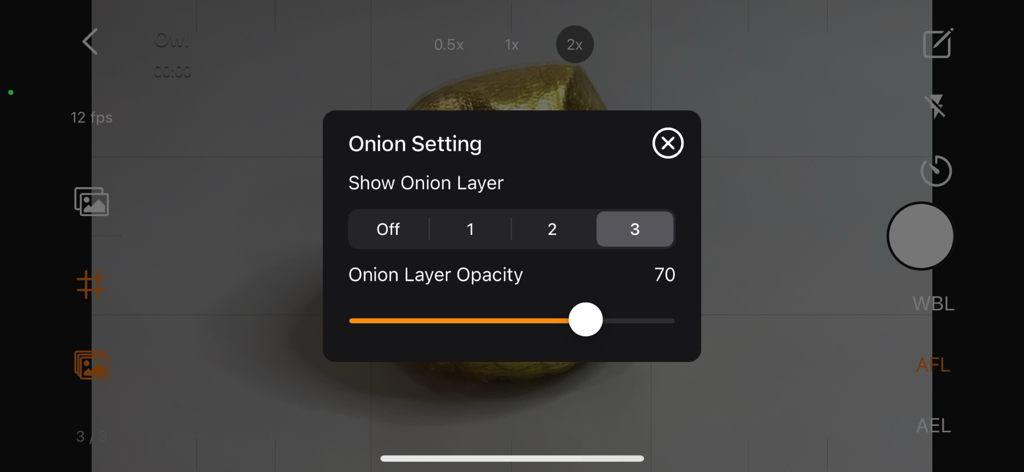
Stop Motion Plus 앱에서 양파 껍질 설정 및 불투명도 컨트롤을 보여주는 인터페이스

Stop Motion Plus 앱에서 양파 껍질 설정 및 불투명도 컨트롤을 보여주는 인터페이스

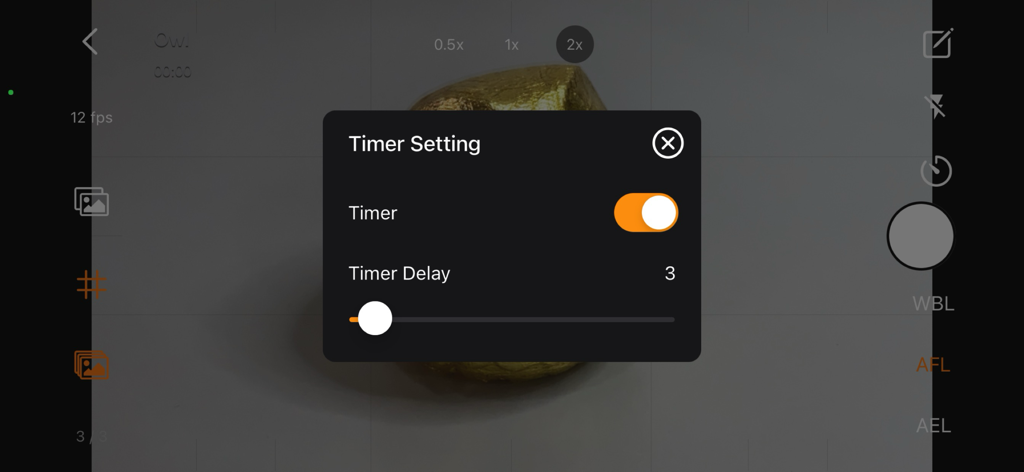
카메라 보기 위에 지연 슬라이더가 있는 타이머 설정 메뉴를 보여주는 Stop Motion Plus 앱 스크린샷.

카메라 보기 위에 지연 슬라이더가 있는 타이머 설정 메뉴를 보여주는 Stop Motion Plus 앱 스크린샷.

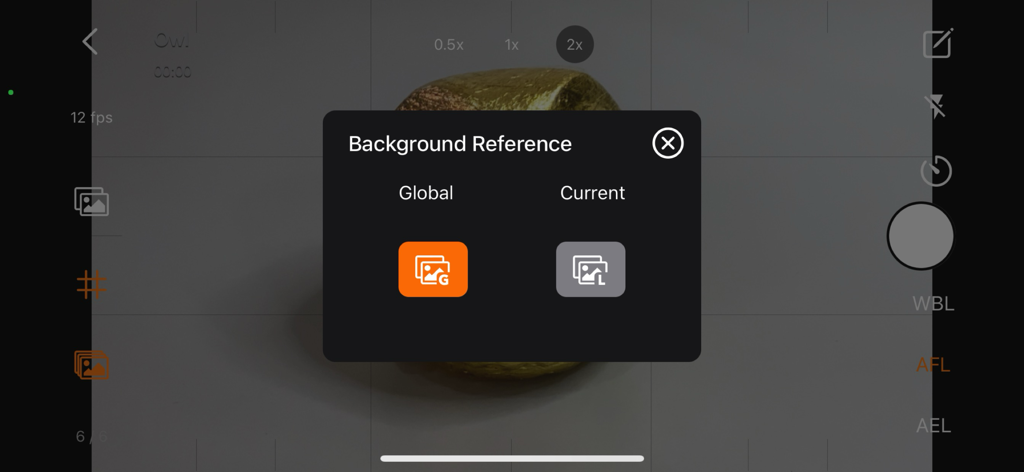
객체 및 리그 제거를 위한 Stop Motion Plus 앱의 배경 참조 선택 메뉴

객체 및 리그 제거를 위한 Stop Motion Plus 앱의 배경 참조 선택 메뉴

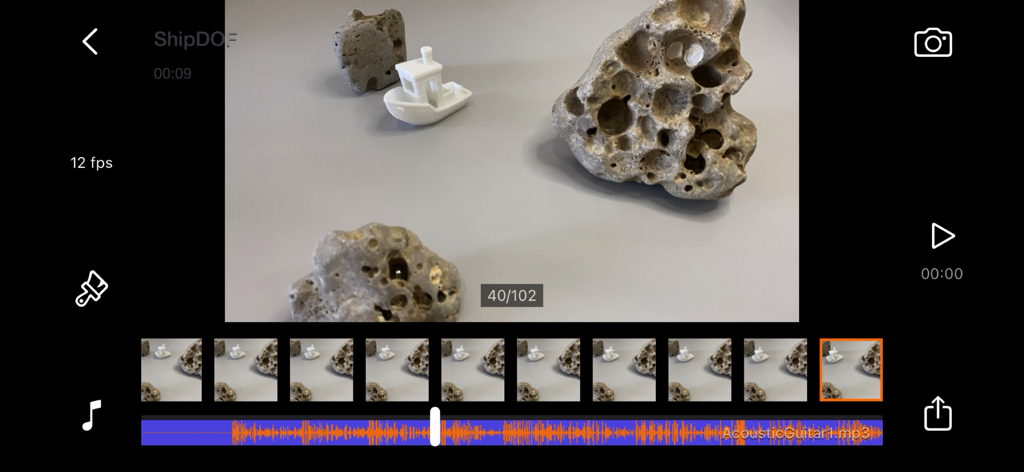
프레임 시퀀스 및 오디오 트랙 레이어링이 있는 Stop Motion Plus 앱 편집 인터페이스

프레임 시퀀스 및 오디오 트랙 레이어링이 있는 Stop Motion Plus 앱 편집 인터페이스

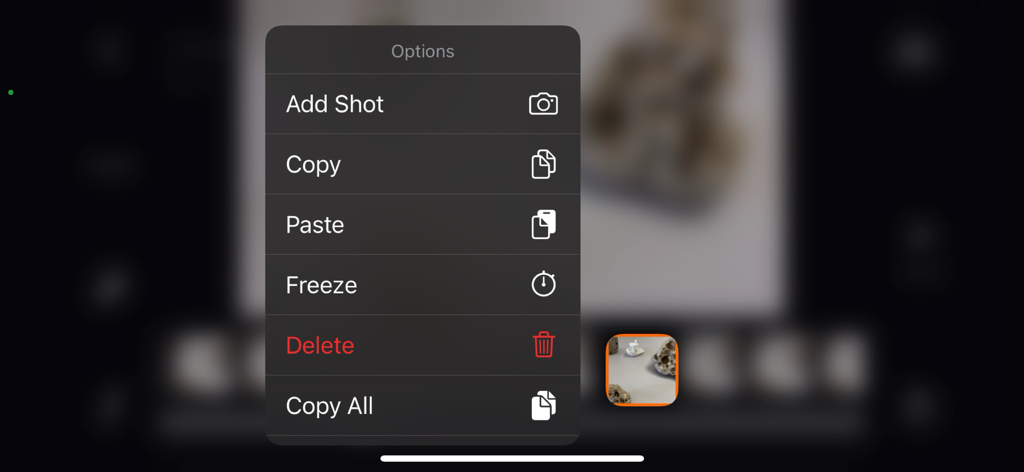
샷 복사, 붙여넣기, 프레임 고정 및 삭제 옵션을 보여주는 Stop Motion Plus 앱의 컨텍스트 메뉴

샷 복사, 붙여넣기, 프레임 고정 및 삭제 옵션을 보여주는 Stop Motion Plus 앱의 컨텍스트 메뉴

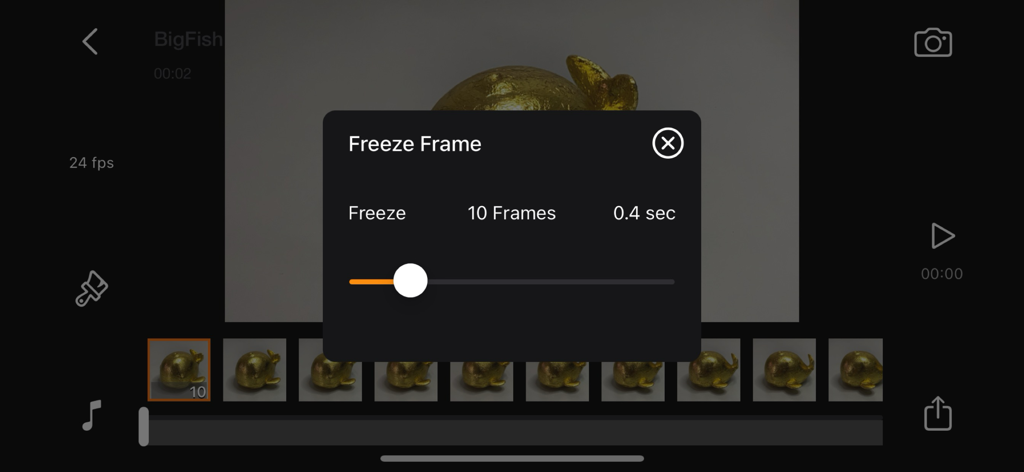
Stop Motion Plus 앱 타임라인에서 고정 프레임 지속 시간을 편집합니다.

Stop Motion Plus 앱 타임라인에서 고정 프레임 지속 시간을 편집합니다.

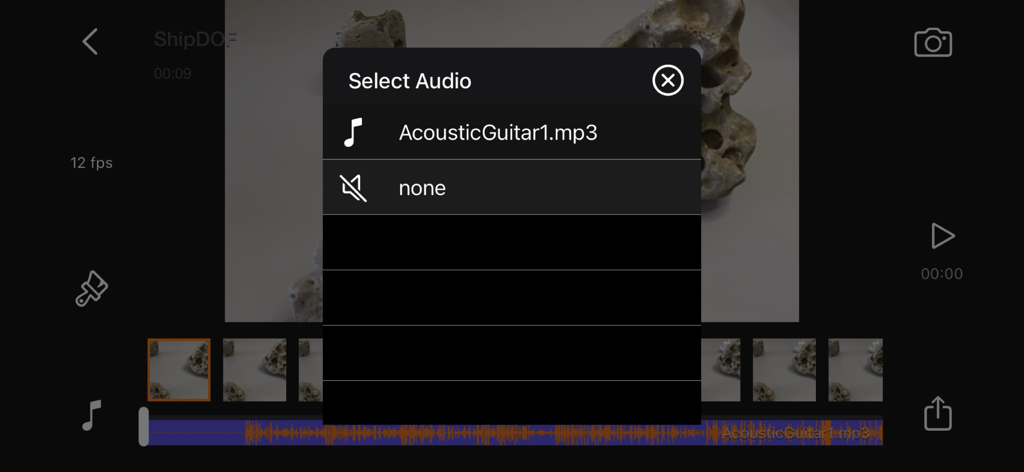
애니메이션에 사운드 효과 및 음악을 추가하기 위한 Stop Motion Plus 앱의 오디오 선택 메뉴

애니메이션에 사운드 효과 및 음악을 추가하기 위한 Stop Motion Plus 앱의 오디오 선택 메뉴

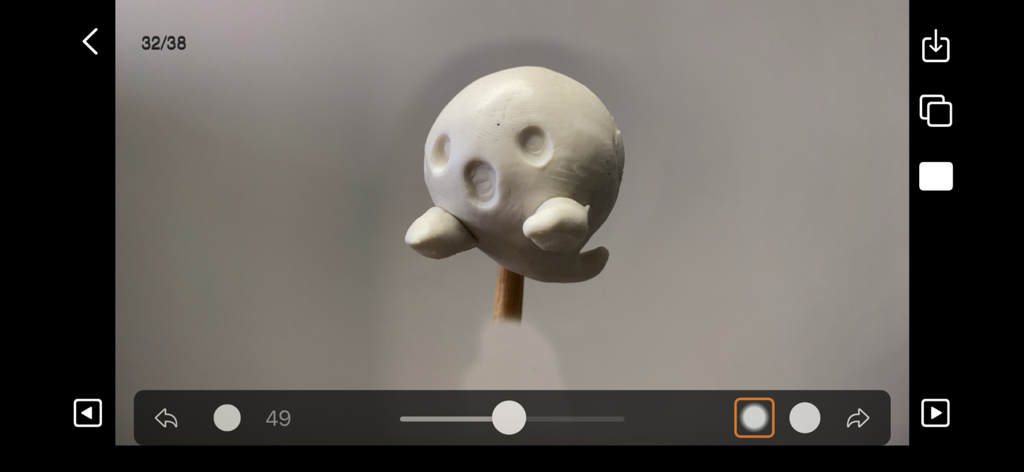
흰색 점토 고스트 피겨가 있는 편집 패널을 보여주는 Stop Motion Plus 앱 인터페이스

흰색 점토 고스트 피겨가 있는 편집 패널을 보여주는 Stop Motion Plus 앱 인터페이스

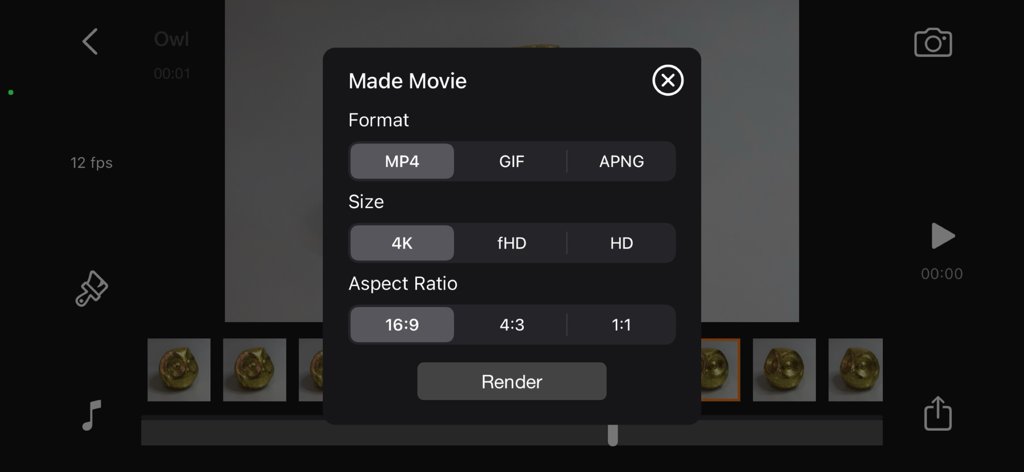
형식, 크기 및 종횡비 옵션을 보여주는 Stop Motion Plus 영화 내보내기 패널

형식, 크기 및 종횡비 옵션을 보여주는 Stop Motion Plus 영화 내보내기 패널

전문가 수준의 애니메이션을 간단하게

이 앱을 돋보이게 하는 도구, 1K+ 명의 사용자가 선택.

🎙️

핸즈프리 음성 제어

장치 터치 없이 프레임을 캡처하여 카메라 흔들림을 방지하고 전문적인 모습으로 샷을 완벽하게 안정적으로 유지하세요.

👻

정밀 양파 껍질

투명한 고스트 프레임 오버레이를 사용하여 이전 움직임을 보고 유동적이고 생생한 애니메이션을 쉽게 만들 수 있습니다.

🪄

매직 객체 제거

배경 참조 프레임을 사용하여 와이어와 지지대를 손쉽게 지워 캐릭터를 쉽게 날리거나 점프시킬 수 있습니다.

앱 소개

에 대해 알아야 할 모든 것 Stop Motion Plus.

설명

Stop Motion for iOS Simple and robust stop motion app. Create amazing stop-motion videos with ease. Perfect for casual users with an easy-to-use control panel. Project Management: • Rename, delete project, or export movie option via long press. • Projects are copyable to other devices using the Files app. Go to Stop Motion and copy the project folder. Stop Motion Plus Camera Features: • Default highest photo quality output depending on device. • Support for dual-lens or triple-lens devices. • Auto/Lock White Balance. • Auto/Touch Focus/Exposure control. • Timer for interval capture ranging from 1–60 seconds. • Show/Hide grid option. • Option to show onion/overlay of previous frames for reference — up to 3 overlay frames. • Opacity adjustment for onion/overlay frames. • Capture background reference to support object removal. • Photos are saved immediately to prevent accidental data loss. • Photos are saved to internal storage and available for external editing (access files via iTunes or Files app). • Support for voice control to capture images. • Simple UI and easy to use. Stop Motion Plus Edit Panel Features: • Set movie frame rate (FPS) from 1–60 fps. • Edit images by removing supporting structures using background reference. • Add sound to project — sounds are placed in Files app > Stop Motion > [Project Name] > Audio folder. • Preview stop motion animation. • Switch between Camera Panel and Edit Panel. • Select a frame in Edit Panel, switch back to Camera Panel, and new capture will be inserted after the selected frame. • Long press frame thumbnail to access Copy/Paste/Delete frame options. • Add freeze-frame duration for delay/pause effect. • Copy All Frames / Paste Frames / Paste Inverted Frames. • Copy Selected Frames / Paste Frames / Paste Inverted Frames. • Movie info available for better understanding of video length. Render Panel: • Video name matches the project title (e.g., Ship.mp4). • Set video resolution: HD, Full HD, or 4K. • Set video aspect ratio: 16:9, 4:3, or 1:1. • Render output as animated GIF or APNG. • Size options for GIF/APNG: 1280x720, 640x360, or 320x180. • Videos and animated GIFs are saved to the camera roll. • Animated APNGs are saved into the project folder. Quick Start Guide: 1. Tap on the Create button and enter a name. 2. Tap on the project name to load it. 3. Position your camera and start capturing. 4. After finishing, go to the Edit Panel. 5. Set your desired FPS and preview your animation. 6. Hit Render and your video will be saved to the camera roll. 2 Types of Background Reference: • Global Reference – for static backgrounds; uses a single background image. • Current Reference – for dynamic backgrounds; captures individual background images for each frame. Tips: • Use the overlay image feature to help position objects precisely. • Use the grid for better object alignment. • Start your project in a well-lit environment. Ideally, use a dedicated light source. • Use voice control to capture frames if your hands are occupied. • Create your project in multiple scenes and use iMovie for advanced video editing. What is Stop Motion? Stop motion is an animated filmmaking technique in which objects are physically manipulated in small increments between individually photographed frames. When played in sequence, the objects appear to move independently. Dolls with movable joints or clay figures are often used because they are easy to reposition. Stop-motion animation using plasticine is called clay animation or claymation. However, stop motion isn't limited to figures or models. It can also involve humans, household items, or everyday objects—often used for comedic or creative effects. Sequential drawings can also be used, similar to traditional animation, like a flipbook. When stop motion involves human actors, it's referred to as pixilation or pixillated animation. Thanks for your support! Visit nitrio.com for more apps for your iOS devices.

최신 버전

1.9

크기

2.3 MB

출시일

2014년 2월 12일

4K로 스토리에 생명을 불어넣으세요

LEGO® 빌더, 클레이 애니메이션 아티스트, 소셜 크리에이터를 위한 최고의 도구입니다. 지금 Stop Motion Plus를 다운로드하고 아이디어를 시네마틱 현실로 만드세요.

다운로드: App Store

App information, icons, screenshots, and descriptions displayed on this page are sourced from the Apple App Store and are the property of their respective developers. Download estimates and rankings are based on MWM's proprietary models and may not reflect actual figures. This page is provided for informational and analytical purposes only.

Believe this page infringes your intellectual property? File a dispute