
Diese Seite ist keine offizielle Seite der App oder ihres Entwicklers, sondern eine unabhängige redaktionelle Veröffentlichung, die zu Informations- und Kommentarzwecken erstellt wurde. Sofern nicht ausdrücklich anders angegeben, sind weder die App noch ihr Entwickler mit MWM, Apple, Google Play, dem App-Herausgeber oder dem Entwickler der App verbunden, von ihnen unterstützt, gesponsert, autorisiert oder anderweitig offiziell verbunden, und nichts auf dieser Seite impliziert, dass die App unter Verwendung der Dienste von MWM entwickelt wurde. Alle Marken, Logos, Screenshots und andere Inhalte bleiben Eigentum ihrer jeweiligen Inhaber.

Notepad - Simple Notes & Memo
Erleben Sie das ultimative Tool für ablenkungsfreie Notizen. Organisieren Sie Ihren Tag mit Sofort-Widgets für den Sperrbildschirm und absoluter Sorgenfreiheit – Ihre Daten bleiben privat auf Ihrem Gerät, niemals in der Cloud.
Downloads
4M+Bewertung
Bewertungen gesamt
277K+Herausgeber
Kategorie
BusinessSprachen
35Neueste Version
4.0.2Größe
49.7 MBErstveröffentlichung
14. Juli 2015Auf Einfachheit ausgelegt, auf Geschwindigkeit gebaut
Verzichten Sie auf die Komplexität überladener Produktivitäts-Tools. Notepad bietet eine saubere, private und blitzschnelle Möglichkeit, Ihre Gedanken und Listen ohne unnötigen Lärm festzuhalten.
Sofortige Schnellerfassung
Keine Logins, keine Ladebildschirme und keine Reibung. Einfach öffnen und tippen, um Besprechungsprotokolle, Einkaufslisten oder plötzliche Inspirationen sofort festzuhalten.
Widgets auf einen Blick
Bleiben Sie organisiert, ohne Ihr iPhone überhaupt zu entsperren. Nutzen Sie Sperrbildschirm- und Home-Bildschirm-Widgets, um Ihre wichtigsten Aufgaben stets im Blick zu behalten.
Häufig gestellte Fragen
Alles, was Sie über wissen müssen Notepad - Simple Notes & Memo
Wie lösche ich Notizen in Notepad - Simple Notes & Memo?
Ja, Sie können Notizen in Notepad - Simple Notes & Memo löschen. Wischen Sie auf einer Notiz nach links, um die Schaltfläche "Löschen" anzuzeigen. Alternativ können Sie auf "Bearbeiten" tippen und dann auf das rote Symbol neben der Notiz, um auf die Schaltfläche "Löschen" zuzugreifen.
Kann ich Notizen in der App Notepad - Simple Notes & Memo neu anordnen?
Ja, Benutzer können Notizen in Notepad - Simple Notes & Memo neu anordnen. Tippen und halten Sie die Notiz, um sie zu verschieben, und ziehen Sie sie dann nach oben oder unten. Benutzer können auch auf "Bearbeiten" tippen und die Registerkarte auf der rechten Seite der Notiz zusammendrücken, um sie zu verschieben.
Wie richte ich ein Sperrbildschirm-Widget für Notepad - Simple Notes & Memo auf iOS 16 ein?
Um ein Sperrbildschirm-Widget für Notepad - Simple Notes & Memo auf iOS 16 einzurichten, aktualisieren Sie Ihr Gerät auf iOS 16 oder höher. Berühren und halten Sie den Sperrbildschirm, tippen Sie auf "Anpassen", wählen Sie "Sperrbildschirm", tippen Sie auf "Widgets hinzufügen", wählen Sie diese App und wählen Sie dann das gewünschte Widget aus.
Wie füge ich ein Startbildschirm-Widget für die App Notepad - Simple Notes & Memo hinzu?
Um ein Startbildschirm-Widget für Notepad - Simple Notes & Memo hinzuzufügen, tippen und halten Sie einen leeren Bereich auf Ihrem Startbildschirm und tippen Sie dann auf die Schaltfläche [+]. Wählen Sie das Notepad-Widget, wählen Sie aus drei Größen und tippen Sie auf "Hinzufügen". Sie können mehrere Widgets hinzufügen.
Wie ändere ich die Farbe von Notizen in Notepad - Simple Notes & Memo?
Ja, Benutzer können Notizfarben in Notepad - Simple Notes & Memo ändern. Wischen Sie auf der Notiz nach rechts, um aus sechs verschiedenen Farben zu wählen. Diese Funktion hilft, Ihre Notizen aufzuhellen.
Wie wähle ich aus, welche Notiz in einem Widget von Notepad - Simple Notes & Memo angezeigt werden soll?
Um eine bestimmte Notiz für die Anzeige in einem Startbildschirm-Widget von Notepad - Simple Notes & Memo auszuwählen, tippen und halten Sie das Widget. Wählen Sie dann die gewünschte Notiz unter "Widget bearbeiten" - "Notizen" in den erscheinenden Optionen aus.
Sind Benutzerdaten in der App Notepad - Simple Notes & Memo sicher?
Ja, Benutzerdaten sind in Notepad - Simple Notes & Memo sicher. Die App sammelt oder sendet niemals Text, den der Benutzer eingegeben hat, an externe Server oder Quellen. Alle Benutzerdaten werden ausschließlich innerhalb der App selbst gespeichert.
Ist die App Notepad - Simple Notes & Memo kostenlos?
Ja, die App Notepad - Simple Notes & Memo ist kostenlos. Sie generiert Einnahmen durch Werbung und bietet In-App-Käufe an.
Unterstützt Notepad - Simple Notes & Memo den dunklen Modus?
Ja, die App Notepad - Simple Notes & Memo unterstützt den dunklen Modus. Diese Funktion ist unter ihren Kernfunktionen aufgeführt, um die Benutzererfahrung zu verbessern.
Verfügt Notepad - Simple Notes & Memo über eine automatische Speicherfunktion?
Ja, Notepad - Simple Notes & Memo verfügt über eine automatische Notizspeicherfunktion. Dies stellt sicher, dass Ihre Notizen konsistent gespeichert werden, ohne dass ein manuelles Eingreifen des Benutzers erforderlich ist.
Bietet die App Notepad - Simple Notes & Memo eine Wortanzahl?
Ja, die App Notepad - Simple Notes & Memo enthält eine Wortzählfunktion. Dies ermöglicht es den Benutzern, die Länge ihrer Notizen und geschriebenen Entwürfe zu verfolgen.
Die folgenden Screenshots und die Beschreibung stammen direkt aus dem offiziellen Store-Eintrag der App und sind Eigentum des Entwicklers.
App Store
Screenshots
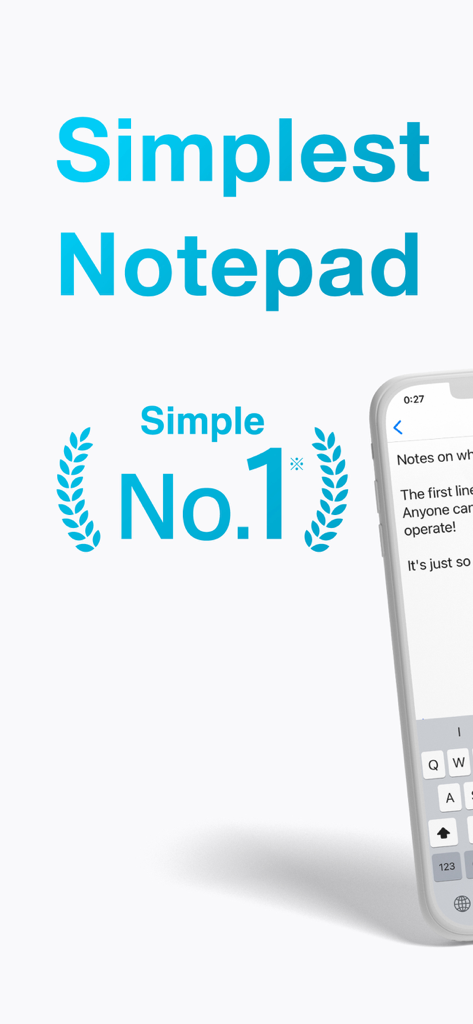
Werbegrafik für die Notepad-App mit minimalistischer Benutzeroberfläche und Nr. 1 Bewertung für Einfachheit
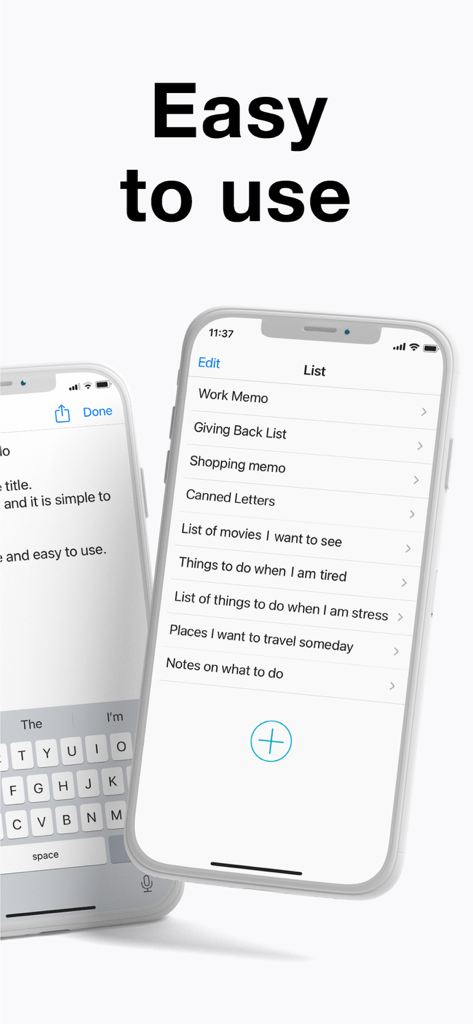
Einfache Benutzeroberfläche der Notizblock-App mit einer Liste von Notizen auf einem iPhone
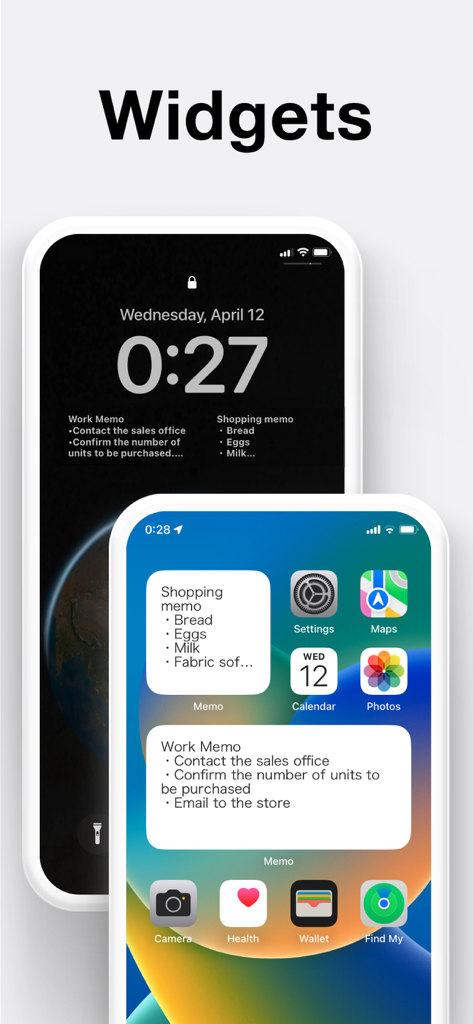
Notepad-App-Widgets für Einkaufs- und Arbeitsmemos auf iOS-Home- und Sperrbildschirmen
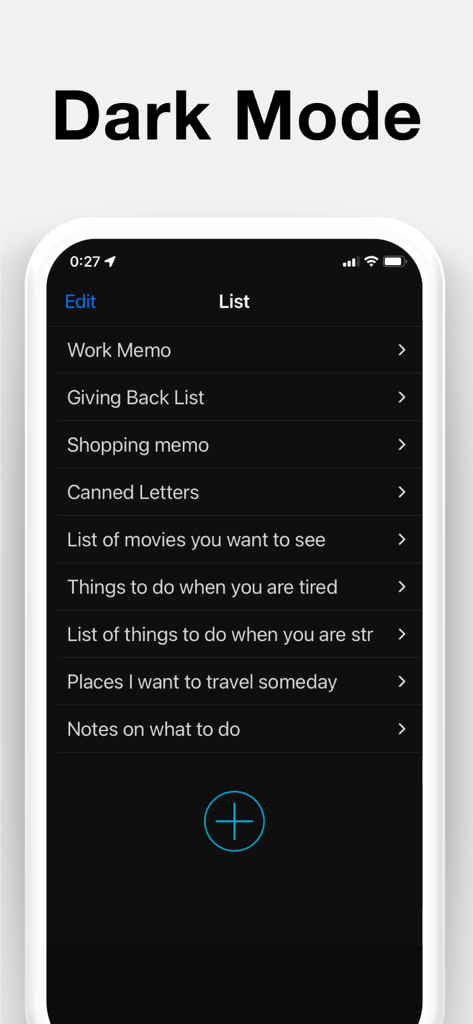
Einfache Benutzeroberfläche der Notizblock-App im Dunkelmodus mit einer Liste von Notizen
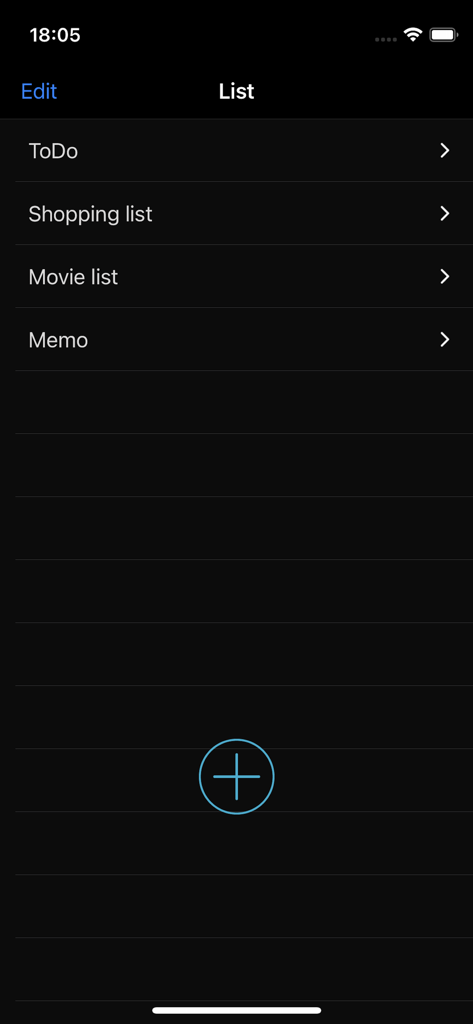
Hauptlistenbildschirm der Notepad-App mit Kategorien wie ToDo und Einkaufsliste im Dunkelmodus.
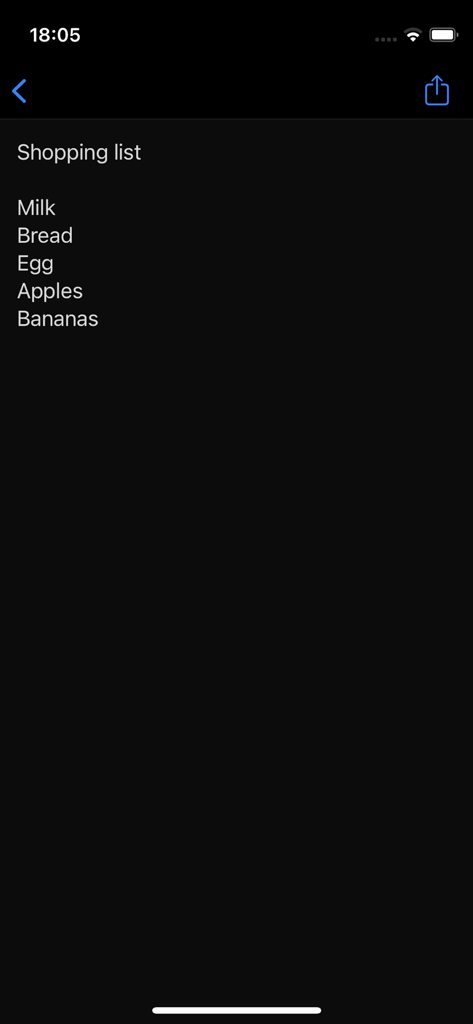
Einfache Einkaufsliste auf der Benutzeroberfläche der Notepad-App im Dunkelmodus
Beschreibung
Download
Ähnliche Apps
Apps mit ähnlichen Funktionen und Nutzererfahrung
Notion: Notes, Tasks, AI
Notion Labs, Incorporated

Freenotes®: AI Notes Taking
Hangzhou Free Notes Technology Co., Ltd
Structured - Daily Planner
unorderly GmbH
Google Tasks: Get Things Done
Google LLC
TickTick:To-Do List & Calendar
Appest Limited

Noteful: Notes & PDF Markup
Noteful Technologies Ltd
Todoist: To Do List & Calendar
Doist Inc.
To do list MinimaList & Widget
Inner Grow Limited
monday.com - Work Platform
monday.com Ltd.
Diese Seite ist keine offizielle Seite der App oder ihres Entwicklers, sondern eine unabhängige redaktionelle Veröffentlichung, die zu Informations- und Kommentarzwecken erstellt wurde. Sofern nicht ausdrücklich anders angegeben, sind weder die App noch ihr Entwickler mit MWM, Apple, Google Play, dem App-Herausgeber oder dem Entwickler der App verbunden, von ihnen unterstützt, gesponsert, autorisiert oder anderweitig offiziell verbunden, und nichts auf dieser Seite impliziert, dass die App unter Verwendung der Dienste von MWM entwickelt wurde. Alle Marken, Logos, Screenshots und andere Inhalte bleiben Eigentum ihrer jeweiligen Inhaber.