PDF Markup & Annotation Maker

PDF Markup & Annotation Maker

Download on App Store
Logo of PDF Markup & Annotation Maker

PDF Markup & Annotation Maker: The Precision Tool for Your Paperless Workflow

Empower your productivity with intuitive highlighting, custom text, and professional drawing tools. Whether you’re reviewing contracts or mastering study materials, annotate PDFs exactly the way you want on your iPad and iPhone.

Publisher

Ruchira Ramesh

Category

Business

Downloads

49K+

User Rating

4.5/5

Total Ratings

0

Locales

1

Precision in Every Pixel

Discover the interface used by 49K+ users.
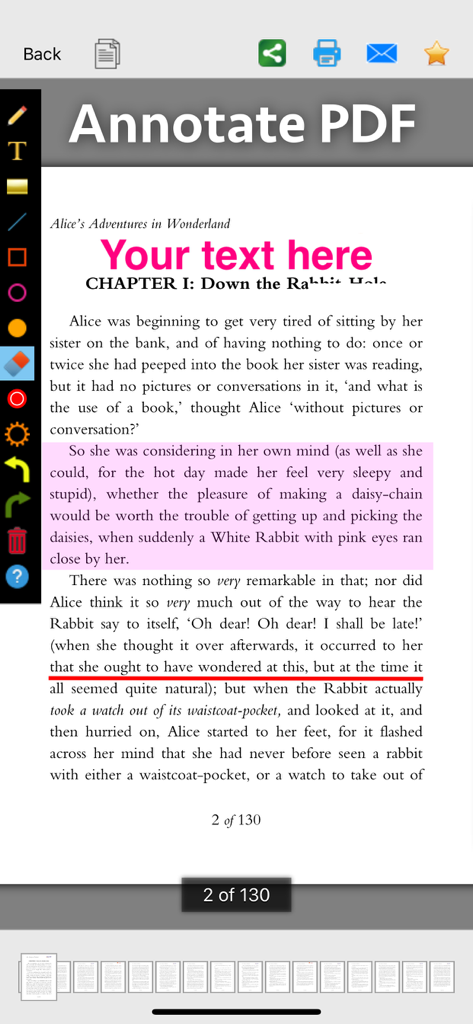
Screenshot of the PDF Markup and Annotation Maker app showing tools for highlighting underlining and adding text to a document

Screenshot of the PDF Markup and Annotation Maker app showing tools for highlighting underlining and adding text to a document

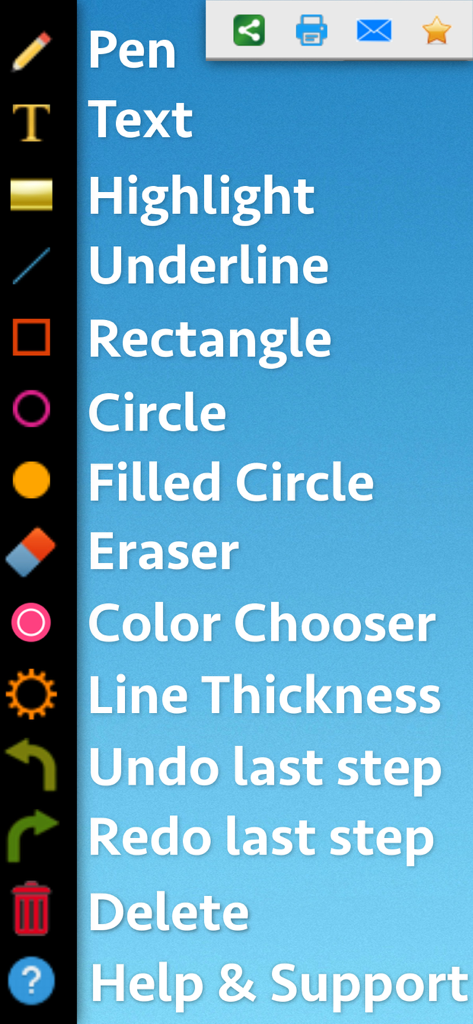
Interface showing a vertical list of PDF markup tools like pen text highlight and shapes

Interface showing a vertical list of PDF markup tools like pen text highlight and shapes

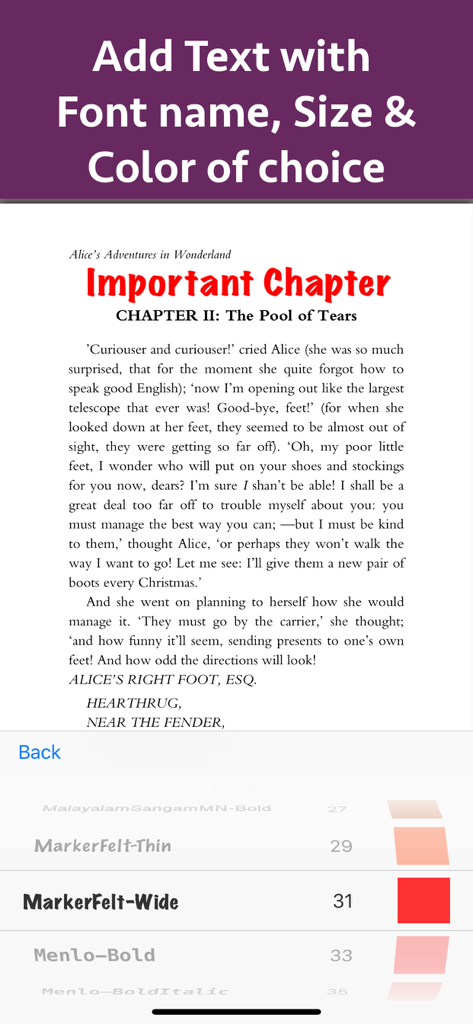
Add and customize text on a PDF document with font size and color options

Add and customize text on a PDF document with font size and color options

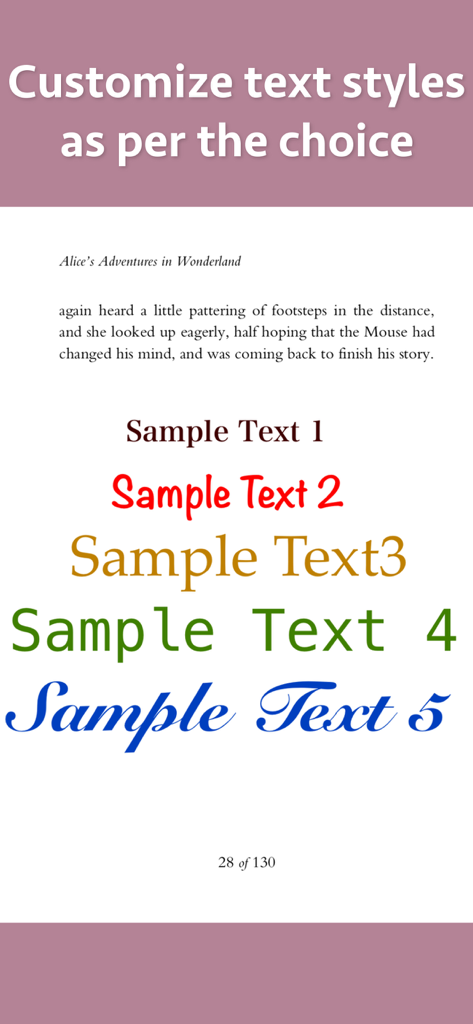
Demonstration of various custom text styles fonts and colors for PDF annotation and markup

Demonstration of various custom text styles fonts and colors for PDF annotation and markup

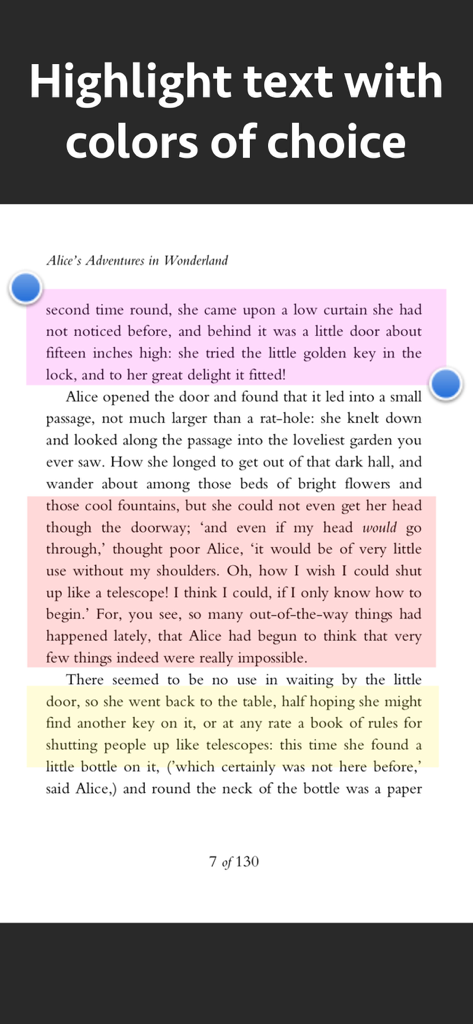
A screen showing paragraphs of text highlighted in pink, orange, and yellow using a PDF markup tool

A screen showing paragraphs of text highlighted in pink, orange, and yellow using a PDF markup tool

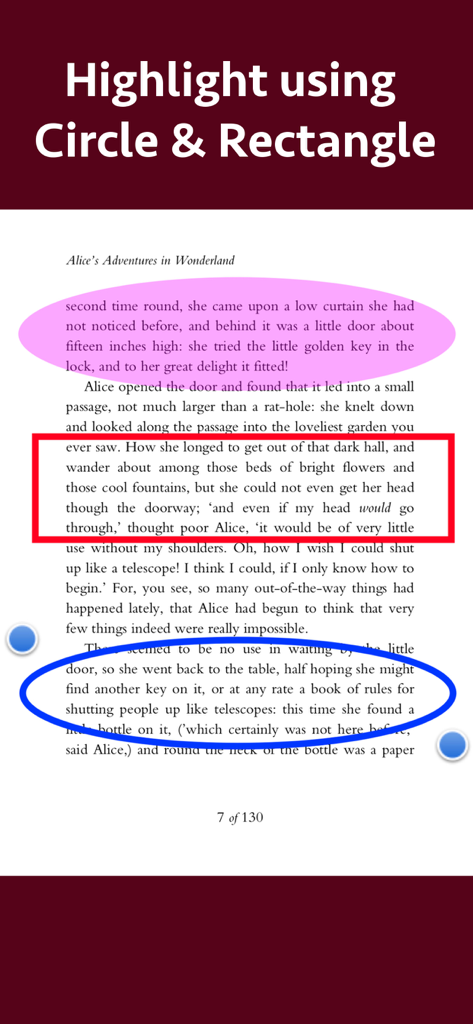
PDF document with text sections highlighted using circle and rectangle shape tools

PDF document with text sections highlighted using circle and rectangle shape tools

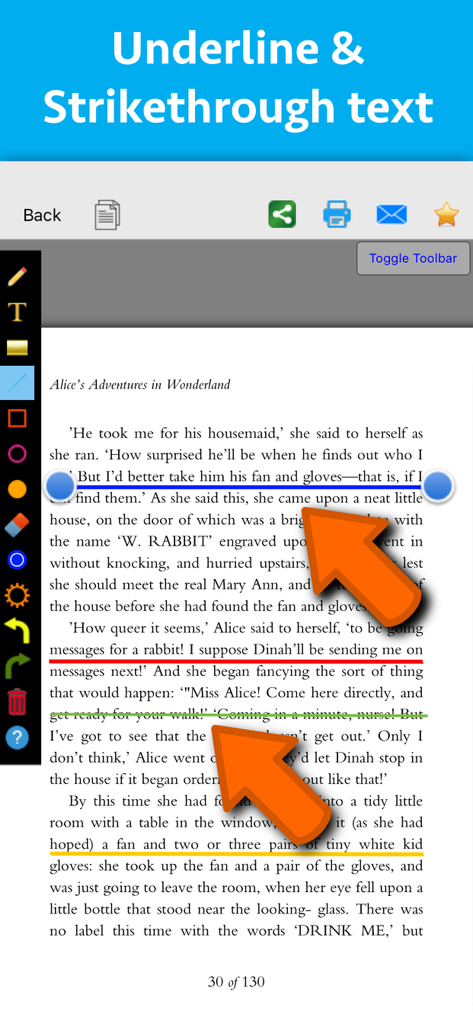
Interface of a PDF markup app showing colored underline and strikethrough annotations on a page of text

Interface of a PDF markup app showing colored underline and strikethrough annotations on a page of text

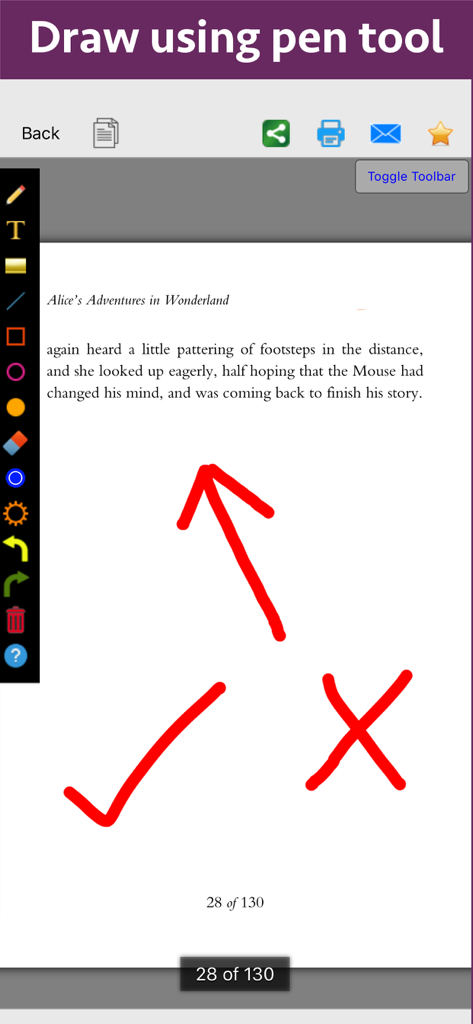
A PDF document page from Alice's Adventures in Wonderland featuring red annotations like an arrow, checkmark, and cross mark drawn with the pen tool.

A PDF document page from Alice's Adventures in Wonderland featuring red annotations like an arrow, checkmark, and cross mark drawn with the pen tool.

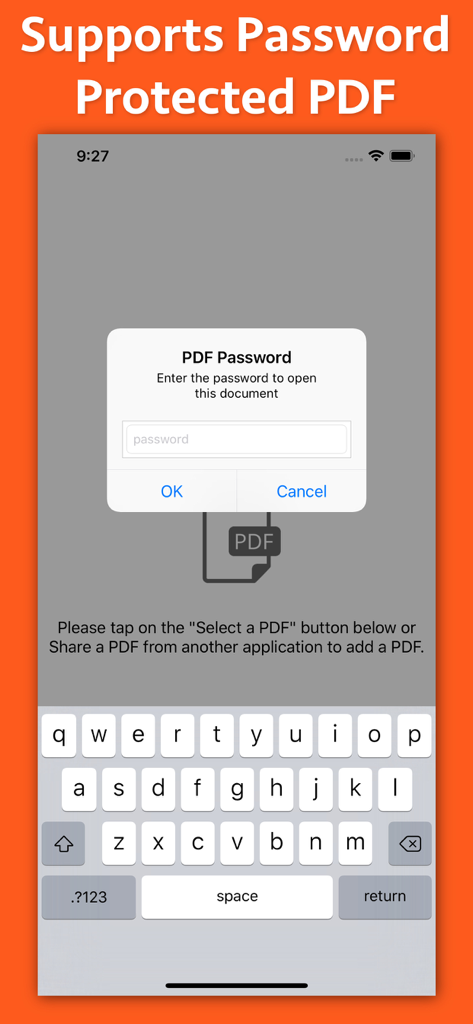
Interface of PDF Markup app showing a password entry popup for protected documents

Interface of PDF Markup app showing a password entry popup for protected documents

Interface for choosing colors and setting opacity levels for PDF annotations

Interface for choosing colors and setting opacity levels for PDF annotations

Master Your Documents with Precision

The tools that make this app stand out, trusted by 49K+ users.

📝

Smart Highlighting & Notes

Color-code key information and add custom text with full control over fonts and styles to make your study or work notes stand out.

🖋️

Intuitive Drawing Tools

Use the pen tool or precision shapes like circles and arrows to highlight exactly what matters in floor plans, diagrams, or documents.

Streamlined Feedback Loop

Simplify your review process with easy-to-use annotation tools and transparency controls, perfect for approving contracts or peer reviews.

About the app

Everything you need to know about PDF Markup & Annotation Maker.

Description

Write text on PDF, Highlight, underline ,draw shapes & customise using different Fonts, text size, colors and transparency level. Using these features you could highlight important lines in a PDF.You could also write text on pages of the PDF.For example : you could write "Important" on the important pages of the PDF. This could be very helpful in making notes, preparing documentation or for making presentation. Annotated PDF files are easier to understand and help to focus on important points, images and topics. Below are some additional usage : -- Getting feedback on a document that is sent for review. The reviewer could highlight the areas, or write text at the places that need correction or improvements. -- Holding a meeting or discussion on a PDF Document with several users and adding highlights, writing text & drawing shapes using pen tool like arrows, checkmark and cross marks wherever the document needs changes or where it needs more discussions. -- Adding your own notes makes it much easier to find the document later and to remember why it is important or which pages & topics are important. -- Approving documents with text and commenting on the PDF. -- Highlighting the important paragraphs in the study materials. -- Adding references or points on the PDF pages by writing text on the PDF. Using the application you could do below operations : a) Write Text on PDF : Using the application the Text could be written anywhere on the pages.After the text is written, you could perform various customisations as shown below : -- Change Font of the text -- Change the Text Size -- Change the the text color -- Resize or change the location of the text as per the requirements. b) Highlight Text in PDF : Using the highlight tool, the text could be highlighted. The highlighting colors could be changed to any color of your choice.Once the Text is highlighted, you could also resize or reposition the highlighted part as per the requirements. c) Underline Text - Underline the text using the line tool.The underline color could be changed as per the requirements. The line tool could also be used to draw lines and shapes. d) Strikethrough Text - Strikethrough the text.The strikethrough color could be changed as per the requirements.This could be also be done using the line tool. e) Draw Circle - Draw a circle using the circle tool. It also supports various customisations as below : -- Change the thickness of the border from settings. -- Change its border color. -- Draw circle which is filled with the color of choice. -- Set transparency/opacity of the colors. (from Color settings) f) Draw a Square or Rectangle - A square or rectangle could also be drawn on the PDF. Just like the Circle the below operations could be performed : -- Change the thickness of the border from settings. -- Change its border color. -- Draw a rectangle or square which is filled with the color of choice. -- Set transparency/opacity of the colors. (from Color settings) g) Draw any shape using the Pen tool : using the pen tool any custom shapes could be drawn. For example : shapes like arrow, checkmark,cross mark and etc could be drawn using the Pen tool. h) Erase using the eraser tool - Use the eraser tool to erase the unwanted annotations. i) Undo and Redo support : Make the editing task easier by performing Undo or Redo operations. j) Delete tool : Delete the contents of the current page using the delete tool.

Latest Version

8.1

Size

3.3 MB

First Released

Oct 16, 2018

Your Paperless Productivity Starts Here

Join 49,000+ users and transform the way you review, highlight, and annotate your documents on the go.

Download on App Store

App information, icons, screenshots, and descriptions displayed on this page are sourced from the Apple App Store and are the property of their respective developers. Download estimates and rankings are based on MWM's proprietary models and may not reflect actual figures. This page is provided for informational and analytical purposes only.

Believe this page infringes your intellectual property? File a dispute