PDF Markup & Annotation Maker

PDF Markup & Annotation Maker

ダウンロード: App Store
ロゴ: PDF Markup & Annotation Maker

PDFマークアップ&注釈メーカー:ペーパーレスワークフローのための精密ツール

直感的なハイライト、カスタムテキスト、プロフェッショナルな描画ツールで生産性を向上させましょう。契約書のレビューでも、学習資料のマスターでも、iPadとiPhoneで思い通りにPDFに注釈を付けられます。

開発元

Ruchira Ramesh

カテゴリ

Business

ダウンロード

49K+

ユーザー評価

4.5/5

評価数

0

対応言語

1

すべてのピクセルに精密さを

このインターフェースを利用する 49K+ 人のユーザー.

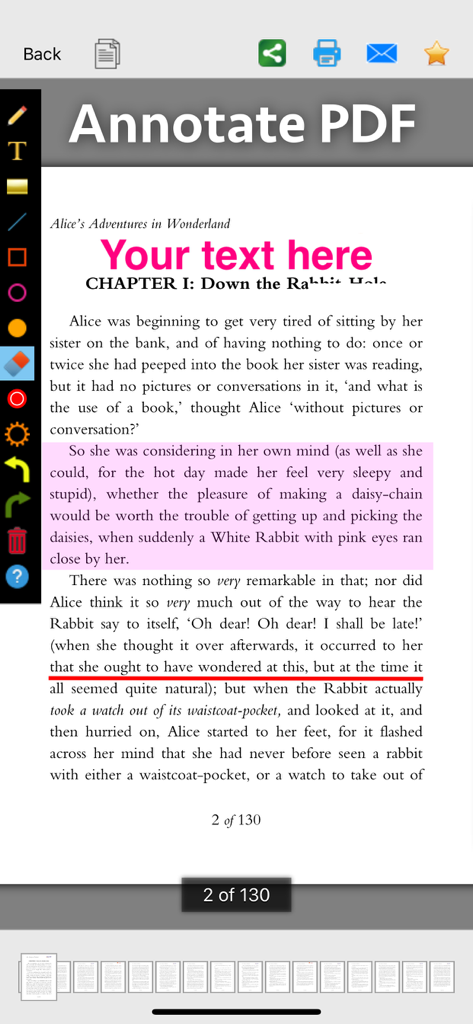
PDFマークアップおよび注釈メーカーアプリのスクリーンショット。ドキュメントへのハイライト、下線、テキスト追加のためのツールが表示されています

PDFマークアップおよび注釈メーカーアプリのスクリーンショット。ドキュメントへのハイライト、下線、テキスト追加のためのツールが表示されています

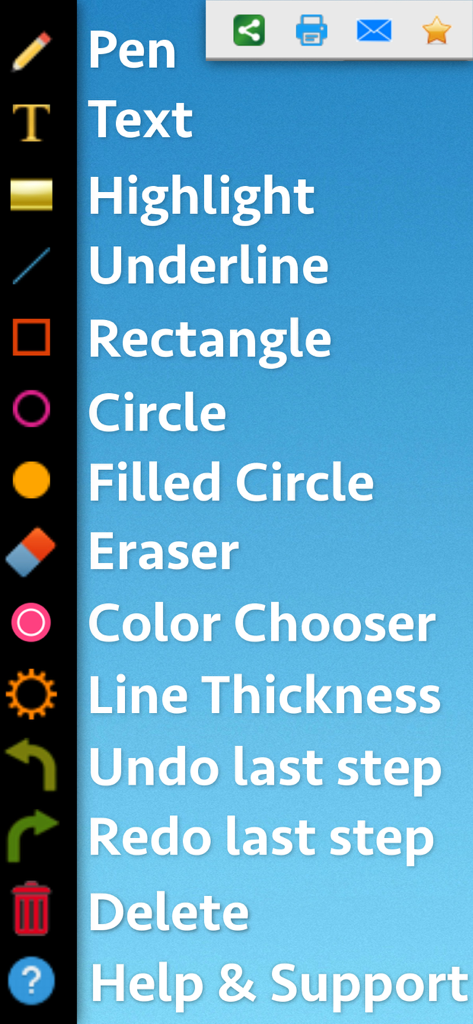
ペン、テキスト、ハイライト、図形などのPDFマークアップツールの垂直リストを表示するインターフェイス

ペン、テキスト、ハイライト、図形などのPDFマークアップツールの垂直リストを表示するインターフェイス

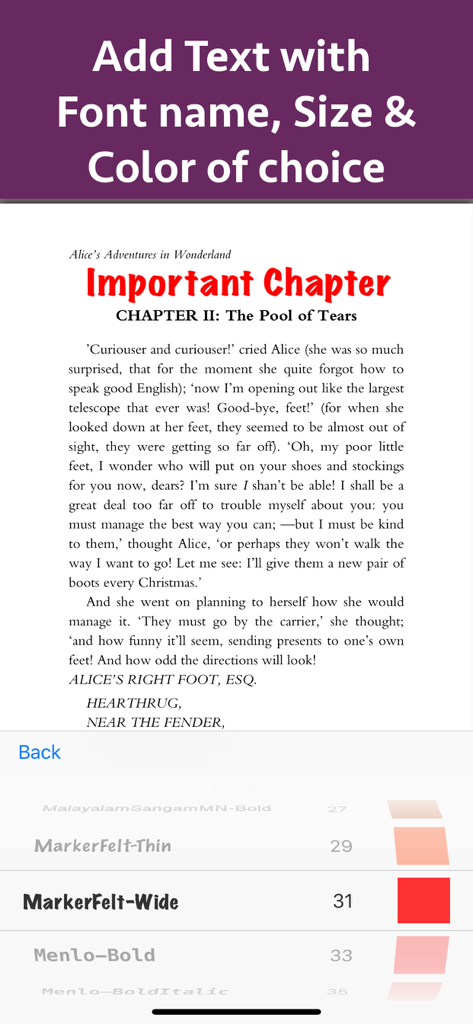
フォントサイズと色のオプションを使用して、PDFドキュメントにテキストを追加およびカスタマイズする

フォントサイズと色のオプションを使用して、PDFドキュメントにテキストを追加およびカスタマイズする

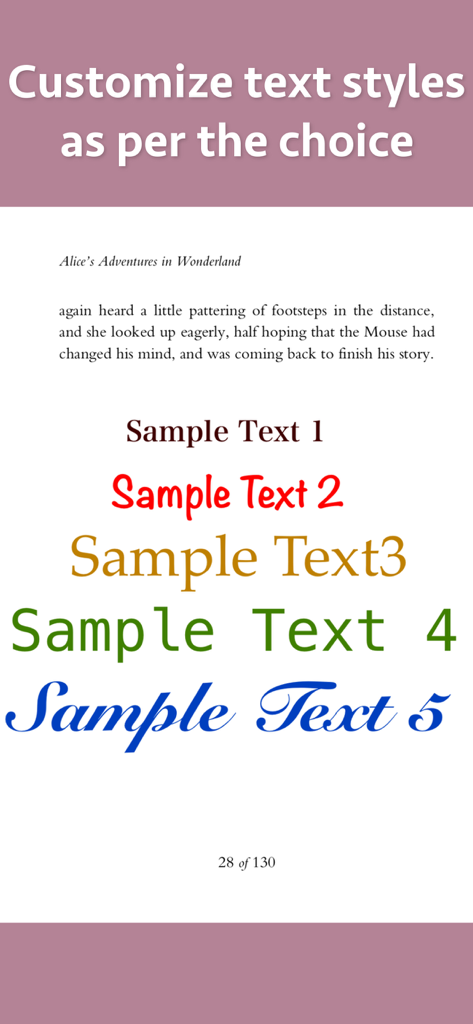
PDF注釈およびマークアップ用のさまざまなカスタムテキストスタイル、フォント、色のデモンストレーション

PDF注釈およびマークアップ用のさまざまなカスタムテキストスタイル、フォント、色のデモンストレーション

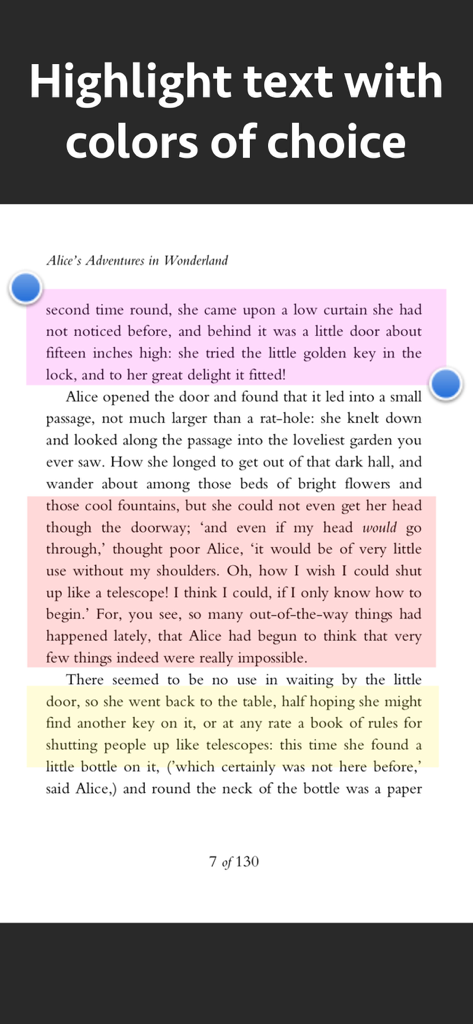
PDFマークアップツールを使用して、ピンク、オレンジ、黄色のハイライトが付いたテキストの段落を表示する画面

PDFマークアップツールを使用して、ピンク、オレンジ、黄色のハイライトが付いたテキストの段落を表示する画面

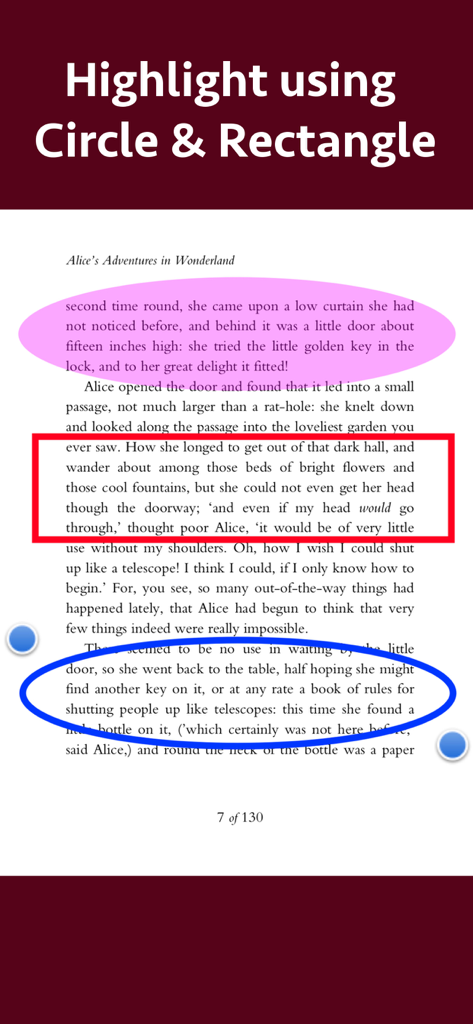
円と四角形の図形ツールを使用してテキストセクションをハイライトしたPDFドキュメント

円と四角形の図形ツールを使用してテキストセクションをハイライトしたPDFドキュメント

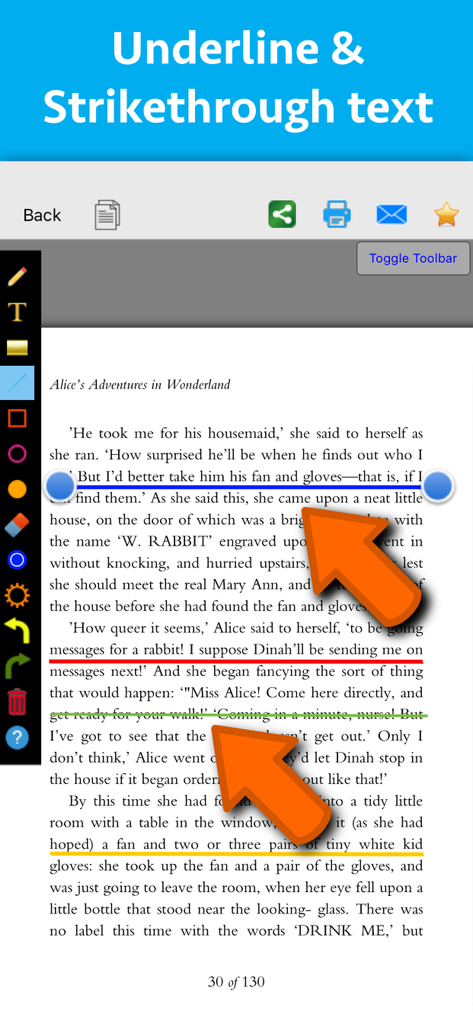
テキストページの色の下線と取り消し線注釈を示すPDFマークアップアプリのインターフェイス

テキストページの色の下線と取り消し線注釈を示すPDFマークアップアプリのインターフェイス

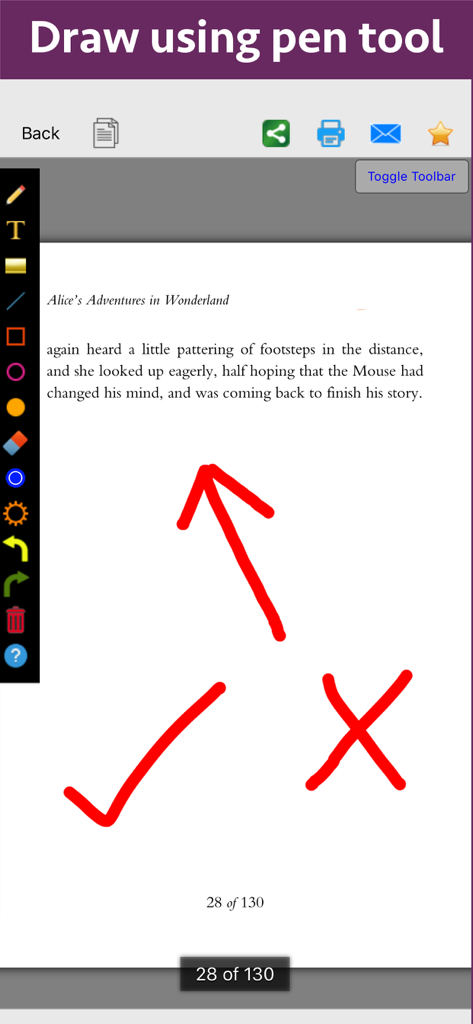
ペンツールで描かれた矢印、チェックマーク、クロスマークなどの赤い注釈が特徴の「不思議の国のアリス」のPDFドキュメントページ。

ペンツールで描かれた矢印、チェックマーク、クロスマークなどの赤い注釈が特徴の「不思議の国のアリス」のPDFドキュメントページ。

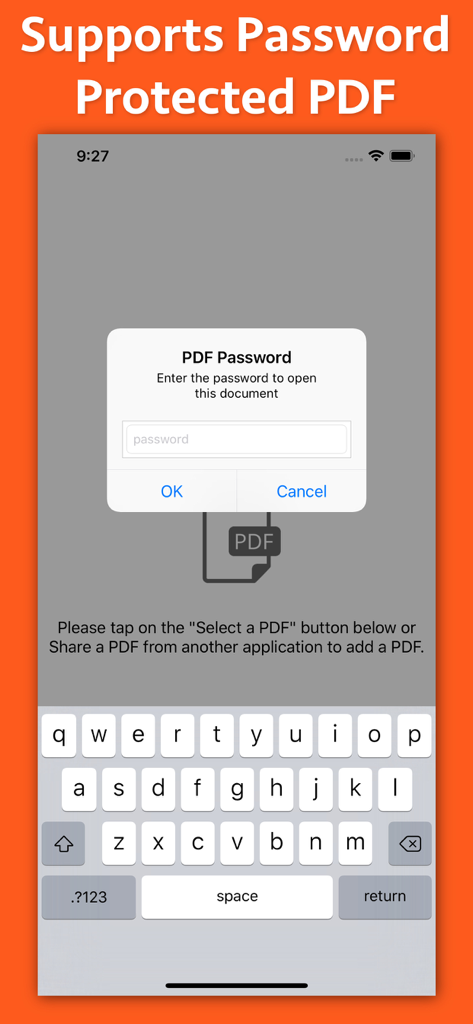
保護されたドキュメント用のパスワード入力ポップアップを表示するPDFマークアップアプリのインターフェイス

保護されたドキュメント用のパスワード入力ポップアップを表示するPDFマークアップアプリのインターフェイス

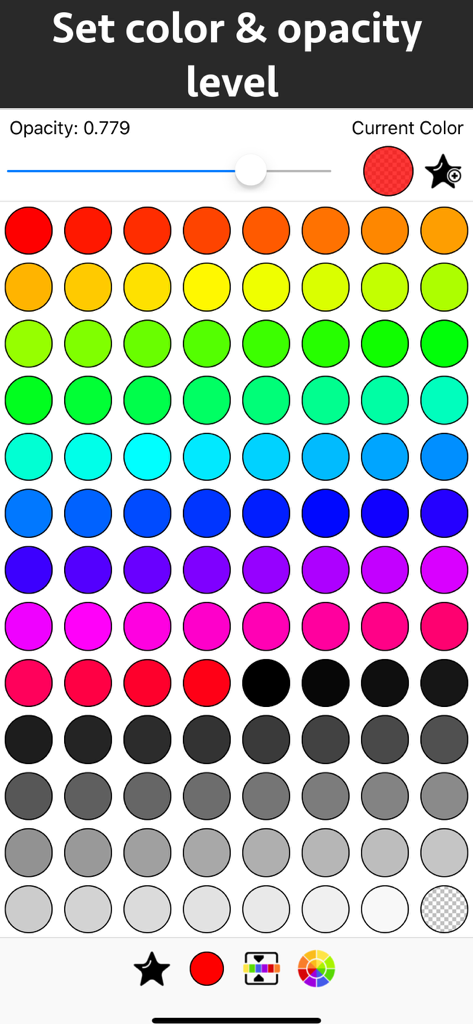
PDF注釈の色を選択し、透明度レベルを設定するためのインターフェイス

PDF注釈の色を選択し、透明度レベルを設定するためのインターフェイス

精密なドキュメント管理

このアプリを際立たせるツール、 49K+ 人のユーザーが選択.

📝

スマートハイライト&ノート

重要な情報に色分けし、フォントとスタイルを完全に制御してカスタムテキストを追加し、学習または作業ノートを目立たせましょう。

🖋️

直感的な描画ツール

ペンツールや、円や矢印などの精密な図形を使用して、フロアプラン、図、またはドキュメントで重要な部分を正確にハイライトしましょう。

効率化されたフィードバックループ

使いやすい注釈ツールと透明度コントロールでレビュープロセスを簡素化し、契約書の承認やピアレビューに最適です。

アプリについて

について知っておくべきこと PDF Markup & Annotation Maker.

説明

Write text on PDF, Highlight, underline ,draw shapes & customise using different Fonts, text size, colors and transparency level. Using these features you could highlight important lines in a PDF.You could also write text on pages of the PDF.For example : you could write "Important" on the important pages of the PDF. This could be very helpful in making notes, preparing documentation or for making presentation. Annotated PDF files are easier to understand and help to focus on important points, images and topics. Below are some additional usage : -- Getting feedback on a document that is sent for review. The reviewer could highlight the areas, or write text at the places that need correction or improvements. -- Holding a meeting or discussion on a PDF Document with several users and adding highlights, writing text & drawing shapes using pen tool like arrows, checkmark and cross marks wherever the document needs changes or where it needs more discussions. -- Adding your own notes makes it much easier to find the document later and to remember why it is important or which pages & topics are important. -- Approving documents with text and commenting on the PDF. -- Highlighting the important paragraphs in the study materials. -- Adding references or points on the PDF pages by writing text on the PDF. Using the application you could do below operations : a) Write Text on PDF : Using the application the Text could be written anywhere on the pages.After the text is written, you could perform various customisations as shown below : -- Change Font of the text -- Change the Text Size -- Change the the text color -- Resize or change the location of the text as per the requirements. b) Highlight Text in PDF : Using the highlight tool, the text could be highlighted. The highlighting colors could be changed to any color of your choice.Once the Text is highlighted, you could also resize or reposition the highlighted part as per the requirements. c) Underline Text - Underline the text using the line tool.The underline color could be changed as per the requirements. The line tool could also be used to draw lines and shapes. d) Strikethrough Text - Strikethrough the text.The strikethrough color could be changed as per the requirements.This could be also be done using the line tool. e) Draw Circle - Draw a circle using the circle tool. It also supports various customisations as below : -- Change the thickness of the border from settings. -- Change its border color. -- Draw circle which is filled with the color of choice. -- Set transparency/opacity of the colors. (from Color settings) f) Draw a Square or Rectangle - A square or rectangle could also be drawn on the PDF. Just like the Circle the below operations could be performed : -- Change the thickness of the border from settings. -- Change its border color. -- Draw a rectangle or square which is filled with the color of choice. -- Set transparency/opacity of the colors. (from Color settings) g) Draw any shape using the Pen tool : using the pen tool any custom shapes could be drawn. For example : shapes like arrow, checkmark,cross mark and etc could be drawn using the Pen tool. h) Erase using the eraser tool - Use the eraser tool to erase the unwanted annotations. i) Undo and Redo support : Make the editing task easier by performing Undo or Redo operations. j) Delete tool : Delete the contents of the current page using the delete tool.

最新バージョン

8.1

サイズ

3.3 MB

リリース日

2018年10月16日

ペーパーレスな生産性はここから始まります

49,000人以上のユーザーに加わり、外出先でのドキュメントレビュー、ハイライト、注釈の方法を変えましょう。

ダウンロード: App Store

App information, icons, screenshots, and descriptions displayed on this page are sourced from the Apple App Store and are the property of their respective developers. Download estimates and rankings are based on MWM's proprietary models and may not reflect actual figures. This page is provided for informational and analytical purposes only.

Believe this page infringes your intellectual property? File a dispute