RT60
RT60
ダウンロード: App Store

このページはアプリまたはその開発者の公式ページではなく、情報提供および論評を目的として作成された独立した編集出版物です。明示的に別段の記載がない限り、アプリおよびその開発者は、MWM、Apple、Google Play、アプリのパブリッシャー、またはアプリの開発者と提携、承認、後援、認可、またはその他の公式的な関係はなく、このページのいかなる内容も、アプリがMWMのサービスを使用して開発されたことを意味するものではありません。すべての商標、ロゴ、スクリーンショット、その他のコンテンツはそれぞれの所有者の財産です。

ロゴ: RT60
ダウンロード: App Store

RT60

iPhoneを高精度音響測定器に。T20およびT30方式でオクターブバンドごとの減衰時間を測定し、レコーディングスタジオ、ホームシアター、商業空間を最適化します。

主要数値

ダウンロード

17K+

ユーザー評価

3.4/5

評価数

0

開発元

Andrew Smith

カテゴリ

Music

対応言語

8

最新バージョン

3.8

サイズ

19.0 MB

リリース日

2009年3月3日
機能

プログレードの音響インサイト

iPhoneから直接、高精度のRT60測定、オクターブバンドフィルタリング、ISO規格分析で環境をマスターしましょう。

ISO 3382準拠

標準のT20およびT30方式を使用してプロフェッショナルな結果を提供し、音響分析が国際的な業界ベンチマークを満たしていることを保証します。

マルチバンド可視化

63Hzから4kHzまでの周波数固有の減衰をリアルタイムSPLモニタリングで分析し、詳細なグラフをプロジェクトレポート用に保存します。

以下のスクリーンショットと説明は、アプリの公式ストアリスティングから直接取得されたものであり、アプリ開発者の所有物です。

アプリストア

スクリーンショット
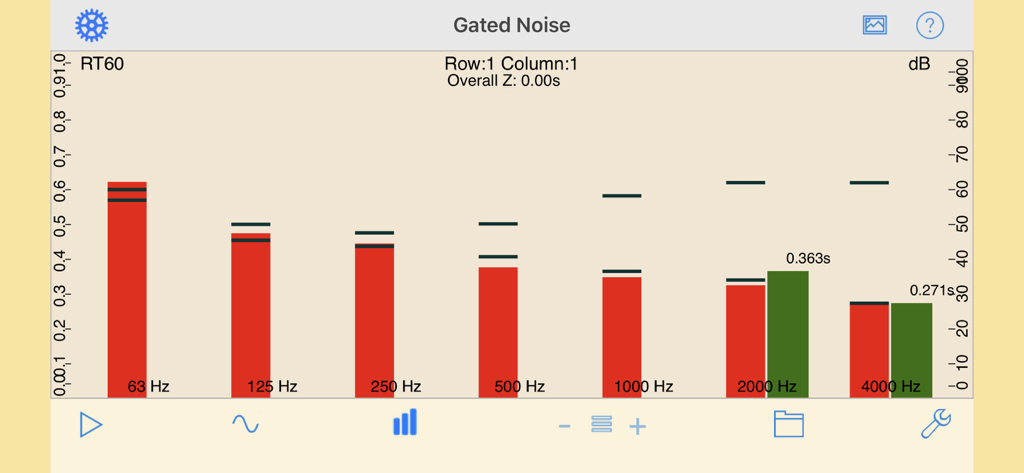
RT60 - RT60アプリ画面に、ゲートノイズ測定とオクターブバンド全体の残響減衰時間が表示されています。
RT60アプリ画面に、ゲートノイズ測定とオクターブバンド全体の残響減衰時間が表示されています。

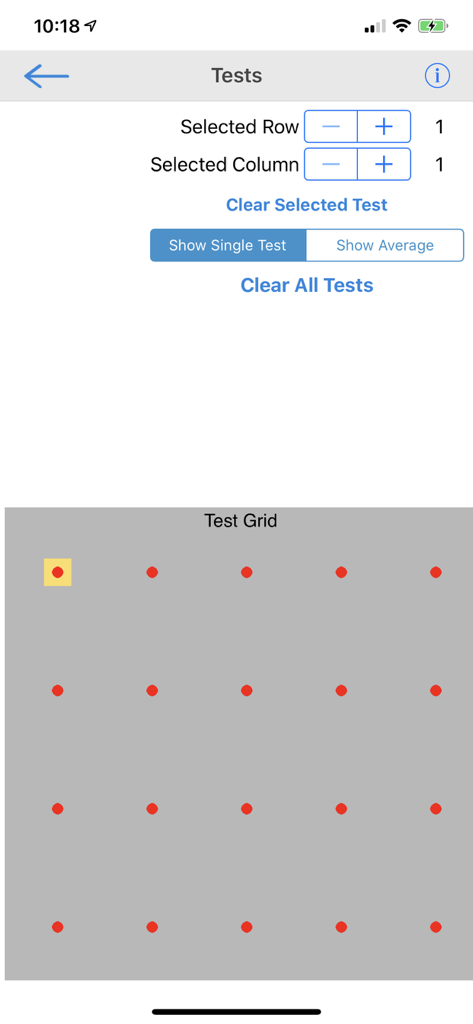
RT60 - RT60アプリインターフェースに、部屋内の複数の音響測定ポイントを選択および管理するためのグリッドが表示されています。

RT60アプリインターフェースに、部屋内の複数の音響測定ポイントを選択および管理するためのグリッドが表示されています。

説明

Now you can have an RT60 measurement tool for the iPhone. Another in the series of acoustic analysis and test applications from Studio Six Digital, RT60 measures reverb decay time for each octave band, 63Hz - 4kHz, by pulsing pink noise on and off, filtering the incoming signal by octave band, and measuring the timing of the decay of each octave band. RT60 conforms to international acoustics standard ISO 3382 for measuring room decay time (RT) using either the T20 or T30 method. RT60 will measure down to 50ms, and up to 4 seconds. Results are displayed for each band above the band, and the overall RT60 is calculated and displayed on the top of the screen. RT60 requires at least 25dB of headroom between the noise floor of the environment, and the level of the pink noise for T20 analysis. Turn up the amplifier to get more headroom. To use RT60, connect the iPhone output to the input of an amp and speaker, and carefully turn up the level after you tap the Generator icon. RT60 smoothes the results of several readings to get a more stable result. *** Screen Graphics The red bars are the current SPL level for each octave band. The thin black bars show the most recently measured maximum and minimum dB levels for the octave band that the RT60 calculation is using. The vertical yellow bars show the decay range that is available. Note that in some situations, you may not be able to overcome the ambient noise level in the room to get a good reading in every band. *** Calculations If a valid RT60 time can be computed, it is shown above the yellow bar. If it cannot be computed, no bar or value is shown. When your analysis is complete, you can save the graph image to your photo roll to include in a report. *** Calibration & Microphone Like all of the Studio Six Digital apps, RT60 can be calibrated. We set this field to the typical iPhone value, but if you have access to a calibrated SPL meter you can adjust this number as needed. There is a field to select Internal or External microphone. When Internal is selected, a compensation network is used to compensate for the response of the built-in or headset mic. When External is selected, no compensation is done. See our web site for more detailed information. Also, check out our other great audio and acoustics apps: AudioTools, SPL, SPL Graph, for recording SPL over time, RTA, ETC, FFT, Generator, and Speaker Pop. And, if you are looking for a great range of high-quality, professional, audio test equipment, check out iTestMic, iPrecisionMic, or liAudioInterface2.

Download

ダウンロード: App Store

このページはアプリまたはその開発者の公式ページではなく、情報提供および論評を目的として作成された独立した編集出版物です。明示的に別段の記載がない限り、アプリおよびその開発者は、MWM、Apple、Google Play、アプリのパブリッシャー、またはアプリの開発者と提携、承認、後援、認可、またはその他の公式的な関係はなく、このページのいかなる内容も、アプリがMWMのサービスを使用して開発されたことを意味するものではありません。すべての商標、ロゴ、スクリーンショット、その他のコンテンツはそれぞれの所有者の財産です。