
이 페이지는 앱이나 개발자의 공식 페이지가 아니며, 정보 제공 및 논평을 목적으로 작성된 독립 편집 간행물입니다. 명시적으로 달리 언급되지 않는 한, 해당 앱이나 개발자는 MWM, Apple, Google Play, 앱 퍼블리셔 또는 앱 개발자와 제휴, 보증, 후원, 승인 또는 공식적으로 연결되어 있지 않으며, 이 페이지의 어떤 내용도 해당 앱이 MWM의 서비스를 사용하여 개발되었음을 의미하지 않습니다. 모든 상표, 로고, 스크린샷 및 기타 콘텐츠는 해당 소유자의 자산입니다.

Notepad - Simple Notes & Memo
방해 요소 없는 최고의 메모 도구를 경험해 보세요. 즉각적인 잠금 화면 위젯으로 하루를 정리하고, 데이터가 클라우드가 아닌 기기에만 안전하게 보관되므로 안심하고 사용하세요.
다운로드
4M+사용자 평점
총 평가 수
277K+개발사
카테고리
Business지원 언어
35최신 버전
4.0.2크기
49.7 MB출시일
2015년 7월 14일단순함을 위한 디자인, 속도를 위한 설계
복잡하고 무거운 생산성 도구는 잊으세요. Notepad는 방해 요소 없이 생각과 리스트를 캡처할 수 있는 깔끔하고 비공개이며 번개처럼 빠른 방법을 제공합니다.
즉각적인 빠른 캡처
로그인도, 로딩 화면도, 번거로움도 없습니다. 앱을 열고 바로 입력하여 회의록, 장보기 목록 또는 갑작스러운 영감을 즉시 기록하세요.
한눈에 보는 위젯
iPhone을 잠금 해제하지 않고도 일정을 관리하세요. 잠금 화면과 홈 화면 위젯을 사용하여 가장 중요한 할 일을 전면에 배치할 수 있습니다.
자주 묻는 질문
에 대해 알아야 할 모든 것 Notepad - Simple Notes & Memo
Notepad - Simple Notes & Memo에서 메모를 삭제하는 방법은 무엇인가요?
네, Notepad - Simple Notes & Memo에서 메모를 삭제할 수 있습니다. 메모에서 왼쪽으로 스와이프하면 삭제 버튼이 나타납니다. 또는 편집 버튼을 누른 다음 메모 옆의 빨간색 기호를 탭하여 삭제 버튼에 액세스합니다.
Notepad - Simple Notes & Memo 앱에서 메모 순서를 변경할 수 있나요?
네, 사용자는 Notepad - Simple Notes & Memo에서 메모 순서를 변경할 수 있습니다. 메모를 탭한 후 길게 눌러 이동한 다음 위 또는 아래로 드래그합니다. 사용자는 편집 버튼을 누르고 메모 오른쪽의 탭을 꼬집어 이동할 수도 있습니다.
iOS 16에서 Notepad - Simple Notes & Memo의 잠금 화면 위젯을 설정하는 방법은 무엇인가요?
iOS 16에서 Notepad - Simple Notes & Memo의 잠금 화면 위젯을 설정하려면 장치를 iOS 16 이상으로 업데이트합니다. 잠금 화면을 터치한 후 길게 누르고 사용자화를 탭한 다음 잠금 화면을 선택합니다. 위젯 추가를 탭하고 이 앱을 선택한 다음 원하는 위젯을 선택합니다.
Notepad - Simple Notes & Memo 앱의 홈 화면 위젯을 추가하는 방법은 무엇인가요?
Notepad - Simple Notes & Memo의 홈 화면 위젯을 추가하려면 홈 화면의 빈 영역을 터치한 후 길게 누르고 [+] 버튼을 탭합니다. Notepad 위젯을 선택하고 세 가지 크기 중에서 선택한 다음 추가를 탭합니다. 여러 위젯을 추가할 수 있습니다.
Notepad - Simple Notes & Memo에서 메모 색상을 변경하는 방법은 무엇인가요?
네, 사용자는 Notepad - Simple Notes & Memo에서 메모 색상을 변경할 수 있습니다. 메모에서 오른쪽으로 스와이프하여 여섯 가지 다른 색상 중에서 선택합니다. 이 기능을 사용하면 메모를 더 밝게 만들 수 있습니다.
Notepad - Simple Notes & Memo 위젯에 표시할 메모를 선택하는 방법은 무엇인가요?
Notepad - Simple Notes & Memo 홈 화면 위젯에 특정 메모를 표시하도록 선택하려면 위젯을 터치한 후 길게 누릅니다. 그런 다음 나타나는 옵션에서 "위젯 편집" - "메모" 중에서 원하는 메모를 선택합니다.
Notepad - Simple Notes & Memo 앱에서 사용자 데이터는 안전한가요?
네, Notepad - Simple Notes & Memo에서는 사용자 데이터가 안전합니다. 이 앱은 사용자가 입력한 텍스트를 외부 서버나 소스로 수집하거나 전송하지 않습니다. 모든 사용자 데이터는 앱 자체 내에만 저장됩니다.
Notepad - Simple Notes & Memo 앱은 무료인가요?
네, Notepad - Simple Notes & Memo 앱은 무료입니다. 광고와 인앱 구매를 통해 수익을 창출합니다.
Notepad - Simple Notes & Memo는 다크 모드를 지원하나요?
네, Notepad - Simple Notes & Memo 앱은 다크 모드를 지원합니다. 이 기능은 사용자 경험을 향상시키기 위한 핵심 기능 중 하나로 나열되어 있습니다.
Notepad - Simple Notes & Memo에 자동 저장 기능이 있나요?
네, Notepad - Simple Notes & Memo에는 자동 메모 저장 기능이 포함되어 있습니다. 이를 통해 사용자의 수동 개입 없이 메모가 일관되게 저장됩니다.
Notepad - Simple Notes & Memo 앱에서 단어 수를 제공하나요?
네, Notepad - Simple Notes & Memo 앱에는 단어 수 기능이 포함되어 있습니다. 이를 통해 사용자는 메모와 작성한 초안의 길이를 추적할 수 있습니다.
다음 스크린샷과 설명은 앱의 공식 스토어 목록에서 직접 가져온 것이며 앱 개발자의 자산입니다.
앱 스토어
스크린샷
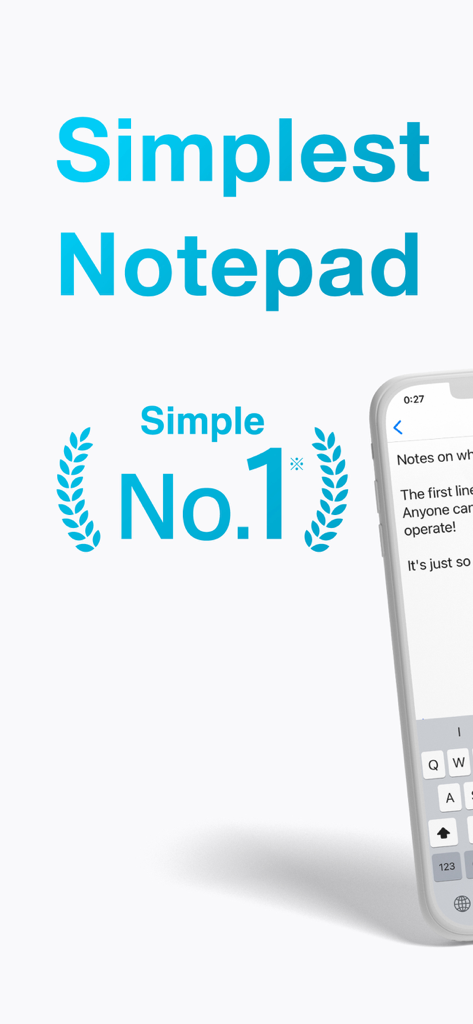
미니멀한 인터페이스와 '심플함 1위' 등급을 특징으로 하는 Notepad 앱 홍보 그래픽
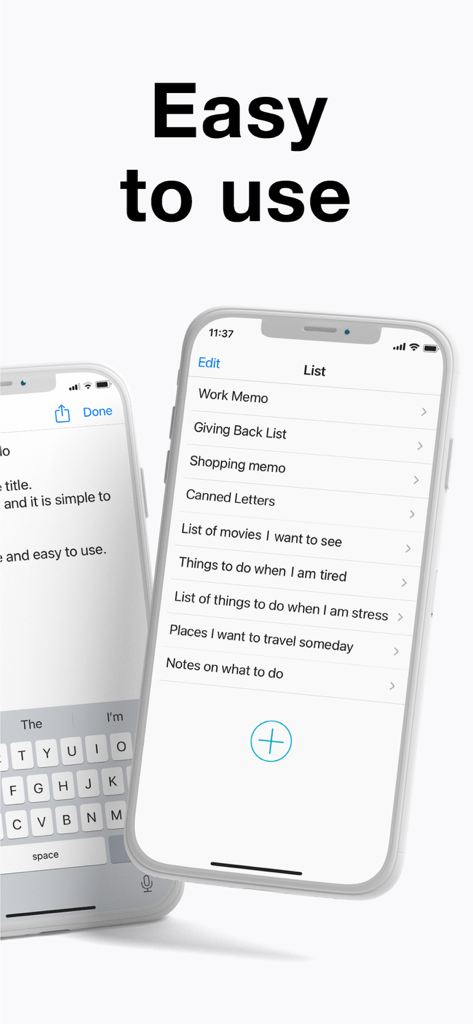
iPhone에서 메모 목록을 보여주는 심플한 메모장 앱 인터페이스
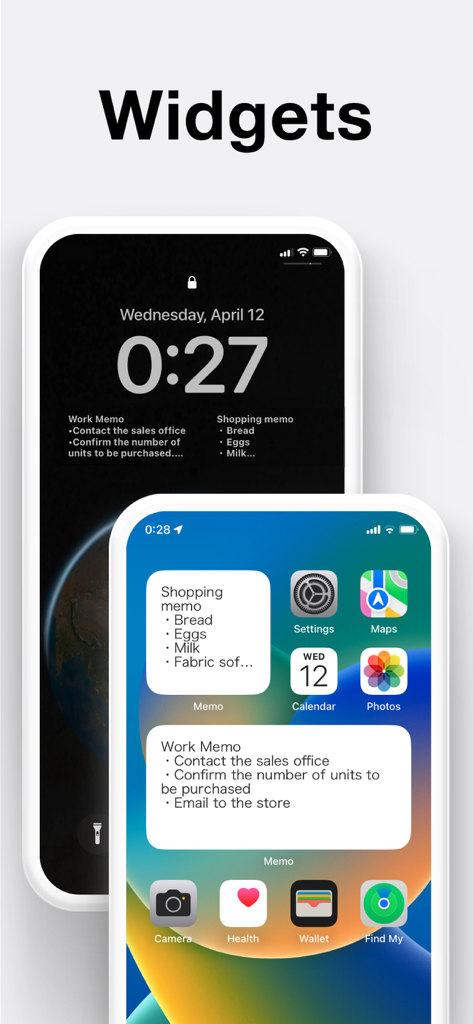
iOS 홈 및 잠금 화면의 쇼핑 및 업무 메모용 Notepad 앱 위젯
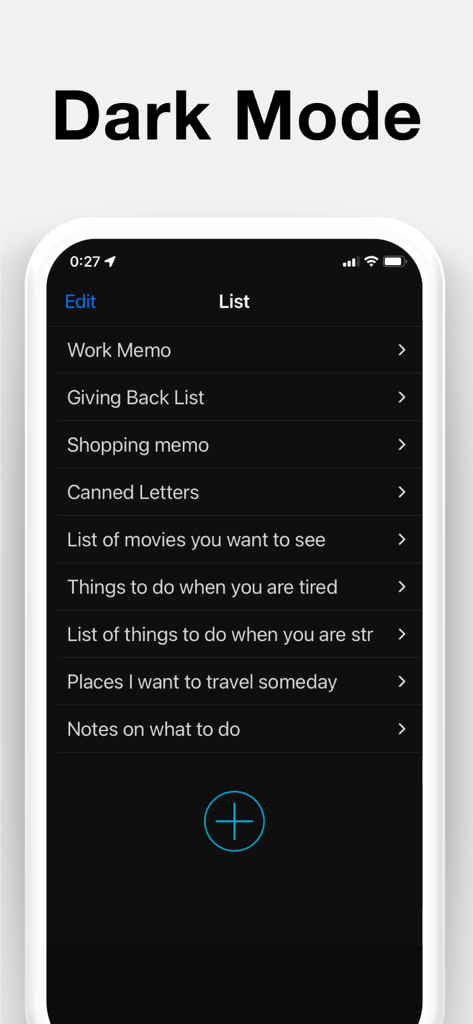
메모 목록을 보여주는 다크 모드의 심플한 메모장 앱 인터페이스
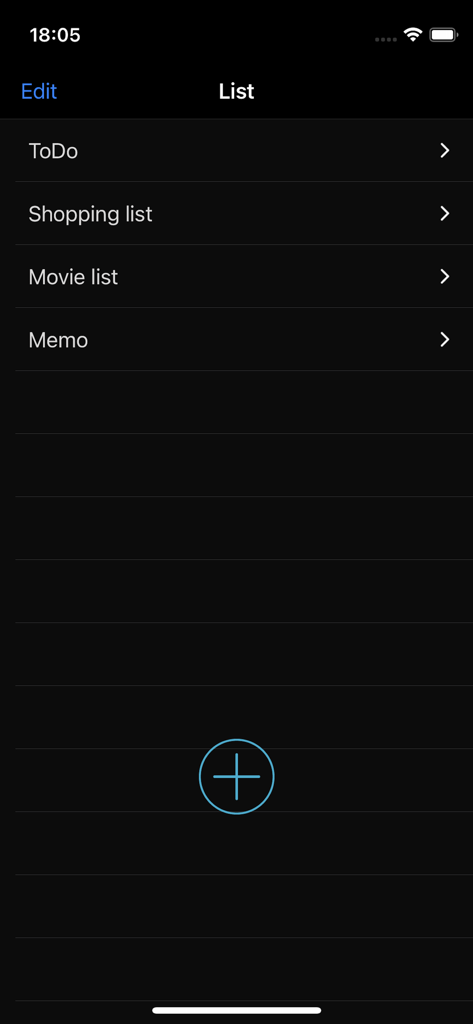
다크 모드에서 할 일 및 쇼핑 목록과 같은 카테고리를 보여주는 Notepad 앱의 메인 목록 화면
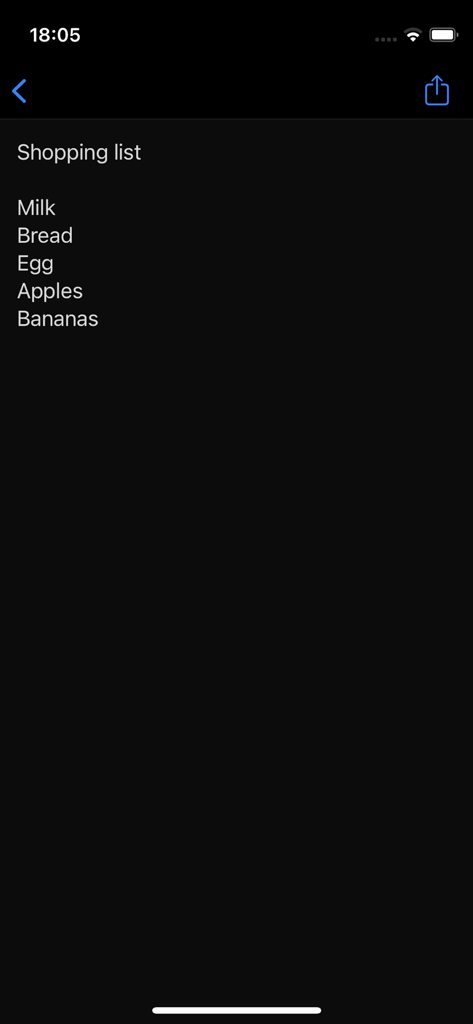
Notepad 앱 다크 모드 인터페이스의 간단한 쇼핑 목록
설명
Download
비슷한 앱
유사한 기능과 사용자 경험을 가진 앱
Notion: Notes, Tasks, AI
Notion Labs, Incorporated

Freenotes®: AI Notes Taking
Hangzhou Free Notes Technology Co., Ltd

Structured - Daily Planner
unorderly GmbH
Google Tasks: Get Things Done
Google LLC
TickTick:To-Do List & Calendar
Appest Limited

Noteful: Notes & PDF Markup
Noteful Technologies Ltd
Todoist: To Do List & Calendar
Doist Inc.

To do list MinimaList & Widget
Inner Grow Limited
monday.com - Work Platform
monday.com Ltd.
이 페이지는 앱이나 개발자의 공식 페이지가 아니며, 정보 제공 및 논평을 목적으로 작성된 독립 편집 간행물입니다. 명시적으로 달리 언급되지 않는 한, 해당 앱이나 개발자는 MWM, Apple, Google Play, 앱 퍼블리셔 또는 앱 개발자와 제휴, 보증, 후원, 승인 또는 공식적으로 연결되어 있지 않으며, 이 페이지의 어떤 내용도 해당 앱이 MWM의 서비스를 사용하여 개발되었음을 의미하지 않습니다. 모든 상표, 로고, 스크린샷 및 기타 콘텐츠는 해당 소유자의 자산입니다.