RT60
RT60
다운로드: App Store

이 페이지는 앱이나 개발자의 공식 페이지가 아니며, 정보 제공 및 논평을 목적으로 작성된 독립 편집 간행물입니다. 명시적으로 달리 언급되지 않는 한, 해당 앱이나 개발자는 MWM, Apple, Google Play, 앱 퍼블리셔 또는 앱 개발자와 제휴, 보증, 후원, 승인 또는 공식적으로 연결되어 있지 않으며, 이 페이지의 어떤 내용도 해당 앱이 MWM의 서비스를 사용하여 개발되었음을 의미하지 않습니다. 모든 상표, 로고, 스크린샷 및 기타 콘텐츠는 해당 소유자의 자산입니다.

로고: RT60
다운로드: App Store

RT60

iPhone을 고정밀 음향 기기로 전환하세요. T20 및 T30 방법을 사용하여 옥타브 밴드별 감쇠 시간을 측정하여 녹음 스튜디오, 홈 시어터 및 상업 공간을 최적화하세요.

주요 수치

다운로드

17K+

사용자 평점

3.4/5

총 평가 수

0

개발사

Andrew Smith

카테고리

Music

지원 언어

8

최신 버전

3.8

크기

19.0 MB

출시일

2009년 3월 3일
기능

전문가 수준의 음향 통찰력

iPhone에서 바로 고정밀 RT60 측정, 옥타브 밴드 필터링 및 ISO 표준 분석으로 환경을 마스터하세요.

ISO 3382 규정 준수

표준 T20 및 T30 방법을 사용하여 전문적인 결과를 제공하고 음향 분석이 국제 산업 벤치마크를 충족하도록 보장합니다.

다중 밴드 시각화

실시간 SPL 모니터링을 통해 63Hz에서 4kHz까지 주파수별 감쇠를 분석하고 프로젝트 보고서용 상세 그래프를 저장합니다.

다음 스크린샷과 설명은 앱의 공식 스토어 목록에서 직접 가져온 것이며 앱 개발자의 자산입니다.

앱 스토어

스크린샷
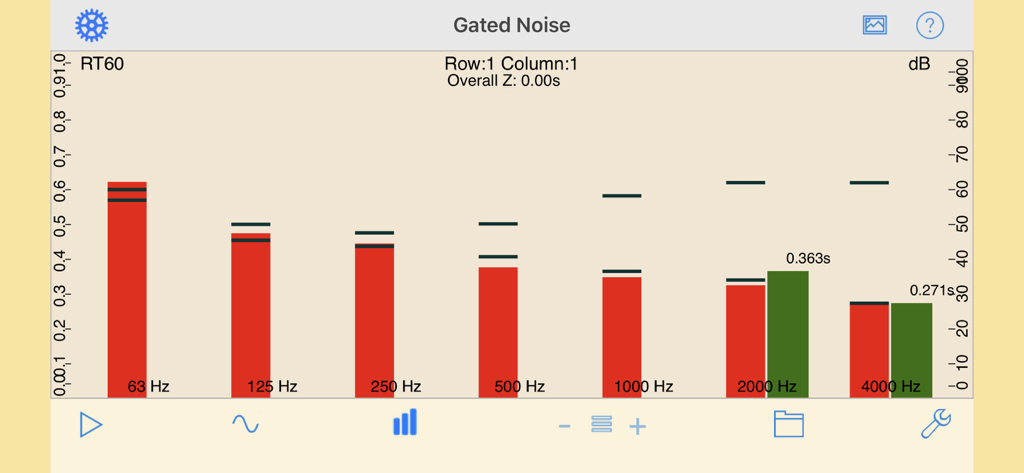
RT60 - RT60 앱 화면이 게이트 노이즈 측정 및 옥타브 밴드별 잔향 감쇠 시간을 표시합니다.
RT60 앱 화면이 게이트 노이즈 측정 및 옥타브 밴드별 잔향 감쇠 시간을 표시합니다.

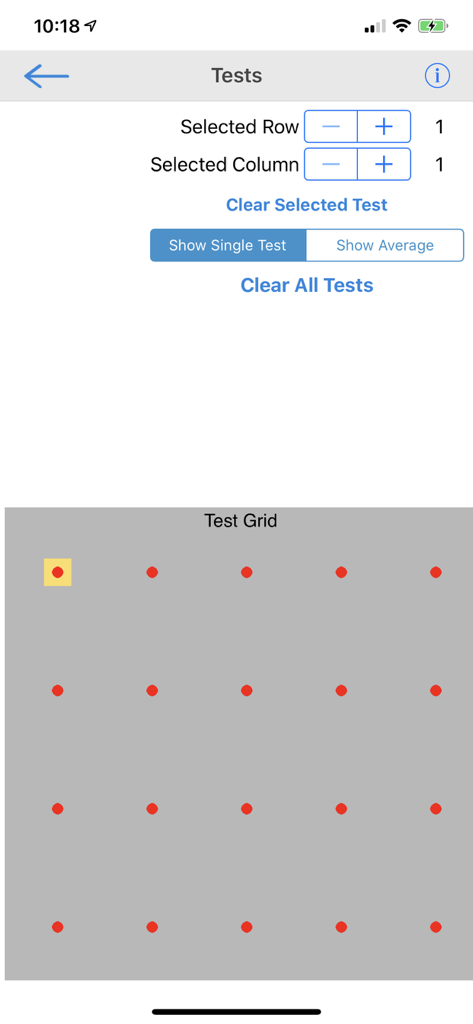
RT60 - RT60 앱 인터페이스가 공간 내 여러 음향 측정 지점을 선택하고 관리하기 위한 그리드를 표시합니다.

RT60 앱 인터페이스가 공간 내 여러 음향 측정 지점을 선택하고 관리하기 위한 그리드를 표시합니다.

설명

Now you can have an RT60 measurement tool for the iPhone. Another in the series of acoustic analysis and test applications from Studio Six Digital, RT60 measures reverb decay time for each octave band, 63Hz - 4kHz, by pulsing pink noise on and off, filtering the incoming signal by octave band, and measuring the timing of the decay of each octave band. RT60 conforms to international acoustics standard ISO 3382 for measuring room decay time (RT) using either the T20 or T30 method. RT60 will measure down to 50ms, and up to 4 seconds. Results are displayed for each band above the band, and the overall RT60 is calculated and displayed on the top of the screen. RT60 requires at least 25dB of headroom between the noise floor of the environment, and the level of the pink noise for T20 analysis. Turn up the amplifier to get more headroom. To use RT60, connect the iPhone output to the input of an amp and speaker, and carefully turn up the level after you tap the Generator icon. RT60 smoothes the results of several readings to get a more stable result. *** Screen Graphics The red bars are the current SPL level for each octave band. The thin black bars show the most recently measured maximum and minimum dB levels for the octave band that the RT60 calculation is using. The vertical yellow bars show the decay range that is available. Note that in some situations, you may not be able to overcome the ambient noise level in the room to get a good reading in every band. *** Calculations If a valid RT60 time can be computed, it is shown above the yellow bar. If it cannot be computed, no bar or value is shown. When your analysis is complete, you can save the graph image to your photo roll to include in a report. *** Calibration & Microphone Like all of the Studio Six Digital apps, RT60 can be calibrated. We set this field to the typical iPhone value, but if you have access to a calibrated SPL meter you can adjust this number as needed. There is a field to select Internal or External microphone. When Internal is selected, a compensation network is used to compensate for the response of the built-in or headset mic. When External is selected, no compensation is done. See our web site for more detailed information. Also, check out our other great audio and acoustics apps: AudioTools, SPL, SPL Graph, for recording SPL over time, RTA, ETC, FFT, Generator, and Speaker Pop. And, if you are looking for a great range of high-quality, professional, audio test equipment, check out iTestMic, iPrecisionMic, or liAudioInterface2.

Download

다운로드: App Store

이 페이지는 앱이나 개발자의 공식 페이지가 아니며, 정보 제공 및 논평을 목적으로 작성된 독립 편집 간행물입니다. 명시적으로 달리 언급되지 않는 한, 해당 앱이나 개발자는 MWM, Apple, Google Play, 앱 퍼블리셔 또는 앱 개발자와 제휴, 보증, 후원, 승인 또는 공식적으로 연결되어 있지 않으며, 이 페이지의 어떤 내용도 해당 앱이 MWM의 서비스를 사용하여 개발되었음을 의미하지 않습니다. 모든 상표, 로고, 스크린샷 및 기타 콘텐츠는 해당 소유자의 자산입니다.