Vocal Extractor -Karaoke maker
다운로드: App Store

이 페이지는 앱이나 개발자의 공식 페이지가 아니며, 정보 제공 및 논평을 목적으로 작성된 독립 편집 간행물입니다. 명시적으로 달리 언급되지 않는 한, 해당 앱이나 개발자는 MWM, Apple, Google Play, 앱 퍼블리셔 또는 앱 개발자와 제휴, 보증, 후원, 승인 또는 공식적으로 연결되어 있지 않으며, 이 페이지의 어떤 내용도 해당 앱이 MWM의 서비스를 사용하여 개발되었음을 의미하지 않습니다. 모든 상표, 로고, 스크린샷 및 기타 콘텐츠는 해당 소유자의 자산입니다.

로고: Vocal Extractor -Karaoke maker
다운로드: App Store

Vocal Extractor -Karaoke maker

라이브러리의 모든 노래를 스튜디오 품질의 반주 또는 분리된 보컬로 변환하세요. 크리에이터, 가수 및 DJ를 위한 딥러닝 기반 기술입니다.

주요 수치

다운로드

369K+

사용자 평점

4.3/5

총 평가 수

2K+

개발사

Hikaru Tsuyumine

카테고리

Music

지원 언어

2

최신 버전

5.6

크기

78.7 MB

출시일

2018년 11월 3일
기능

모든 크리에이터를 위한 전문 오디오 도구

고급 AI 기반 기술을 사용하여 라이브러리의 모든 노래를 스튜디오 품질의 반주 또는 분리된 보컬로 변환하세요.

AI 기반 분리

기본 필터를 넘어서세요. 당사의 딥러닝 엔진은 복잡한 모노 또는 오프센터 녹음에서도 깨끗한 보컬을 추출합니다.

즉석 노래방 및 스템

연습을 위한 완벽한 반주 트랙 또는 다음 바이럴 소셜 미디어 리믹스를 위한 깨끗한 아카펠라 보컬을 몇 초 만에 만드세요.

다음 스크린샷과 설명은 앱의 공식 스토어 목록에서 직접 가져온 것이며 앱 개발자의 자산입니다.

앱 스토어

스크린샷
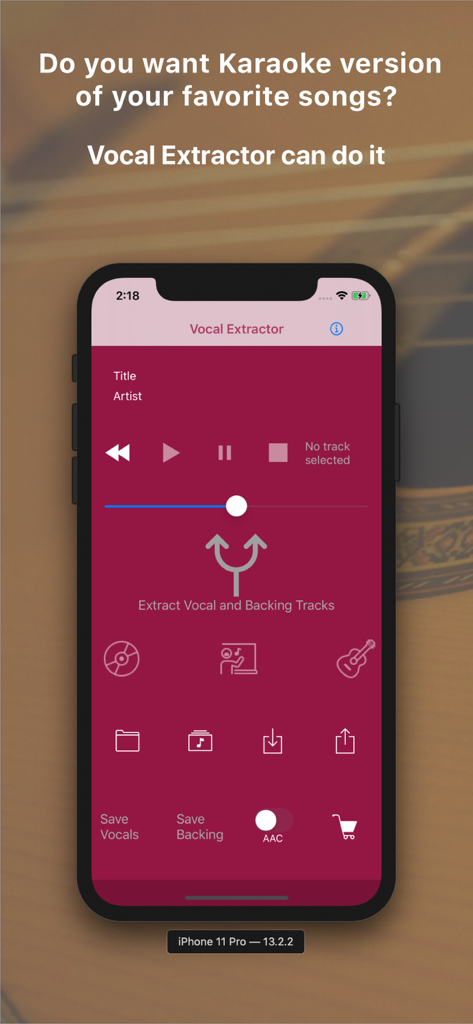
Vocal Extractor -Karaoke maker - Vocal Extractor 앱의 메인 화면이 iPhone에 표시되며, 노래방을 위한 보컬 및 반주 트랙 분리 옵션을 보여줍니다.
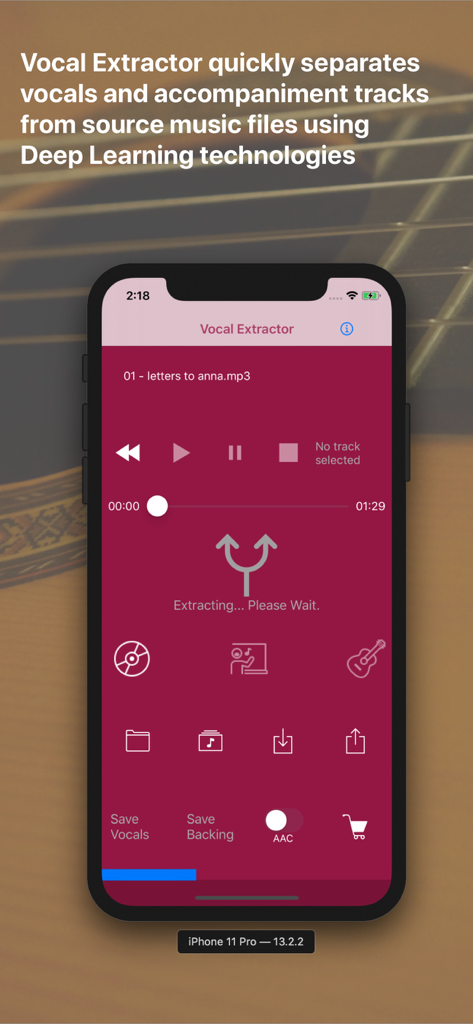
Vocal Extractor 앱의 메인 화면이 iPhone에 표시되며, 노래방을 위한 보컬 및 반주 트랙 분리 옵션을 보여줍니다.

Vocal Extractor -Karaoke maker - Vocal Extractor 앱 인터페이스가 보컬 및 반주 트랙의 AI 분리를 보여줍니다.
Vocal Extractor 앱 인터페이스가 보컬 및 반주 트랙의 AI 분리를 보여줍니다.

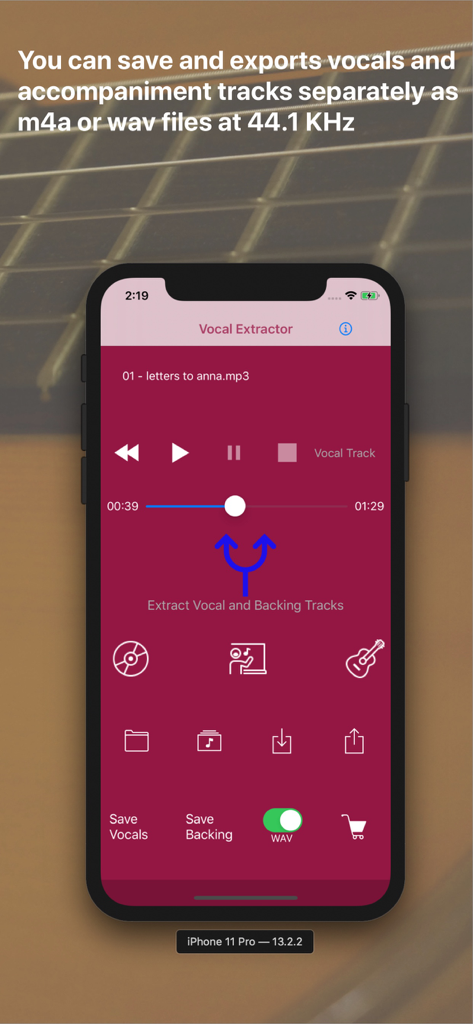
Vocal Extractor -Karaoke maker - Vocal Extractor 앱 화면에 보컬 및 반주 트랙을 추출하고 저장하는 버튼이 표시됩니다.

Vocal Extractor 앱 화면에 보컬 및 반주 트랙을 추출하고 저장하는 버튼이 표시됩니다.

설명

Feature Overview Vocal Extractor separates songs in your Music Library into vocals and accompaniment with just a tap of a button on the main screen (*1), instantly creating karaoke and a cappella tracks. The generated vocal and backing (karaoke) tracks can be saved as files and exported to iCloud, Dropbox, Google Drive, and other platforms. This allows you to use the isolated tracks in other applications or on different platforms (*2). Unlike traditional apps based on OOPS (Out of Phase Stereo) technology, Vocal Extractor leverages AI and deep learning to separate vocals from songs, including monaural recordings and tracks where the vocals are not center-panned—cases where traditional apps cannot remove vocals. You can import music files in mp3, m4a, or wav formats from iCloud, Dropbox, Google Drive, and other sources. This includes live recordings created with other apps, allowing you to remove or extract vocals from them. The embedded player allows you to toggle between the original, vocal, or backing tracks while playing the audio. *1. Only songs downloaded to your device and not protected by DRM can be used as source data. *2. Saved output files will have a sampling rate of 44.1kHz and be in m4a or wav format, either mono or stereo. Saving files is an in-app purchase feature. We recommend testing the vocal separation quality in the embedded player before purchasing. How to Use 1.Launch the App After the launch screen, the main screen will appear. Tap the Music Library button, select a song, and load it into the app. 2.Extract Vocals Tap the Vocal Extract button in the center of the main screen. The extraction process will begin, and once completed, the Vocal, Backing, and Save buttons will become active. 3.Playback Tracks Select either the Original, Vocal, or Backing track and tap the Play Back button to listen to the chosen track. 4.Save Tracks After extraction, the Save Vocal and Save Backing buttons will be enabled. The first time you tap one of these buttons, the in-app purchase screen will appear. Before purchasing, we recommend confirming the quality of the vocal separation in the embedded player. Once purchased, the in-app purchase screen will no longer appear, and you can save files after confirming via a pop-up. 5.File Naming Saved files will be named with the original file name (excluding the suffix) plus "_vocal.m4a" or "_backing.m4a". File renaming is not supported in this version. Output files are in 44.1kHz m4a or wav format. 6.Export Files To export files from the app container, tap the Export button. A list of saved files will appear. Select a file and tap the Export menu in the navigation bar. The document provider screen will appear, allowing you to choose a location to save the file. A pop-up will confirm when the export has started successfully. Exporting occurs in the background. 7.Import Source Files You can use m4a, mp3, and wav files as source data. Place these files in iCloud, Dropbox, Google Drive, or another document provider configured on your iPhone. Then, tap the Import button to add the file to the app's container. 8.Load Imported Files After importing a file, tap the File button to see a list of imported files. Select a file and tap the Load menu in the navigation bar to load the content for extraction or playback. 9.Document Provider Compatibility Import and export functions only work with document providers properly configured on your device. For more information, visit http://vocalextractor.com/en/. Some icons used on the main screen are sourced from Icons8. https://icons8.com

Download

다운로드: App Store

이 페이지는 앱이나 개발자의 공식 페이지가 아니며, 정보 제공 및 논평을 목적으로 작성된 독립 편집 간행물입니다. 명시적으로 달리 언급되지 않는 한, 해당 앱이나 개발자는 MWM, Apple, Google Play, 앱 퍼블리셔 또는 앱 개발자와 제휴, 보증, 후원, 승인 또는 공식적으로 연결되어 있지 않으며, 이 페이지의 어떤 내용도 해당 앱이 MWM의 서비스를 사용하여 개발되었음을 의미하지 않습니다. 모든 상표, 로고, 스크린샷 및 기타 콘텐츠는 해당 소유자의 자산입니다.