Address Label Creator
Download on App Store

This page is not an official page of the app or its developer, but an independent editorial publication created for informational and commentary purposes. Unless expressly stated otherwise, neither the app nor its developer is affiliated with, endorsed by, sponsored by, authorized by, or otherwise officially connected with MWM, Apple, Google Play, the app publisher, or the app's developer, and nothing on this page implies that the app was developed using MWM's services. Any trademarks, logos, screenshots, and other content remain the property of their respective owners.

Logo of Address Label Creator
Download on App Store

Address Label Creator

Skip the mail merge headache. Design stunning, custom address and shipping labels on your Mac or iPad with precise alignment for Avery sheets. Perfect for small businesses, Etsy sellers, and the organized home.

Key Figures

Downloads

17K+

User Rating

1.6/5

Total Ratings

0

Publisher

Gilbert Hansen

Category

Business

Locales

1

Latest Version

4.8.0

Size

179.3 MB

First Released

Sep 23, 2016
Features

Professional Labeling Made Effortless

From custom branding to bulk mailing, design and print professional labels with precision and ease directly from your iPad or Mac.

Perfect Print Alignment

End the frustration of wasted sheets. Fine-tune margins and use our layout preview to ensure every label lines up perfectly on Avery and standard US sheets.

Smart Address Importing

Skip the manual entry. Effortlessly import your contacts, CSV spreadsheets, or iCloud files to generate hundreds of labels in just a few taps.

The following screenshots and description are sourced directly from the app's official store listing and are the property of the app developer.

App Store

Screenshots
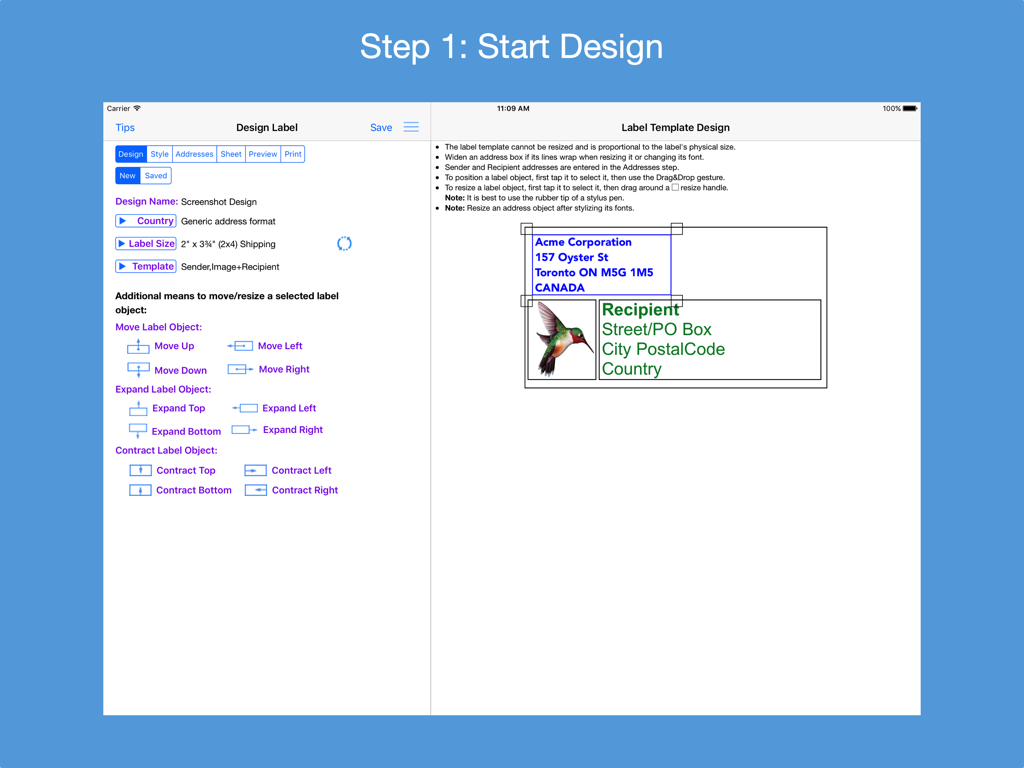
Address Label Creator - iPad interface of Address Label Creator showing design tools and label template preview.
iPad interface of Address Label Creator showing design tools and label template preview.

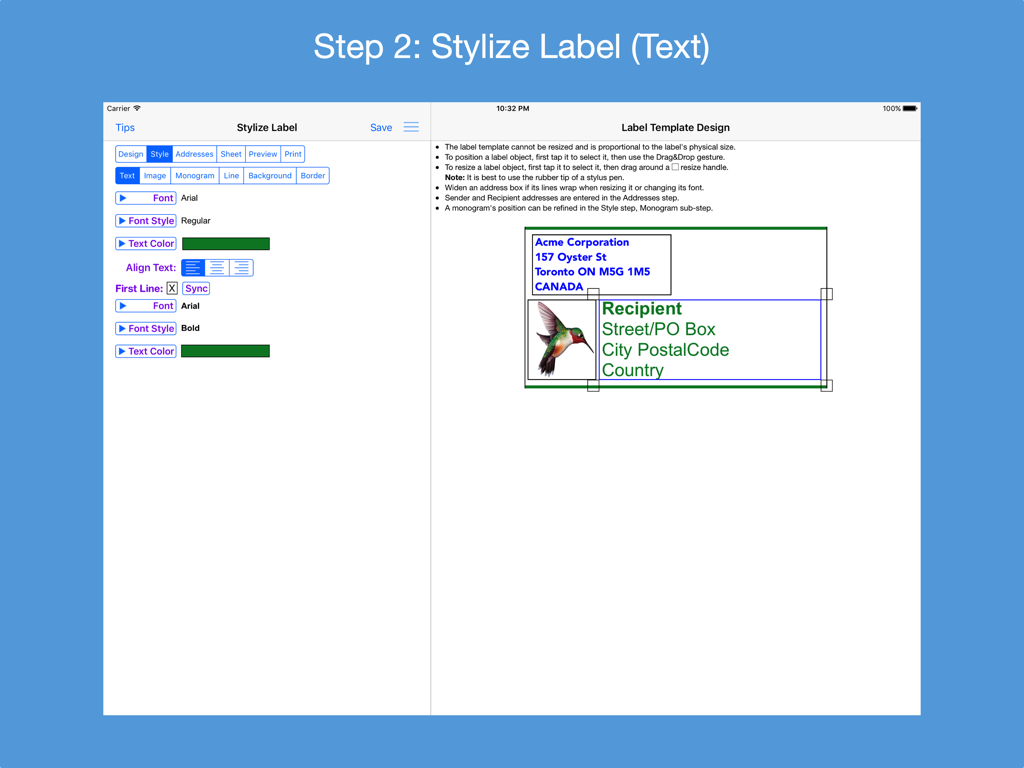
Address Label Creator - iPad screenshot showing Step 2 of the Address Label Creator app for stylizing label text with a preview
iPad screenshot showing Step 2 of the Address Label Creator app for stylizing label text with a preview

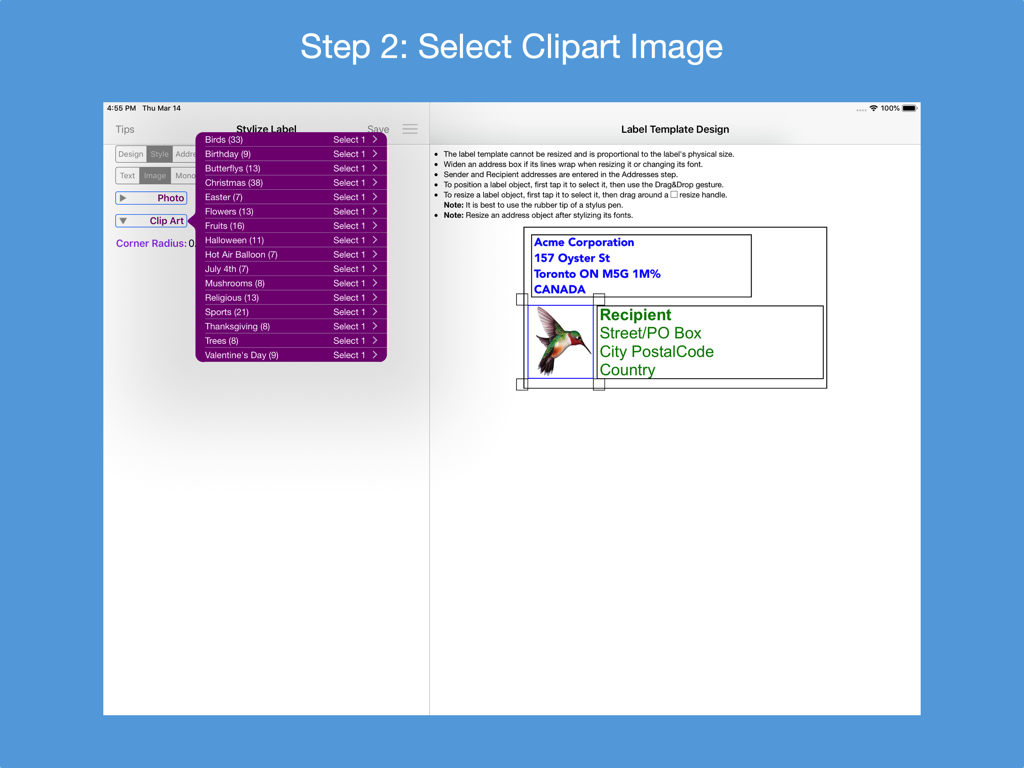
Address Label Creator - iPad app interface showing clipart selection for custom address label design with a hummingbird illustration
iPad app interface showing clipart selection for custom address label design with a hummingbird illustration

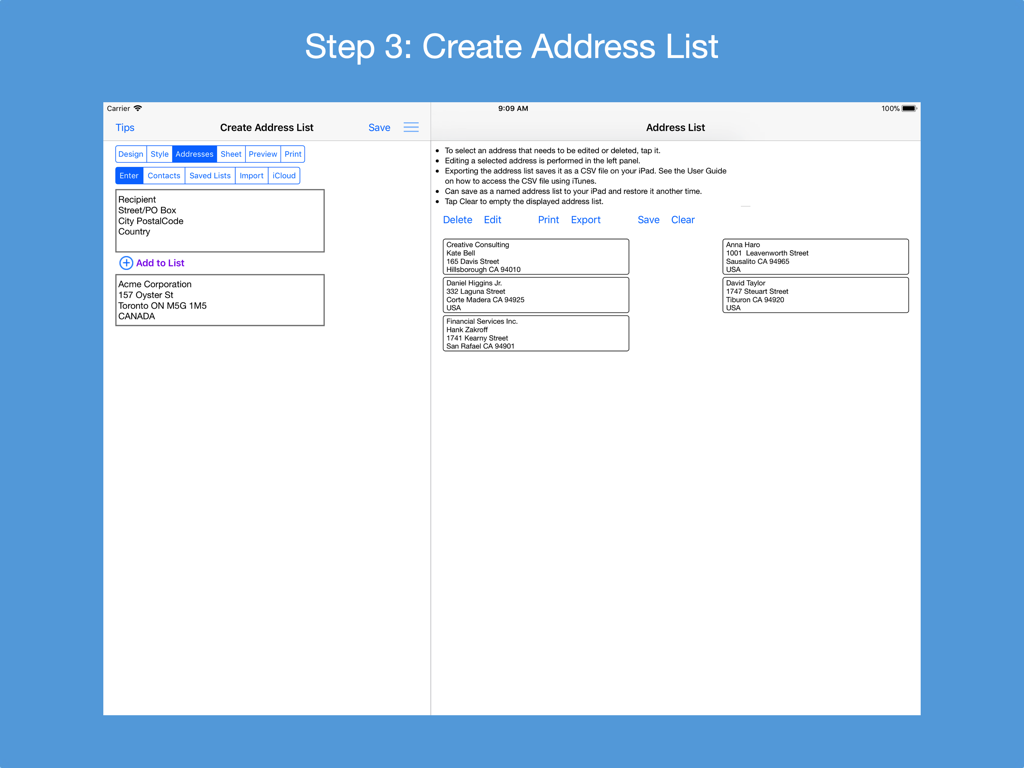
Address Label Creator - A screenshot of the Address Label Creator app showing the interface for creating and managing an address list on an iPad.
A screenshot of the Address Label Creator app showing the interface for creating and managing an address list on an iPad.

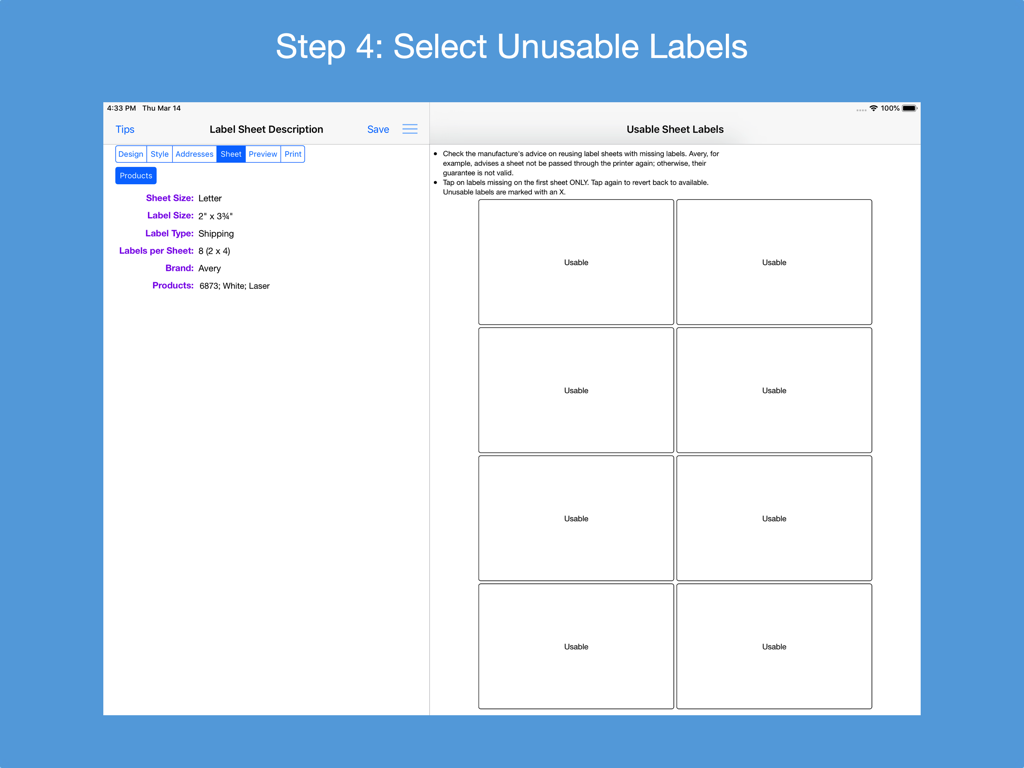
Address Label Creator - Interface for marking usable and unusable labels on a shipping sheet in the Address Label Creator app
Interface for marking usable and unusable labels on a shipping sheet in the Address Label Creator app

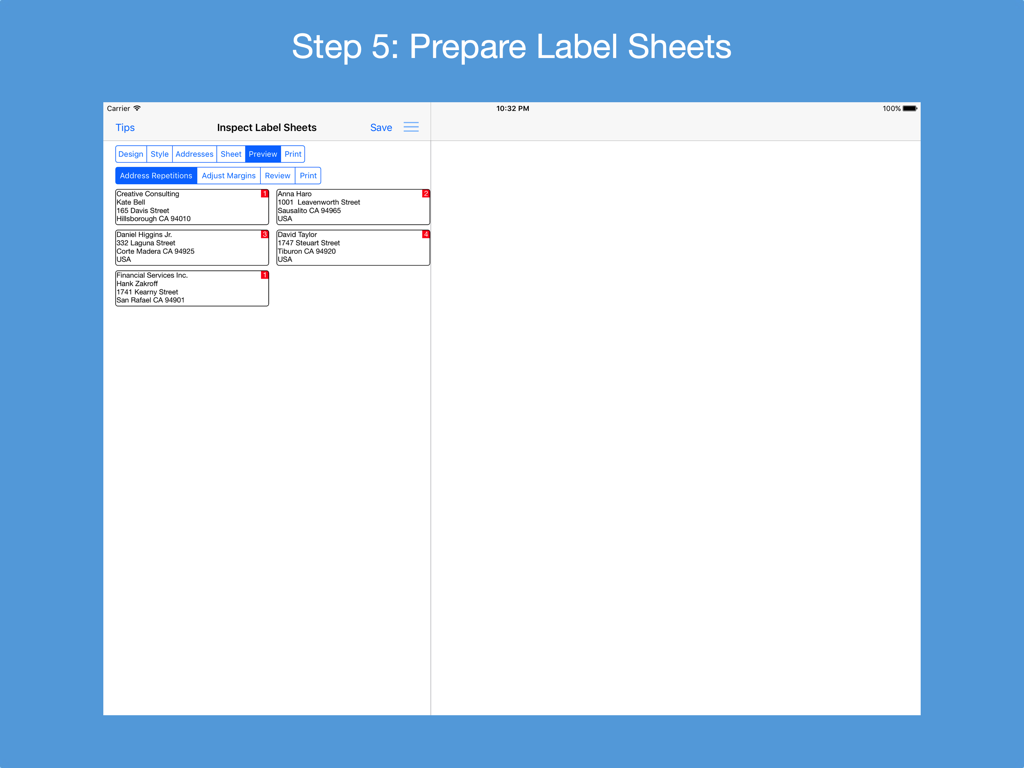
Address Label Creator - Address Label Creator app interface showing the prepare label sheets step with address previews on an iPad.
Address Label Creator app interface showing the prepare label sheets step with address previews on an iPad.

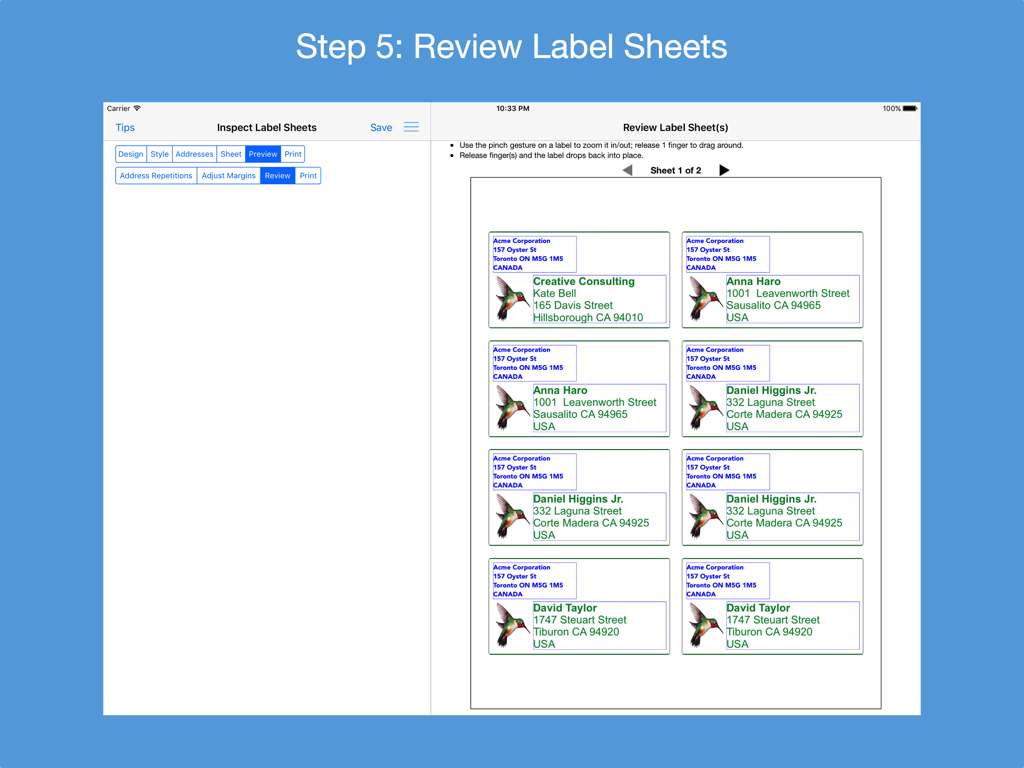
Address Label Creator - iPad screen showing a preview of a printable sheet with multiple custom address labels
iPad screen showing a preview of a printable sheet with multiple custom address labels

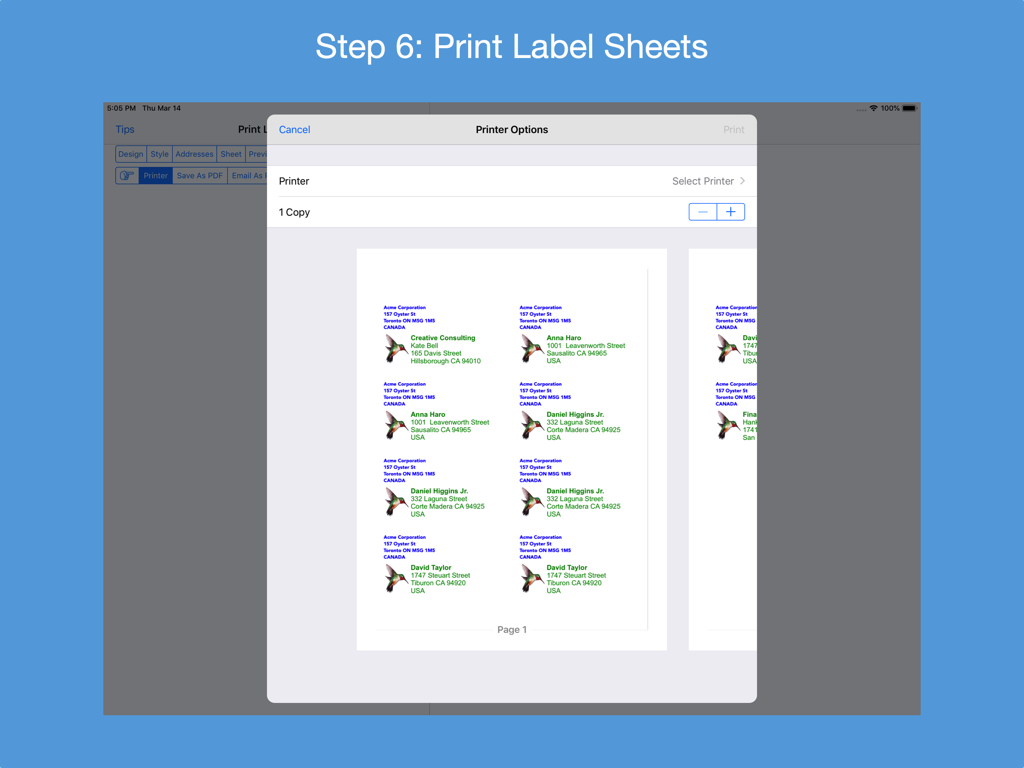
Address Label Creator - Address Label Creator app printer options screen on iPad showing a preview of customized address labels with illustrations
Address Label Creator app printer options screen on iPad showing a preview of customized address labels with illustrations

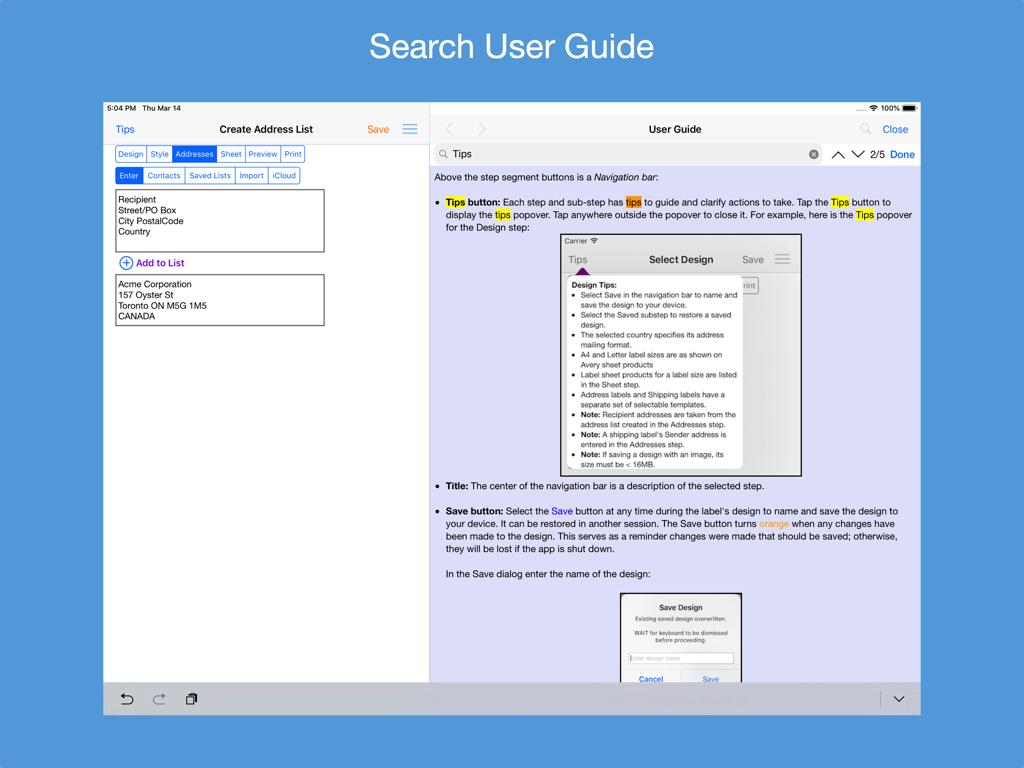
Address Label Creator - A screenshot of the Address Label Creator app on an iPad showing the searchable user guide alongside the address list creation screen.
A screenshot of the Address Label Creator app on an iPad showing the searchable user guide alongside the address list creation screen.

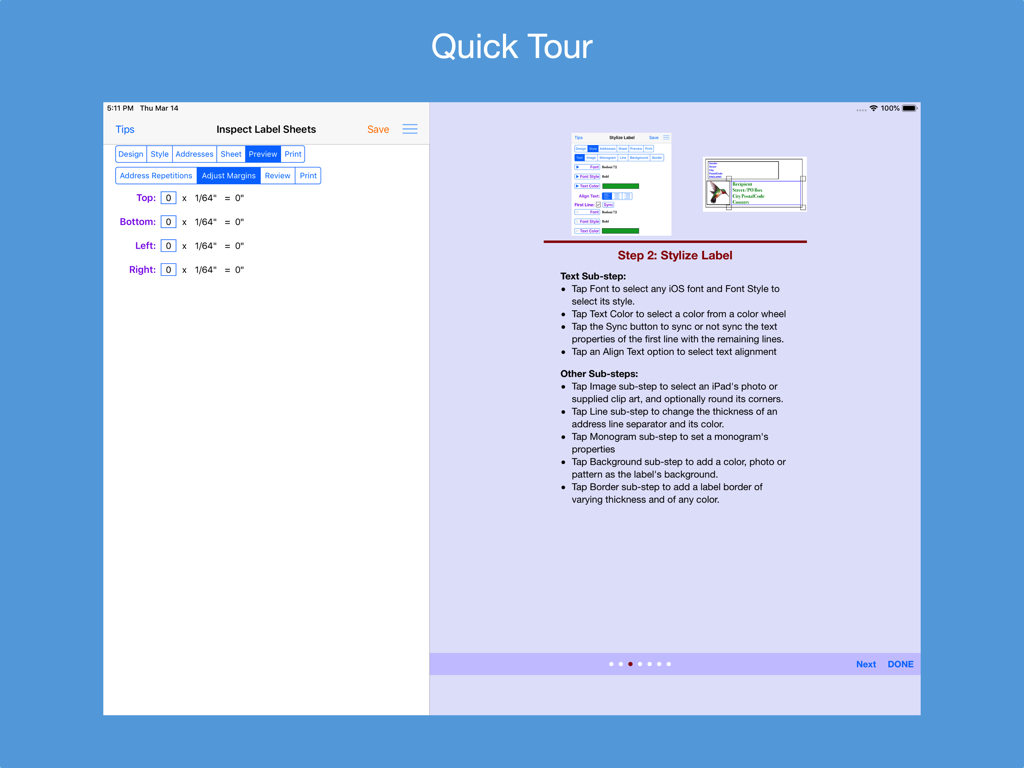
Address Label Creator - Quick tour screen of Address Label Creator showing margin adjustment settings and styling instructions

Quick tour screen of Address Label Creator showing margin adjustment settings and styling instructions

Description

Design custom address and shipping labels from predefined templates. Populate label sheet with addresses from an address list constructed from manual entries, contacts, saved lists and/or spreadsheets, each with its own repetition count. Preview the label sheets before printing. Save design and address list to device. Supports all Avery A4 and Letter return address, address and shipping label products plus all Unistat and Herma rectangular A4 label products. Features: * Step-by-step workflow, each with 1 or more sub-steps: STEP 1: Start new design or restore saved design * Select a country postal format from a list of 58 countries * Select an A4 or Letter return address, address or shipping label size * Turn an address label into a shipping label and vice versa * Select a provided label template * Position and resize label objects using gestures and/or buttons STEP 2: Stylize label * Use any available iOS font or supplied font and its font styles * Text can be any color selected from a color wheel or entered as a hexadecimal value * The first line of text can have its own text properties distinct from those of the remaining lines * Select images from device photos or supplied clip art * Select monogram's font, letter and color, and optionally encase in a circle or oval frame * A shipping address line separator can be of varying thickness and of any color * An optional label background can be any color, device photo or supplied pattern of varying opacity. The pattern can be scaled. * An optional label border can be of varying thickness and of any color STEP 3: Construct address list * Build a list of addresses by 1) entering them manually; 2) selecting contacts with addresses; 3) selecting a saved address list; 4) importing addresses in a CSV file on iPad; 5) importing addresses in a CSV file on iCloud Drive and/or 6) exporting an address spreadsheet as a CSV file and transferring it to the app. * Manage address list - edit or delete an address; print, export to a CSV spreadsheet or clear the list * Save address list to device; restore later STEP 4: Examine label sheet’s product specifications; mark unusable labels on 1st sheet STEP 5: Preview label sheets * Specify how many times each address is to be replicated on the label sheets * Adjust sheet margins when printed results are not perfectly aligned * Review label sheets for alignment accuracy before printing to label sheet * Print outlined labels and overlay on label sheet to check label content lines up correctly STEP 6: Print label sheets to an AirPrint enabled printer, save to a PDF file or e-mail as a PDF for printing later or elsewhere. PDF needed for borderless printing. * The User Guide provides instructions on how to best print the label PDF file and do borderless printing. * Save design to device and restore another time * Detailed User Guide with FAQs within app and on support website verusapps.com. Within the app it can be searched for keywords and phrases. * The Quick Guide and Quick Tour, viewable on-demand, provide a way to quickly learn how to use the app. The app requires permission to access Contacts and Photos on the device; otherwise, an address cannot be selected from Contacts and a label image cannot be selected from Photos. Send e-mail to support@verusapps.com to report issues, make improvement suggestions or ask questions. The app's Privacy Policy is available at http://verusapps.com/index.php/privacy-policy-for-address-label-creator/

Download

Download on App Store

This page is not an official page of the app or its developer, but an independent editorial publication created for informational and commentary purposes. Unless expressly stated otherwise, neither the app nor its developer is affiliated with, endorsed by, sponsored by, authorized by, or otherwise officially connected with MWM, Apple, Google Play, the app publisher, or the app's developer, and nothing on this page implies that the app was developed using MWM's services. Any trademarks, logos, screenshots, and other content remain the property of their respective owners.