sqsl RSVP
sqsl RSVP
Download on App Store

This page is not an official page of the app or its developer, but an independent editorial publication created for informational and commentary purposes. Unless expressly stated otherwise, neither the app nor its developer is affiliated with, endorsed by, sponsored by, authorized by, or otherwise officially connected with MWM, Apple, Google Play, the app publisher, or the app's developer, and nothing on this page implies that the app was developed using MWM's services. Any trademarks, logos, screenshots, and other content remain the property of their respective owners.


Logo of sqsl RSVP
Download on App Store

sqsl RSVP

Break away from the DAW grid. Transform folders of audio into evolving performances with a standalone sampler designed for sonic explorers and modular enthusiasts.

Key Figures

Downloads

500

User Rating

1.0/5

Total Ratings

0

Publisher

Michal Macura

Category

Music

Locales

1

Latest Version

1.33

Size

3.5 MB

First Released

Mar 4, 2024
Features

Sculpt Evolving Soundscapes

sqsl RSVP transforms your sample library into a living, breathing instrument through aleatoric sequencing and tactile performance.

Probabilistic Playback

Command four slots with density and reverse probability controls to ensure your compositions stay organic, unpredictable, and free from repetitive loops.

Tactile Spatial Jamming

Navigate 15 oriented dots via a proximity-based touch interface to manipulate volume, pan, and rate through expressive physical gestures.

The following screenshots and description are sourced directly from the app's official store listing and are the property of the app developer.

App Store

Screenshots
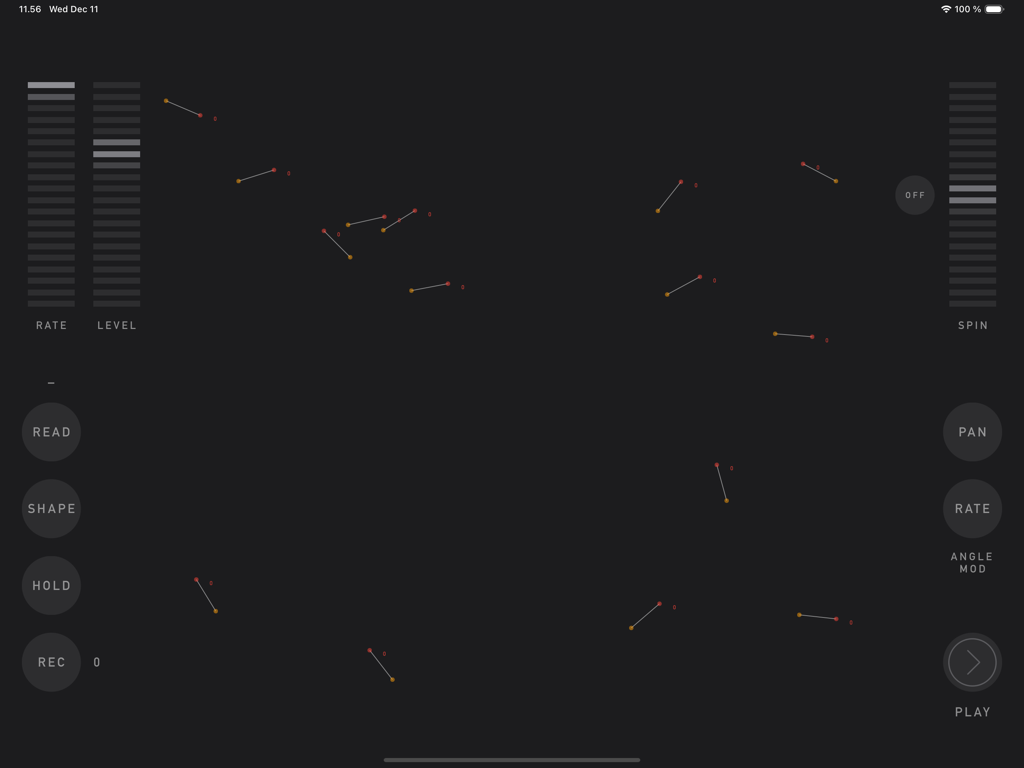
sqsl RSVP - The JAM page interface of the sqsl RSVP app showing interactive dots and sliders for generative sound design
The JAM page interface of the sqsl RSVP app showing interactive dots and sliders for generative sound design

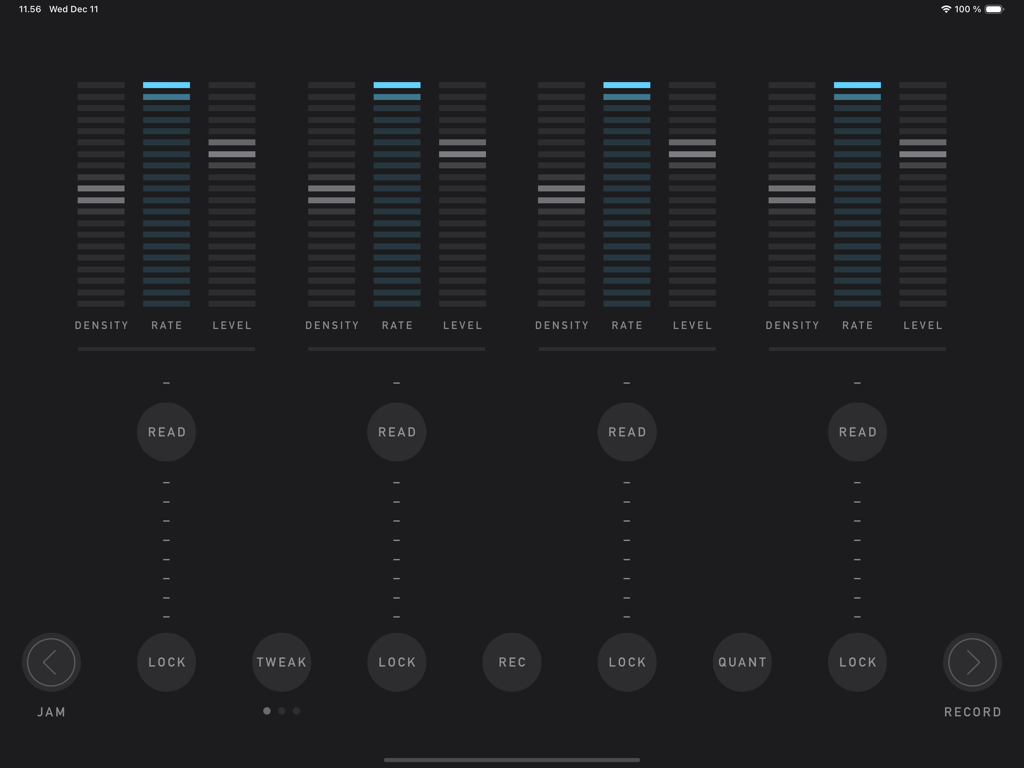
sqsl RSVP - Interface of sqsl RSVP app showing the PLAY page with four vertical audio slots and density rate and level controls
Interface of sqsl RSVP app showing the PLAY page with four vertical audio slots and density rate and level controls

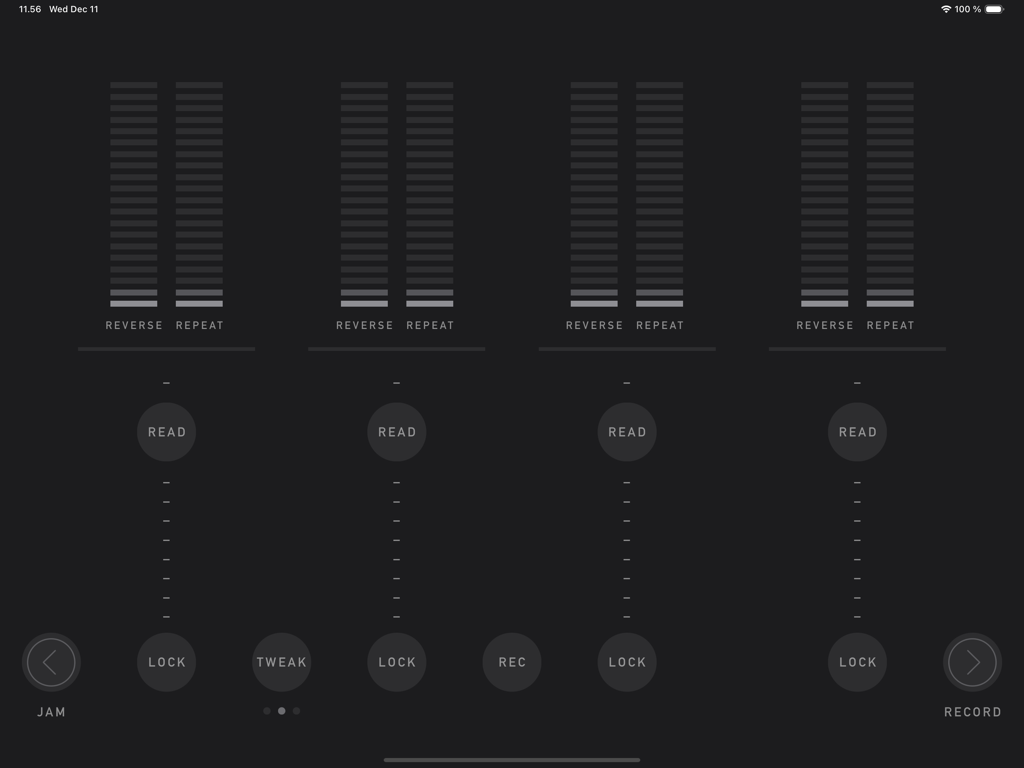
sqsl RSVP - The play interface of sqsl RSVP showing four sample slots with reverse and repeat probability controls in a minimalist dark theme.
The play interface of sqsl RSVP showing four sample slots with reverse and repeat probability controls in a minimalist dark theme.

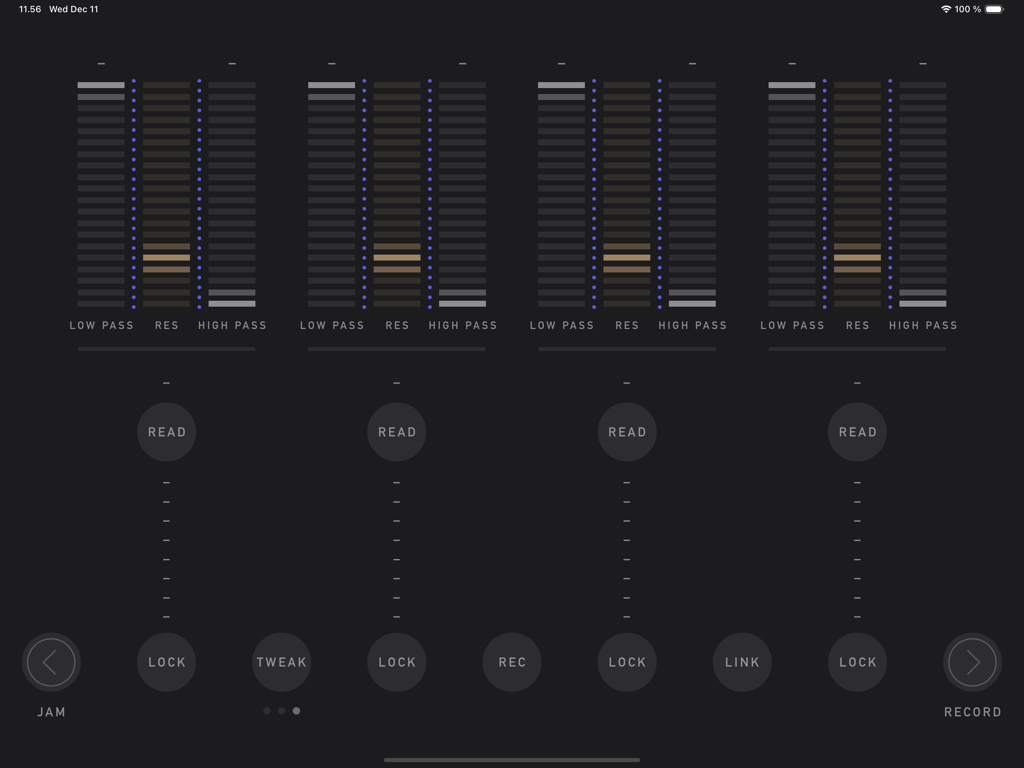
sqsl RSVP - Interface of the sqsl RSVP app showing filter sliders and tweakable parameters for four audio slots
Interface of the sqsl RSVP app showing filter sliders and tweakable parameters for four audio slots

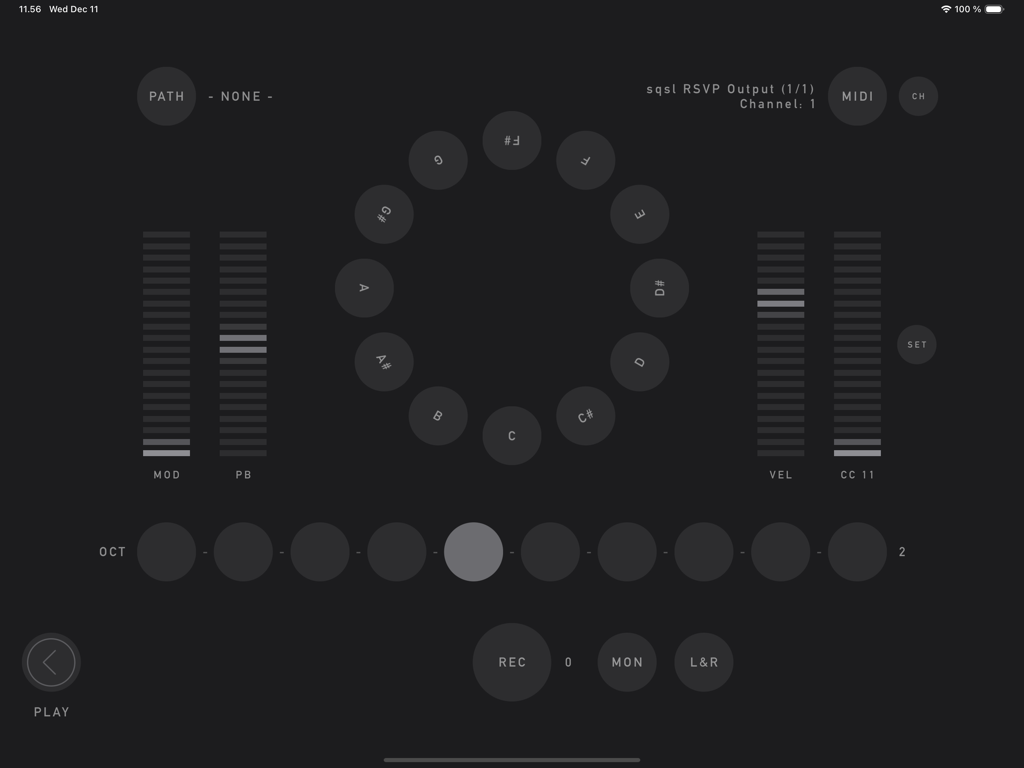
sqsl RSVP - The RECORD page of sqsl RSVP app featuring a circular MIDI note selector and sliders for modulation and pitch bend.

The RECORD page of sqsl RSVP app featuring a circular MIDI note selector and sliders for modulation and pitch bend.

Description

sqsl RSVP is a random sample player and recorder. There are 3 pages: PLAY, RECORD and JAM. PLAY There are 4 slots, each can have a separate directory assigned - assign directory using READ button. Slots have 3 sets of parameters, sets can be accessed using TWEAK button. Tweakable parameters are: - DENSITY – number of samples played at the same time (max 8 per slot); - RATE – playback speed, smooth (2 octaves range) or quantized to semitones (1 octave range) if QUANT is enabled; - LEVEL – slot’s volume (individual samples have their volume and pan slightly randomized); - REVERSE – probability that sample will be played backwards; - REPEAT – probability that sample will be played immediately again; - LOW PASS – LP filter frequency; - HIGH PASS – HP filter frequency; - RES – resonance for both filters. If sample is selected to be played, its name appears in the slot’s column. Its name appears brighter if it is currently played and if it is played backwards, its name is shown backwards. If sample has played, it will not play again until all other unused samples in its slot/directory have been played. Horizontal line above READ button displays amount of played/not-yet-played samples. The process restarts when all the samples in the selected directory have been used. If new directory is selected, it will not play until all samples from current directory are used unless FWD button is pressed (FWD button is visible only if new directory is queued) - in that case, samples from original directory that are already scheduled will still be played before samples from new directory are queued. Audio output can be recorded to WAV file (REC button) - it is necessary to select recording path beforehand on RECORD page (PATH). If audio interface with 8+ outputs is detected, playback of each slot can be sent to separate audio output (MULTI). Assignment is: output 1|2 for 1st slot, 3|4 for 2nd, 5|6 for 3rd and 7|8 for 4th. RECORD RECORD page provides a way to record acoustic samples or sounds from MIDI controlled synths. Recorded material is added to playback queue automatically if the recording directory is also assigned to one of playback slots. Recording directory is selected using PATH button. Names of the newly recorded samples will be derived from target directory name (directory name + index).  Incoming audio can be sent to outputs 1-2 for monitoring (MON). L+R button activates stereo mode - stereo (vs mono) samples will be recorded using signal from input channels 1-2.  Integrated "MIDI controller" can be used to send MIDI notes, mod-wheel, pitch bend and one CC messages to selected MIDI destination. MIDI button cycles through available destination (destinations are scanned on start-up), CH button sets MIDI channel. JAM JAM page is a touch interface proximity sample player. There are 15 oriented dots on screen. Each dot has a looping sample assigned. When screen is touched, distance and angle are detected and used as playback parameters. Distance controls volume; angle can be assigned to control PAN and/or playback speed (RATE). Shortest distance takes priority if multiple touches are present. To assign samples to locations, select directory containing audio files - READ button (samples are assigned randomly and are set to loop in the background indefinitely). SHAPE controls the way dots are placed on screen (random by default). Use HOLD button to lock current touch points in place. Dots can be set to rotate using SPIN control. Audio output of JAM section can be recorded to WAV file by pressing REC button - before that, it is necessary to select recording path (folder where the file will be saved) on RECORD page (PATH button). Newly recorded material is added to playback pool/queue automatically if the recording directory is also assigned to one of the playback slots. — sqsl RSVP is a standalone application (it can not be used as plugin and its output can not be routed to other apps within software environment).

Download

Download on App Store

This page is not an official page of the app or its developer, but an independent editorial publication created for informational and commentary purposes. Unless expressly stated otherwise, neither the app nor its developer is affiliated with, endorsed by, sponsored by, authorized by, or otherwise officially connected with MWM, Apple, Google Play, the app publisher, or the app's developer, and nothing on this page implies that the app was developed using MWM's services. Any trademarks, logos, screenshots, and other content remain the property of their respective owners.