AnyMirror: Mirror Screen to PC

AnyMirror: Mirror Screen to PC

ダウンロード: App Store
ロゴ: AnyMirror: Mirror Screen to PC

AnyMirror: PC用プロフェッショナルスクリーンミラーリング&高解像度Webカメラ

ハイブリッドワーク、デジタル教育、ライブストリームを次のレベルへ。iPhoneまたはiPadを遅延なくシームレスにミラーリングし、リアルタイムで注釈を付け、モバイルデバイスをプログレードのWebカメラとマイクに変換しましょう。

ダウンロード: App Store

開発元

iMobie Inc.

カテゴリ

Utilities

ダウンロード

8K+

ユーザー評価

2.8/5

評価数

0

対応言語

3

内部を垣間見る

このインターフェースを利用する 8K+ 人のユーザー.

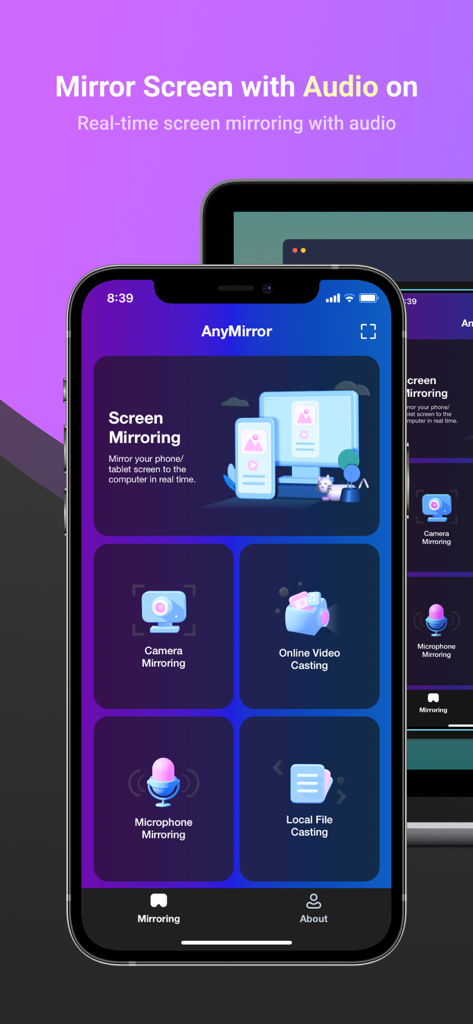
AnyMirrorアプリ画面(iPhone)に、PCへのオーディオとカメラのミラーリングオプションが表示されている
AnyMirrorアプリ画面(iPhone)に、PCへのオーディオとカメラのミラーリングオプションが表示されている

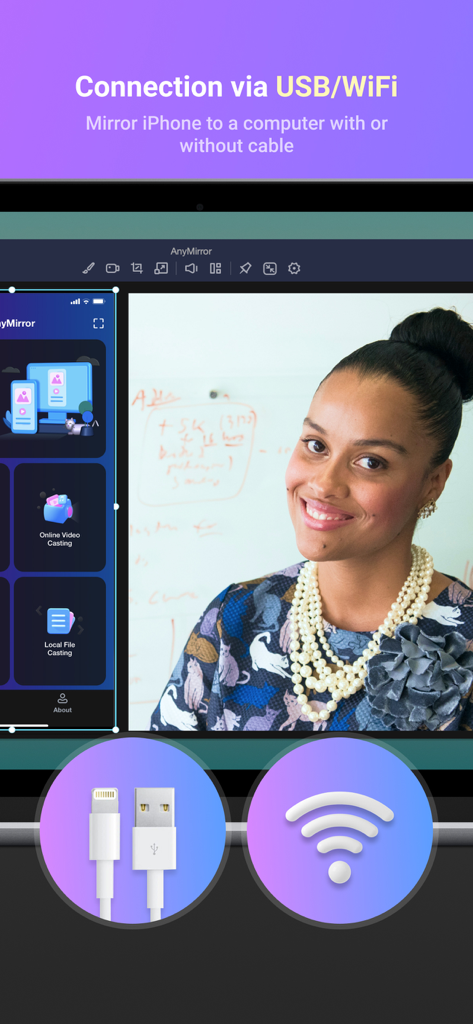
AnyMirrorインターフェースに、USBおよびWi-Fi経由でのスクリーンミラーリング接続オプションが表示されている
AnyMirrorインターフェースに、USBおよびWi-Fi経由でのスクリーンミラーリング接続オプションが表示されている

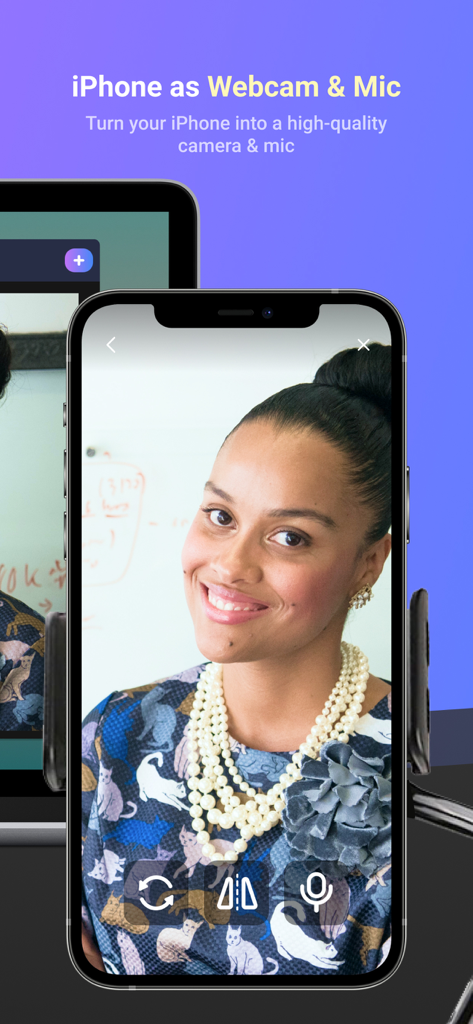
iPhoneが高品質WebカメラおよびマイクとしてPCで使用されている
iPhoneが高品質WebカメラおよびマイクとしてPCで使用されている

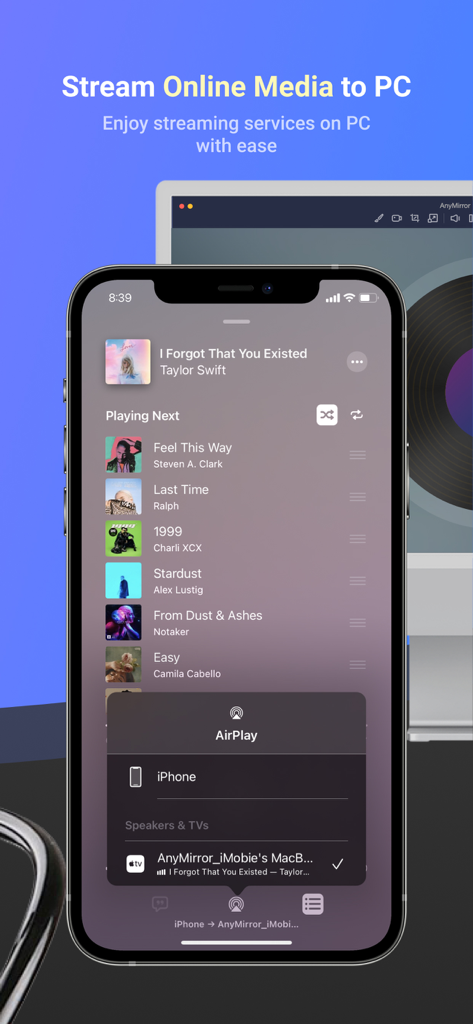
AnyMirrorを使用してiPhoneが音楽プレーヤーアプリをコンピューター画面にストリーミングしている
AnyMirrorを使用してiPhoneが音楽プレーヤーアプリをコンピューター画面にストリーミングしている

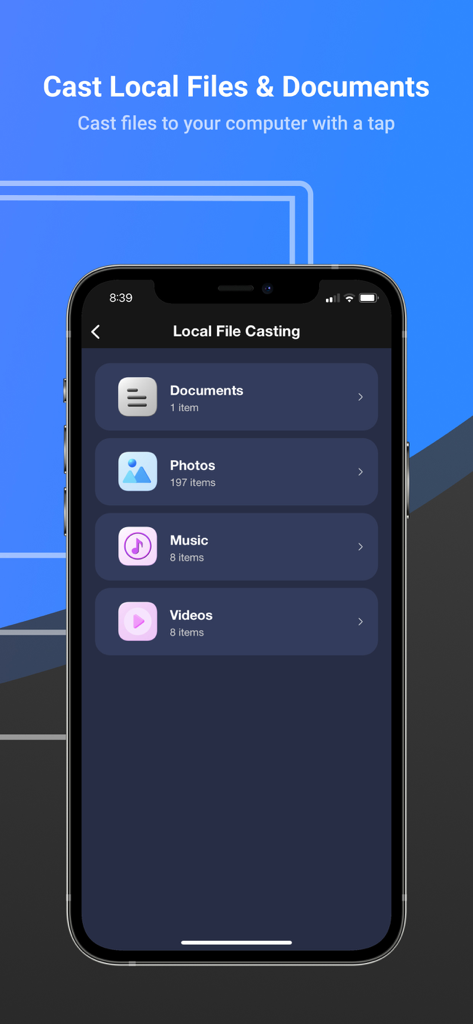
AnyMirrorアプリインターフェースに、ローカルのドキュメント、写真、音楽、ビデオをコンピューターにキャストするためのオプションが表示されている

AnyMirrorアプリインターフェースに、ローカルのドキュメント、写真、音楽、ビデオをコンピューターにキャストするためのオプションが表示されている

プロフェッショナルワークフローを向上させる

このアプリを際立たせるツール、 8K+ 人のユーザーが選択.

🎥

プロレベルのWebカメラ&マイク

バーチャル会議を即座にアップグレード。iPhoneの4Kカメラを、Zoom、Teams、プロフェッショナルストリーム用の高品質ワイヤレスWebカメラとして使用できます。

遅延のないUSB接続

遅延ゼロで超スムーズなミラーリングを体験。重要なアプリデモ、モバイルゲーム、リアルタイムコンテンツ作成に最適です。

🖋️

スマートライブ注釈

視聴者を惹きつけましょう。デジタルレッスンや製品ウォークスルー中に、画面にリアルタイムで直接描画、ハイライト、テキストを追加できます。

アプリについて

について知っておくべきこと AnyMirror: Mirror Screen to PC.

説明

AnyMirror is an easy-to-use screen mirroring app that can be used to mirror your iPhone/iPad to the computer with audio via USB or Wi-Fi. You can mirror whatever is happening on your phone, display it on the computer with high resolution in real-time. AnyMirror also comes with tools to take screenshots, record live HD videos, or add annotations to take your mirrored content to the next level. In addition, AnyMirror allows you to mirror multiple devices simultaneously, which offers a wonderful visual experience for you. Main Features 1. Use your iPhone as a webcam and mic - AnyMirror enables you to mirror in high-definition and lossless quality, which presents your image more professional. Meanwhile, you can walk freely with a movable camera and microphone via Wi-Fi. 2. Manage and edit in any way you like - Add, rotate, resize, show a separate window, and display smart layouts with AnyMirror in a few clicks. No longer limited by inflexible vertical screens anymore. 3. Augment mirrored content to engage with your audience - Annotations are a practical way to emphasize details and clarify opinions. Used in conjunction with a screen capture or recording, to create an engaging video, you can be assured that your presentation will be more intuitive and vivid. 4. Stream to multiple destinations without delay - Real-time stream the mirrored screen to applications like OBS Studio or Zoom for live streaming or meeting. Use cases √ Meeting - AnyMirror bridges the communication gap in an online meeting, which enables the meeting attendees to communicate in high-definition and lossless quality. In addition, you can stand out from your colleagues by recording creative videos with AnyMirror before the meeting. √ Teaching - As a teacher, you can display courseware, files, and exercises with AnyMirror. It also enables you to annotate courseware or type down key points onto your iPhone/iPad, and share the screen with the computer in real-time. √ Live Streaming - You can easily stream mirrored screens along with your image to live streaming apps with AnyMirror. In this way, you can show your excellent skills and performance when you are creating works or playing mobile games to your fans. √ Demonstration - With AnyMirror, you can produce videos of apps tutorials, save and share with your audience instantly. Annotate to emphasize important details when you are demonstrating, and let your audience quickly understand how your app works. √ Entertainment - Cast apps and files with ease. Play music, films, games, and share photos with your families on a larger screen. Make your spare time more exciting. How to Connect Mirror your iPhone/iPad Screen to the computer via Wi-Fi 1. Launch AnyMirror on your computer. 2. Please keep your device and computer connected to the same Wi-Fi network. 3. Open Control Center on iPhone/iPad → Tap Screen Mirroring → Select AnyMirror_computer name once it appears. Mirror your iOS screen to the computer in real time via USB connection: 1. Launch AnyMirror on your computer. 2. Please confirm operations if any alerts pop up on your device or computer. 3. Tap the Start button below to Start Broadcast. Then you are good to go

最新バージョン

1.1.1

サイズ

71.4 MB

リリース日

2021年9月27日

iPhoneをプロフェッショナルワークステーションに変える準備はできましたか?

AnyMirrorで、遅延のない高解像度のプレゼンテーションや会議を提供する何千人ものハイブリッドプロフェッショナルや教育者に加わりましょう。今すぐシームレスなミラーリング体験を始めましょう。

ダウンロード: App Store

App information, icons, screenshots, and descriptions displayed on this page are sourced from the Apple App Store and are the property of their respective developers. Download estimates and rankings are based on MWM's proprietary models and may not reflect actual figures. This page is provided for informational and analytical purposes only.

Believe this page infringes your intellectual property? File a dispute