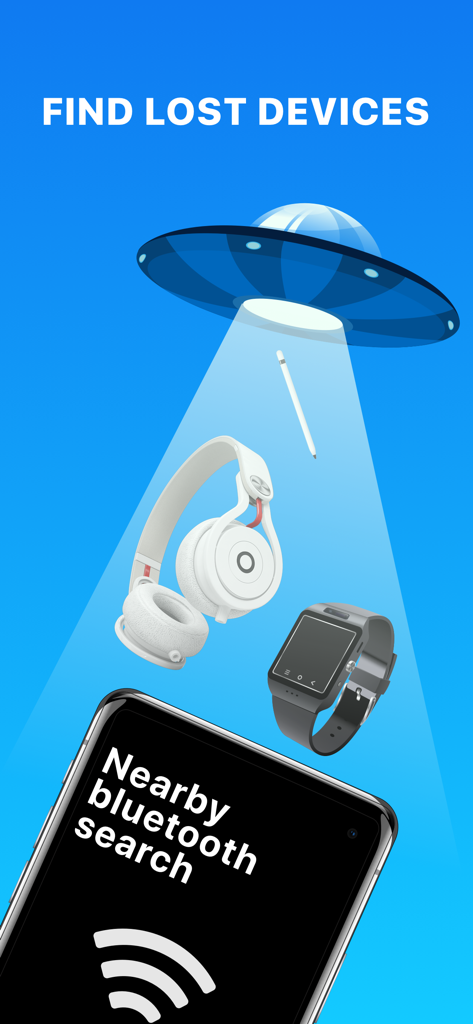
Can’t find your AirPods, Apple Pencil, Apple Watch, iPhone, iPad, iPod, Smartphone, Tablet, Smart Watch, Fitness Tracker, Headphones, Smart Bands, Speakers, or any other Bluetooth device?
We can help you!
If the lost device is on and its battery isn’t dead, we can provide you with the help to scan and find it via its Bluetooth.
How to detect and find the lost device?
1. Open our application, make sure that Bluetooth is on, and the permission to use it is granted.
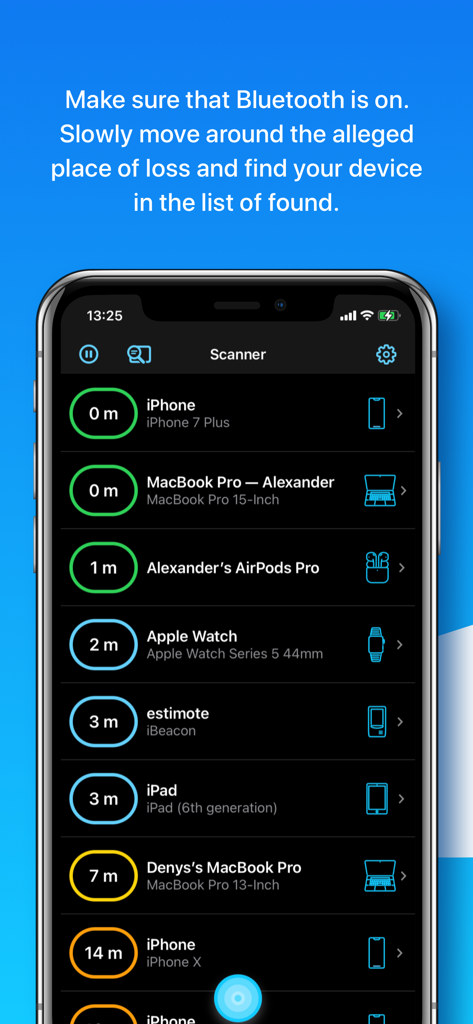
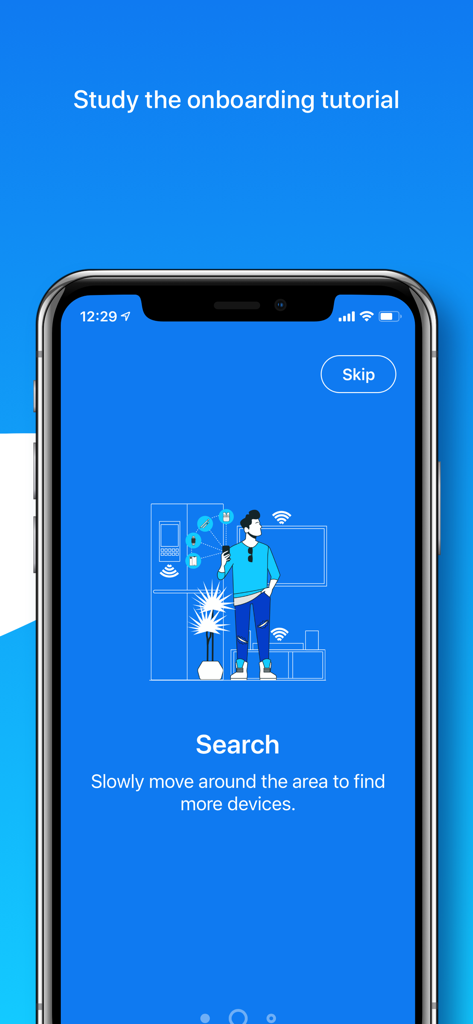
2. Slowly move around the alleged place of loss and find your device in the list of found.
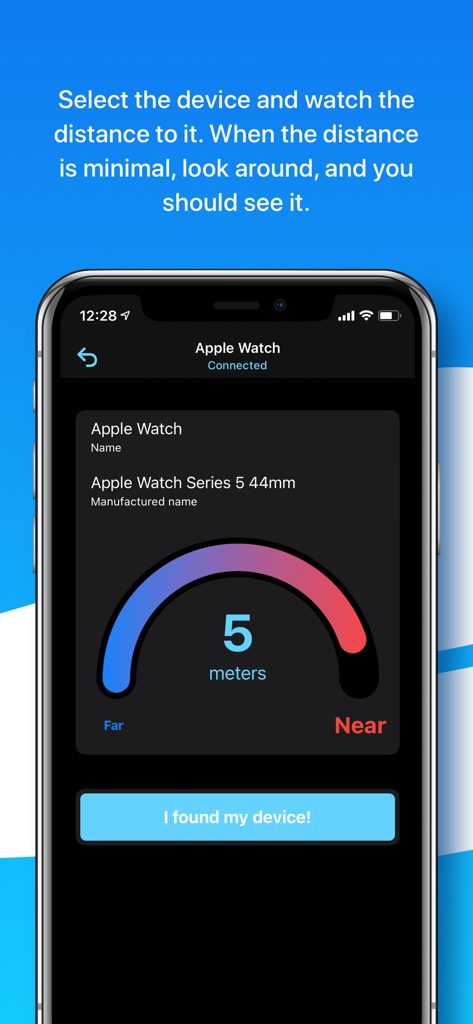
3. Select the device and watch the distance to it.
4. When the distance is minimal, look around, and you should see it.
Additionally, study the video tutorials above. We hope it’ll come in handy and provide an overview of the capabilities of our application for finding lost devices.
About the app:
In the application you’ll see a list of Bluetooth devices around you and the approximate distance to them. Also, a device name, manufactured name, device type, if such information can be retrieved from a Bluetooth device. You’ll be able to go to a screen with a distance sensor, which will be useful for you when searching.
What else is useful in our app:
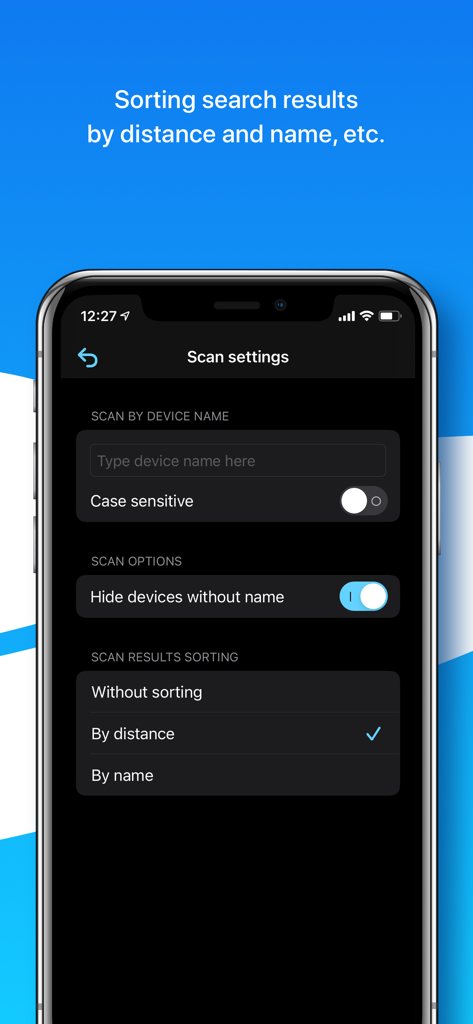
- sorting search results by distance and name;
- searching by a specific device name;
- possibility to see unnamed Bluetooth devices, perhaps yours is among them;
- helpful tips for finding and discovering devices;
- convenient scale showing the distance to the device.
Tips and Questions:
- Why can't I see my device on the list? Sometimes not all devices are visible in the app, because they are turned off, too far away, or just not sending Bluetooth signal.
- Why are the distance numbers unstable? The displayed distance is not stable because of the connection type and possible obstacles between you and your founded device.
- Why do I see Unknown devices? Some devices don’t transmit data, such as name or manufactured name, however, you’ll be able to see the distance to it.
- How to find a single AirPod? If you are looking for a single AirPod – put the other one in the AirPod case and close it. Then wait 5-7 seconds and continue. If you are looking for both AirPods – ignore this advice.
- How to find the AirPod case? The AirPods case itself doesn’t send a signal.
- Can I find AirPods if they are in a closed AirPod case? No, since AirPods in a closed case do not transmit a signal.
- How to find an Apple Pencil? First try our app on iPad, to which Apple pencil was connected. But we could find Apple Pencil on both iPhone and MacBook.
- Are you sure your app works? Definitely yes. Our team tested it and hid the devices all over our big office. All the devices were found. The search time was approximately 3-10 minutes.
A list of the main BLE (Bluetooth Low Energy) devices that you can search for:
- Apple devices such as AirPods (on iPhone/iPad), Apple Pencils (only on iPad), Apple Watches, iPods, iPads, MacBooks.
- Bluetooth Headphones, Speakers, Earbuds such as JBL, Beats, etc.
- Fitness Trackers as Mi Band, Xiaomi, etc.
- Smartphones, Tablets, Smart Watches, and Smart Bands such as Microsoft Band, Samsung Gear, etc.
- All other Bluetooth BLE (Bluetooth Low Energy) devices.
The app supports Dark and Light modes, so your eyes will be happy.
We’re planning to develop our application together with you.
For any questions, contact support - hello@lanars.com