Phakchi - Thai Keyboard -
ダウンロード: App Store

このページはアプリまたはその開発者の公式ページではなく、情報提供および論評を目的として作成された独立した編集出版物です。明示的に別段の記載がない限り、アプリおよびその開発者は、MWM、Apple、Google Play、アプリのパブリッシャー、またはアプリの開発者と提携、承認、後援、認可、またはその他の公式的な関係はなく、このページのいかなる内容も、アプリがMWMのサービスを使用して開発されたことを意味するものではありません。すべての商標、ロゴ、スクリーンショット、その他のコンテンツはそれぞれの所有者の財産です。


ロゴ: Phakchi - Thai Keyboard -
ダウンロード: App Store

Phakchi - Thai Keyboard -

ついに、iPhone画面のために設計されたタイ語キーボードが登場。独自の6x8レイアウトとカラーコード化されたキーは、より大きなタッチターゲットと視覚的な手がかりを提供し、ネイティブスピーカーにも学習者にも、楽なタイピングを実現します。

主要数値

ダウンロード

2K+

ユーザー評価

1.0/5

評価数

0

開発元

Takayuki Imai

カテゴリ

Utilities

対応言語

3

最新バージョン

8.0

サイズ

1.9 MB

リリース日

2016年3月24日
機能

すべてのタイ語話者のための正確なタイピング

小さなキーに苦労するのはもうやめましょう。Phakchiは、従来のタイ語レイアウトをモバイル画面に最適化し、ネイティブスピーカーでも言語学習者でも、入力しやすくしています。

人間工学に基づいた6x8レイアウト

iPhone画面専用に設計された大型キーで「指が滑る」タイピングにさよなら。打ち間違いをなくし、スピードを向上させます。

スマートな視覚補助

カラーコード化された母音と辞書順オプションにより、学習者は瞬時に文字を見つけ、自信を持ってタイ文字を習得できます。

シームレスな片手操作

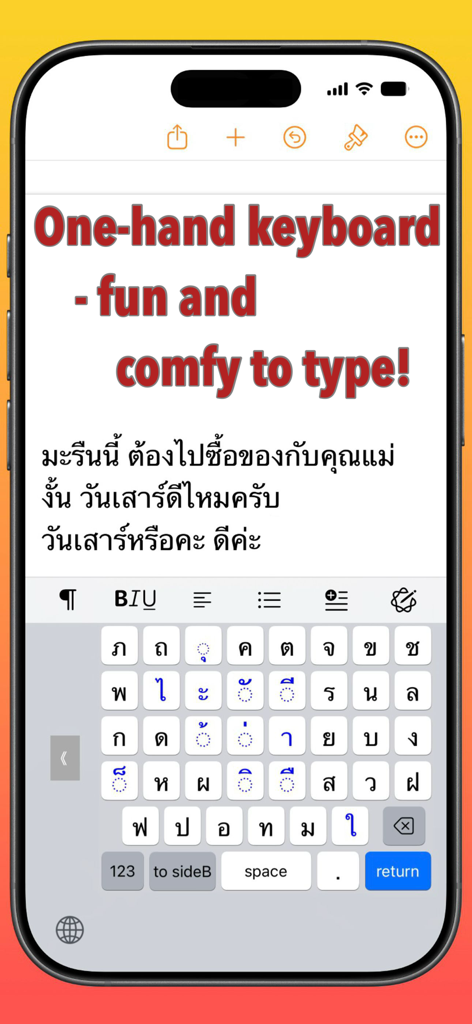
キーボードを左、右、または中央に移動させ、片手で快適に入力できます。移動中の生産性を維持するのに最適です。

以下のスクリーンショットと説明は、アプリの公式ストアリスティングから直接取得されたものであり、アプリ開発者の所有物です。

アプリストア

スクリーンショット
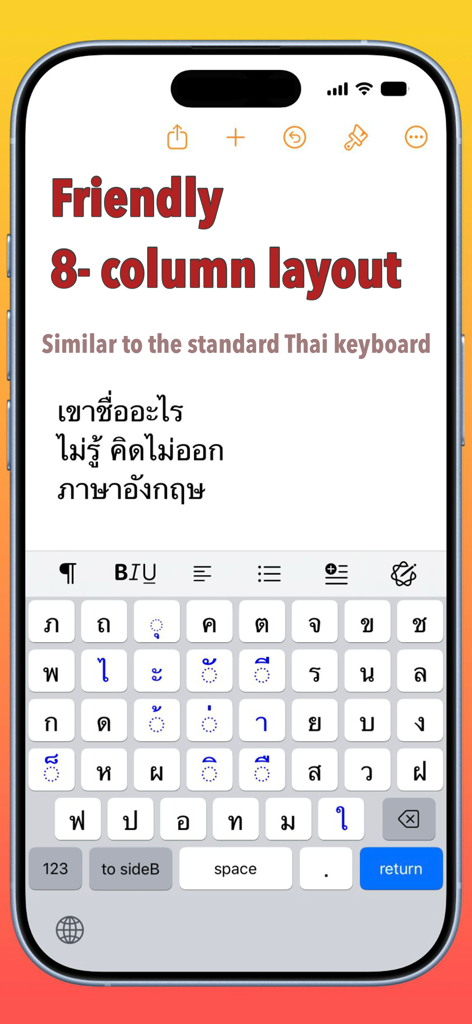
Phakchi - Thai Keyboard - - Phakchiタイ語キーボード、親しみやすい8列レイアウトとiPhone上のカラーコード化された文字を表示
Phakchiタイ語キーボード、親しみやすい8列レイアウトとiPhone上のカラーコード化された文字を表示

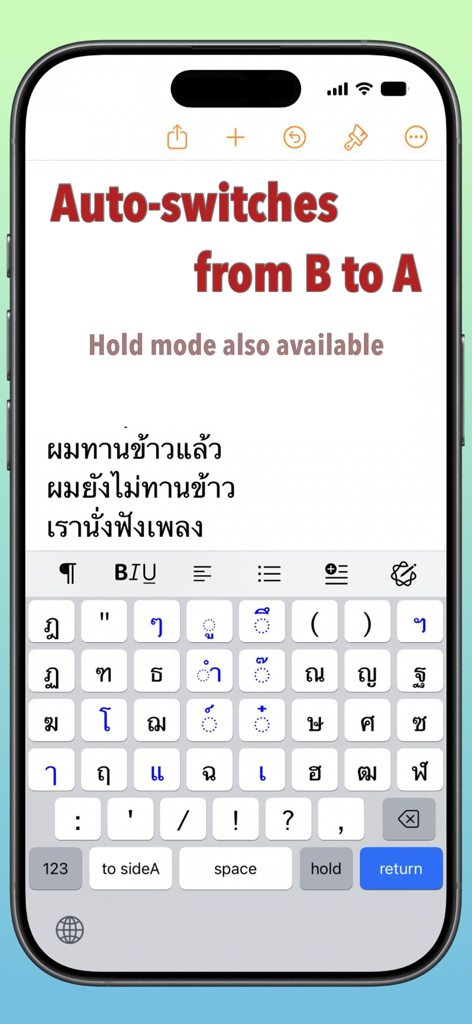
Phakchi - Thai Keyboard - - Phakchiタイ語キーボードの自動切り替え機能(サイドBからサイドAへの切り替え)とホールドモードオプションを示すスクリーンショット
Phakchiタイ語キーボードの自動切り替え機能(サイドBからサイドAへの切り替え)とホールドモードオプションを示すスクリーンショット

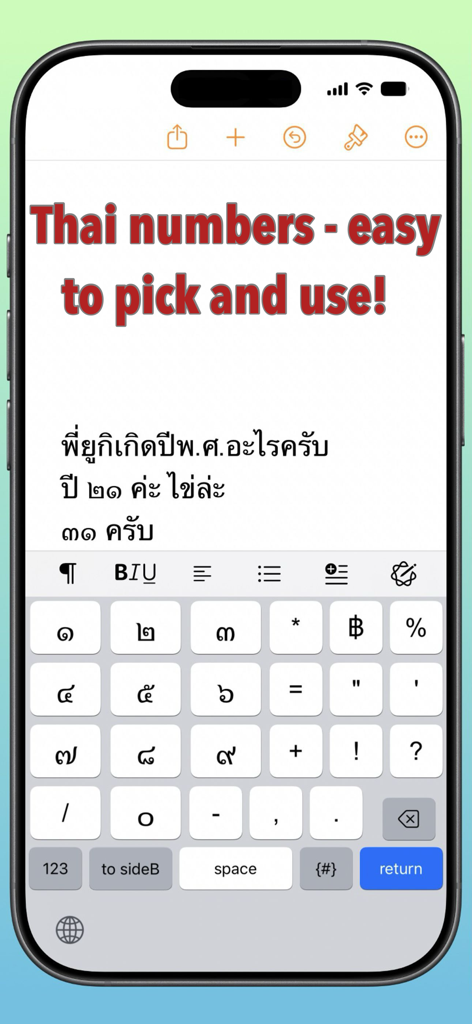
Phakchi - Thai Keyboard - - タイ数字と数学記号が簡単にタイピングできるPhakchiキーボードを示すスマートフォンのスクリーンショット。
タイ数字と数学記号が簡単にタイピングできるPhakchiキーボードを示すスマートフォンのスクリーンショット。

Phakchi - Thai Keyboard - - 片手モードのPhakchiタイ語キーボードがカラーコード化されたキーと共に表示されているiPhone画面
片手モードのPhakchiタイ語キーボードがカラーコード化されたキーと共に表示されているiPhone画面

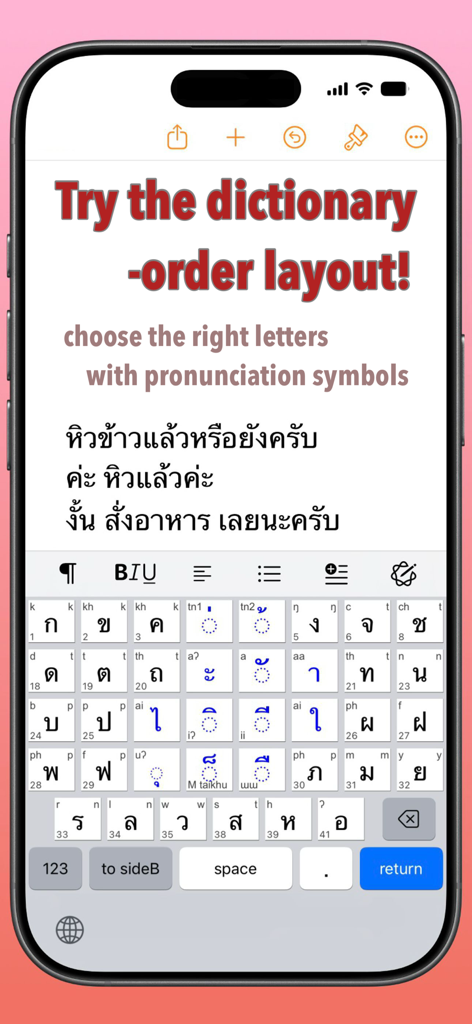
Phakchi - Thai Keyboard - - キーに発音記号が付いた辞書順レイアウトを示すPhakchiタイ語キーボードアプリのインターフェース。
キーに発音記号が付いた辞書順レイアウトを示すPhakchiタイ語キーボードアプリのインターフェース。

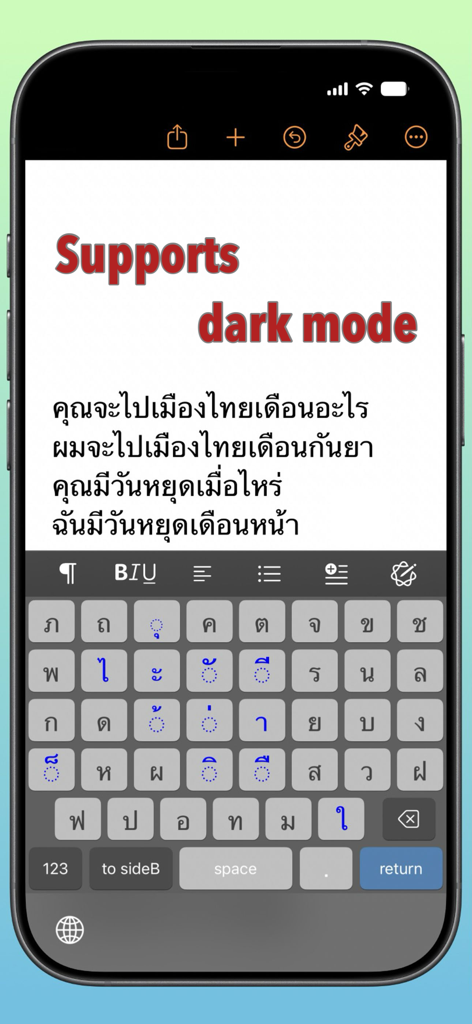
Phakchi - Thai Keyboard - - カラーコード化された6x8キーレイアウトが特徴のダークモードのPhakchiタイ語キーボードインターフェース
カラーコード化された6x8キーレイアウトが特徴のダークモードのPhakchiタイ語キーボードインターフェース

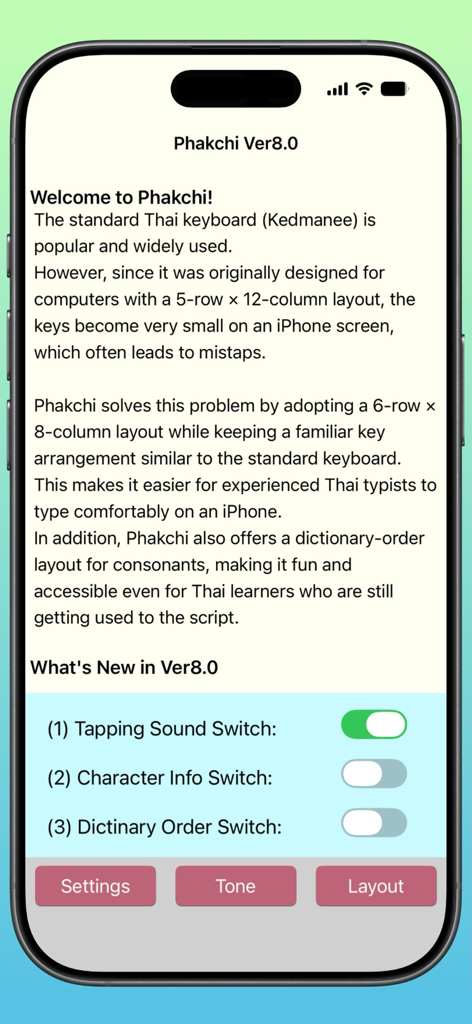
Phakchi - Thai Keyboard - - バージョン8.0の設定と機能説明を示すPhakchiタイ語キーボードアプリのウェルカム画面。

バージョン8.0の設定と機能説明を示すPhakchiタイ語キーボードアプリのウェルカム画面。

説明

. Welcome to Phakchi! The standard Thai keyboard (Kedmanee) is popular and widely used. However, since it was originally designed for computers with a 5-row × 12-column layout, the keys become very small on an iPhone screen, which often leads to mistaps. Phakchi solves this problem by adopting a 6-row × 8-column layout while keeping a familiar key arrangement similar to the standard keyboard. This makes it easier for experienced Thai typists to type comfortably on an iPhone. In addition, Phakchi also offers a dictionary-order layout for consonants, making it fun and accessible even for Thai learners who are still getting used to the script. 2. Features (1) Easy Thai typing on iPhone – Thanks to the 6×8 key layout. (2) Familiar key arrangement – Similar to the standard Thai keyboard, so you can type fast right away. (3) Color-coded keys – Consonants are black, vowels and tone marks are blue, making characters easier to find. (4) Dictionary-order layout option – Great for Thai learners. (5) Helpful key labels – Shows dictionary-order numbers on consonants and pronunciation marks on all characters. (6) One-handed typing – Available via the L, C, and R keys shown on the first screen.* (7) Six input modes – A-side and B-side (for frequently/less frequently used Thai letters), numbers, symbols, Thai numerals, and English letters. *The L/C/R keys temporarily disappear while typing in Thai, but they reappear after rotating the iPhone and returning it to the normal position. 3.Compatibility etc. (1)Compatibility ·iPhone: Compatible with iPhone SE (2nd generation) to iPhone 17 series ·iPad: Compatible with iPad (5th generation) to iPad with A16 chip (2)Operating System ·iOS: Supports iOS 15.0 – iOS 18.x and iOS 26.x ·iPadOS: Supports iPadOS 15.0 – iPadOS 26.x (3)Interface Languages English, Thai, Japanese (Information as of November 2025) 4.Initial Settings [1] Keyboard Setup ·On the iOS Home screen, tap the Settings icon. ·Go to General → Keyboard → Add New Keyboard... ·Tap Phakchi to add it to your keyboards. [2] Enabling Key Tap Sounds (Allow Full Access) ·Go to Settings → Accessibility → Keyboards and Input. ·Tap Full Keyboard Access. ·Turn on the Full Keyboard Access switch. ·Once this setting is enabled, you can control key tap sounds on or off from the switch inside the host app. 5.Usage Tips • To switch between Side A and Side B, use the key labeled [to sideB] or [to sideA]. • After typing a character on Side B, the keyboard automatically returns to Side A. • If you want to type multiple keys on Side B, tap the hold key first, then tap the characters you want to enter. • Side B hold mode can be canceled by tapping the hold key again or switching to another mode. • To enter Thai numerals, tap the [T123] key. On iPhone, you can access this from the [123] number mode. 6. About the Developer ·Name: Takayuki Imai ·Email: snowysap@gmail.com ·Support Website: https://superscript.sakura.ne.jp/ 7. Privacy Policy ·The app does not transmit any information typed on the keyboard over the Internet. ·The developer will never disclose or sell any personal information such as your name, email address, or communication content without your consent.

Download

ダウンロード: App Store

このページはアプリまたはその開発者の公式ページではなく、情報提供および論評を目的として作成された独立した編集出版物です。明示的に別段の記載がない限り、アプリおよびその開発者は、MWM、Apple、Google Play、アプリのパブリッシャー、またはアプリの開発者と提携、承認、後援、認可、またはその他の公式的な関係はなく、このページのいかなる内容も、アプリがMWMのサービスを使用して開発されたことを意味するものではありません。すべての商標、ロゴ、スクリーンショット、その他のコンテンツはそれぞれの所有者の財産です。