
このページはアプリまたはその開発者の公式ページではなく、情報提供および論評を目的として作成された独立した編集出版物です。明示的に別段の記載がない限り、アプリおよびその開発者は、MWM、Apple、Google Play、アプリのパブリッシャー、またはアプリの開発者と提携、承認、後援、認可、またはその他の公式的な関係はなく、このページのいかなる内容も、アプリがMWMのサービスを使用して開発されたことを意味するものではありません。すべての商標、ロゴ、スクリーンショット、その他のコンテンツはそれぞれの所有者の財産です。


Picking List
複雑さなしで生活を整理しましょう。インターネット不要、アカウント作成不要、iPhoneやiPad(古いモデルでも)で美しく動作します。開いて、リストを作成して、ピックするだけです。
ダウンロード
100ユーザー評価
評価数
0開発元
カテゴリ
Lifestyle対応言語
1最新バージョン
1.0.6サイズ
9.1 MBリリース日
2020年6月9日生活必需品のためのシンプルな整理
紙とペンの信頼できるデジタル代替品—インターネット不要、アカウント不要、不要な複雑さもありません。
どこでも動作、完全にプライベート
インターネットは必要ありません。クルーズ船、地方の食料品店、または電波の弱い旅行に最適です。データはデバイスに安全に保管されます。
簡単な音声入力
小さなキーボードでの入力を避けましょう。「音声入力」または電話を振るだけで、瞬時にリストにアイテムを追加できます。
よくある質問
について知っておくべきこと Picking List
ピッキングリストアプリの主な目的は何ですか?
ピッキングリストアプリは、ユーザーがショッピングやパッキングのリストを作成および管理するのに役立ちます。インターネット接続なしでアイテムを選択し、「ピッキング済み」としてマークすることができます。
ピッキングリストアプリはインターネット接続が必要ですか?
いいえ、ピッキングリストアプリの操作にインターネット接続は必要ありません。完全にオフラインで機能するため、ユーザーのプライバシーが保証されます。
ピッキングリストアプリに対応しているデバイスは何ですか?
ピッキングリストアプリは、iPhone、iPad、iPod 第5世代、およびすべてのApple Siliconデバイスと互換性があります。iOS 12.0以降が必要です。
ピッキングリストアプリでアイテムを「ピッキング済み」としてマークするにはどうすればよいですか?
ピッキングリストアプリでは、「ピッキング済み」タブに移動します。リスト内のアイテムをタッチすると、色がオレンジ色に変わり、「ピッキング済み」であることが示されます。
ピッキングリストのプリロードされたテンプレートをカスタマイズできますか?
はい、ピッキングリストではテンプレートを完全にカスタマイズできます。ユーザーは、既存のテンプレート内のアイテムを追加、編集、または削除し、変更したバージョンを保存できます。
ピッキングリストでリストに新しいアイテムを追加するにはどうすればよいですか?
ピッキングリストでアイテムを追加するには、「メニュー」オプションをタップします。「追加」を選択して、新しいアイテムまたはサブタイトルを挿入します。新しいアイテムは、選択した項目下に緑色の「+」記号で表示されます。
ピッキングリストアプリで使用されているアイテムのカラーコードは何ですか?
ピッキングリストでは、カラーコードが使用されます。白は未選択、緑は選択済み、オレンジはピッキング済みです。茶色は標準、ピンクは女性、青は男性、黄色は子供用です。
ピッキングリストは現在のリストの状態を自動的に保存しますか?
はい、ピッキングリストはアプリの状態を自動的に保存します。いつでもアプリを閉じたり再開したりでき、中断したところから正確に再開できます。
ピッキングリストアプリの「シェイク機能」とは何ですか?
ピッキングリストの「シェイク機能」は、「クイックリスト」の作成を可能にします。iPhoneを振ってから、説明ボックスにテキスト入力または「音声入力」でアイテムを入力します。
ピッキングリストアプリを使用してリスト内のアイテムの順序を変更するにはどうすればよいですか?
ピッキングリストでアイテムの順序を変更するには、右上の「編集」をタップします。任意のアイテムをドラッグして希望の新しい位置に移動します。変更を確認するには「完了」をタップします。
ピッキングリストで数量やタイプなどのアイテム詳細を編集できますか?
はい、ピッキングリストでは、アイテムを長押しすると編集ウィンドウが表示されます。これにより、説明、数量、またはアイテムのタイプ/状態を変更できます。
ピッキングリストアプリのサポートに連絡するにはどうすればよいですか?
ピッキングリストアプリのサポートには、supportcaduk@icloud.com にメールで連絡できます。このメールアドレスは、新しいテンプレートや機能の提案にも使用できます。
ピッキングリストアプリにはどのiOSバージョンが必要ですか?
ピッキングリストアプリは、iPad、iPod、iPhone、またはmacOSデバイスで実行するためにiOS 12.0以降が必要です。
以下のスクリーンショットと説明は、アプリの公式ストアリスティングから直接取得されたものであり、アプリ開発者の所有物です。
アプリストア
スクリーンショット
ピッキングリストアプリのスプラッシュスクリーン、買い物カートとビンテージスーツケースが淡い青色の背景に表示されています
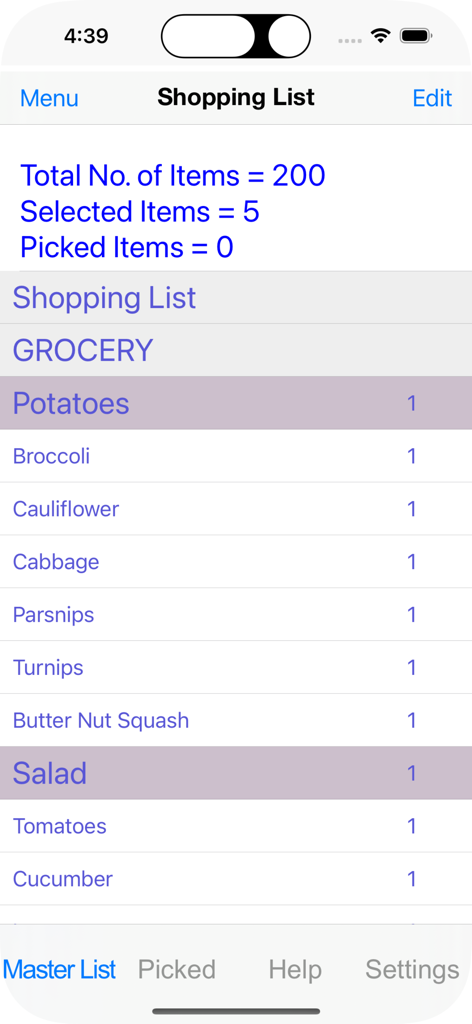
ピッキングリストアプリ内のシンプルなデジタル食料品リスト、ジャガイモやブロッコリーなどのアイテムとアイテム数が表示されています。
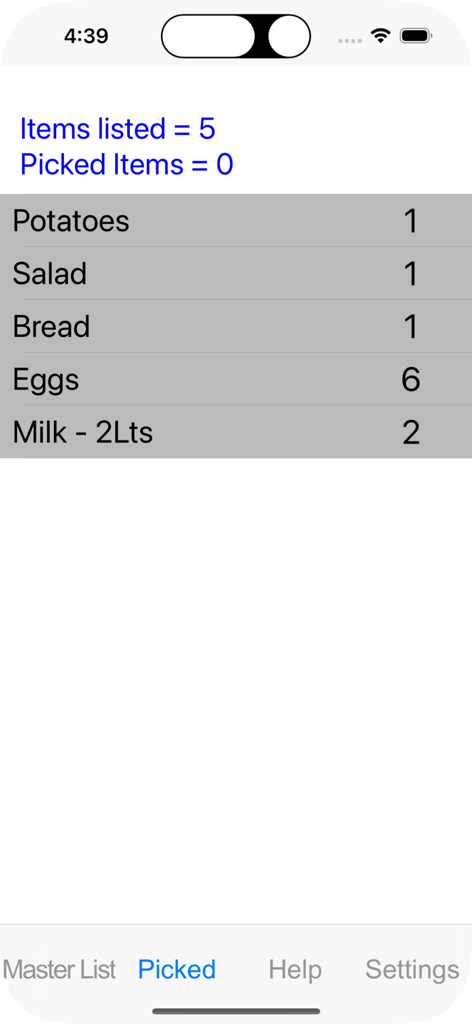
ピッキングリストアプリのスクリーンショット、ジャガイモ、パン、牛乳などの食料品リストとその数量が表示されています。
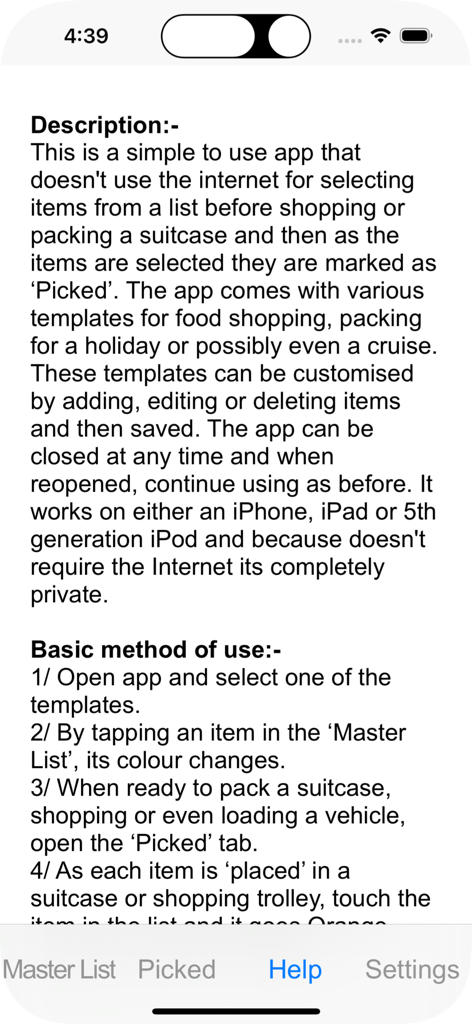
ピッキングリストアプリのヘルプ画面、オフラインの買い物リストとパッキングリスト機能の使用方法に関する詳細な手順が表示されています
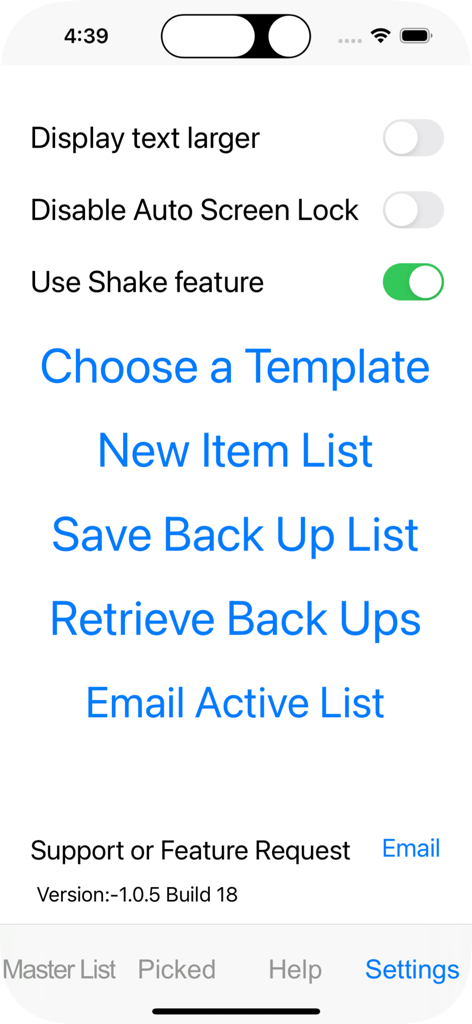
ピッキングリストアプリの設定メニュー、大きな文字やリスト管理テンプレートのオプションが表示されています。
説明
Download
類似アプリ
同じカテゴリのトップランクアプリ

Pinterest, Inc.
Alipay - Simplify Your Life
Alipay (Hangzhou) Technology Co., Ltd.

Dianping: Discover Good Places
Hanhai Information Technology (Shanghai) Co.Ltd

美团-美好生活小帮手
Sankuai Technology Co., Ltd.

Lemon8 - Lifestyle Community
TIKTOK PTE. LTD.

Xiaomi Home
Beijing Xiaomi Co., Ltd

Tinder Dating App: Date & Chat
Tinder LLC

SmartThings
Samsung Electronics Co., Ltd.

VNeTraffic
GLOBAL TECHNOLOGY - TELECOMMUNICATIONS CORPORATION
このページはアプリまたはその開発者の公式ページではなく、情報提供および論評を目的として作成された独立した編集出版物です。明示的に別段の記載がない限り、アプリおよびその開発者は、MWM、Apple、Google Play、アプリのパブリッシャー、またはアプリの開発者と提携、承認、後援、認可、またはその他の公式的な関係はなく、このページのいかなる内容も、アプリがMWMのサービスを使用して開発されたことを意味するものではありません。すべての商標、ロゴ、スクリーンショット、その他のコンテンツはそれぞれの所有者の財産です。