Address Label Creator
다운로드: App Store

이 페이지는 앱이나 개발자의 공식 페이지가 아니며, 정보 제공 및 논평을 목적으로 작성된 독립 편집 간행물입니다. 명시적으로 달리 언급되지 않는 한, 해당 앱이나 개발자는 MWM, Apple, Google Play, 앱 퍼블리셔 또는 앱 개발자와 제휴, 보증, 후원, 승인 또는 공식적으로 연결되어 있지 않으며, 이 페이지의 어떤 내용도 해당 앱이 MWM의 서비스를 사용하여 개발되었음을 의미하지 않습니다. 모든 상표, 로고, 스크린샷 및 기타 콘텐츠는 해당 소유자의 자산입니다.

로고: Address Label Creator
다운로드: App Store

Address Label Creator

편지 병합의 번거로움에서 벗어나세요. Mac 또는 iPad에서 Avery 용지에 딱 맞는 정밀한 정렬로 멋진 맞춤형 주소 및 배송 라벨을 디자인할 수 있습니다. 소규모 비즈니스, Etsy 판매자 및 정돈된 가정을 위해 완벽합니다.

주요 수치

다운로드

17K+

사용자 평점

1.6/5

총 평가 수

0

개발사

Gilbert Hansen

카테고리

Business

지원 언어

1

최신 버전

4.8.0

크기

179.3 MB

출시일

2016년 9월 23일
기능

전문적인 라벨링을 손쉽게

맞춤형 브랜딩부터 대량 메일 발송까지, iPad 또는 Mac에서 직접 정밀하고 간편하게 전문 라벨을 디자인하고 인쇄하세요.

완벽한 인쇄 정렬

용지 낭비의 좌절감을 끝내세요. 여백을 미세 조정하고 레이아웃 미리보기를 사용하여 Avery 및 표준 US 용지의 모든 라벨이 완벽하게 정렬되도록 합니다.

스마트 주소 가져오기

수동 입력을 건너뛰세요. 연락처, CSV 스프레드시트 또는 iCloud 파일을 간편하게 가져와 몇 번의 탭만으로 수백 개의 라벨을 생성할 수 있습니다.

다음 스크린샷과 설명은 앱의 공식 스토어 목록에서 직접 가져온 것이며 앱 개발자의 자산입니다.

앱 스토어

스크린샷
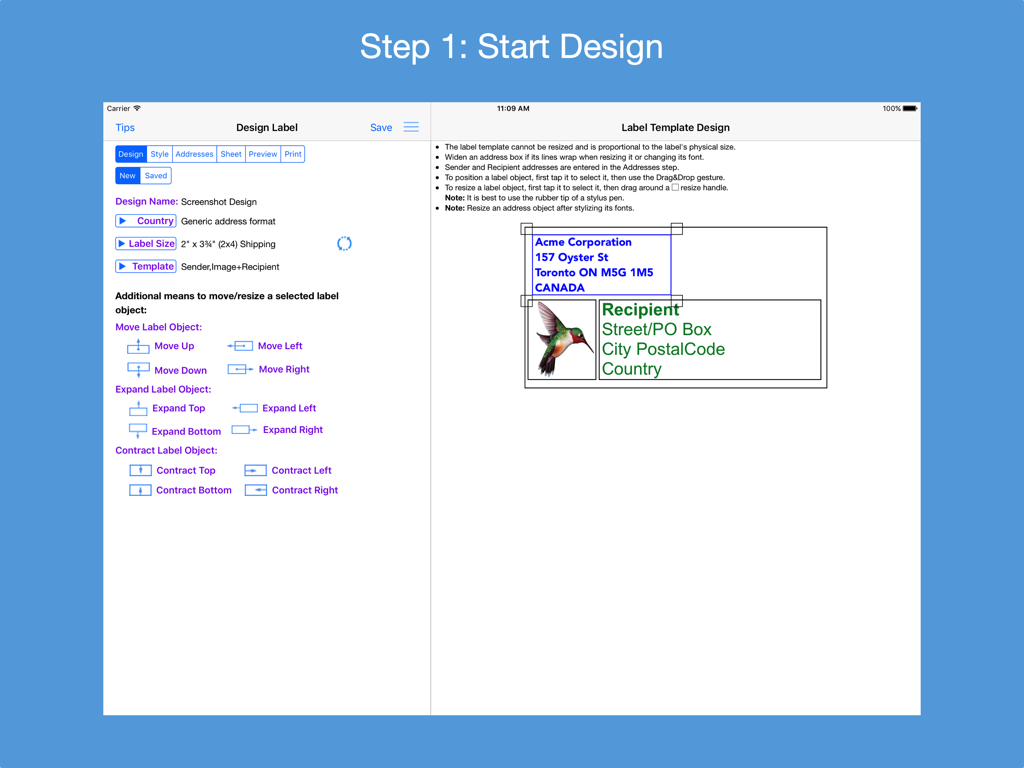
Address Label Creator - 디자인 도구와 라벨 템플릿 미리보기를 보여주는 주소 라벨 생성기의 iPad 인터페이스.
디자인 도구와 라벨 템플릿 미리보기를 보여주는 주소 라벨 생성기의 iPad 인터페이스.

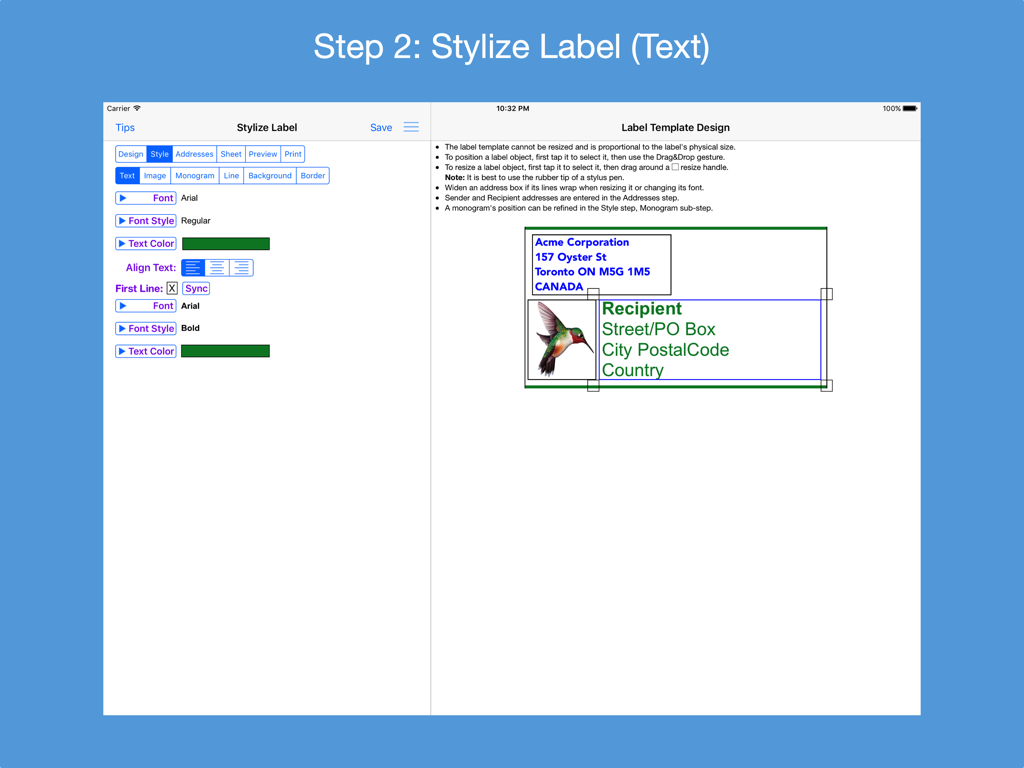
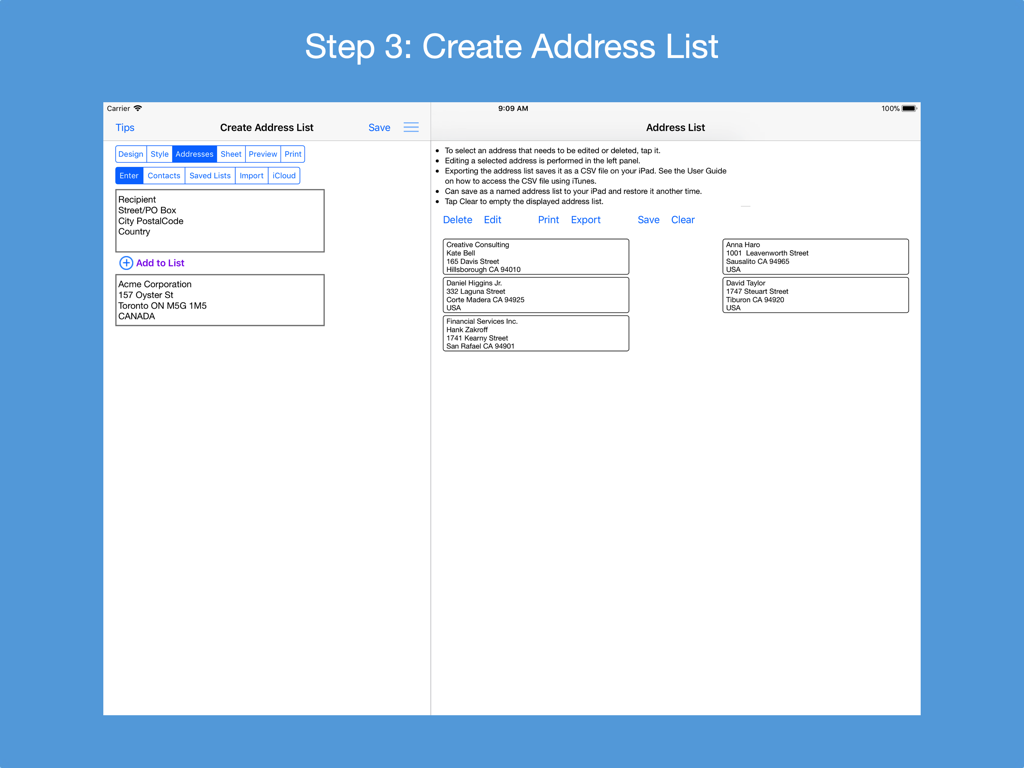
Address Label Creator - 미리보기와 함께 라벨 텍스트 스타일을 지정하는 주소 라벨 생성기 앱의 2단계를 보여주는 iPad 스크린샷
미리보기와 함께 라벨 텍스트 스타일을 지정하는 주소 라벨 생성기 앱의 2단계를 보여주는 iPad 스크린샷

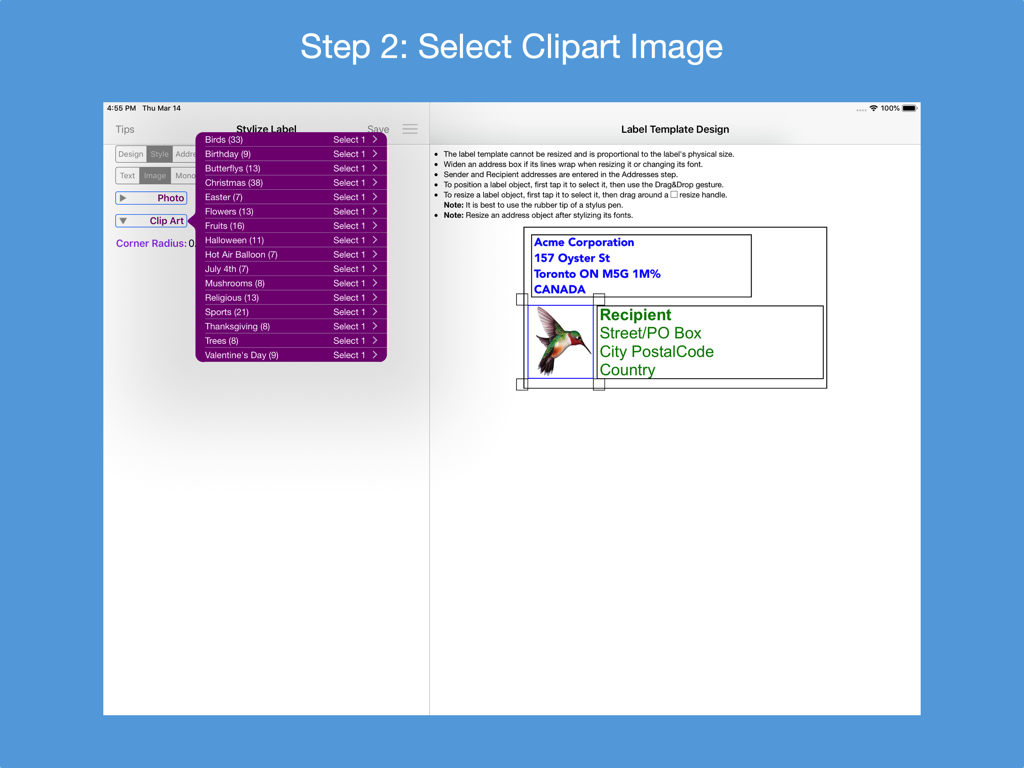
Address Label Creator - 벌새 일러스트레이션이 포함된 맞춤형 주소 라벨 디자인을 위한 클립아트 선택 화면을 보여주는 iPad 앱 인터페이스
벌새 일러스트레이션이 포함된 맞춤형 주소 라벨 디자인을 위한 클립아트 선택 화면을 보여주는 iPad 앱 인터페이스

Address Label Creator - iPad에서 주소 목록을 생성하고 관리하는 인터페이스를 보여주는 주소 라벨 생성기 앱의 스크린샷.
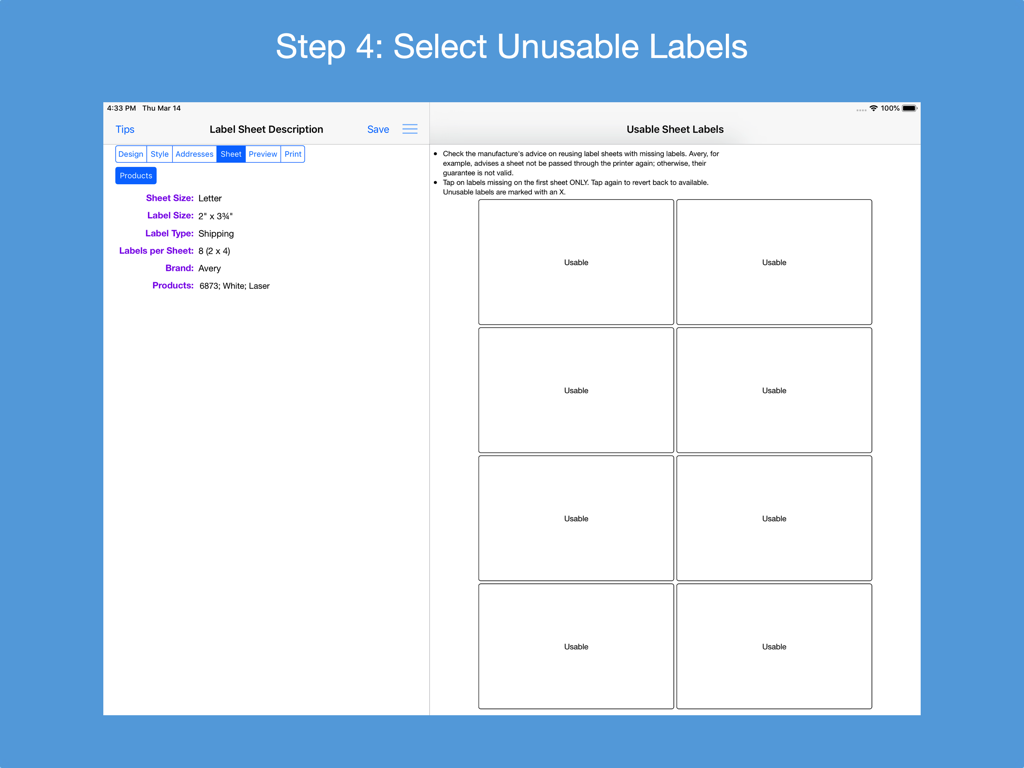
iPad에서 주소 목록을 생성하고 관리하는 인터페이스를 보여주는 주소 라벨 생성기 앱의 스크린샷.

Address Label Creator - 주소 라벨 생성기 앱에서 배송 용지의 사용 가능한 라벨과 사용 불가능한 라벨을 표시하는 인터페이스
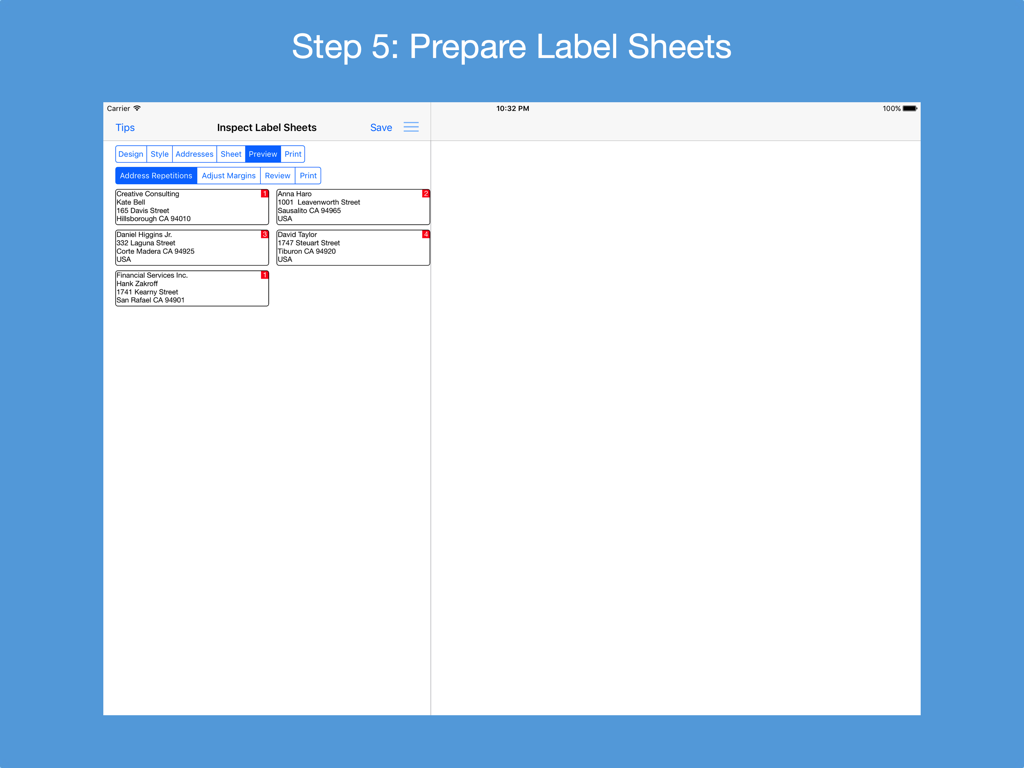
주소 라벨 생성기 앱에서 배송 용지의 사용 가능한 라벨과 사용 불가능한 라벨을 표시하는 인터페이스

Address Label Creator - iPad에서 주소 미리보기와 함께 라벨 용지 준비 단계를 보여주는 주소 라벨 생성기 앱 인터페이스.
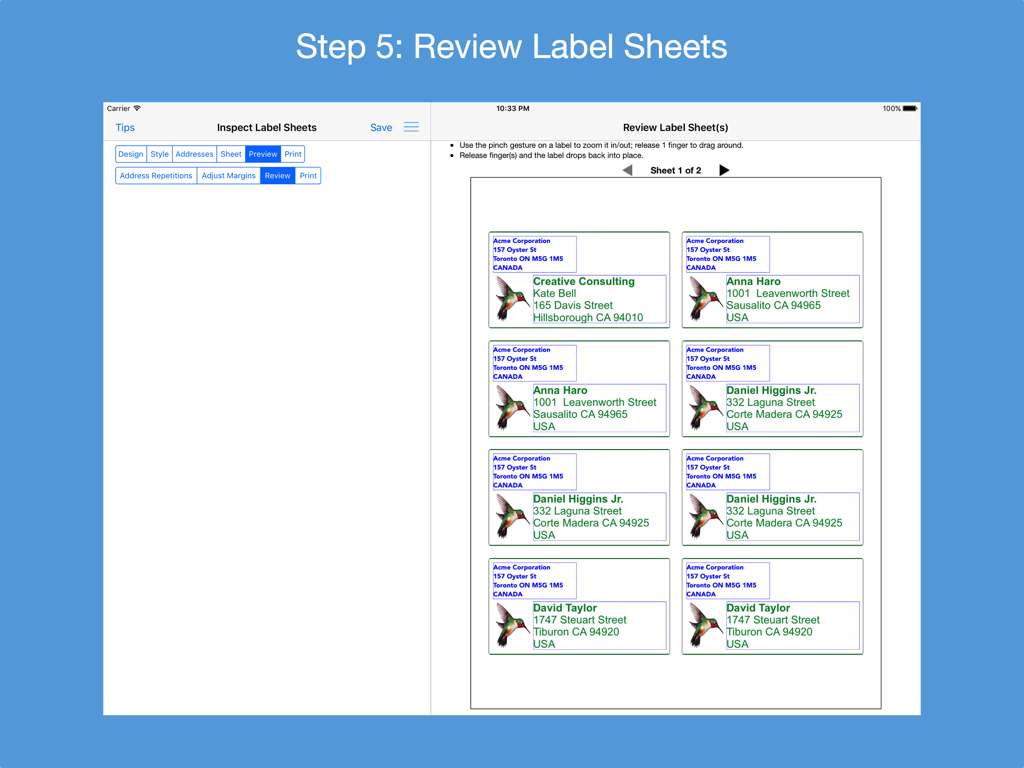
iPad에서 주소 미리보기와 함께 라벨 용지 준비 단계를 보여주는 주소 라벨 생성기 앱 인터페이스.

Address Label Creator - 여러 개의 맞춤형 주소 라벨이 포함된 인쇄 가능한 용지 미리보기를 보여주는 iPad 화면
여러 개의 맞춤형 주소 라벨이 포함된 인쇄 가능한 용지 미리보기를 보여주는 iPad 화면

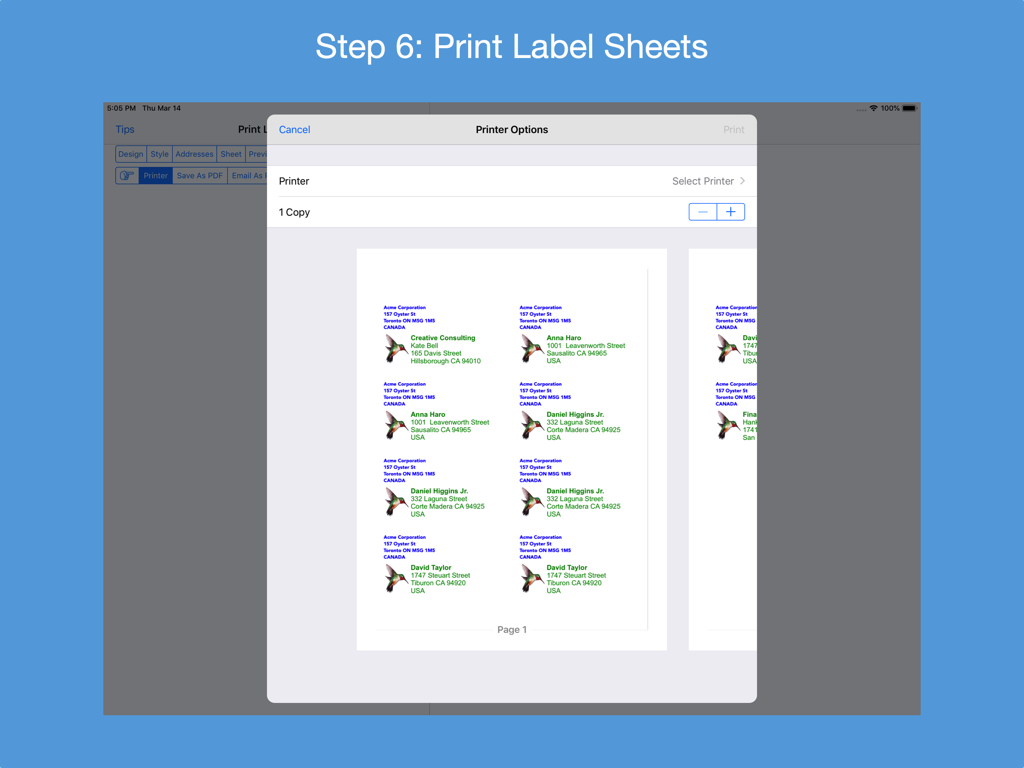
Address Label Creator - 일러스트레이션이 포함된 맞춤형 주소 라벨 미리보기를 보여주는 iPad의 주소 라벨 생성기 앱 프린터 옵션 화면
일러스트레이션이 포함된 맞춤형 주소 라벨 미리보기를 보여주는 iPad의 주소 라벨 생성기 앱 프린터 옵션 화면

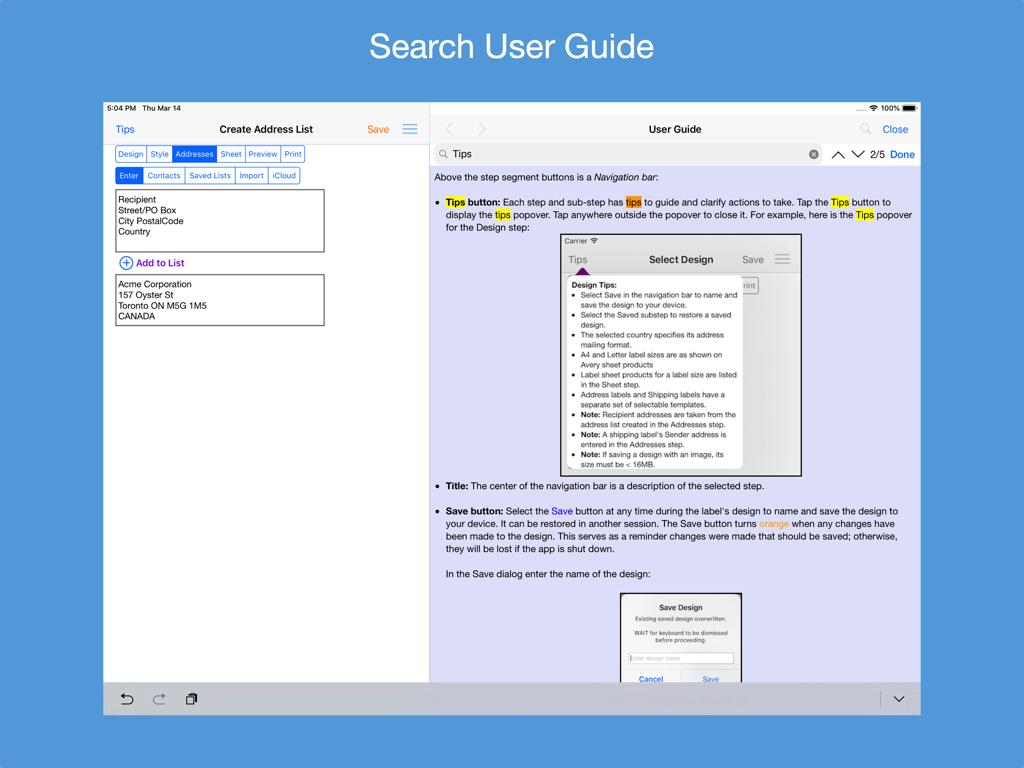
Address Label Creator - iPad의 주소 라벨 생성기 앱에서 주소 목록 생성 화면 옆에 검색 가능한 사용자 가이드를 보여주는 스크린샷.
iPad의 주소 라벨 생성기 앱에서 주소 목록 생성 화면 옆에 검색 가능한 사용자 가이드를 보여주는 스크린샷.

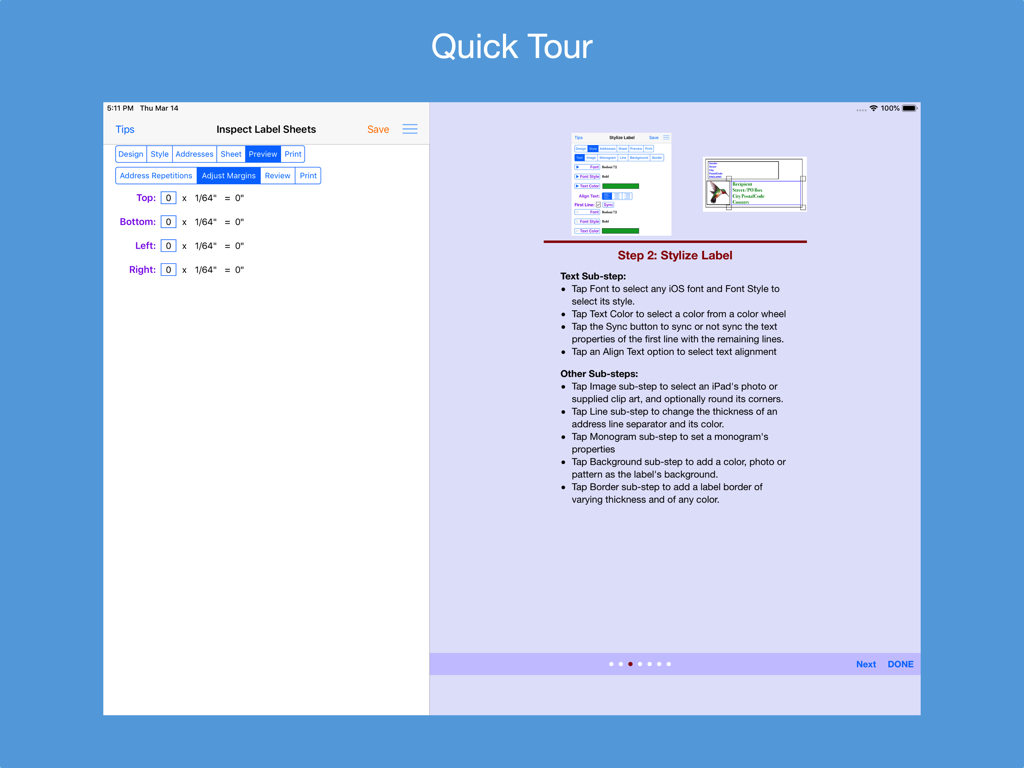
Address Label Creator - 여백 조정 설정 및 스타일링 지침을 보여주는 주소 라벨 생성기의 빠른 둘러보기 화면

여백 조정 설정 및 스타일링 지침을 보여주는 주소 라벨 생성기의 빠른 둘러보기 화면

설명

Design custom address and shipping labels from predefined templates. Populate label sheet with addresses from an address list constructed from manual entries, contacts, saved lists and/or spreadsheets, each with its own repetition count. Preview the label sheets before printing. Save design and address list to device. Supports all Avery A4 and Letter return address, address and shipping label products plus all Unistat and Herma rectangular A4 label products. Features: * Step-by-step workflow, each with 1 or more sub-steps: STEP 1: Start new design or restore saved design * Select a country postal format from a list of 58 countries * Select an A4 or Letter return address, address or shipping label size * Turn an address label into a shipping label and vice versa * Select a provided label template * Position and resize label objects using gestures and/or buttons STEP 2: Stylize label * Use any available iOS font or supplied font and its font styles * Text can be any color selected from a color wheel or entered as a hexadecimal value * The first line of text can have its own text properties distinct from those of the remaining lines * Select images from device photos or supplied clip art * Select monogram's font, letter and color, and optionally encase in a circle or oval frame * A shipping address line separator can be of varying thickness and of any color * An optional label background can be any color, device photo or supplied pattern of varying opacity. The pattern can be scaled. * An optional label border can be of varying thickness and of any color STEP 3: Construct address list * Build a list of addresses by 1) entering them manually; 2) selecting contacts with addresses; 3) selecting a saved address list; 4) importing addresses in a CSV file on iPad; 5) importing addresses in a CSV file on iCloud Drive and/or 6) exporting an address spreadsheet as a CSV file and transferring it to the app. * Manage address list - edit or delete an address; print, export to a CSV spreadsheet or clear the list * Save address list to device; restore later STEP 4: Examine label sheet’s product specifications; mark unusable labels on 1st sheet STEP 5: Preview label sheets * Specify how many times each address is to be replicated on the label sheets * Adjust sheet margins when printed results are not perfectly aligned * Review label sheets for alignment accuracy before printing to label sheet * Print outlined labels and overlay on label sheet to check label content lines up correctly STEP 6: Print label sheets to an AirPrint enabled printer, save to a PDF file or e-mail as a PDF for printing later or elsewhere. PDF needed for borderless printing. * The User Guide provides instructions on how to best print the label PDF file and do borderless printing. * Save design to device and restore another time * Detailed User Guide with FAQs within app and on support website verusapps.com. Within the app it can be searched for keywords and phrases. * The Quick Guide and Quick Tour, viewable on-demand, provide a way to quickly learn how to use the app. The app requires permission to access Contacts and Photos on the device; otherwise, an address cannot be selected from Contacts and a label image cannot be selected from Photos. Send e-mail to support@verusapps.com to report issues, make improvement suggestions or ask questions. The app's Privacy Policy is available at http://verusapps.com/index.php/privacy-policy-for-address-label-creator/

Download

다운로드: App Store

이 페이지는 앱이나 개발자의 공식 페이지가 아니며, 정보 제공 및 논평을 목적으로 작성된 독립 편집 간행물입니다. 명시적으로 달리 언급되지 않는 한, 해당 앱이나 개발자는 MWM, Apple, Google Play, 앱 퍼블리셔 또는 앱 개발자와 제휴, 보증, 후원, 승인 또는 공식적으로 연결되어 있지 않으며, 이 페이지의 어떤 내용도 해당 앱이 MWM의 서비스를 사용하여 개발되었음을 의미하지 않습니다. 모든 상표, 로고, 스크린샷 및 기타 콘텐츠는 해당 소유자의 자산입니다.