AnyMirror: Mirror Screen to PC

AnyMirror: Mirror Screen to PC

다운로드: App Store
로고: AnyMirror: Mirror Screen to PC

AnyMirror: PC를 위한 전문가급 화면 미러링 및 고화질 웹캠

하이브리드 업무, 디지털 교육, 라이브 스트림의 수준을 높이세요. 지연 없이 iPhone 또는 iPad 화면을 완벽하게 미러링하고, 실시간으로 주석을 달며, 모바일 기기를 전문가 수준의 웹캠 및 마이크로 변환하세요.

다운로드: App Store

개발사

iMobie Inc.

카테고리

Utilities

다운로드

8K+

사용자 평점

2.8/5

총 평가 수

0

지원 언어

3

내부 살펴보기

이 인터페이스를 사용하는 8K+ 명의 사용자.

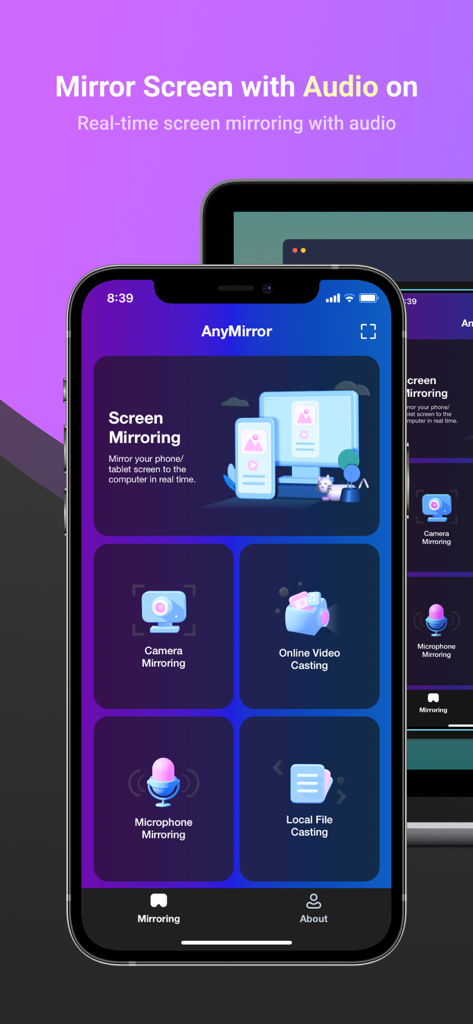
PC로의 오디오 및 카메라 미러링 옵션을 보여주는 iPhone의 AnyMirror 앱 화면
PC로의 오디오 및 카메라 미러링 옵션을 보여주는 iPhone의 AnyMirror 앱 화면

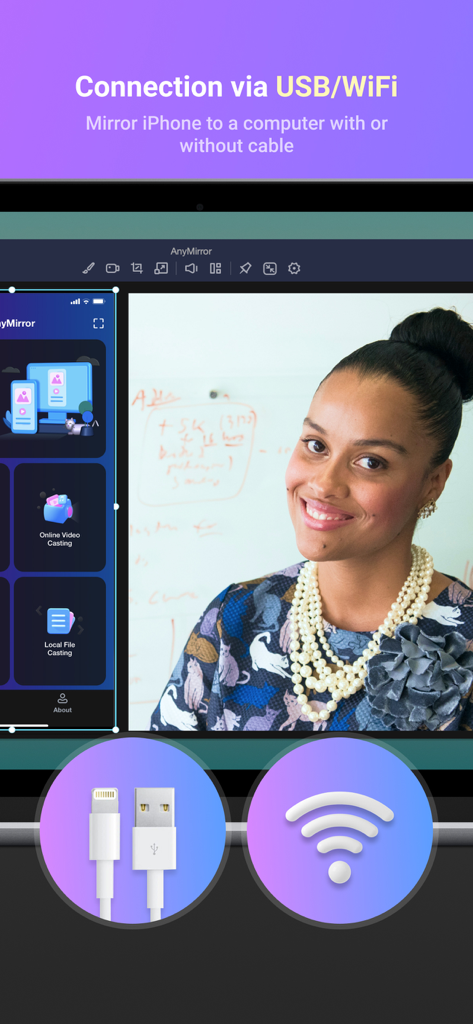
USB 및 Wi-Fi를 통한 화면 미러링 연결 옵션을 표시하는 AnyMirror 인터페이스
USB 및 Wi-Fi를 통한 화면 미러링 연결 옵션을 표시하는 AnyMirror 인터페이스

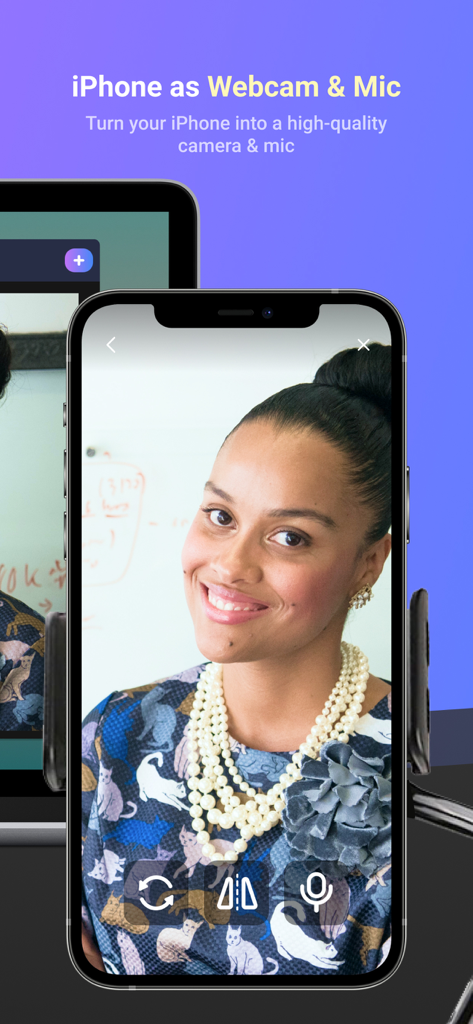
PC용 고품질 웹캠 및 마이크로 사용되는 iPhone
PC용 고품질 웹캠 및 마이크로 사용되는 iPhone

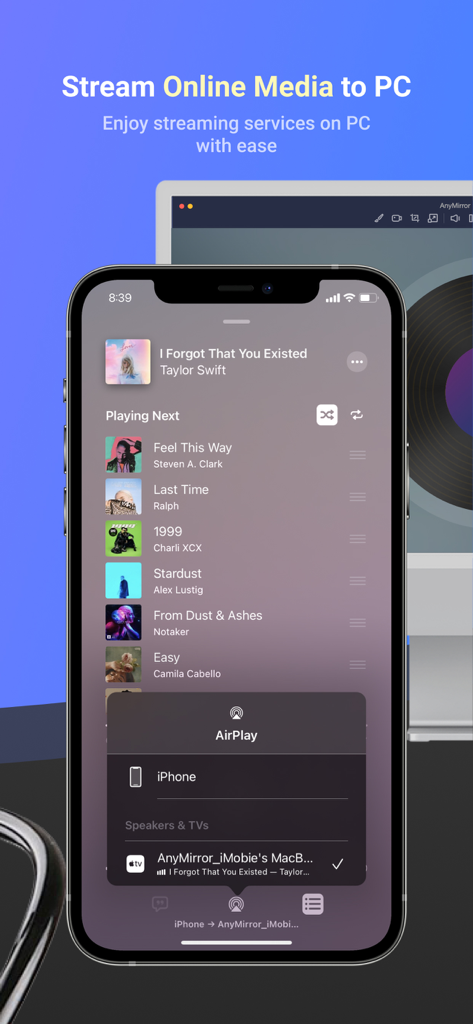
AnyMirror를 사용하여 컴퓨터 화면으로 음악 플레이어 앱을 스트리밍하는 iPhone
AnyMirror를 사용하여 컴퓨터 화면으로 음악 플레이어 앱을 스트리밍하는 iPhone

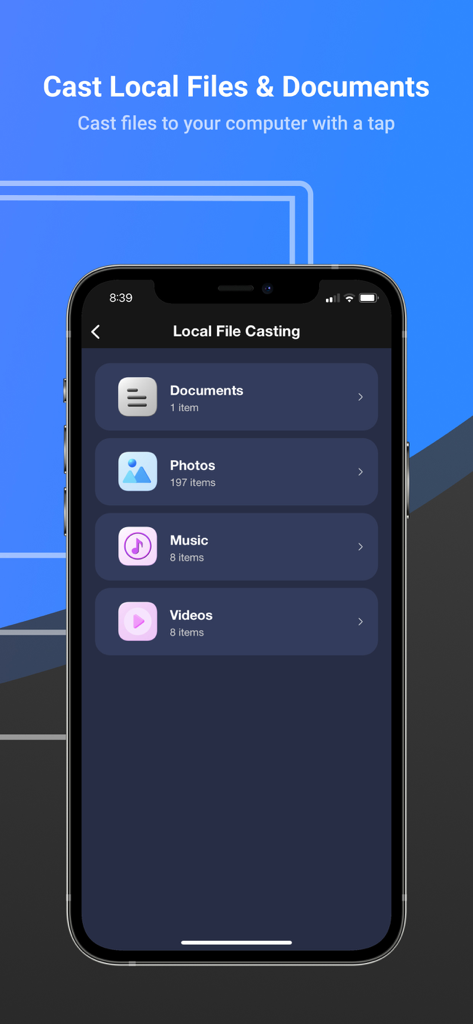
컴퓨터로 로컬 문서, 사진, 음악 및 비디오를 캐스팅하기 위한 AnyMirror 앱 인터페이스

컴퓨터로 로컬 문서, 사진, 음악 및 비디오를 캐스팅하기 위한 AnyMirror 앱 인터페이스

전문적인 워크플로우 강화

이 앱을 돋보이게 하는 도구, 8K+ 명의 사용자가 선택.

🎥

전문가급 웹캠 및 마이크

화상 회의를 즉시 업그레이드하세요. iPhone의 4K 카메라를 Zoom, Teams 및 전문 스트림을 위한 고품질 무선 웹캠으로 사용하세요.

지연 없는 USB 연결

레이턴시 없이 매우 부드러운 미러링을 경험하세요. 중요한 앱 시연, 모바일 게임 및 실시간 콘텐츠 제작에 완벽합니다.

🖋️

스마트 실시간 주석

청중의 참여를 유지하세요. 디지털 수업이나 제품 소개 중 실시간으로 화면에 직접 그리거나, 강조하거나, 텍스트를 추가하세요.

앱 소개

에 대해 알아야 할 모든 것 AnyMirror: Mirror Screen to PC.

설명

AnyMirror is an easy-to-use screen mirroring app that can be used to mirror your iPhone/iPad to the computer with audio via USB or Wi-Fi. You can mirror whatever is happening on your phone, display it on the computer with high resolution in real-time. AnyMirror also comes with tools to take screenshots, record live HD videos, or add annotations to take your mirrored content to the next level. In addition, AnyMirror allows you to mirror multiple devices simultaneously, which offers a wonderful visual experience for you. Main Features 1. Use your iPhone as a webcam and mic - AnyMirror enables you to mirror in high-definition and lossless quality, which presents your image more professional. Meanwhile, you can walk freely with a movable camera and microphone via Wi-Fi. 2. Manage and edit in any way you like - Add, rotate, resize, show a separate window, and display smart layouts with AnyMirror in a few clicks. No longer limited by inflexible vertical screens anymore. 3. Augment mirrored content to engage with your audience - Annotations are a practical way to emphasize details and clarify opinions. Used in conjunction with a screen capture or recording, to create an engaging video, you can be assured that your presentation will be more intuitive and vivid. 4. Stream to multiple destinations without delay - Real-time stream the mirrored screen to applications like OBS Studio or Zoom for live streaming or meeting. Use cases √ Meeting - AnyMirror bridges the communication gap in an online meeting, which enables the meeting attendees to communicate in high-definition and lossless quality. In addition, you can stand out from your colleagues by recording creative videos with AnyMirror before the meeting. √ Teaching - As a teacher, you can display courseware, files, and exercises with AnyMirror. It also enables you to annotate courseware or type down key points onto your iPhone/iPad, and share the screen with the computer in real-time. √ Live Streaming - You can easily stream mirrored screens along with your image to live streaming apps with AnyMirror. In this way, you can show your excellent skills and performance when you are creating works or playing mobile games to your fans. √ Demonstration - With AnyMirror, you can produce videos of apps tutorials, save and share with your audience instantly. Annotate to emphasize important details when you are demonstrating, and let your audience quickly understand how your app works. √ Entertainment - Cast apps and files with ease. Play music, films, games, and share photos with your families on a larger screen. Make your spare time more exciting. How to Connect Mirror your iPhone/iPad Screen to the computer via Wi-Fi 1. Launch AnyMirror on your computer. 2. Please keep your device and computer connected to the same Wi-Fi network. 3. Open Control Center on iPhone/iPad → Tap Screen Mirroring → Select AnyMirror_computer name once it appears. Mirror your iOS screen to the computer in real time via USB connection: 1. Launch AnyMirror on your computer. 2. Please confirm operations if any alerts pop up on your device or computer. 3. Tap the Start button below to Start Broadcast. Then you are good to go

최신 버전

1.1.1

크기

71.4 MB

출시일

2021년 9월 27일

iPhone을 전문가용 워크스테이션으로 변환할 준비가 되셨나요?

AnyMirror와 함께 고화질의 끊김 없는 프레젠테이션과 회의를 진행하는 수천 명의 하이브리드 전문가 및 교육자들과 함께하세요. 지금 바로 완벽한 미러링 경험을 시작하세요.

다운로드: App Store

App information, icons, screenshots, and descriptions displayed on this page are sourced from the Apple App Store and are the property of their respective developers. Download estimates and rankings are based on MWM's proprietary models and may not reflect actual figures. This page is provided for informational and analytical purposes only.

Believe this page infringes your intellectual property? File a dispute