Exif Wizard-Pro
Exif Wizard-Pro
다운로드: App Store

이 페이지는 앱이나 개발자의 공식 페이지가 아니며, 정보 제공 및 논평을 목적으로 작성된 독립 편집 간행물입니다. 명시적으로 달리 언급되지 않는 한, 해당 앱이나 개발자는 MWM, Apple, Google Play, 앱 퍼블리셔 또는 앱 개발자와 제휴, 보증, 후원, 승인 또는 공식적으로 연결되어 있지 않으며, 이 페이지의 어떤 내용도 해당 앱이 MWM의 서비스를 사용하여 개발되었음을 의미하지 않습니다. 모든 상표, 로고, 스크린샷 및 기타 콘텐츠는 해당 소유자의 자산입니다.


로고: Exif Wizard-Pro
다운로드: App Store

Exif Wizard-Pro

iPad 및 iPhone을 위한 궁극의 Exif 리더 및 FTP 관리자를 사용하여 심층 이미지 데이터, 저작권 태그 편집 및 전문 워크플로우 간소화 기능을 활용하십시오.

주요 수치

다운로드

184K+

사용자 평점

3.5/5

총 평가 수

100

개발사

homedatasheet.com, Inc.

카테고리

Photo & Video

지원 언어

1

최신 버전

13.0

크기

1.9 MB

출시일

2011년 3월 21일
기능

진지한 사진작가를 위한 전문 메타데이터 도구

Exif Wizard-Pro는 디지털 이미지에 대한 완벽한 제어를 제공합니다. 기술 사양을 분석하고, 지적 재산을 보호하며, iPad 또는 iPhone에서 직접 전문 워크플로우를 간소화하십시오.

심층 메타데이터 검사

ISO, 조리개, 초점 거리와 같은 세부 기술 데이터에 액세스하여 성능을 분석하고 장비의 기능을 마스터하십시오.

전문 FTP 워크플로우

수동 FTP를 통해 개별 사진 또는 전체 앨범을 개인 서버에 업로드하십시오. 현장 사진 기자 및 스튜디오 고객 납품에 이상적입니다.

다음 스크린샷과 설명은 앱의 공식 스토어 목록에서 직접 가져온 것이며 앱 개발자의 자산입니다.

앱 스토어

스크린샷
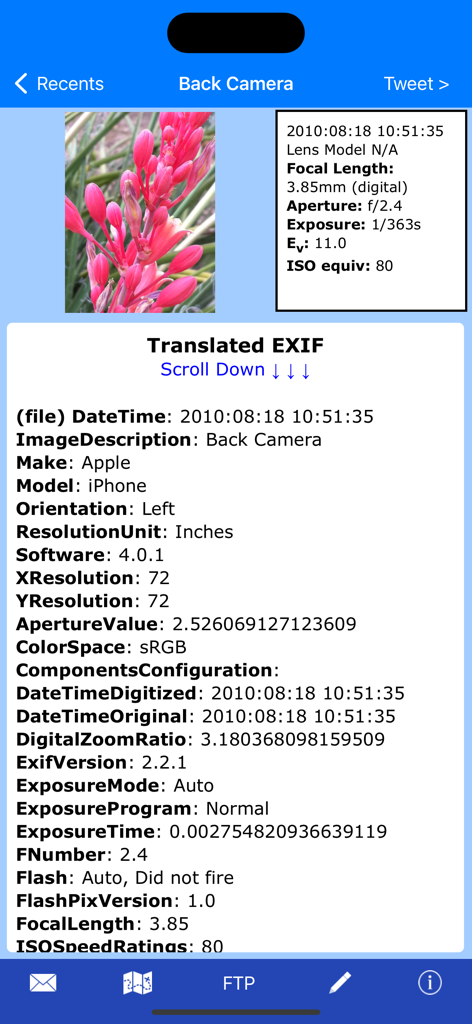
Exif Wizard-Pro - Exif Wizard Pro의 인터페이스로, 사진에 대한 포괄적인 이미지 메타데이터와 카메라 기술 사양을 표시합니다.

Exif Wizard Pro의 인터페이스로, 사진에 대한 포괄적인 이미지 메타데이터와 카메라 기술 사양을 표시합니다.

Exif Wizard-Pro - Exif Wizard Pro 앱에서 고해상도 사진 보기.

Exif Wizard Pro 앱에서 고해상도 사진 보기.

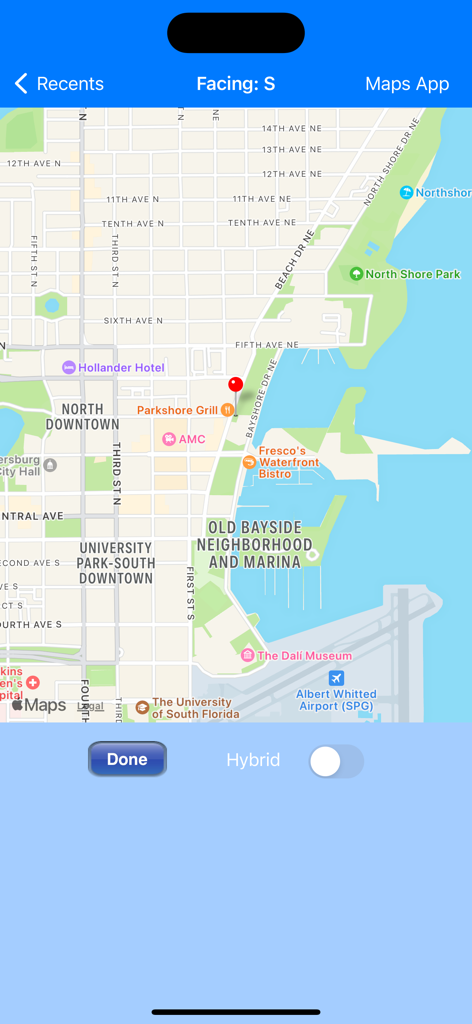
Exif Wizard-Pro - 사진의 지오태그된 위치를 빨간색 마커로 보여주는 맵 인터페이스인 Exif Wizard-Pro.
사진의 지오태그된 위치를 빨간색 마커로 보여주는 맵 인터페이스인 Exif Wizard-Pro.

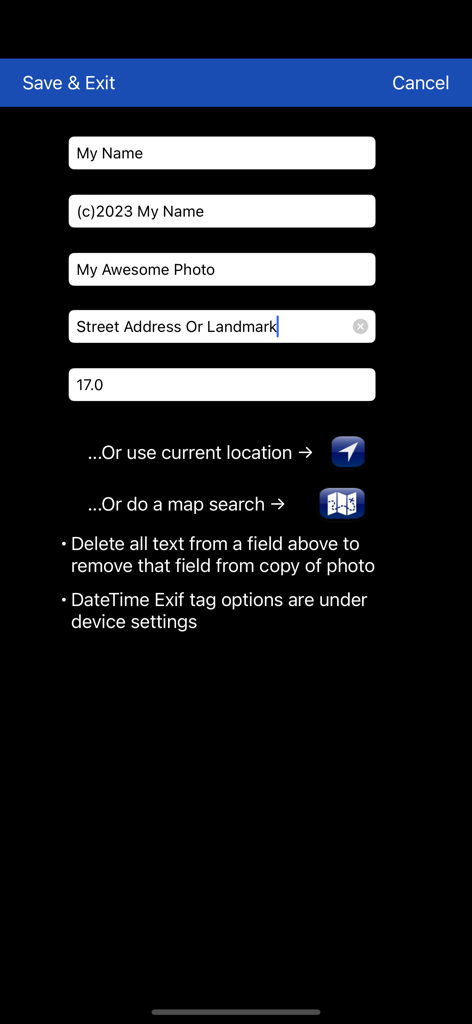
Exif Wizard-Pro - 아티스트, 저작권, GPS 정보와 같은 사진 메타데이터 필드를 편집하는 인터페이스.

아티스트, 저작권, GPS 정보와 같은 사진 메타데이터 필드를 편집하는 인터페이스.

설명

Exif Wizard-Pro is an Exif reader for photographers who are serious about their digital images. - Work in native screen resolution, portrait & landscape, on your iPad. - Move through an album using left or right finger "swipe" gestures on the preview images - Ability to e-mail photos from within the app which retain their Exif data - Upload images via FTP (passive mode, which virtually every recent server supports) and select your upload directory via a graphical user interface. Send one image at a time, or let Exif Wizard-Pro upload an entire album for you with the touch of a button. - Create a copy of an existing photo with the option to add, modify, or delete some Exif tags (Artist, Copyright, ImageDescription, Software, and GPS Location). Copies are placed at the end of your Recents album (Camera Roll). (JPEG images only) ***iCloud Photo Library Users - In the event a photo you believe is in your iCloud Photo Library fails to load, please open Apple's built-in "Photos" app to verify its presence, then try Exif Wizard-Pro again. Note that it may take several seconds or more to download a photo. ***If you edit a photo in Apple's built-in Photos app, it may become inaccessible to Exif Wizard-Pro. Reverting to original should restore access. FTP security: Exif Wizard-Pro sends FTP data (including your password) unencrypted and, if you choose to store your password, saves it on your mobile device unencrypted. Therefore, you should NOT enter your main server password into Exif Wizard-Pro. If you have not done so already, set up an FTP account with limited access permissions. Consult your sources of technical support for further information. Expectations Management: The process of importing photos from your desktop, laptop, or stand-alone digital camera to your mobile device is controlled by Apple. Some image editing programs, social media sites, and image upload/storage services remove Exif data from photos. Thank you for your understanding. Notes: - Web photos can be stored in your Recents album (Camera Roll) with Exif information by touching and holding the photo, and then touching "Add to Photos" on the action sheet which will appear. - If you experience slow loading of photos for a selected album, go to the "Settings" app (from your home screen) and, in Exif Wizard-Pro's settings, scroll down and turn ON the "Fast Load" switch. *** If Exif Wizard-Pro is not displaying GPS/mapping information for photos you have taken with your iOS device, it may be because you did not enable geotagging when you first used the built-in Camera app. To grant permission now, from your home screen, touch Settings -> Privacy -> Location Services. Make sure the "Location Services" switch at the top of the screen is ON, then scroll down and turn on the switch next to "Camera." Keep in mind that if you enable geotagging, people you transmit your photos to may be able to determine the locations where those photos were taken using any number of mobile and desktop Exif applications.

Download

다운로드: App Store

이 페이지는 앱이나 개발자의 공식 페이지가 아니며, 정보 제공 및 논평을 목적으로 작성된 독립 편집 간행물입니다. 명시적으로 달리 언급되지 않는 한, 해당 앱이나 개발자는 MWM, Apple, Google Play, 앱 퍼블리셔 또는 앱 개발자와 제휴, 보증, 후원, 승인 또는 공식적으로 연결되어 있지 않으며, 이 페이지의 어떤 내용도 해당 앱이 MWM의 서비스를 사용하여 개발되었음을 의미하지 않습니다. 모든 상표, 로고, 스크린샷 및 기타 콘텐츠는 해당 소유자의 자산입니다.