Video 2 CameraRoll  Home Video
Video 2 CameraRoll Home Video
다운로드: App Store

이 페이지는 앱이나 개발자의 공식 페이지가 아니며, 정보 제공 및 논평을 목적으로 작성된 독립 편집 간행물입니다. 명시적으로 달리 언급되지 않는 한, 해당 앱이나 개발자는 MWM, Apple, Google Play, 앱 퍼블리셔 또는 앱 개발자와 제휴, 보증, 후원, 승인 또는 공식적으로 연결되어 있지 않으며, 이 페이지의 어떤 내용도 해당 앱이 MWM의 서비스를 사용하여 개발되었음을 의미하지 않습니다. 모든 상표, 로고, 스크린샷 및 기타 콘텐츠는 해당 소유자의 자산입니다.


로고: Video 2 CameraRoll  Home Video
다운로드: App Store

Video 2 CameraRoll Home Video

소중한 추억이 Apple TV나 비디오 앱에 갇혀 있어 답답하신가요? 동기화된 PC 및 iTunes 홈 동영상을 카메라 롤로 바로 이동하여 몇 초 만에 편집하고, 소셜 미디어에 게시하거나, 가족과 공유해 보세요.

주요 수치

다운로드

191K+

사용자 평점

2.5/5

총 평가 수

200

개발사

TAIKI HIRATA

카테고리

Photo & Video

지원 언어

2

최신 버전

1.9

크기

3.8 MB

출시일

2015년 7월 27일
기능

비디오 보관함을 직접 관리하세요

소중한 추억을 TV 앱에 방치하지 마세요. 홈 동영상을 카메라 롤로 이동하여 원하는 대로 편집하고, 공유하고, 즐겨보세요.

iTunes 홈 비디오 잠금 해제

한 번의 탭으로 Apple TV 보관함의 비디오를 사진 앱으로 직접 이동하여 Apple의 제한적인 폴더 구조를 극복하세요.

소셜 미디어 및 편집 준비 완료

드디어 카메라 롤만 접근할 수 있는 Instagram, WhatsApp 및 모바일 편집기 등의 앱에서 PC와 동기화된 영상을 불러올 수 있습니다.

다음 스크린샷과 설명은 앱의 공식 스토어 목록에서 직접 가져온 것이며 앱 개발자의 자산입니다.

앱 스토어

스크린샷

Video 2 CameraRoll  Home Video - 홈 비디오를 iPhone 카메라 롤로 변환하는 모습을 보여주는 홍보 그래픽
홈 비디오를 iPhone 카메라 롤로 변환하는 모습을 보여주는 홍보 그래픽

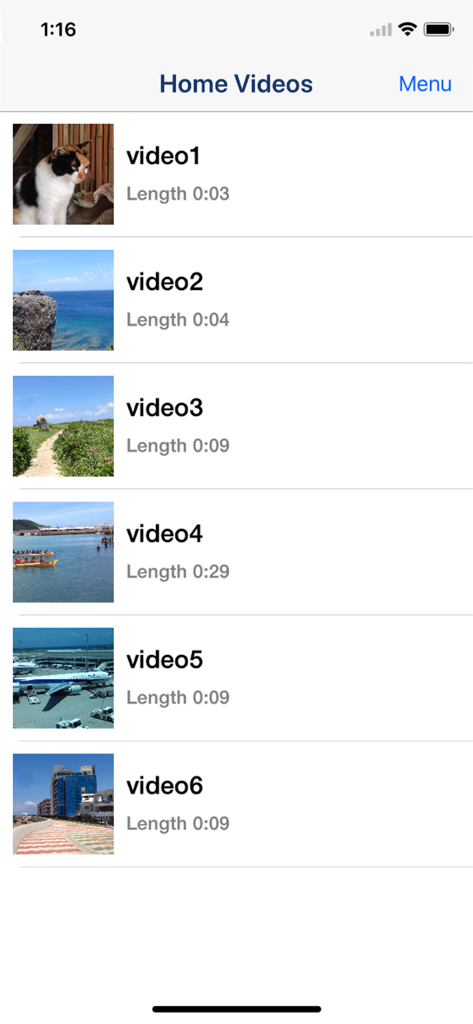
Video 2 CameraRoll  Home Video - 썸네일과 재생 시간이 포함된 홈 비디오 목록을 보여주는 인터페이스

썸네일과 재생 시간이 포함된 홈 비디오 목록을 보여주는 인터페이스

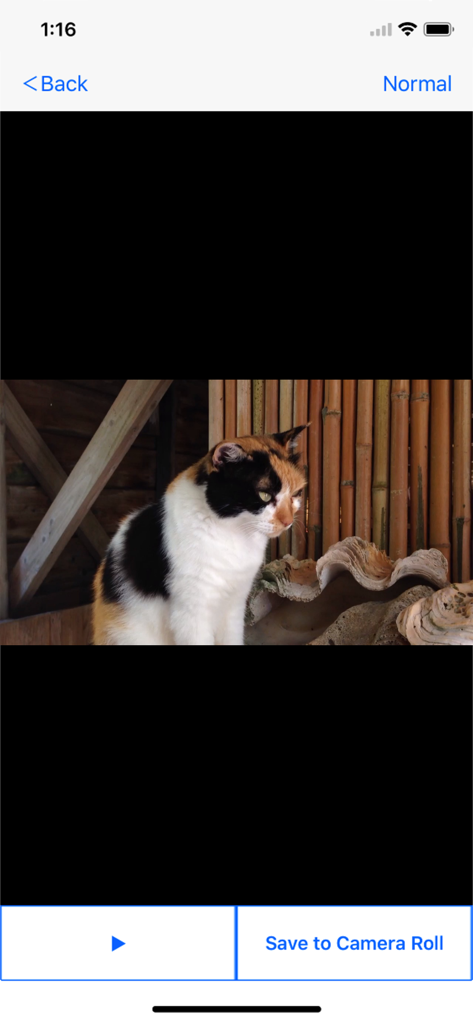
Video 2 CameraRoll  Home Video - 비디오 미리보기와 카메라 롤 저장 버튼이 있는 Video 2 CameraRoll 앱 인터페이스
비디오 미리보기와 카메라 롤 저장 버튼이 있는 Video 2 CameraRoll 앱 인터페이스

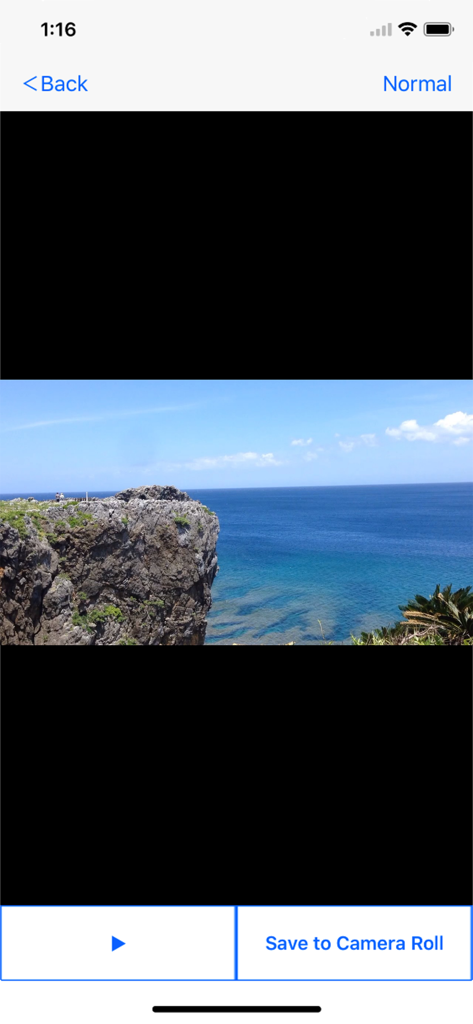
Video 2 CameraRoll  Home Video - 카메라 롤 저장 버튼과 함께 아름다운 바다 비디오를 보여주는 인터페이스
카메라 롤 저장 버튼과 함께 아름다운 바다 비디오를 보여주는 인터페이스

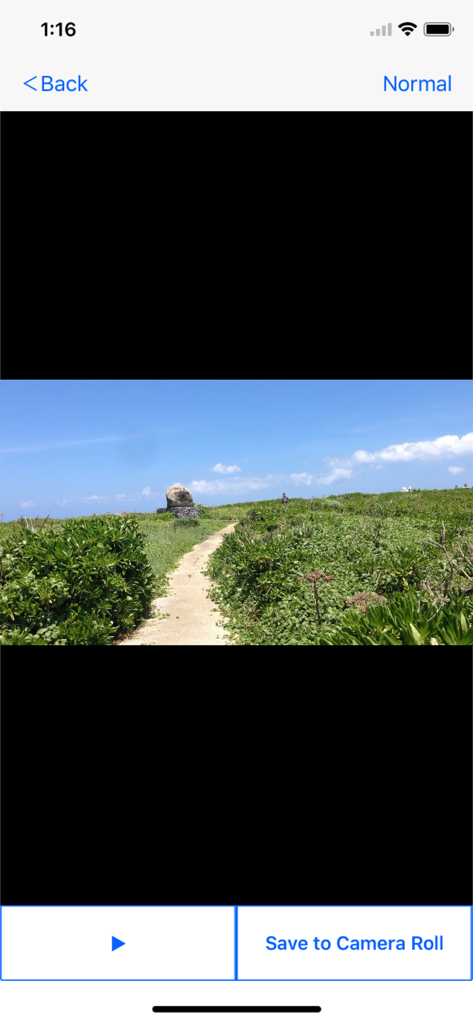
Video 2 CameraRoll  Home Video - 가로 방향 비디오와 카메라 롤 저장 버튼을 표시하는 앱 인터페이스

가로 방향 비디오와 카메라 롤 저장 버튼을 표시하는 앱 인터페이스
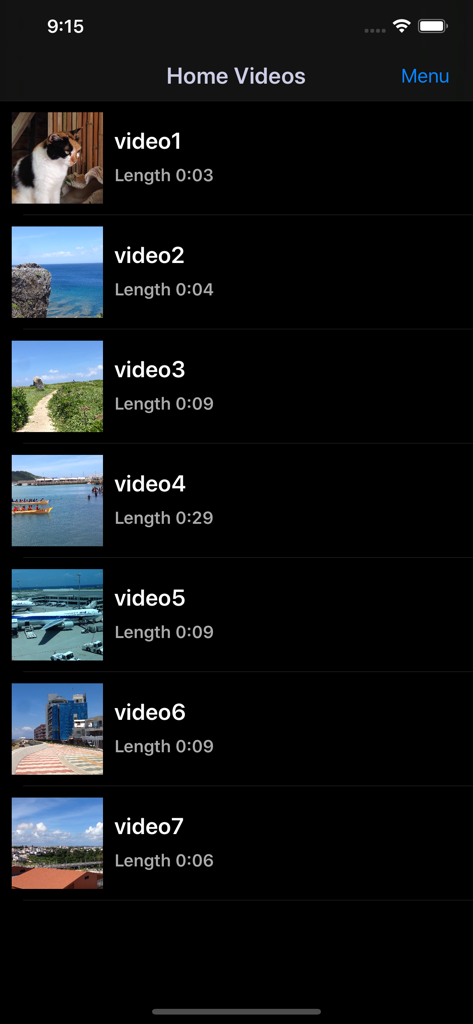
Video 2 CameraRoll  Home Video - 카메라 롤에 저장할 준비가 된 썸네일과 재생 시간이 포함된 동기화된 홈 비디오 목록을 보여주는 모바일 앱 인터페이스

카메라 롤에 저장할 준비가 된 썸네일과 재생 시간이 포함된 동기화된 홈 비디오 목록을 보여주는 모바일 앱 인터페이스

설명

Save Home Video Movie to iPhone/iPad Camera Roll. You can save iTunes / Apple TV app library Home Videos to Camera Roll by "Video 2 CameraRoll"! Do you want to edit video taken by video camera and movie stored on PC by iPhone/iPad movie editor app? But most of movie editor app can use only videos in Camera Roll. So, you can not edit iTunes / Apple TV app library Home Videos that you transferred from your PC. In such a case, please use this app "Video 2 CameraRoll". You will be able to transfer and save iTunes / Apple TV app library Home Videos to Camera Roll by this app! And you will be able to edit video taken by video camera and movie stored on PC by iPhone/iPad movie editor app! ■About Watermark App watermark is displayed in the lower left corner on the video. You can remove app watermark by purchasing "Remove watermark" Add-on. ■About In-app Advertising Banner Advertising is displayed in bottom of screen. Full Screen Advertising will be displayed, after you have saved video to Camera Roll. You can hide these Advertising by purchasing "Remove watermark" Add-on. ■Workflow of how to save video to Camera Roll. 1. Add video to Home Videos of iPhone/iPad by iTunes / Apple TV app on PC. 2. Save video in Home Videos to Camera Roll by "Video2CameraRoll". ■1. Add video to Home Videos of iPhone/iPad by iTunes / Apple TV app on PC. ・For Windows PC or macOS 10.14 or earlier 1. Save the video file that you want to transfer and save to Home Videos of iPhone/iPad to your PC that iTunes is installed. 2. Start iTunes on your PC, after connecting your iPhone/iPad to your PC. 3. Select "Movies" from the upper left icons, and select "Home Videos" > "Library". 4. Select "File" > "Add to Library", and select the video that you want to add. 5. Select the "Home Videos", and check the video was added to Home Videos. 6. Select "Device (iPhone/ipad)" from the upper left icons. 7. Select the "Movies" from "Settings" on the left side of the screen. 8. Make sure that is checked the box of "Sync Movies", and check the box of video that you want to add to "Home Videos" of iPhone/iPad. 9. Start synchronization by "Sync・Apply" button at the bottom right. 10. When the synchronization is complete, check the video was saved to Home Videos by following way. For iOS 12.3 or later Launch the "TV" app on your iPhone / iPad and select "Library" -> "Home Video". For iOS 12.2 or earlier Launch the "Video" app on your iPhone / iPad and open "Home Video". ・For macOS 10.15 Catalina 1. Save the video file that you want to save to Home Videos of iPhone/iPad to your PC that Apple TV app is installed. 2. Start Apple TV app on your PC, after connecting your iPhone/iPad to your PC. 3. When the Apple TV app starts, select "Library". 4. Drag and drop the video you want to add to Home Video onto the Apple TV app. 5. Select "Home Videos" from the side menu and check the video was added. 6. Select the connected iPhone / iPad from "Devices" in the side menu and click "Sync Settings". 7. When the sync setting screen opens, select "Movies", check "Sync movies onto (device name) and "Video you want to sync (the video you just added)", and click "Apply" Start synchronization. 8. When the synchronization is complete, check the video was saved to Home Videos by following way. For iOS 12.3 or later Launch the "TV" app on your iPhone / iPad and select "Library" -> "Home Video". For iOS 12.2 or earlier Launch the "Video" app on your iPhone / iPad and open "Home Video". ■2. Save video in Home Videos to Camera Roll by "Video2CameraRoll". 1. Start "Video2CameraRoll". 2. Select the video you want to transfer and save to Camera Roll from the list of Home Video in the app. 3. When the playback screen is displayed, touch "Save to Camera Roll" button, and start saving to the camera roll. 4. When the success dialog is displayed, saving to Camera Roll is a successful.

Download

다운로드: App Store

이 페이지는 앱이나 개발자의 공식 페이지가 아니며, 정보 제공 및 논평을 목적으로 작성된 독립 편집 간행물입니다. 명시적으로 달리 언급되지 않는 한, 해당 앱이나 개발자는 MWM, Apple, Google Play, 앱 퍼블리셔 또는 앱 개발자와 제휴, 보증, 후원, 승인 또는 공식적으로 연결되어 있지 않으며, 이 페이지의 어떤 내용도 해당 앱이 MWM의 서비스를 사용하여 개발되었음을 의미하지 않습니다. 모든 상표, 로고, 스크린샷 및 기타 콘텐츠는 해당 소유자의 자산입니다.