
This page is not an official page of the app or its developer, but an independent editorial publication created for informational and commentary purposes. Unless expressly stated otherwise, neither the app nor its developer is affiliated with, endorsed by, sponsored by, authorized by, or otherwise officially connected with MWM, Apple, Google Play, the app publisher, or the app's developer, and nothing on this page implies that the app was developed using MWM's services. Any trademarks, logos, screenshots, and other content remain the property of their respective owners.


Manga Library, The FREE Manga and Comics Reader: Import your CBZ, ZIP, PDF, RAR, CBR files.
Take total control of your digital archive. From seamless WiFi transfers to zero-lag reading of massive collections, Manga Library is built for the ultimate manga experience on your iPhone and iPad.
Downloads
317K+User Rating
Total Ratings
200Publisher
Category
BooksLocales
2Latest Version
1.0.1Size
6.6 MBFirst Released
Aug 12, 2015Built for the Ultimate Collector
Experience a high-performance reader that manages your entire digital manga library with zero lag and total format freedom.
Heavy-Duty Performance
Navigate thousands of volumes effortlessly. Our engine handles massive collections without crashing or slowing down.
Universal Format Support
Read your files your way. Full native support for .cbr, .cbz, .pdf, and .rar files with no pre-processing required.
The following screenshots and description are sourced directly from the app's official store listing and are the property of the app developer.
App Store
Screenshots
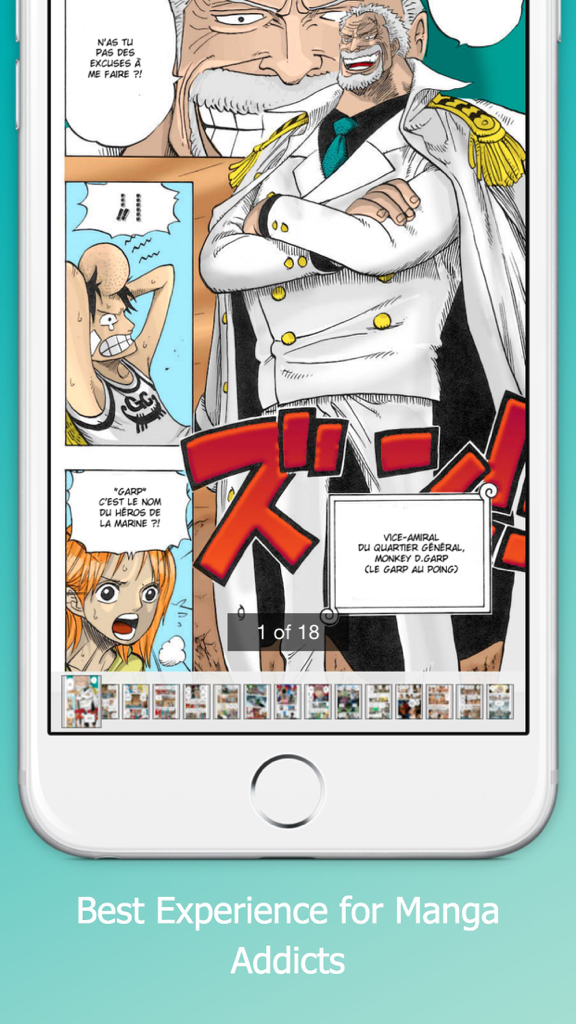
Manga reader app interface showing a colorful manga page and navigation thumbnails
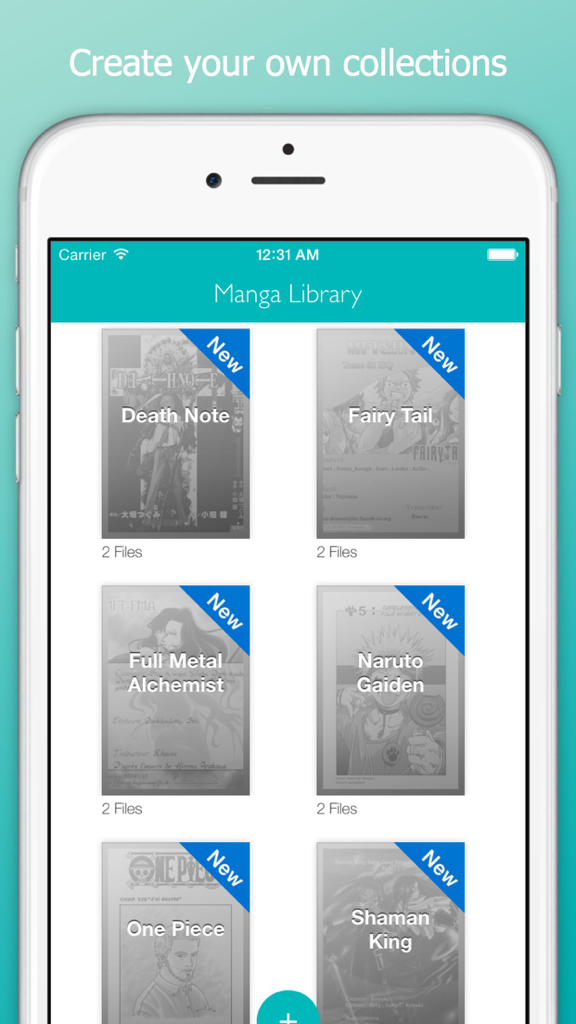
Manga Library app showing a grid view of organized manga collections like Death Note and One Piece on an iPhone.
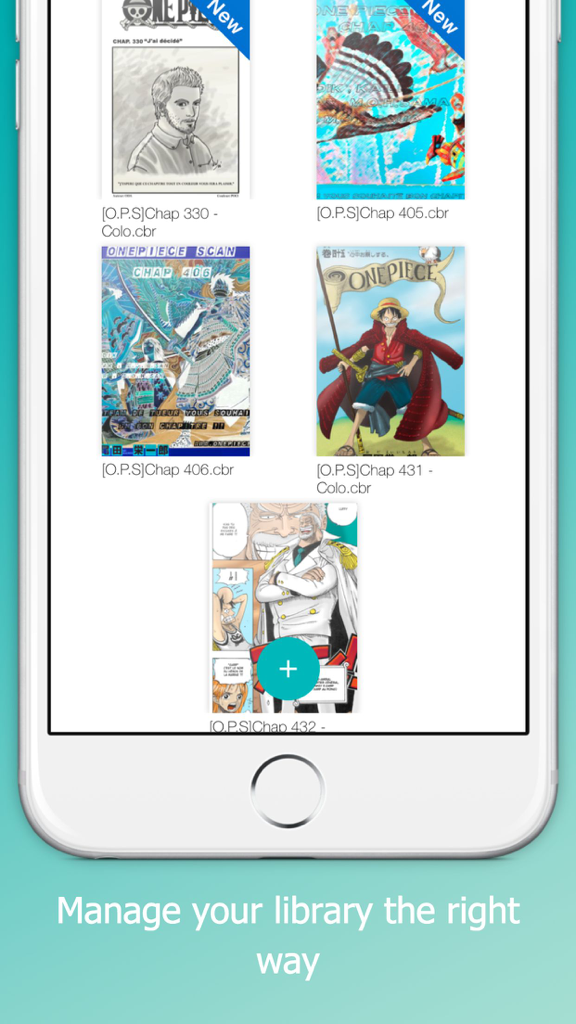
A mobile app screen displaying a library of manga covers like One Piece with file names and new badges
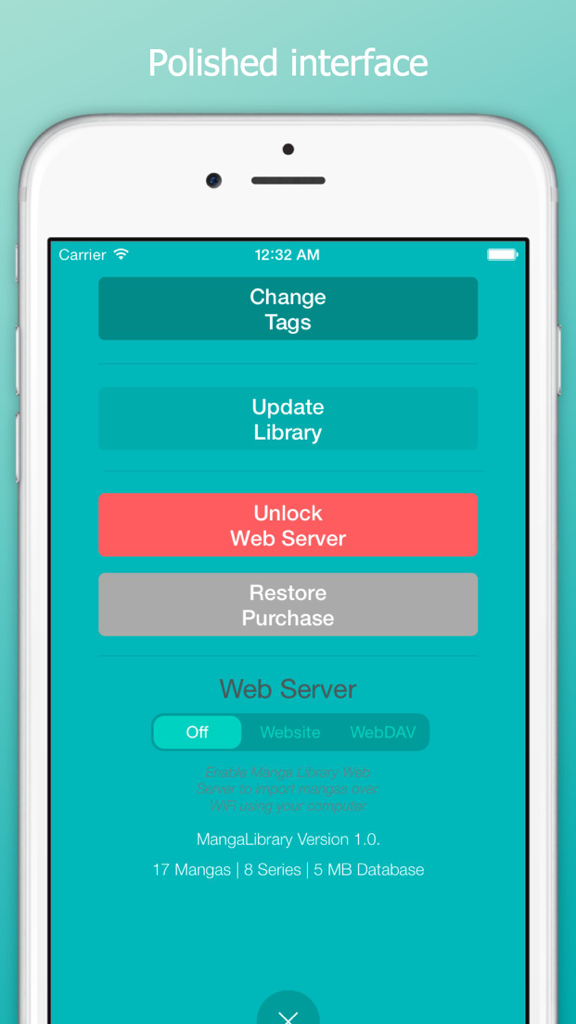
Settings screen of Manga Library app with web server and import options
Description
Download
More Like This
Top-ranked apps in the same category

Amazon Kindle
AMZN Mobile LLC

Audible: Audiobooks & Podcasts
Audible, Inc.

七猫小说-看小说电子书的阅读神器
Shanghai Seven-Cat Culture Media Co.,Ltd.

QQ阅读
Shenzhen Tencent Computer Systems Company Limited

Wattpad - Read & Write Stories
Wattpad Corp

Libby, the library app
OverDrive, Inc.

微信读书
Tencent Technology (Shenzhen) Company Limited

起点读书-看小说听书的阅读神器
Shanghai Xuan Ting Entertainment Information & technology CO.,LTD

Goodreads: Book Reviews
Goodreads, Inc
This page is not an official page of the app or its developer, but an independent editorial publication created for informational and commentary purposes. Unless expressly stated otherwise, neither the app nor its developer is affiliated with, endorsed by, sponsored by, authorized by, or otherwise officially connected with MWM, Apple, Google Play, the app publisher, or the app's developer, and nothing on this page implies that the app was developed using MWM's services. Any trademarks, logos, screenshots, and other content remain the property of their respective owners.