Quilt Pattern Creator
Download on App Store

This page is not an official page of the app or its developer, but an independent editorial publication created for informational and commentary purposes. Unless expressly stated otherwise, neither the app nor its developer is affiliated with, endorsed by, sponsored by, authorized by, or otherwise officially connected with MWM, Apple, Google Play, the app publisher, or the app's developer, and nothing on this page implies that the app was developed using MWM's services. Any trademarks, logos, screenshots, and other content remain the property of their respective owners.

Logo of Quilt Pattern Creator
Download on App Store

Quilt Pattern Creator

Bring your creative ideas to life with over 200 quilt blocks and custom color tools. Experiment with patterns, create unique blocks, and preview your finished masterpiece on your iPad or iPhone before you cut a single yard of fabric.

Key Figures

Downloads

0

User Rating

1.6/5

Total Ratings

0

Publisher

Sand Castle Designs, Inc

Category

Graphics & Design

Locales

1

Latest Version

10

Size

12.7 MB

First Released

May 3, 2023
Features

Design Your Masterpiece with Ease

From classic blocks to custom creations, visualize your next quilt project in seconds and choose the perfect colors before you touch a single piece of fabric.

Instant Color Visualization

Swap colors across your entire layout with one tap to see exactly how your fabric stash will look before you make your first cut.

200+ Blocks & Custom Shapes

Start with a massive library of traditional patterns or use our intuitive shape-builder to design original blocks that are uniquely yours.

The following screenshots and description are sourced directly from the app's official store listing and are the property of the app developer.

App Store

Screenshots
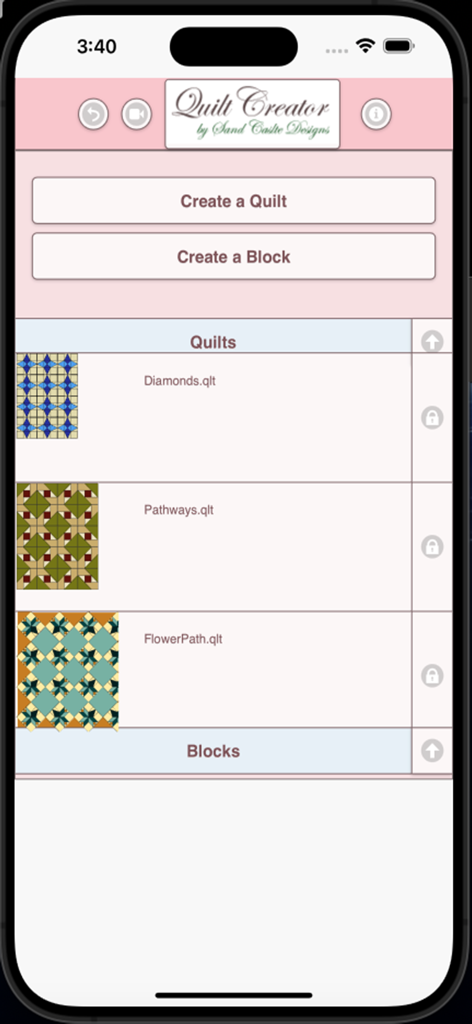
Quilt Pattern Creator - Main menu screen of the Quilt Pattern Creator app showing buttons to create a quilt or block and a list of saved quilt designs.
Main menu screen of the Quilt Pattern Creator app showing buttons to create a quilt or block and a list of saved quilt designs.

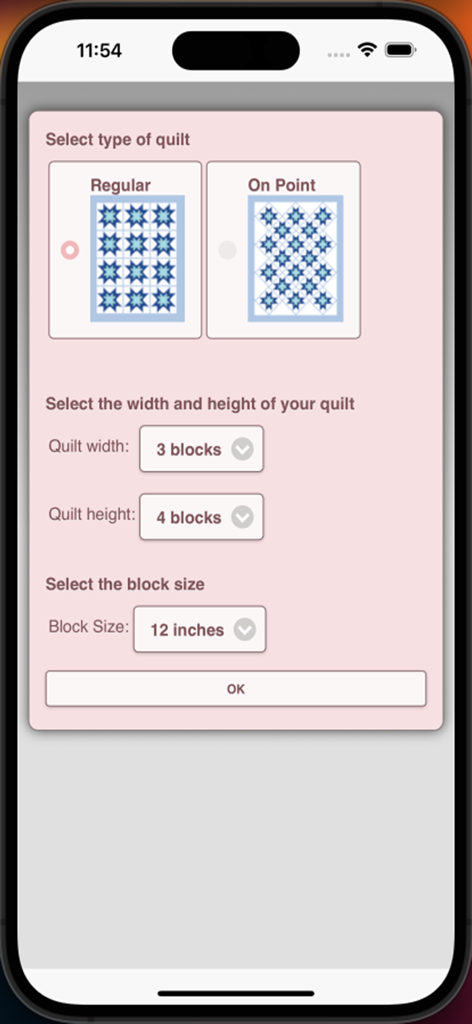
Quilt Pattern Creator - Mobile app screen for configuring quilt style and dimensions
Mobile app screen for configuring quilt style and dimensions

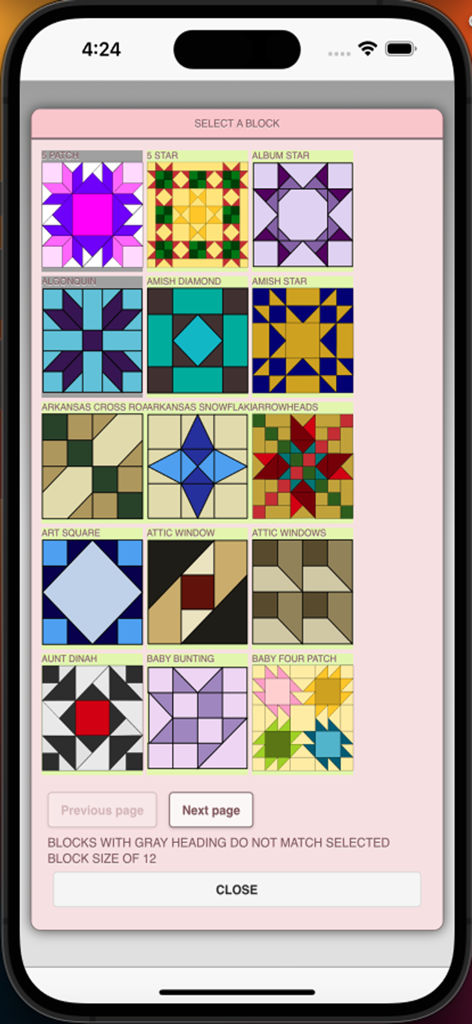
Quilt Pattern Creator - A menu in the Quilt Pattern Creator app showing a variety of colorful quilt block patterns and designs
A menu in the Quilt Pattern Creator app showing a variety of colorful quilt block patterns and designs

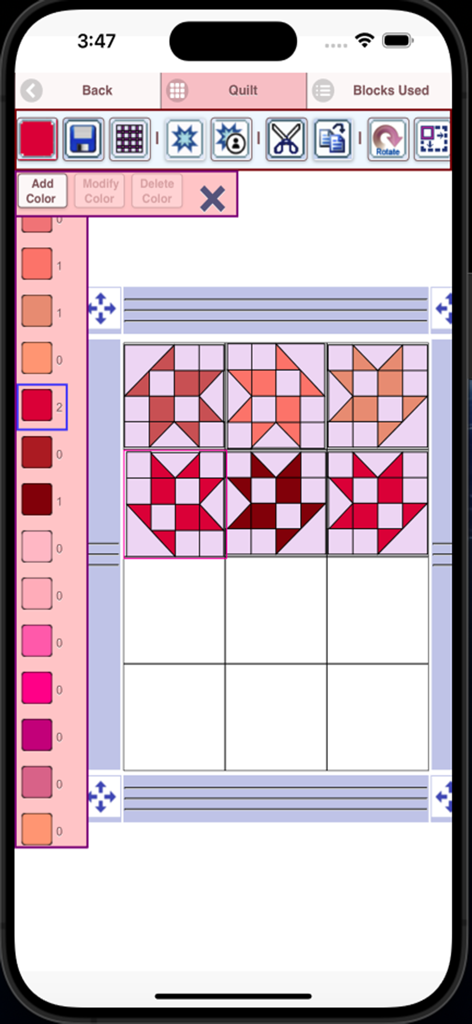
Quilt Pattern Creator - A screenshot of the Quilt Pattern Creator app interface showing a 3 by 3 grid of red and orange quilt blocks with a color sidebar.
A screenshot of the Quilt Pattern Creator app interface showing a 3 by 3 grid of red and orange quilt blocks with a color sidebar.

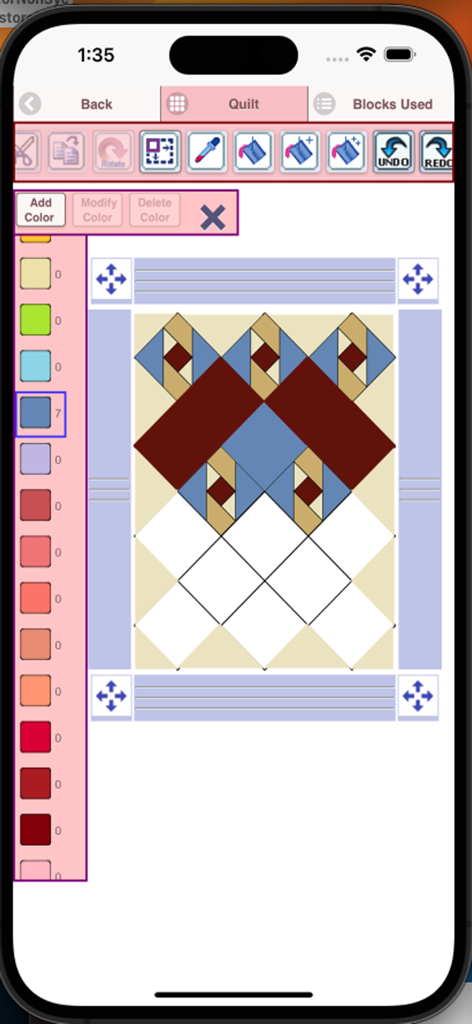
Quilt Pattern Creator - Interface of the Quilt Pattern Creator app showing a geometric quilt design with a color palette and editing tools.
Interface of the Quilt Pattern Creator app showing a geometric quilt design with a color palette and editing tools.

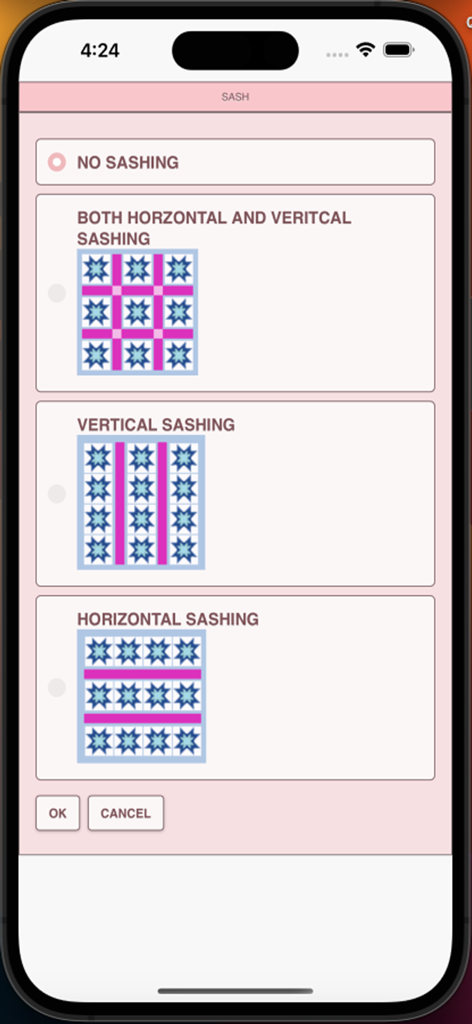
Quilt Pattern Creator - Sashing selection screen in the Quilt Pattern Creator app showing horizontal and vertical layout options
Sashing selection screen in the Quilt Pattern Creator app showing horizontal and vertical layout options

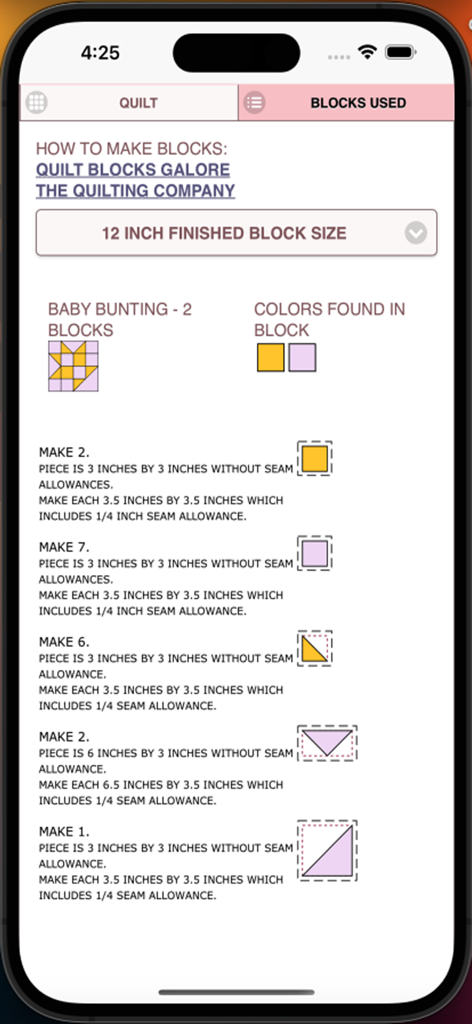
Quilt Pattern Creator - Detailed assembly and cutting instructions for a quilt block showing specific measurements and color-coded shapes.
Detailed assembly and cutting instructions for a quilt block showing specific measurements and color-coded shapes.

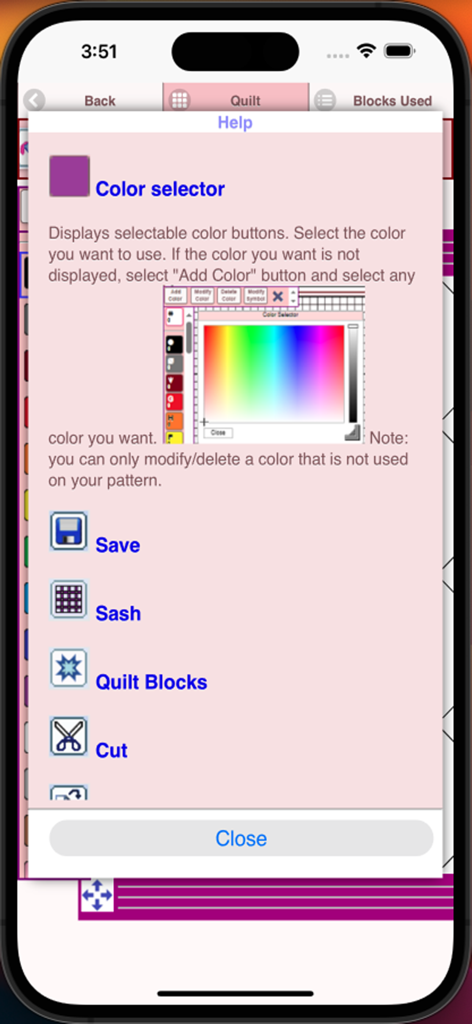
Quilt Pattern Creator - Help screen in the Quilt Pattern Creator app explaining the color selector and design tool icons
Help screen in the Quilt Pattern Creator app explaining the color selector and design tool icons

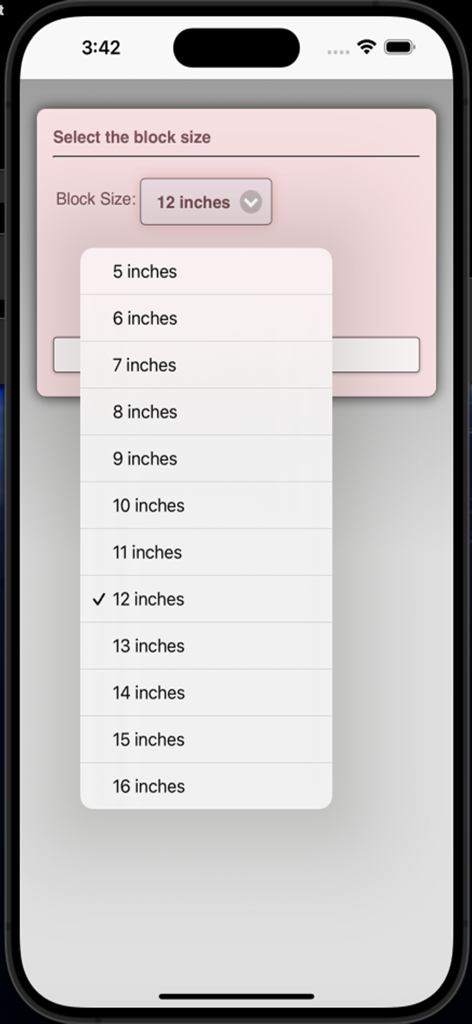
Quilt Pattern Creator - A dropdown menu in the Quilt Pattern Creator app showing options to select block sizes from 5 to 16 inches.
A dropdown menu in the Quilt Pattern Creator app showing options to select block sizes from 5 to 16 inches.

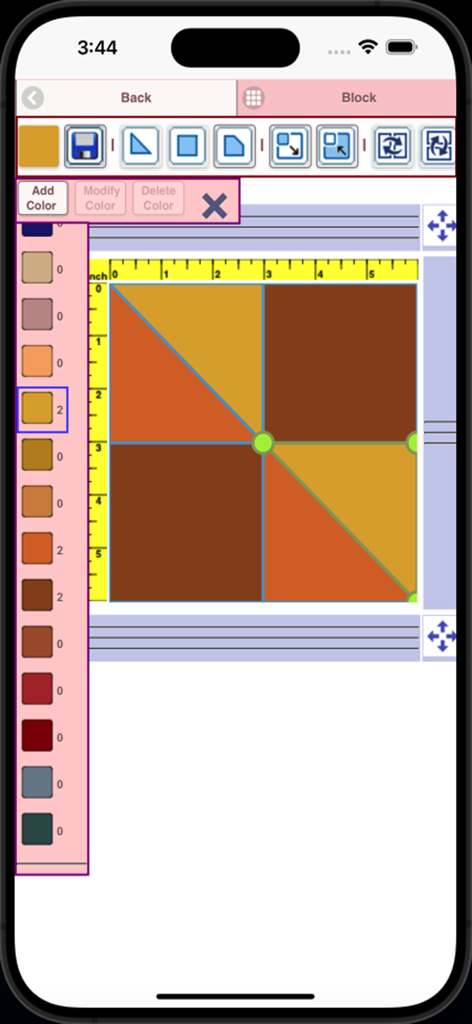
Quilt Pattern Creator - Interface of the Quilt Pattern Creator app showing a custom block being designed with geometric shapes and a color palette sidebar

Interface of the Quilt Pattern Creator app showing a custom block being designed with geometric shapes and a color palette sidebar

Description

Create quilts using over 200 quilt blocks to select from. You can change the colors in the blocks to get the look you want. Now you can create your own blocks to use in your quilts. Comes with 3 free quilt patterns. Download is free. To activate creation is $2.99 Once activated, get started by doing the following: To Create a Quilt 1. Select "Create a Quilt" button. 2. Enter the type of quilt (square or on point), and the quilt width and quilt height in blocks. 3. Select the Block Icon (forth icon in the tool bar) 4. A huge selection of quilt blocks will appear. 5. Select the quilt blocks you want to place on your quilt. 6. Select the Color Icon (first icon in the tool bar) 7. A huge selection of colors will appear 8. Select a color and select the Fill-All bucket icon with a double plus sign (11th icon in the tool bar) 9. Select on the quilt, all the blocks of the same kind will change color to the color you selected. Buttons from left to right in the button bar: Color button - use to select any color Save button - use to save your quilt pattern Sashing button - use it to add sashing around each quilt block (vertical, horizontal or both) Quilt blocks button - use it to select different quilt blocks to your quilt My Quilt Blocks button - displays all the blocks you have created Cut button - select a block on your quilt and the cut icon to remove it Copy button - select a block on your quilt and the copy icon to copy it and place it in another location on your quilt Rotate button - select a quilt block and rotate icon to rotate that block Resize quilt button - select to change the number of block rows and columns for your quilt Dropper button - select a color from your quilt to use Paint bucket button - use this when you want to change the color of one fabric in a single block Paint bucket + button - use this when you want to change the fabric color in a single block Paint bucket ++ button - use this when you want to change the fabric color in all blocks Undo button - undo last things you did Redo button - redo the things you undid Zoom in button - zoom in on your quilt pattern Zoom out button - zoom out on your quilt pattern Print button Share button - share a picture of your pattern using email, text etc. Help button - help on how to use features of the app To Create a Block 1. Select "Create a Block" button. 2. Select the size of the block you want to create (5-16 inches) 3. Now add shapes to your block. Shapes come in three sizes (3 sides, 4 sides and 5 sides) 4. Select the triangle to add a triangle shape to your block. 5. To change the shape just drag any of the green corner circles to where you want. 6. You can also flip, rotate and resize the shape using button in the button bar. 7. You can drag the shape to any location. Shapes snap into place. 8. Select the Color button (first button in the button bar to change the colors of your shapes) Buttons from left to right in the button bar: Color button - use to select a color for your fabric shapes in your block Save button - use to save your block Triangle shape button - add triangle fabric shapes to your block Square shape button - add 4 sided shapes to your block Pentagon shape button - add 5 sided shapes to your block Resize shape larger button - select a shape and the resize larger button to make the shape a size larger Resize shape smaller button - select a shape and the resize smaller button to make a shape a size smaller Flip shape horizontal button - select a shape and the Flip horizontal button to flip the shape horizontally Flip shape vertical button - select a shape and the Flip horizontal button to flip the shape vertically Rotate shape button - select a shape and the Rotate button to rotate a shape Dropper button - select a color from your block to use Paint bucket button - use this when you want to change the color of fabrics in your block Cut button - use to remove a shape from your block Copy button - use to copy Print button

Download

Download on App Store

This page is not an official page of the app or its developer, but an independent editorial publication created for informational and commentary purposes. Unless expressly stated otherwise, neither the app nor its developer is affiliated with, endorsed by, sponsored by, authorized by, or otherwise officially connected with MWM, Apple, Google Play, the app publisher, or the app's developer, and nothing on this page implies that the app was developed using MWM's services. Any trademarks, logos, screenshots, and other content remain the property of their respective owners.