Watch Cam for Nest Cam

Watch Cam for Nest Cam

Download on App Store
Logo of Watch Cam for Nest Cam

Watch Cam for Nest Cam: Your Home, Right on Your Wrist

Seamlessly monitor live feeds, use Siri shortcuts, and manage Home/Away status directly from your Apple Watch. Stay connected with LTE support and glanceable snapshots on your watch face—private, secure, and built for your active lifestyle.

Download on App Store

Publisher

Marko Radakovic

Category

Lifestyle

Downloads

122K+

User Rating

3.8/5

Total Ratings

100

Locales

1

Security at a Glance

Discover the interface used by 122K+ users.
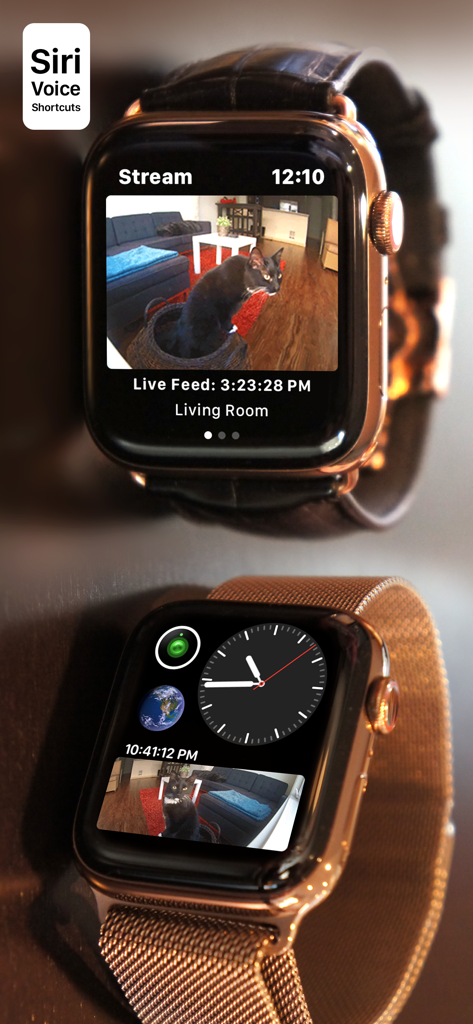
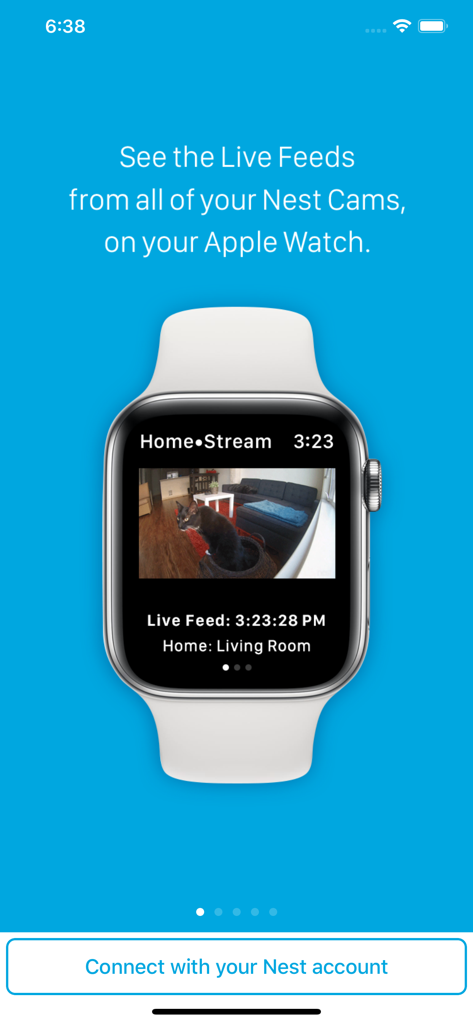
Apple Watch showing a live Nest camera stream and watch face complication

Apple Watch showing a live Nest camera stream and watch face complication

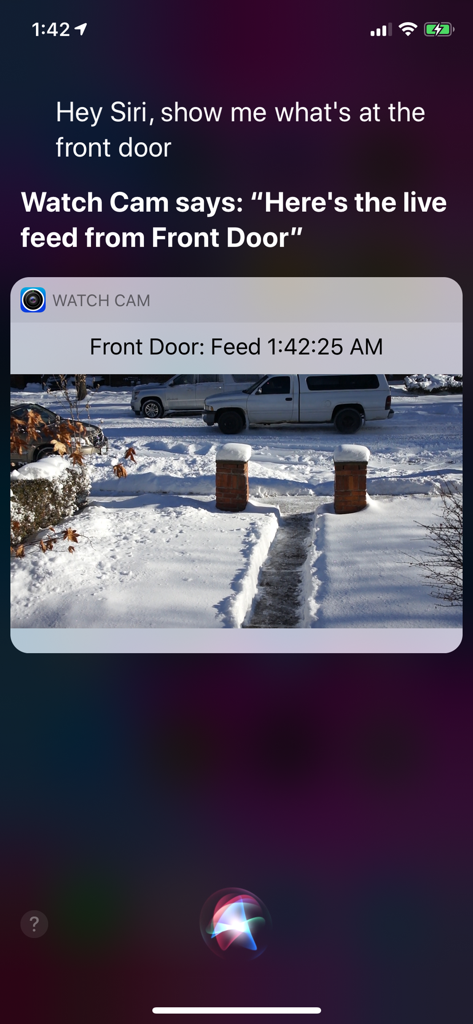
iPhone screen showing Siri displaying a Nest camera live feed through the Watch Cam app.

iPhone screen showing Siri displaying a Nest camera live feed through the Watch Cam app.

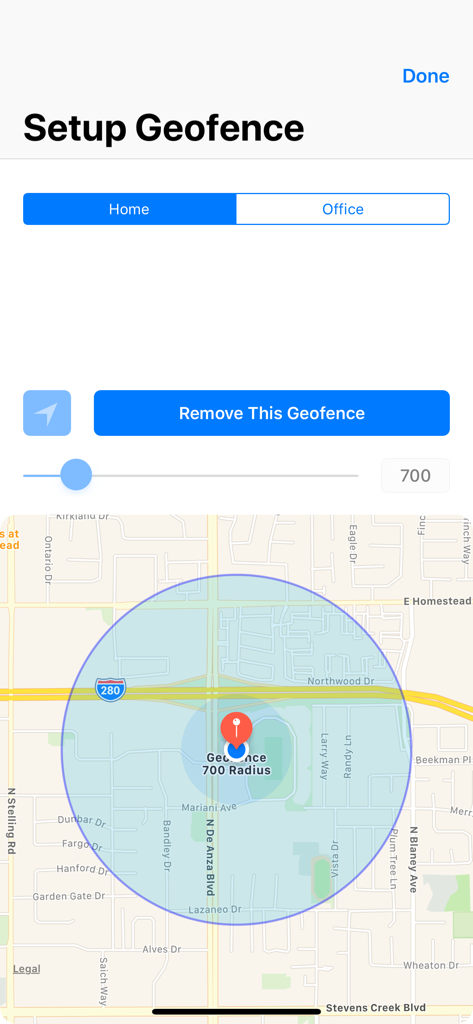
Interface for setting up a home geofence with a map and radius control

Interface for setting up a home geofence with a map and radius control

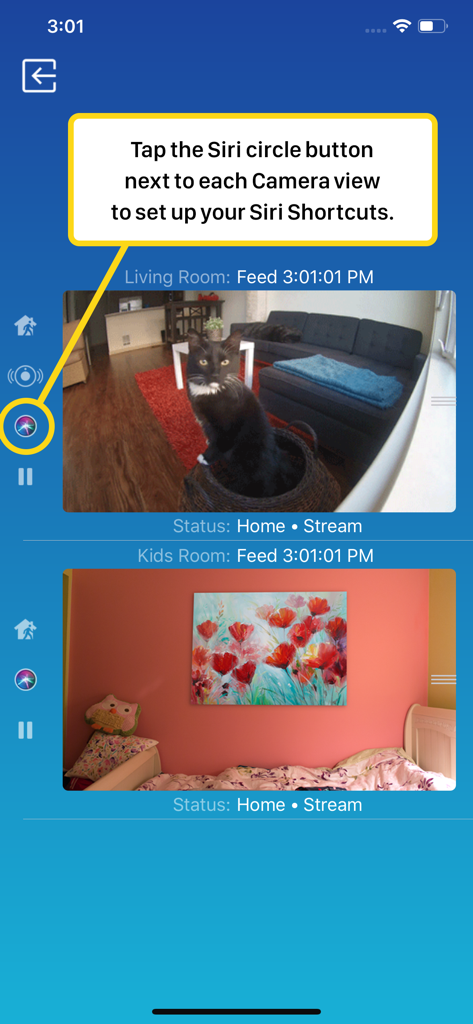
Smartphone interface of Watch Cam for Nest Cam showing live camera feeds and Siri Shortcuts setup

Smartphone interface of Watch Cam for Nest Cam showing live camera feeds and Siri Shortcuts setup

An Apple Watch displaying a live video feed from a Nest security camera showing a cat in a living room

An Apple Watch displaying a live video feed from a Nest security camera showing a cat in a living room

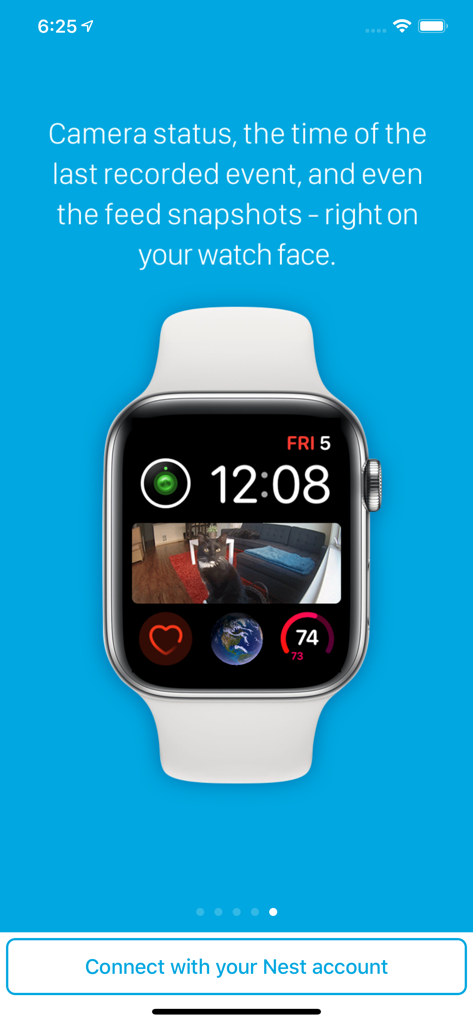
Apple Watch face showing a Nest camera snapshot complication of a cat on a couch

Apple Watch face showing a Nest camera snapshot complication of a cat on a couch

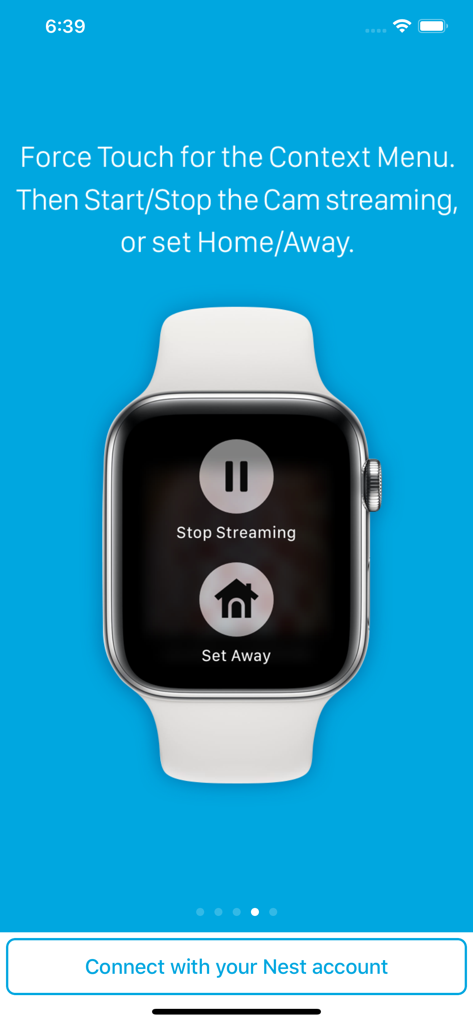
Apple Watch displaying Stop Streaming and Set Away buttons for Nest cameras

Apple Watch displaying Stop Streaming and Set Away buttons for Nest cameras

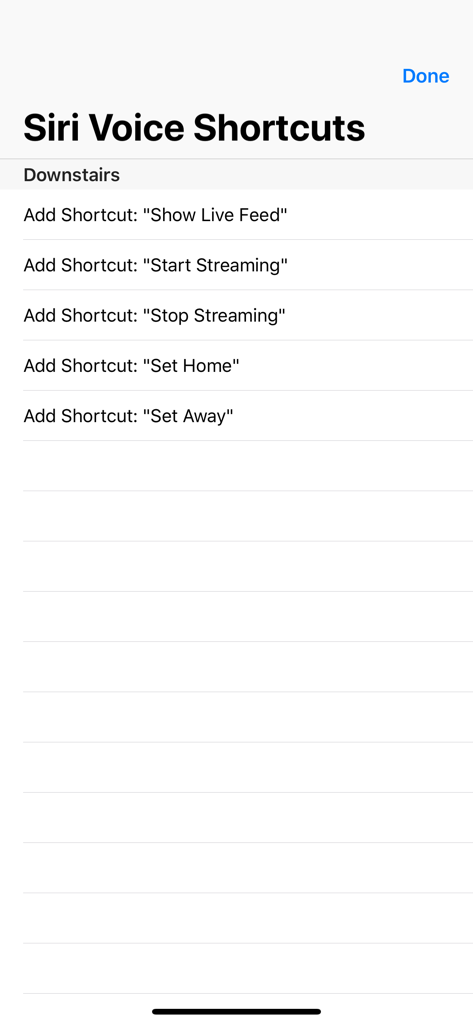
A list of Siri voice shortcut options for controlling Nest cameras including show live feed and set home or away status

A list of Siri voice shortcut options for controlling Nest cameras including show live feed and set home or away status

Your Home, Just a Glance Away

The tools that make this app stand out, trusted by 122K+ users.

True Phone-Free Freedom

Stay connected even when you leave your iPhone behind. Our full LTE support lets you view live feeds directly on your Apple Watch during runs or errands.

🖼️

Glanceable Security

Stop digging for your phone. Add custom complications to your watch face to see instant camera snapshots the moment you raise your wrist.

🗣️

Hands-Free Siri Control

Multitasking made easy. Use Siri Voice shortcuts to pull up live feeds or toggle Home/Away states when your hands are full with groceries or kids.

About the app

Everything you need to know about Watch Cam for Nest Cam.

Description

Apple Watch, Nest Cam, and Siri together. What a sight! The app has Siri Voice shortcuts, and they can be used to set your home into Away or Home state using Siri on your Watch or iPhone, as well as to display the live feeds from your cameras. The app supports Apple Watch LTE, and can work when the iPhone is not around - as long as the watch itself has internet access (either LTE or WiFi). The app is fully functional with the initial purchase. In-app purchases are available only for tipping the developer. Watch Cam lets you monitor all your Nest Cams from the Apple Watch. • From the watch face, tap on the Watch Cam complication to open the app. Swipe left and right to view life feeds from all your Nest Cams. • One of the watch complications shows you the snapshot from the camera of your choice, right on the watch face. • View the continuously updated Live Feed from the camera in the watch app, iOS app, or with Siri. Newer cameras show live video in the iOS app and Siri. Older cameras show snapshot images that update every second. The feed updates with a new snapshot image every few seconds on the Watch - may be faster or slower, depending on your network speed. • Use the digital crown on the Watch to zoom in and out, or tap the screen to toggle zoom levels. • Use the pinch gesture on the camera views in the iOS app to zoom in and out. Single tap toggles the zoom level in the iOS app and the iOS widget. • Turn the device to landscape mode to increase the camera views sizes. • Double tap on the Live Feed view in the iOS app or the widget to launch the Nest app. • Set Geofence around your home to reliably set the Home and Away state when you come and go. Watch Face Complications can display the following: • Snapshot from the camera of your choice. • Camera icon that opens the app. You can long-press the Watch screen for additional functions, like setting the home/away status, or turning the camera streaming on and off. While the app's minimalist looks betray the simplicity of its operation, what they don't show is the amount of planning, design, development and refinement that went into it, ensuring it becomes something that is enjoyable to use and experience. Please Note: Watch Cam does not collect any of your data. Your login information, camera feeds, and any activity - all of it flows exclusively between your devices and Nest. Author of Watch Cam does not receive any of it, at any point. This app and its developer are unaffiliated with Google Inc. or Google Nest. Nest is a trademark of Google Inc.

Latest Version

8.7.1

Size

16.7 MB

First Released

Nov 22, 2016

Your Home, Just a Glance Away

Join 122,000+ users who have bridged the gap between Nest and the Apple Watch. Download now for private, phone-free monitoring and seamless Siri control.

Download on App Store

App information, icons, screenshots, and descriptions displayed on this page are sourced from the Apple App Store and are the property of their respective developers. Download estimates and rankings are based on MWM's proprietary models and may not reflect actual figures. This page is provided for informational and analytical purposes only.

Believe this page infringes your intellectual property? File a dispute