
このページはアプリまたはその開発者の公式ページではなく、情報提供および論評を目的として作成された独立した編集出版物です。明示的に別段の記載がない限り、アプリおよびその開発者は、MWM、Apple、Google Play、アプリのパブリッシャー、またはアプリの開発者と提携、承認、後援、認可、またはその他の公式的な関係はなく、このページのいかなる内容も、アプリがMWMのサービスを使用して開発されたことを意味するものではありません。すべての商標、ロゴ、スクリーンショット、その他のコンテンツはそれぞれの所有者の財産です。

Epson iProjection
ケーブルやドングルなしで、画面をミラーリングし、ドキュメントを共有し、共同作業を行いましょう。iPhoneまたはiPadから直接Epsonプロジェクターを操作できます。
ダウンロード
2M+ユーザー評価
評価数
19K+開発元
カテゴリ
Productivity対応言語
9最新バージョン
4.2.0サイズ
27.4 MBリリース日
2012年1月5日ケーブルなしでインパクトのあるプレゼンテーションを実現
Epson iProjectionは、モバイルワークフローと大画面のギャップを埋め、教育者やプロフェッショナルにワイヤレスでプレゼンテーション、注釈付け、共同作業を行う自由を提供します。
ケーブル不要のミラーリング
ドングルやアダプターなしで、iPadまたはiPhoneをリアルタイムでミラーリングしながら、部屋を自由に移動できます。
ワンタップ接続
ネットワーク設定は不要です。投影されたQRコードをスキャンするだけで、デバイスが瞬時にリンクされ、ドキュメントや写真の共有を開始できます。
よくある質問
について知っておくべきこと Epson iProjection
Epson iProjectionとは何ですか?
Epson iProjectionは、iPhone、iPad、またはiPod touch向けのワイヤレス投影アプリです。デバイスの画面をミラーリングし、対応するエプソンプロジェクターにドキュメントや写真をワイヤレスで投影します。
Epson iProjectionは、ワイヤレス投影でどのデバイスをサポートしていますか?
Epson iProjectionは、ワイヤレス投影のためにiPhone、iPad、またはiPod touchデバイスをサポートしています。デバイスの画面を互換性のあるエプソンプロジェクターにミラーリングします。
Epson iProjectionを使用してEpsonプロジェクターに接続するにはどうすればよいですか?
はい、デバイスのカメラで投影されたQRコードをスキャンして接続します。デバイスとプロジェクターの両方が同じネットワーク上にあることを確認してください。
Epson iProjectionでデバイスの画面をミラーリングできますか?
はい、Epson iProjectionはデバイスの画面をミラーリングし、コンテンツをワイヤレスで投影します。プロジェクターからデバイスのオーディオを出力することもできます。
Epson iProjectionはどの種類のドキュメントを投影できますか?
Epson iProjectionは、Microsoft Word、Excel、PowerPoint、Keynote、PDF、JPG、PNGファイルを投影できます。これには、クラウドファイルサービスに保存されているドキュメントも含まれます。
Epson iProjectionは、複数のデバイスが同時に接続することを許可しますか?
はい、Epson iProjectionは、最大50台のデバイスをプロジェクターに接続できます。また、これらのデバイスから最大4つの画面を同時に表示できます。
Epson iProjectionで投影された画像を注釈付けできますか?
はい、Epson iProjectionには、投影された画像に注釈を付けるためのペンツールが含まれています。注釈を付けて編集した画像も保存できます。
Epson iProjectionはプロジェクターをリモートで制御できますか?
はい、Epson iProjectionはプロジェクターのリモートコントロールとして機能します。この機能により、ユーザーはデバイスから直接プロジェクターの設定を管理できます。
Epson iProjectionアプリにはどのような権限が必要ですか?
このアプリは、プロジェクターを検索して接続するためにローカルネットワークの権限が必要です。写真の権限はオプションで、アプリがデバイスから選択した画像を投影できるようにします。
Epson iProjectionでドキュメントを投影する際に、ビデオやアニメーションはサポートされていますか?
いいえ、Epson iProjectionは、ドキュメントを投影する際にアニメーション、画面遷移効果、ビデオ、またはオーディオを再生しません。このようなコンテンツには、ミラーリング機能を使用してください。
Epson iProjectionは、デバイスのカメラからコンテンツを投影できますか?
はい、Epson iProjectionは、デバイスのカメラから直接リアルタイムビデオを投影できます。この機能は、アプリの投影オプションから選択されます。
Epson iProjectionでデバイスの画面をミラーリングする際に、オーディオは投影されますか?
はい、Epson iProjectionは、画面をミラーリングする際にプロジェクターからデバイスのオーディオを出力します。ネットワークの状態によっては、ビデオとオーディオに遅延が発生する場合があります。
以下のスクリーンショットと説明は、アプリの公式ストアリスティングから直接取得されたものであり、アプリ開発者の所有物です。
アプリストア
スクリーンショット
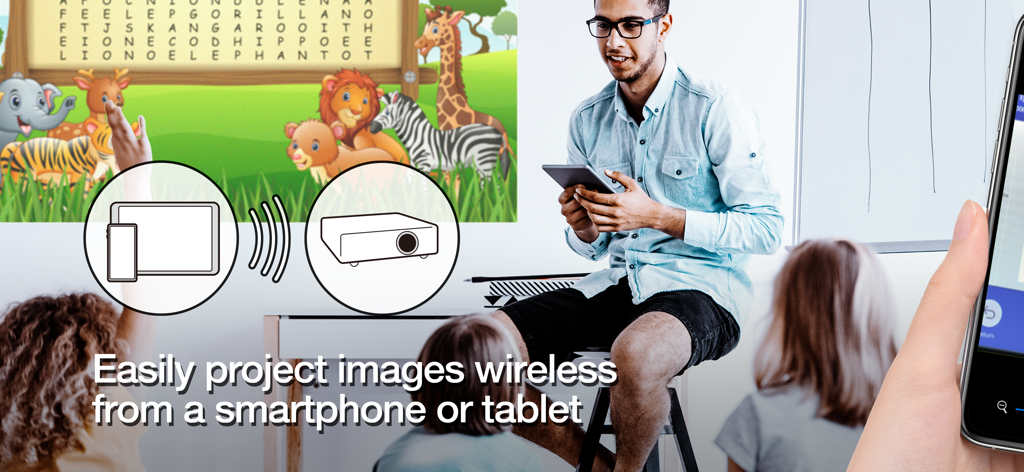
教師が教室の画面にタブレットから教育コンテンツをワイヤレスで投影している
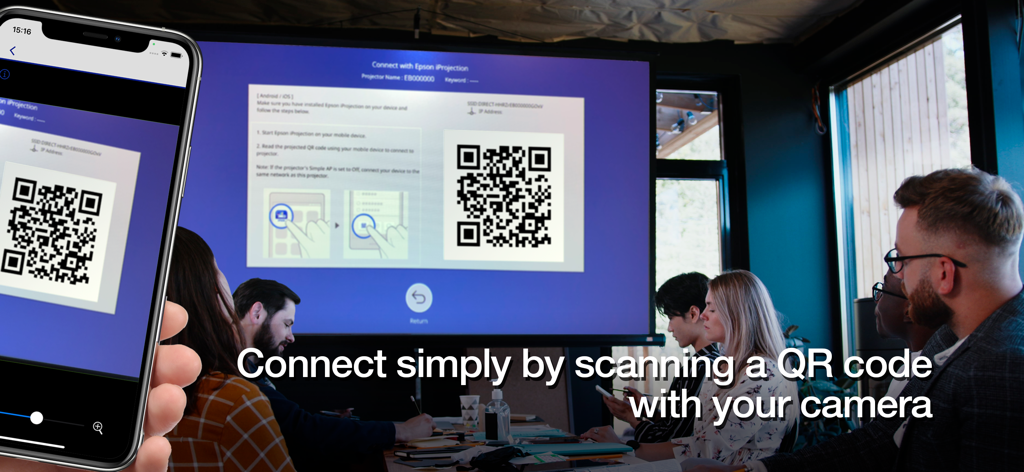
会議室でスマートフォンがプロジェクター画面上のQRコードをスキャンしてワイヤレス接続している
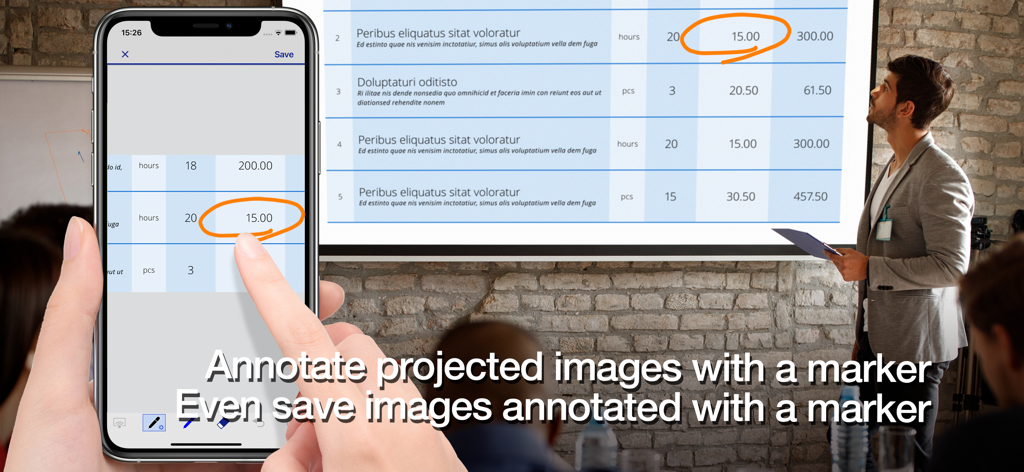
プロフェッショナルがEpson iProjectionアプリを使用して、スマートフォンでプロジェクター画面上のドキュメントに注釈を付けている
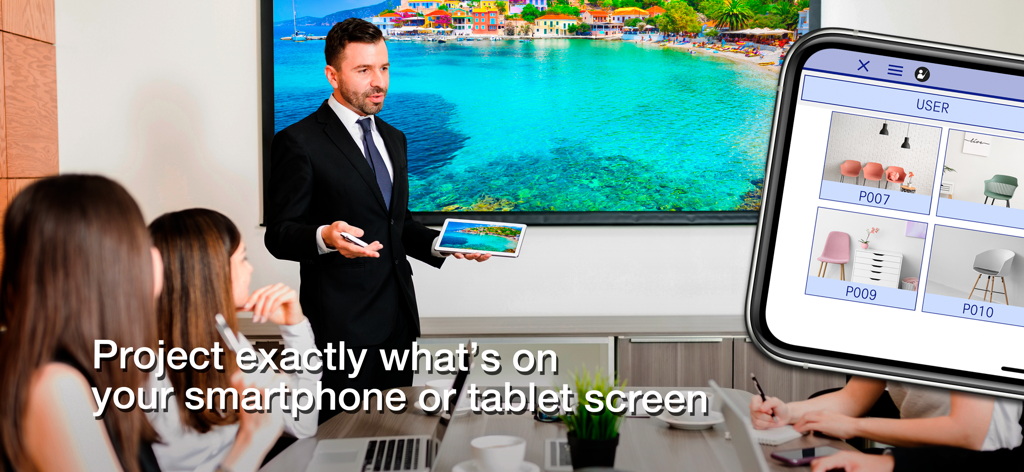
役員室の大画面にタブレット画面をワイヤレスでミラーリングするためにEpson iProjectionを使用しているプレゼンター
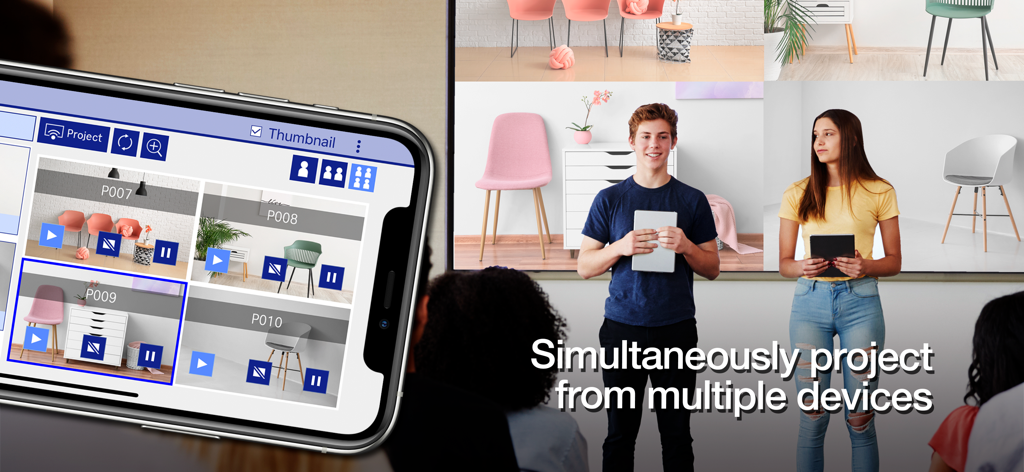
Epson iProjectionアプリを使用して、生徒がモバイル画面を同時に1つの大画面に投影している
説明
Download
類似アプリ
似た機能とユーザー体験を持つアプリ

DJI Mimo
SZ DJI TECHNOLOGY CO., LTD

DJI Ronin
SZ DJI TECHNOLOGY CO., LTD
Roku TV Remote Control & Cast
Aleh Piashkou
Remote for Hisense TV.
Duscov Stepan

Alpha Linker - Camera Transfer
恒茂 刘
MyCentsys Pro
Centurion Systems (Pty) Ltd
Roku TV Remote Control・
Artur Belov
Luminair
Synthe FX, LLC

FUJIFILM XApp
FUJIFILM Corporation
このページはアプリまたはその開発者の公式ページではなく、情報提供および論評を目的として作成された独立した編集出版物です。明示的に別段の記載がない限り、アプリおよびその開発者は、MWM、Apple、Google Play、アプリのパブリッシャー、またはアプリの開発者と提携、承認、後援、認可、またはその他の公式的な関係はなく、このページのいかなる内容も、アプリがMWMのサービスを使用して開発されたことを意味するものではありません。すべての商標、ロゴ、スクリーンショット、その他のコンテンツはそれぞれの所有者の財産です。