Exif Wizard-Pro
Exif Wizard-Pro
ダウンロード: App Store

このページはアプリまたはその開発者の公式ページではなく、情報提供および論評を目的として作成された独立した編集出版物です。明示的に別段の記載がない限り、アプリおよびその開発者は、MWM、Apple、Google Play、アプリのパブリッシャー、またはアプリの開発者と提携、承認、後援、認可、またはその他の公式的な関係はなく、このページのいかなる内容も、アプリがMWMのサービスを使用して開発されたことを意味するものではありません。すべての商標、ロゴ、スクリーンショット、その他のコンテンツはそれぞれの所有者の財産です。


ロゴ: Exif Wizard-Pro
ダウンロード: App Store

Exif Wizard-Pro

画像データの奥深くまでアクセスし、著作権タグを編集し、iPadとiPhoneのための究極のExifリーダーとFTPマネージャーでプロフェッショナルのワークフローを合理化します。

主要数値

ダウンロード

184K+

ユーザー評価

3.5/5

評価数

100

開発元

homedatasheet.com, Inc.

カテゴリ

Photo & Video

対応言語

1

最新バージョン

13.0

サイズ

1.9 MB

リリース日

2011年3月21日
機能

熱心な写真家のためのプロフェッショナルメタデータツール

Exif Wizard-Proは、デジタル画像を完全に制御できます。iPadまたはiPhoneから直接、技術仕様を分析し、知的財産を保護し、プロフェッショナルのワークフローを合理化します。

詳細なメタデータ検査

ISO、絞り、焦点距離などの詳細な技術データにアクセスして、パフォーマンスを分析し、ギアの機能をマスターします。

プロフェッショナルFTPワークフロー

パッシブFTP経由で、個々のショットまたはアルバム全体をプライベートサーバーにアップロードします。フィールドフォトジャーナリストやスタジオのクライアント納品に最適です。

以下のスクリーンショットと説明は、アプリの公式ストアリスティングから直接取得されたものであり、アプリ開発者の所有物です。

アプリストア

スクリーンショット
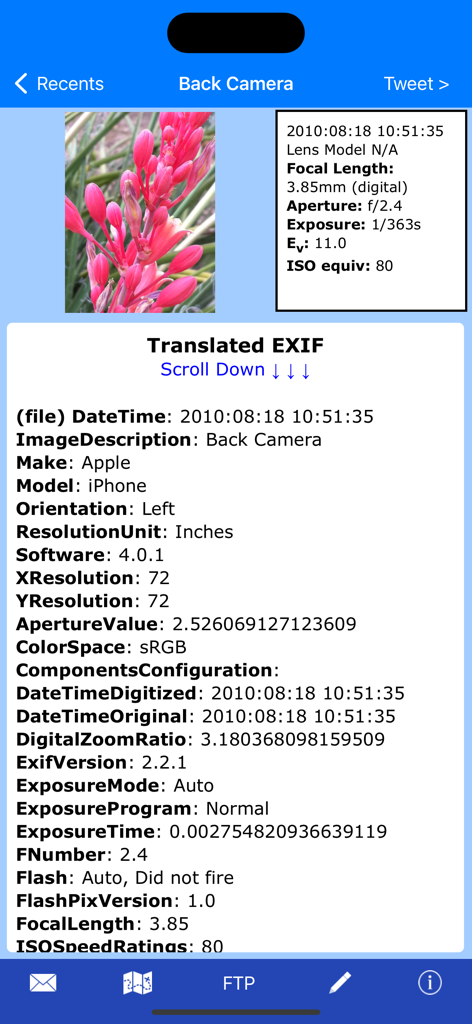
Exif Wizard-Pro - Exif Wizard Proのインターフェイスに、写真の詳細な画像メタデータとカメラの技術仕様が表示されています。

Exif Wizard Proのインターフェイスに、写真の詳細な画像メタデータとカメラの技術仕様が表示されています。

Exif Wizard-Pro - Exif Wizard Proアプリでの高解像度写真表示。

Exif Wizard Proアプリでの高解像度写真表示。

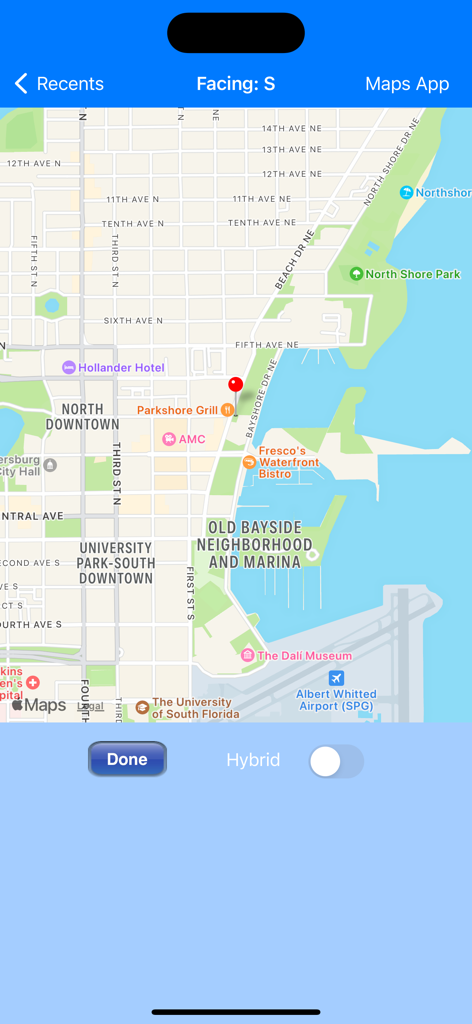
Exif Wizard-Pro - Exif Wizard-Proのマップインターフェイスに、赤いマーカーで写真のジオタグ付き位置が表示されています。
Exif Wizard-Proのマップインターフェイスに、赤いマーカーで写真のジオタグ付き位置が表示されています。

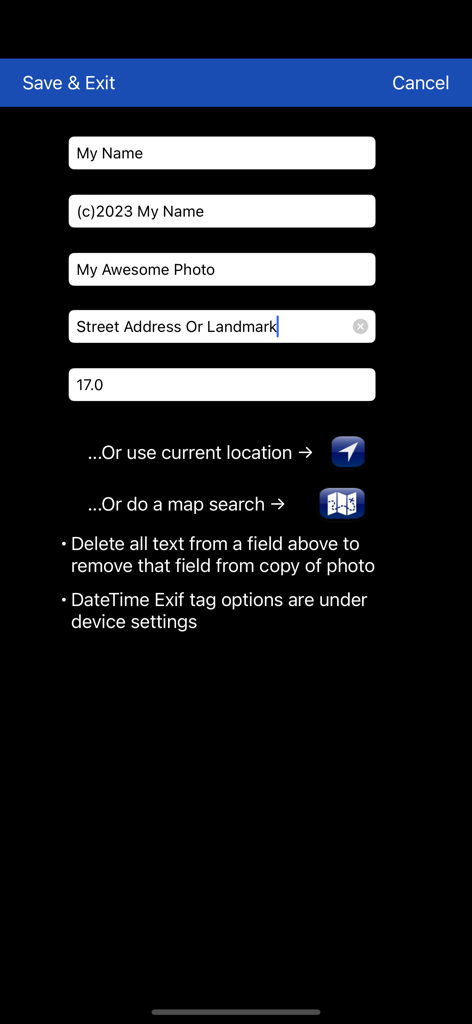
Exif Wizard-Pro - アーティスト、著作権、GPS情報などの写真メタデータフィールドを編集するためのインターフェイス。

アーティスト、著作権、GPS情報などの写真メタデータフィールドを編集するためのインターフェイス。

説明

Exif Wizard-Pro is an Exif reader for photographers who are serious about their digital images. - Work in native screen resolution, portrait & landscape, on your iPad. - Move through an album using left or right finger "swipe" gestures on the preview images - Ability to e-mail photos from within the app which retain their Exif data - Upload images via FTP (passive mode, which virtually every recent server supports) and select your upload directory via a graphical user interface. Send one image at a time, or let Exif Wizard-Pro upload an entire album for you with the touch of a button. - Create a copy of an existing photo with the option to add, modify, or delete some Exif tags (Artist, Copyright, ImageDescription, Software, and GPS Location). Copies are placed at the end of your Recents album (Camera Roll). (JPEG images only) ***iCloud Photo Library Users - In the event a photo you believe is in your iCloud Photo Library fails to load, please open Apple's built-in "Photos" app to verify its presence, then try Exif Wizard-Pro again. Note that it may take several seconds or more to download a photo. ***If you edit a photo in Apple's built-in Photos app, it may become inaccessible to Exif Wizard-Pro. Reverting to original should restore access. FTP security: Exif Wizard-Pro sends FTP data (including your password) unencrypted and, if you choose to store your password, saves it on your mobile device unencrypted. Therefore, you should NOT enter your main server password into Exif Wizard-Pro. If you have not done so already, set up an FTP account with limited access permissions. Consult your sources of technical support for further information. Expectations Management: The process of importing photos from your desktop, laptop, or stand-alone digital camera to your mobile device is controlled by Apple. Some image editing programs, social media sites, and image upload/storage services remove Exif data from photos. Thank you for your understanding. Notes: - Web photos can be stored in your Recents album (Camera Roll) with Exif information by touching and holding the photo, and then touching "Add to Photos" on the action sheet which will appear. - If you experience slow loading of photos for a selected album, go to the "Settings" app (from your home screen) and, in Exif Wizard-Pro's settings, scroll down and turn ON the "Fast Load" switch. *** If Exif Wizard-Pro is not displaying GPS/mapping information for photos you have taken with your iOS device, it may be because you did not enable geotagging when you first used the built-in Camera app. To grant permission now, from your home screen, touch Settings -> Privacy -> Location Services. Make sure the "Location Services" switch at the top of the screen is ON, then scroll down and turn on the switch next to "Camera." Keep in mind that if you enable geotagging, people you transmit your photos to may be able to determine the locations where those photos were taken using any number of mobile and desktop Exif applications.

Download

ダウンロード: App Store

このページはアプリまたはその開発者の公式ページではなく、情報提供および論評を目的として作成された独立した編集出版物です。明示的に別段の記載がない限り、アプリおよびその開発者は、MWM、Apple、Google Play、アプリのパブリッシャー、またはアプリの開発者と提携、承認、後援、認可、またはその他の公式的な関係はなく、このページのいかなる内容も、アプリがMWMのサービスを使用して開発されたことを意味するものではありません。すべての商標、ロゴ、スクリーンショット、その他のコンテンツはそれぞれの所有者の財産です。