MovStash - Blur Video Editor
ダウンロード: App Store

このページはアプリまたはその開発者の公式ページではなく、情報提供および論評を目的として作成された独立した編集出版物です。明示的に別段の記載がない限り、アプリおよびその開発者は、MWM、Apple、Google Play、アプリのパブリッシャー、またはアプリの開発者と提携、承認、後援、認可、またはその他の公式的な関係はなく、このページのいかなる内容も、アプリがMWMのサービスを使用して開発されたことを意味するものではありません。すべての商標、ロゴ、スクリーンショット、その他のコンテンツはそれぞれの所有者の財産です。


ロゴ: MovStash - Blur Video Editor
ダウンロード: App Store

MovStash - Blur Video Editor

AI搭載の追跡機能と、クリエイターや保護者のための正確なタイムラインコントロールで、顔、ナンバープレート、機密性の高い詳細を楽に隠しましょう。

主要数値

ダウンロード

1M+

ユーザー評価

4.2/5

評価数

6K+

開発元

REAFO CO., LTD.

カテゴリ

Photo & Video

対応言語

9

最新バージョン

6.1

サイズ

41.5 MB

リリース日

2015年11月17日
機能

すべてのフレームにプロフェッショナルなプライバシー

バイラルVlogから機密文書まで、MovStashは共有前に詳細をマスクし、個人情報を保護するために必要な高精度のツールを提供します。

精密タイムライン追跡

アクションを追跡します。高度なタイムラインモードでは、ナンバープレートや通行人などの動くオブジェクトをフレーム単位で正確に追跡およびぼかすことができます。

AI顔検出

プライバシーを即座に保護します。動画内の顔を自動的に検出しぼかします。保護者、教育者、公共の場でのクリエイターに最適です。

以下のスクリーンショットと説明は、アプリの公式ストアリスティングから直接取得されたものであり、アプリ開発者の所有物です。

アプリストア

スクリーンショット
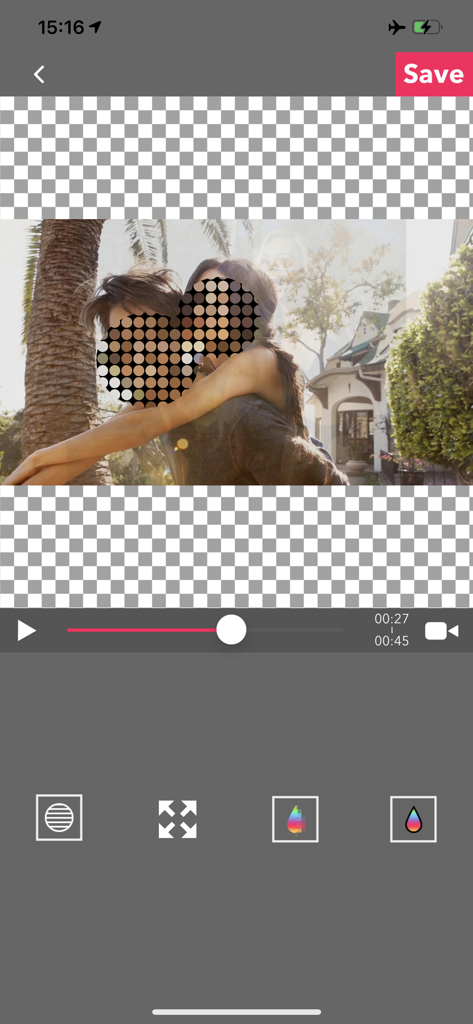
MovStash - Blur Video Editor - MovStashアプリがプライバシー保護のために顔にモザイクぼかし効果を適用している様子を示す動画編集インターフェース。
MovStashアプリがプライバシー保護のために顔にモザイクぼかし効果を適用している様子を示す動画編集インターフェース。

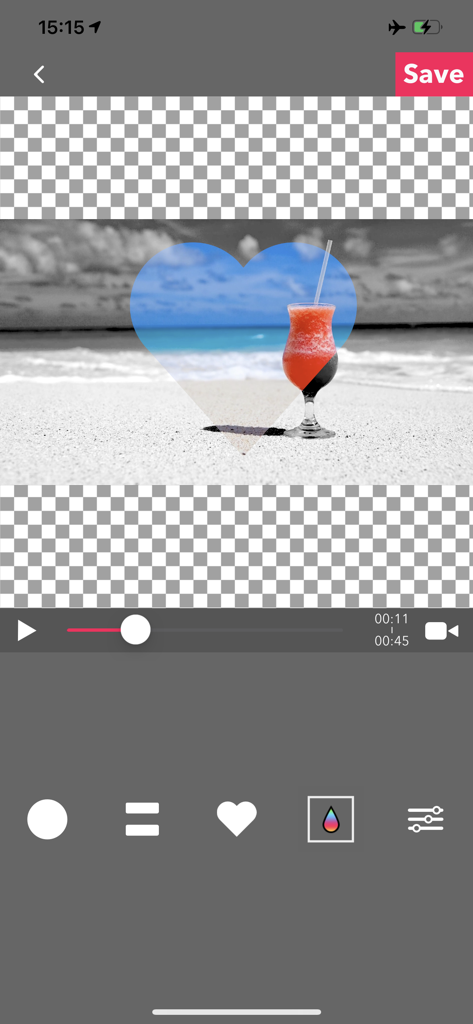
MovStash - Blur Video Editor - クリエイティブなぼかしのために、ハート型のマスクツールが動画に適用されているMovStashアプリのインターフェース。
クリエイティブなぼかしのために、ハート型のマスクツールが動画に適用されているMovStashアプリのインターフェース。

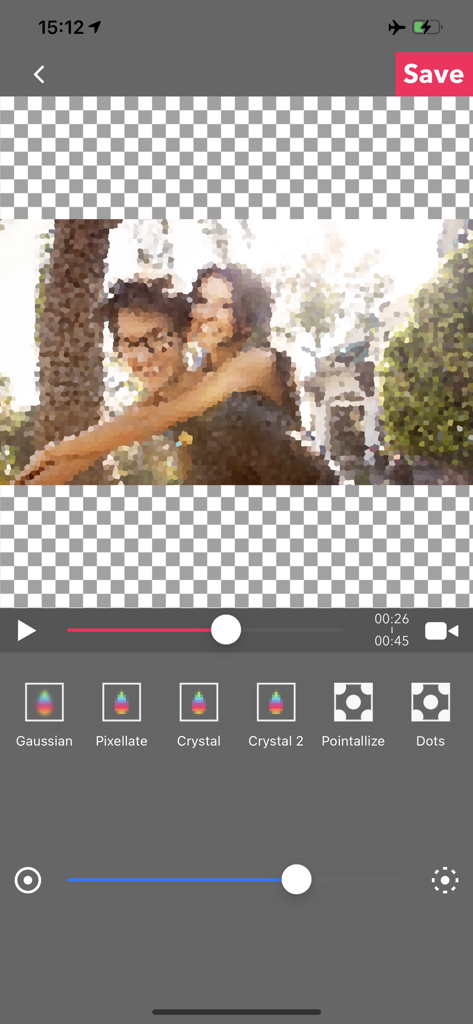
MovStash - Blur Video Editor - MovStashアプリのインターフェースで、ぼかし効果と、ピクセル化やクリスタルなどの複数のフィルターオプションが表示されている動画。
MovStashアプリのインターフェースで、ぼかし効果と、ピクセル化やクリスタルなどの複数のフィルターオプションが表示されている動画。

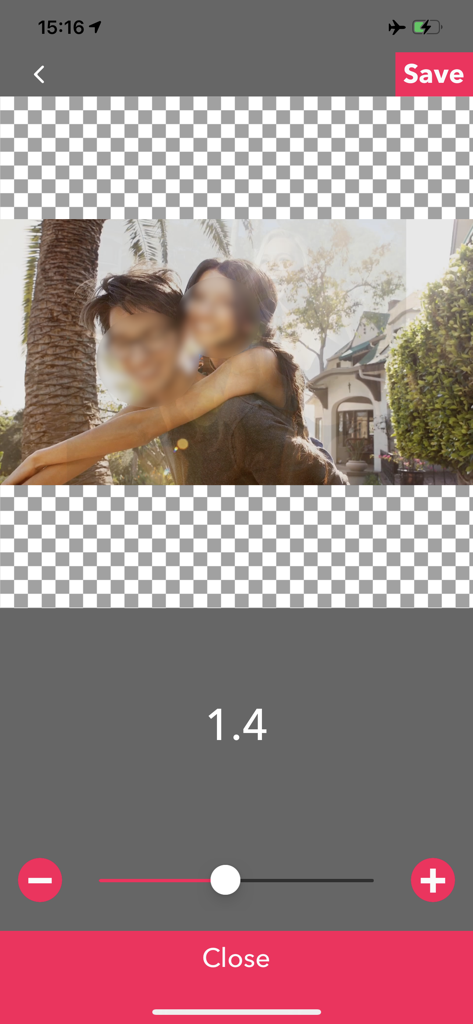
MovStash - Blur Video Editor - MovStashを使用して、動画の顔にぼかし効果の強度を調整している様子。
MovStashを使用して、動画の顔にぼかし効果の強度を調整している様子。

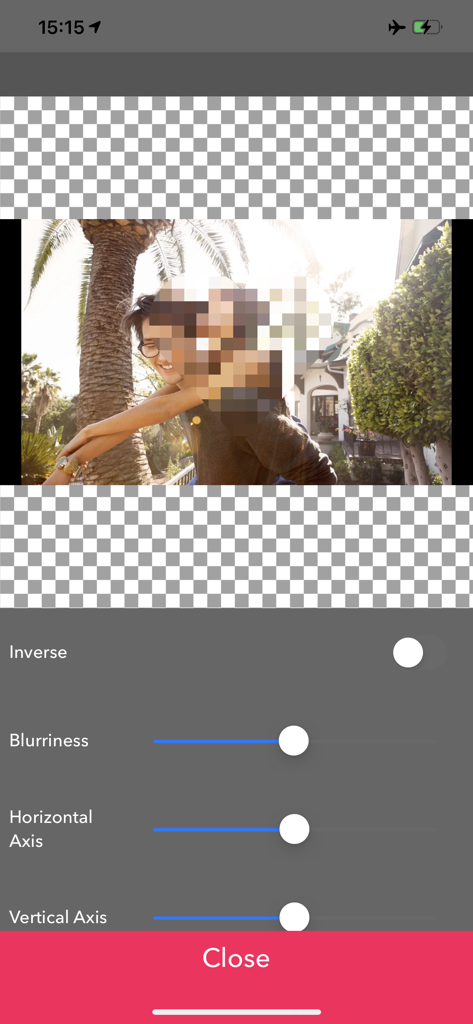
MovStash - Blur Video Editor - 顔にモザイクぼかし効果が適用され、ぼかしの強さと軸調整のスライダーが表示されているMovStashアプリのインターフェース。
顔にモザイクぼかし効果が適用され、ぼかしの強さと軸調整のスライダーが表示されているMovStashアプリのインターフェース。

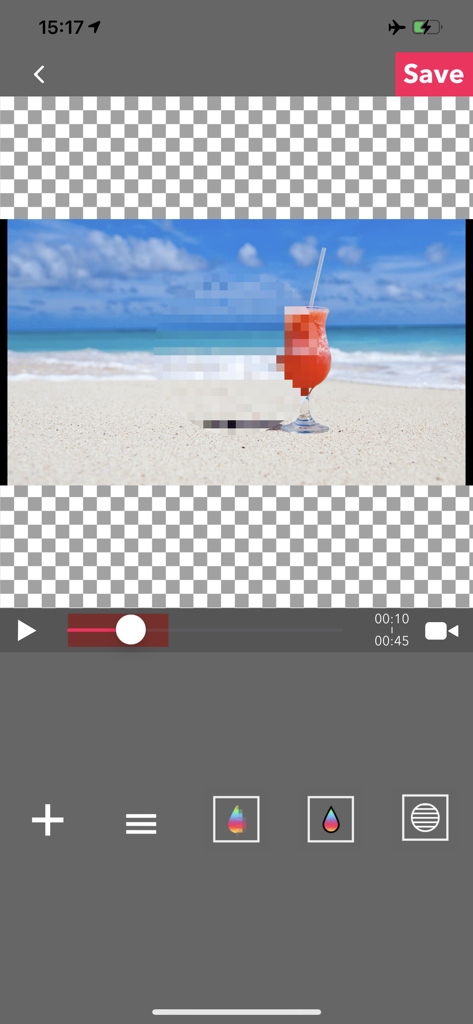
MovStash - Blur Video Editor - ピクセル化ぼかし効果がビーチ動画のタイムラインに適用されている様子を示すMovStashアプリのインターフェース。

ピクセル化ぼかし効果がビーチ動画のタイムラインに適用されている様子を示すMovStashアプリのインターフェース。

説明

This app is for making mosaic/blur video. You can choose 4 types of blur. ■Simple mode. Simple mode is for Blur to the specified area and all duration of the video. -- How to edit mosaic/blur -- Position :Drag mosaic/blur area directory or screen using with one finger. Size :Pinch mosaic/blur area directory or screen using with two fingers. Blurriness:Parallel swipe mosaic/blur area or screen using with two fingers. ■Timeline mode. Timeline mode is you can blur to the specified area in a specified time range of the video. -- How to use basics. -- 1. Select the video. 2. Press [+] button to add a new blur area. 3. Drag the red area to the place you want to blur. 4. Press [OK]. 5. [≡] button is to show the list of blur areas. you can edit again after you've done once. 6. Adjust blur types and level, and then press [save] to render the video with blur. -- How to set the time range 1. Press [+] button to add a new blur area. 2. Slide the slider to the time that is started blur. 3. Drag the red area to the place you want to blur. 4. Slide the slider to the time that is ended blur. 5. Drag the red area to the place you want to blur. 6. You can see three thumbnails under the slider. Tap the last one and press the trash bin button to delete. 7. Then the blur area is only showed up in the time range. 8. Press [OK] to do it. -- How to change the shape of blur area 1. Tap the red area which is located under the slider. 2. Select the shape you want to. ■Face tracking mode App blur faces that are recognized. Face tracking mode is not a perfect solution to blur faces so be careful. -- How to use -- ・Faces are recognized automatically after you select a video. ・You can adjust blurs size/level/type and inverse area or nor. ・Press [save] to export it.

Download

ダウンロード: App Store

このページはアプリまたはその開発者の公式ページではなく、情報提供および論評を目的として作成された独立した編集出版物です。明示的に別段の記載がない限り、アプリおよびその開発者は、MWM、Apple、Google Play、アプリのパブリッシャー、またはアプリの開発者と提携、承認、後援、認可、またはその他の公式的な関係はなく、このページのいかなる内容も、アプリがMWMのサービスを使用して開発されたことを意味するものではありません。すべての商標、ロゴ、スクリーンショット、その他のコンテンツはそれぞれの所有者の財産です。