Search PubChem
Search PubChem
Download on App Store

This page is not an official page of the app or its developer, but an independent editorial publication created for informational and commentary purposes. Unless expressly stated otherwise, neither the app nor its developer is affiliated with, endorsed by, sponsored by, authorized by, or otherwise officially connected with MWM, Apple, Google Play, the app publisher, or the app's developer, and nothing on this page implies that the app was developed using MWM's services. Any trademarks, logos, screenshots, and other content remain the property of their respective owners.

Logo of Search PubChem
Download on App Store

Search PubChem

Access over 111 million NIH compounds, visualize 3D molecular structures, and automate complex molarity calculations directly at your lab bench.

Key Figures

Downloads

700

User Rating

5.0/5

Total Ratings

0

Publisher

Jae-Seung Lee

Category

Education

Locales

1

Latest Version

4.3

Size

8.7 MB

First Released

Apr 22, 2018
Features

Precision Chemistry at Your Fingertips

Bridge the gap between massive chemical databases and daily lab work. Designed for researchers and students who demand speed, accuracy, and portability.

Direct NIH Database Access

Search over 111 million compounds via PubChem integration. Get instant access to verified molecular weights, formulas, and data directly at the lab bench.

Smart Solution Management

Automate complex molarity and mass calculations. Save custom solution recipes and toggle between units like mg, mol, and mM to eliminate manual math errors.

The following screenshots and description are sourced directly from the app's official store listing and are the property of the app developer.

App Store

Screenshots
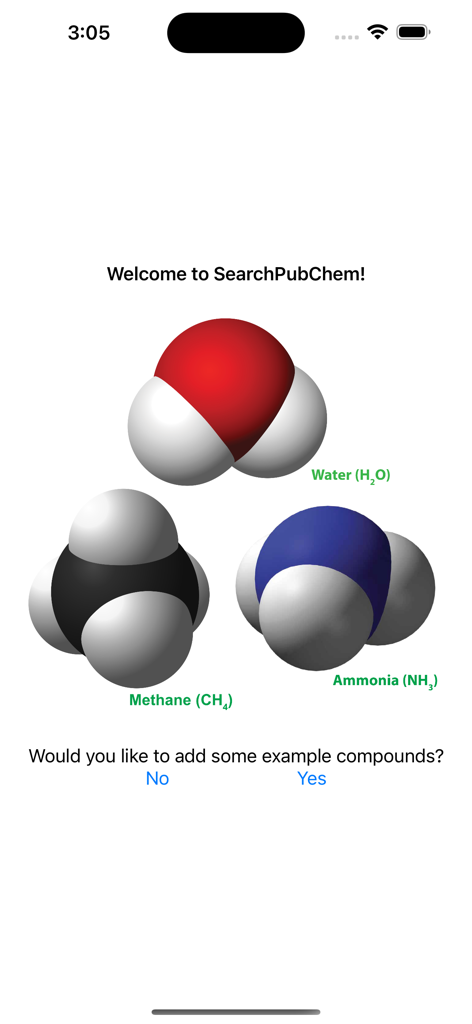
Search PubChem - Welcome screen of Search PubChem app displaying 3D molecular models of Water Methane and Ammonia
Welcome screen of Search PubChem app displaying 3D molecular models of Water Methane and Ammonia

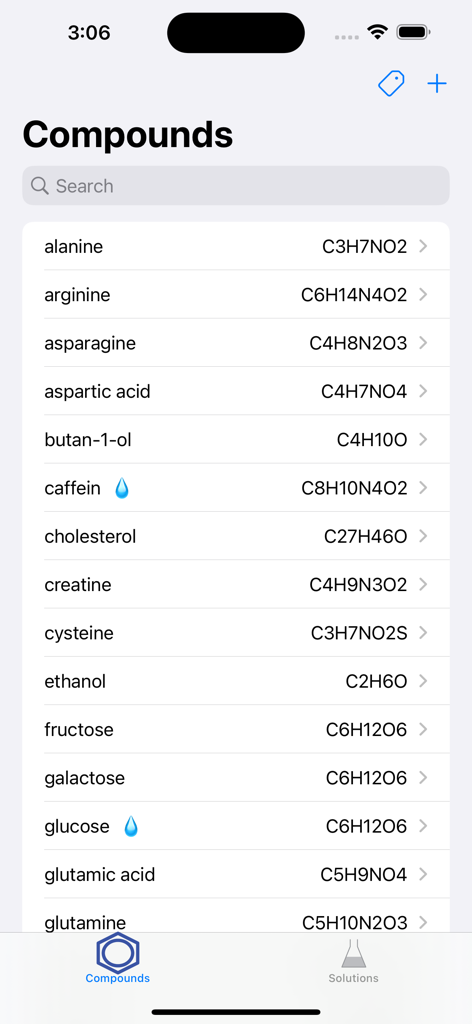
Search PubChem - A list of chemical compounds and their molecular formulas in the Search PubChem mobile app
A list of chemical compounds and their molecular formulas in the Search PubChem mobile app

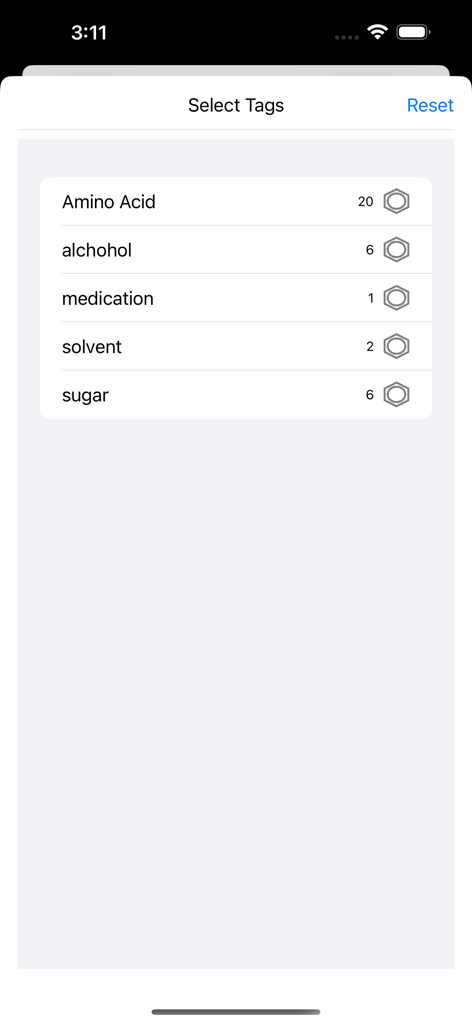
Search PubChem - A screen in the Search PubChem app for selecting tags like amino acid and solvent
A screen in the Search PubChem app for selecting tags like amino acid and solvent

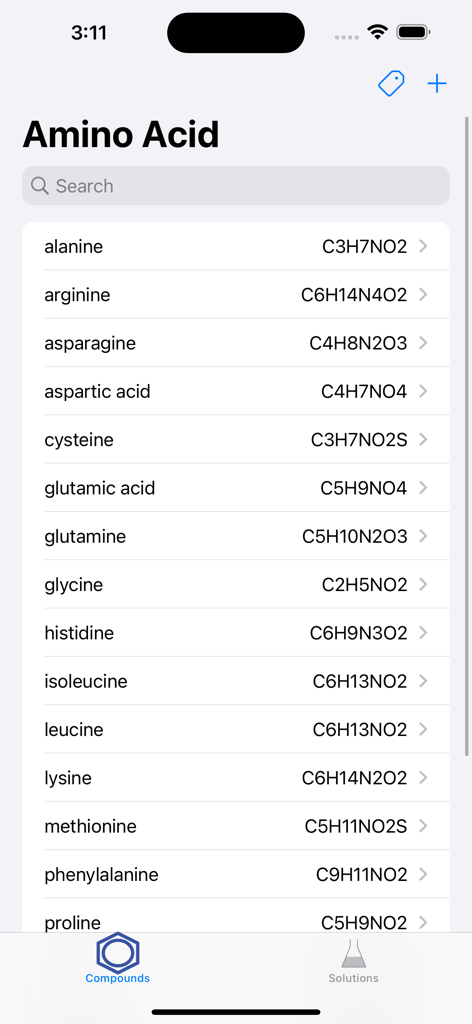
Search PubChem - A list of amino acid compounds and their molecular formulas displayed in the Search PubChem mobile app interface.
A list of amino acid compounds and their molecular formulas displayed in the Search PubChem mobile app interface.

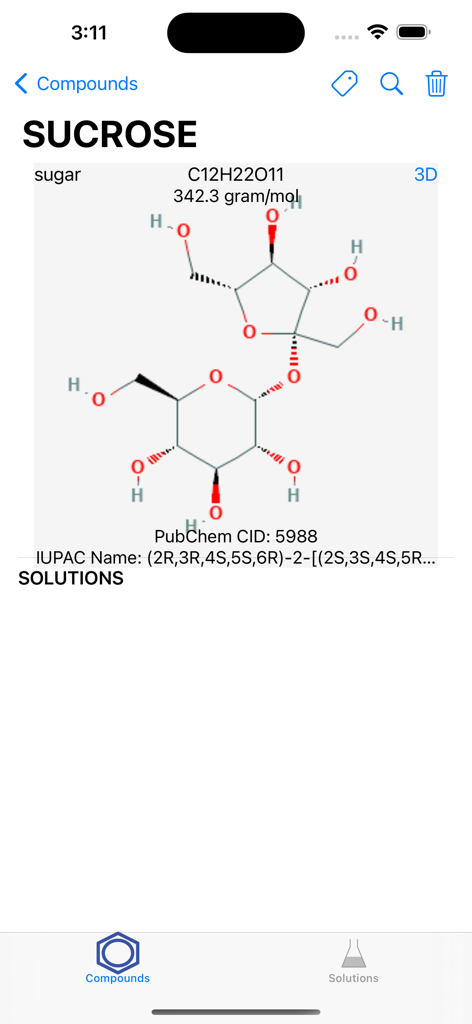
Search PubChem - A screenshot showing the chemical details and molecular structure of Sucrose in the Search PubChem mobile app
A screenshot showing the chemical details and molecular structure of Sucrose in the Search PubChem mobile app

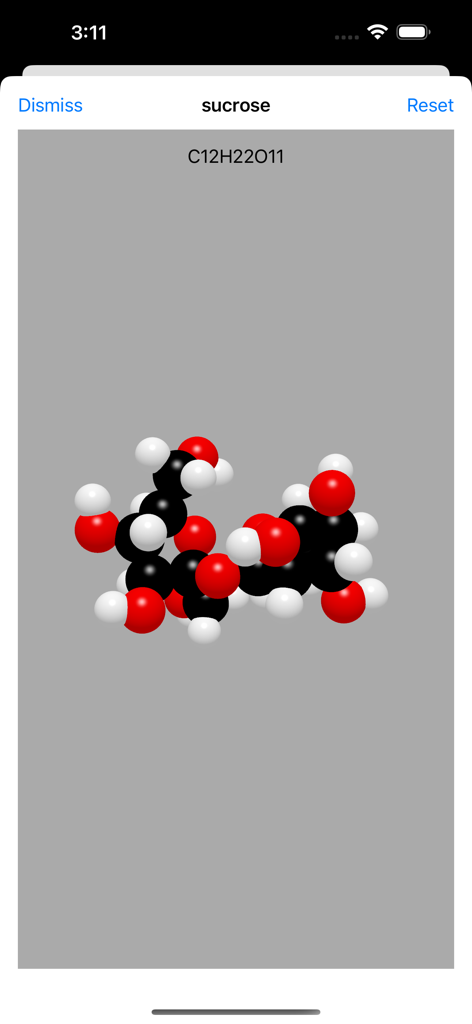
Search PubChem - 3D molecular structure of sucrose displayed in the Search PubChem app
3D molecular structure of sucrose displayed in the Search PubChem app

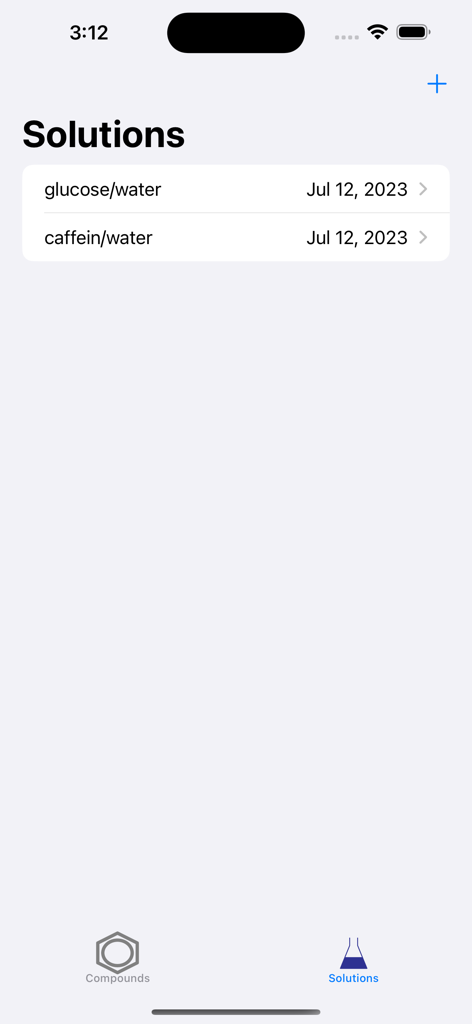
Search PubChem - Search PubChem app solutions screen displaying a list of saved chemical mixtures
Search PubChem app solutions screen displaying a list of saved chemical mixtures

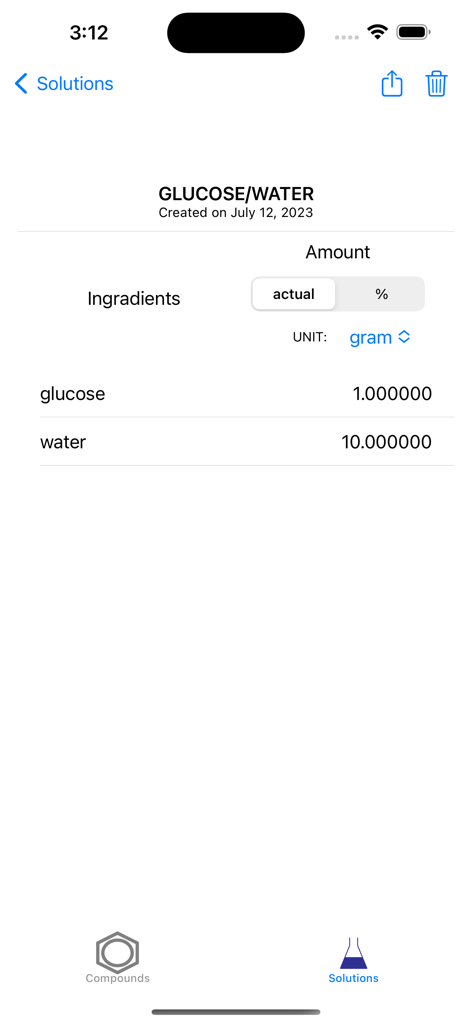
Search PubChem - Search PubChem app screen showing the ingredients and weights for a glucose and water solution.
Search PubChem app screen showing the ingredients and weights for a glucose and water solution.

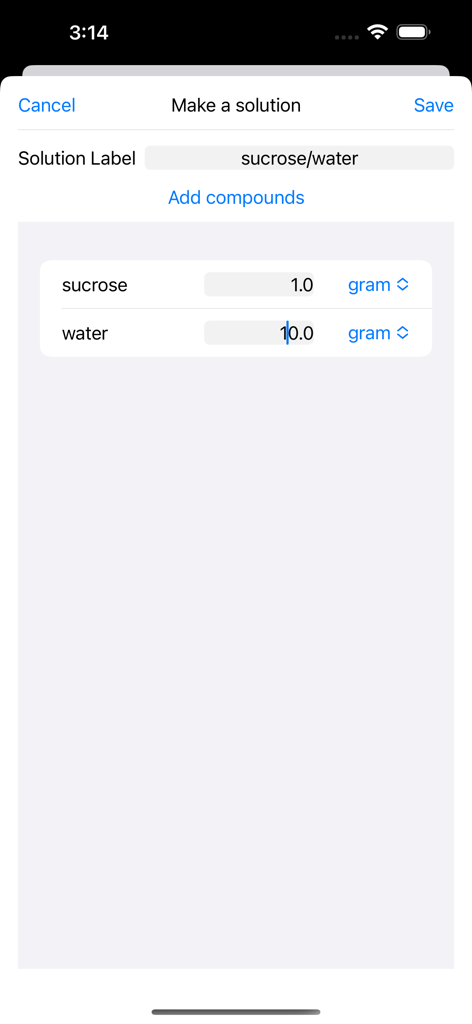
Search PubChem - The make a solution interface in the Search PubChem app showing sucrose and water quantities in grams

The make a solution interface in the Search PubChem app showing sucrose and water quantities in grams

Description

The app allows to search compounds through PubChem and helps to keep information on solutions made of those compounds. I. Compounds Tab Search the open chemistry database 'PubChem' at the National Institutes of Health (NIH) for chemical compounds. The app helps to find a compound by name from the collection of more than 111 million compounds. It downloads and stores the molecular formula, weight, and structure. Compounds 1. Selecting the "Compounds" tab will present a list of compounds. - If there are any solutions made of a compound, a droplet will appear next to the compound's name. 2. When a compound is selected, a view with the detailed information will appear. Follow the instruction in "Details for a compound". 3. When the "+" button is selected, a view for search will appear. Follow the instruction in "Search for a compound". Details for a compound 1. Click "Compounds" to return back to the table of compounds. 2. Click the magnifier icon to open the compound's PubChem page in the user's default web browser. 3. Click the trashcan icon to delete the compound. This function may not be available if there is a solution made of the compound. 4. Click one of the solutions made of the compound to display the information. See "Details for a solution" below. 5. Click "3D" to display a 3D structure. Use pan and pinch gestures to rotate and zoom the scene. Search for a compound 1. Select "Compound Name" ("CID") and type a compound name (PubChem CID). 2. Click "Search" to connect to PubChem. An activity indicator will appear until the search is finished. - If the search succeeds, the downloaded information will appear. - If the search fails, an alert will appear. 3. Click "Save" to store the information about a compound. 4. Click "Cancel" to dismiss the scene. II. Solutions Tab Choose compounds downloaded from PubChem and make a solution. The app allows to record a list of compounds with amounts dissolved in a solution. For the saved solutions, the app displays their compositions in gram and mol. Solutions 1. Selecting the "Solutions" tab will present a list of solutions. 2. When a solution is selected, a view with the detailed information will appear. Follow the instruction in "Details for a solution". 3. When the "+" button is selected, a view for search will appear. Follow the instruction in "Making a solution". Details for a solution 1. Click "Solutions" to return back to the table of compounds. 2. Click the 'action' icon to share a csv file containig the information about the solution. 3. Click the trashcan icon to delete the solution. 5. Choose the unit among gram, mg, mol, and mM. 6. Select one of compounds to display its structure and formula. See "Mini details for a compound" below. Making a solution 1. Click "Add Compounds" to bring a collection of compounds. See "Compounds collection" below. 2. The names of the compounds selected from "Compounds collection" will be displayed as “Solution Label”. A user can edit “Solution Label”. 3. The unit for the amount can be chosen among gram, mg, mol, and mM. 4. The amount may be entered. 5. Click "Save" to create and add a new solution. 6. Click "Cancel" to dismiss the scene. Compounds collection 1. Select or deselect compounds by clicking the images of compounds. 2. Selected compounds will be displayed. 3. Click "Done" to return back to "Making a solution". 5. Click "Cancel" to dismiss the scene.

Download

Download on App Store

This page is not an official page of the app or its developer, but an independent editorial publication created for informational and commentary purposes. Unless expressly stated otherwise, neither the app nor its developer is affiliated with, endorsed by, sponsored by, authorized by, or otherwise officially connected with MWM, Apple, Google Play, the app publisher, or the app's developer, and nothing on this page implies that the app was developed using MWM's services. Any trademarks, logos, screenshots, and other content remain the property of their respective owners.