Video 2 CameraRoll  Home Video
Video 2 CameraRoll Home Video
ダウンロード: App Store

このページはアプリまたはその開発者の公式ページではなく、情報提供および論評を目的として作成された独立した編集出版物です。明示的に別段の記載がない限り、アプリおよびその開発者は、MWM、Apple、Google Play、アプリのパブリッシャー、またはアプリの開発者と提携、承認、後援、認可、またはその他の公式的な関係はなく、このページのいかなる内容も、アプリがMWMのサービスを使用して開発されたことを意味するものではありません。すべての商標、ロゴ、スクリーンショット、その他のコンテンツはそれぞれの所有者の財産です。


ロゴ: Video 2 CameraRoll  Home Video
ダウンロード: App Store

Video 2 CameraRoll Home Video

大切な思い出がApple TVやビデオアプリに閉じ込められたままになっていませんか?PCやiTunesから同期したホームビデオを、数秒でカメラロールへ直接移動できます。これにより、編集、SNSへの投稿、家族との共有が簡単に行えるようになります。

主要数値

ダウンロード

191K+

ユーザー評価

2.5/5

評価数

200

開発元

TAIKI HIRATA

カテゴリ

Photo & Video

対応言語

2

最新バージョン

1.9

サイズ

3.8 MB

リリース日

2015年7月27日
機能

ビデオライブラリを自由にコントロール

大切な思い出をTVアプリの中に眠らせておくのはもうやめましょう。ホームビデオをカメラロールに移動すれば、自由に編集、共有、そして楽しむことができます。

iTunesホームビデオをアンロック

ワンタップでApple TVライブラリから写真アプリにビデオを直接移動し、Appleの制限されたフォルダから解放しましょう。

SNSや編集にすぐ使える

PCから同期した映像を、InstagramやWhatsApp、カメラロールにしかアクセスできないモバイル編集アプリでも利用できるようにします。

以下のスクリーンショットと説明は、アプリの公式ストアリスティングから直接取得されたものであり、アプリ開発者の所有物です。

アプリストア

スクリーンショット

Video 2 CameraRoll  Home Video - ホームビデオをiPhoneのカメラロールに変換する様子を示すプロモーション画像
ホームビデオをiPhoneのカメラロールに変換する様子を示すプロモーション画像

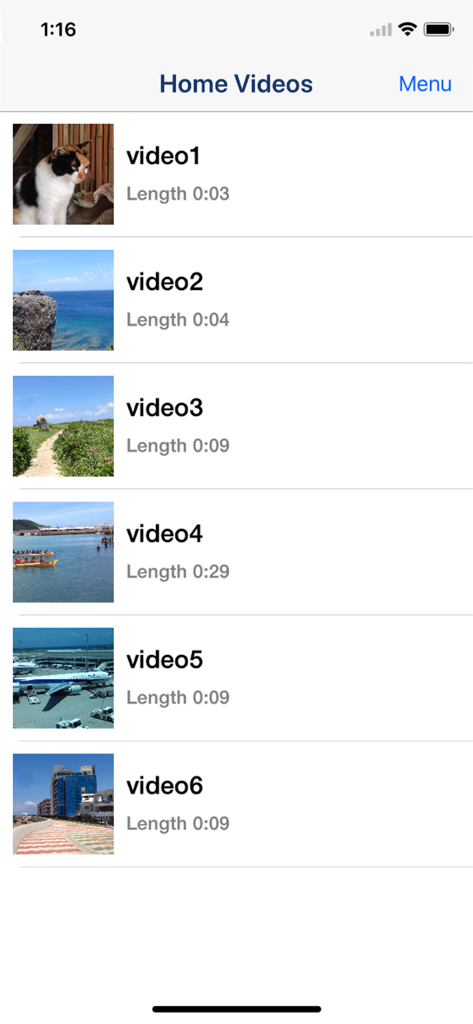
Video 2 CameraRoll  Home Video - サムネイルと再生時間が表示されたホームビデオの一覧画面

サムネイルと再生時間が表示されたホームビデオの一覧画面

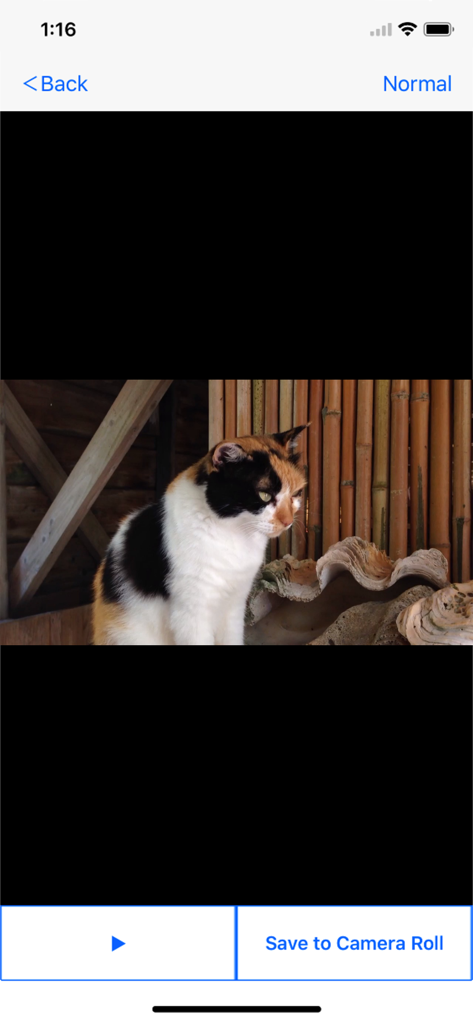
Video 2 CameraRoll  Home Video - ビデオのプレビューとカメラロールへの保存ボタンが表示されたVideo 2 CameraRollアプリのインターフェース
ビデオのプレビューとカメラロールへの保存ボタンが表示されたVideo 2 CameraRollアプリのインターフェース

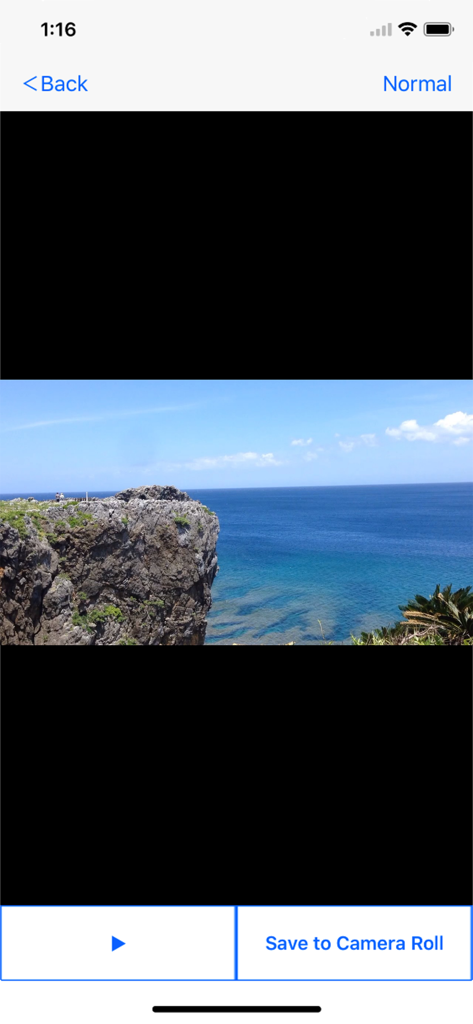
Video 2 CameraRoll  Home Video - 景色の良い海のビデオとカメラロールへの保存ボタンが表示されたインターフェース
景色の良い海のビデオとカメラロールへの保存ボタンが表示されたインターフェース

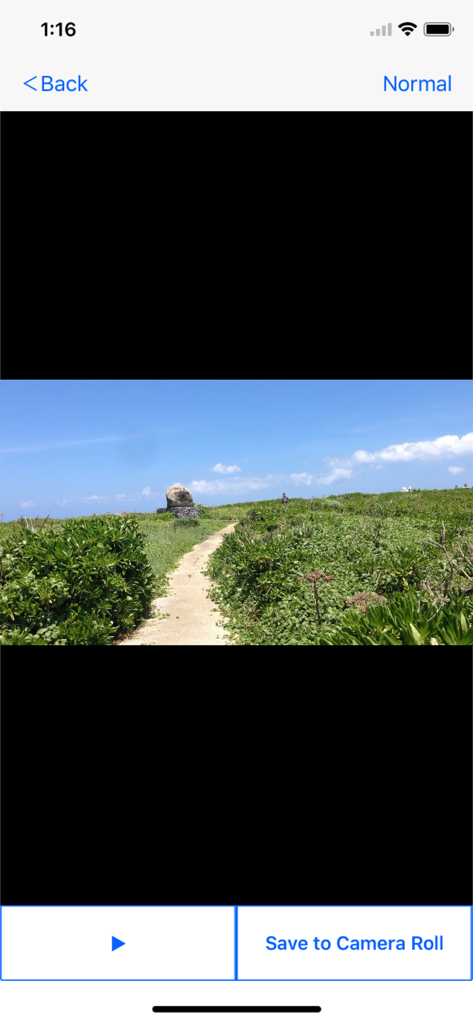
Video 2 CameraRoll  Home Video - 風景ビデオとカメラロールへの保存ボタンが表示されたアプリのインターフェース
風景ビデオとカメラロールへの保存ボタンが表示されたアプリのインターフェース

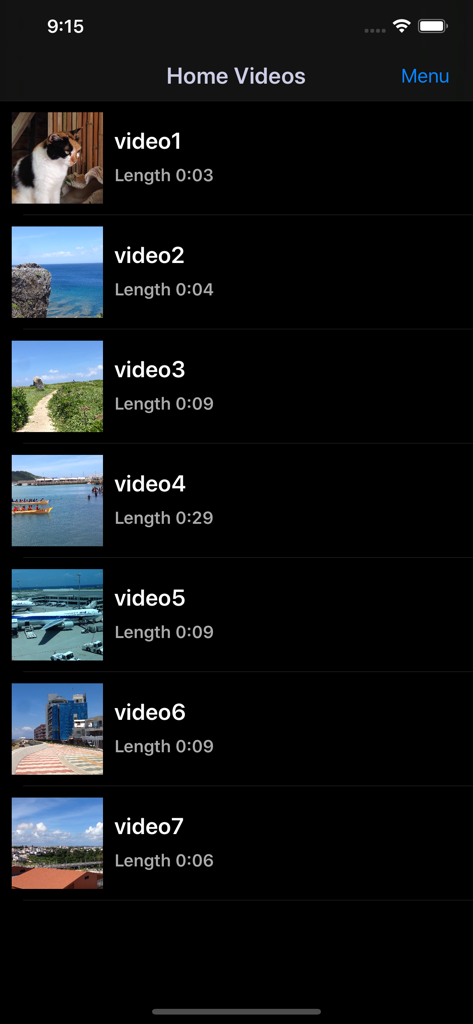
Video 2 CameraRoll  Home Video - カメラロールへの保存準備が整った、サムネイルと再生時間付きの同期済みホームビデオ一覧を表示するモバイルアプリのインターフェース

カメラロールへの保存準備が整った、サムネイルと再生時間付きの同期済みホームビデオ一覧を表示するモバイルアプリのインターフェース

説明

Save Home Video Movie to iPhone/iPad Camera Roll. You can save iTunes / Apple TV app library Home Videos to Camera Roll by "Video 2 CameraRoll"! Do you want to edit video taken by video camera and movie stored on PC by iPhone/iPad movie editor app? But most of movie editor app can use only videos in Camera Roll. So, you can not edit iTunes / Apple TV app library Home Videos that you transferred from your PC. In such a case, please use this app "Video 2 CameraRoll". You will be able to transfer and save iTunes / Apple TV app library Home Videos to Camera Roll by this app! And you will be able to edit video taken by video camera and movie stored on PC by iPhone/iPad movie editor app! ■About Watermark App watermark is displayed in the lower left corner on the video. You can remove app watermark by purchasing "Remove watermark" Add-on. ■About In-app Advertising Banner Advertising is displayed in bottom of screen. Full Screen Advertising will be displayed, after you have saved video to Camera Roll. You can hide these Advertising by purchasing "Remove watermark" Add-on. ■Workflow of how to save video to Camera Roll. 1. Add video to Home Videos of iPhone/iPad by iTunes / Apple TV app on PC. 2. Save video in Home Videos to Camera Roll by "Video2CameraRoll". ■1. Add video to Home Videos of iPhone/iPad by iTunes / Apple TV app on PC. ・For Windows PC or macOS 10.14 or earlier 1. Save the video file that you want to transfer and save to Home Videos of iPhone/iPad to your PC that iTunes is installed. 2. Start iTunes on your PC, after connecting your iPhone/iPad to your PC. 3. Select "Movies" from the upper left icons, and select "Home Videos" > "Library". 4. Select "File" > "Add to Library", and select the video that you want to add. 5. Select the "Home Videos", and check the video was added to Home Videos. 6. Select "Device (iPhone/ipad)" from the upper left icons. 7. Select the "Movies" from "Settings" on the left side of the screen. 8. Make sure that is checked the box of "Sync Movies", and check the box of video that you want to add to "Home Videos" of iPhone/iPad. 9. Start synchronization by "Sync・Apply" button at the bottom right. 10. When the synchronization is complete, check the video was saved to Home Videos by following way. For iOS 12.3 or later Launch the "TV" app on your iPhone / iPad and select "Library" -> "Home Video". For iOS 12.2 or earlier Launch the "Video" app on your iPhone / iPad and open "Home Video". ・For macOS 10.15 Catalina 1. Save the video file that you want to save to Home Videos of iPhone/iPad to your PC that Apple TV app is installed. 2. Start Apple TV app on your PC, after connecting your iPhone/iPad to your PC. 3. When the Apple TV app starts, select "Library". 4. Drag and drop the video you want to add to Home Video onto the Apple TV app. 5. Select "Home Videos" from the side menu and check the video was added. 6. Select the connected iPhone / iPad from "Devices" in the side menu and click "Sync Settings". 7. When the sync setting screen opens, select "Movies", check "Sync movies onto (device name) and "Video you want to sync (the video you just added)", and click "Apply" Start synchronization. 8. When the synchronization is complete, check the video was saved to Home Videos by following way. For iOS 12.3 or later Launch the "TV" app on your iPhone / iPad and select "Library" -> "Home Video". For iOS 12.2 or earlier Launch the "Video" app on your iPhone / iPad and open "Home Video". ■2. Save video in Home Videos to Camera Roll by "Video2CameraRoll". 1. Start "Video2CameraRoll". 2. Select the video you want to transfer and save to Camera Roll from the list of Home Video in the app. 3. When the playback screen is displayed, touch "Save to Camera Roll" button, and start saving to the camera roll. 4. When the success dialog is displayed, saving to Camera Roll is a successful.

Download

ダウンロード: App Store

このページはアプリまたはその開発者の公式ページではなく、情報提供および論評を目的として作成された独立した編集出版物です。明示的に別段の記載がない限り、アプリおよびその開発者は、MWM、Apple、Google Play、アプリのパブリッシャー、またはアプリの開発者と提携、承認、後援、認可、またはその他の公式的な関係はなく、このページのいかなる内容も、アプリがMWMのサービスを使用して開発されたことを意味するものではありません。すべての商標、ロゴ、スクリーンショット、その他のコンテンツはそれぞれの所有者の財産です。