
이 페이지는 앱이나 개발자의 공식 페이지가 아니며, 정보 제공 및 논평을 목적으로 작성된 독립 편집 간행물입니다. 명시적으로 달리 언급되지 않는 한, 해당 앱이나 개발자는 MWM, Apple, Google Play, 앱 퍼블리셔 또는 앱 개발자와 제휴, 보증, 후원, 승인 또는 공식적으로 연결되어 있지 않으며, 이 페이지의 어떤 내용도 해당 앱이 MWM의 서비스를 사용하여 개발되었음을 의미하지 않습니다. 모든 상표, 로고, 스크린샷 및 기타 콘텐츠는 해당 소유자의 자산입니다.

Epson iProjection
케이블이나 동글 없이 화면을 미러링하고, 문서를 공유하고, 협업하세요. iPhone 또는 iPad에서 직접 Epson 프로젝터를 제어하세요.
다운로드
2M+사용자 평점
총 평가 수
19K+개발사
카테고리
Productivity지원 언어
9최신 버전
4.2.0크기
27.4 MB출시일
2012년 1월 5일케이블 없이 영향력 있는 프레젠테이션을 전달하세요
Epson iProjection은 모바일 워크플로와 대형 화면 간의 격차를 해소하여 교육자와 전문가에게 무선으로 프레젠테이션, 주석 달기 및 협업할 수 있는 자유를 제공합니다.
케이블 없는 미러링
동글이나 어댑터 없이 iPad 또는 iPhone을 실시간으로 미러링하면서 방 안을 자유롭게 이동하세요.
원탭 연결
네트워크 설정을 건너뛰세요. 투사된 QR 코드를 스캔하여 장치를 즉시 연결하고 문서나 사진 공유를 시작하세요.
자주 묻는 질문
에 대해 알아야 할 모든 것 Epson iProjection
Epson iProjection이란 무엇인가요?
Epson iProjection은 iPhone, iPad 또는 iPod touch를 위한 무선 프로젝션 앱입니다. 기기의 화면을 미러링하고 지원되는 Epson 프로젝터에 문서와 사진을 무선으로 투사합니다.
Epson iProjection은 무선 프로젝션을 위해 어떤 기기를 지원하나요?
Epson iProjection은 무선 프로젝션을 위해 iPhone, iPad 또는 iPod touch 기기를 지원합니다. 기기의 화면을 호환되는 Epson 프로젝터로 미러링합니다.
Epson iProjection을 사용하여 Epson 프로젝터에 어떻게 연결하나요?
네, 기기의 카메라로 투사된 QR 코드를 스캔하여 연결합니다. 기기와 프로젝터가 동일한 네트워크에 연결되어 있는지 확인하십시오.
Epson iProjection으로 기기 화면을 미러링할 수 있나요?
네, Epson iProjection은 기기의 화면을 미러링하여 콘텐츠를 무선으로 투사합니다. 프로젝터를 통해 기기의 오디오를 출력할 수도 있습니다.
Epson iProjection으로 어떤 문서 형식을 투사할 수 있나요?
Epson iProjection은 Microsoft Word, Excel, PowerPoint, Keynote, PDF, JPG 및 PNG 파일을 투사할 수 있습니다. 여기에는 클라우드 파일 서비스에 저장된 문서도 포함됩니다.
Epson iProjection은 여러 기기를 동시에 연결할 수 있나요?
네, Epson iProjection은 최대 50개의 기기를 프로젝터에 연결할 수 있습니다. 또한 이 기기들로부터 최대 4개의 화면을 동시에 표시할 수 있습니다.
Epson iProjection으로 투사된 이미지를 주석 처리할 수 있나요?
네, Epson iProjection에는 투사된 이미지에 주석을 추가하는 펜 도구가 포함되어 있습니다. 주석으로 편집된 이미지도 저장할 수 있습니다.
Epson iProjection으로 프로젝터를 원격 제어할 수 있나요?
네, Epson iProjection은 프로젝터의 원격 제어 역할을 합니다. 이 기능을 통해 사용자는 기기에서 직접 프로젝터 설정을 관리할 수 있습니다.
Epson iProjection 앱은 어떤 권한을 요구하나요?
이 앱은 프로젝터를 찾고 연결하기 위해 로컬 네트워크 권한이 필요합니다. 사진 권한은 선택 사항이며, 기기에서 선택한 이미지를 앱에서 투사할 수 있도록 합니다.
Epson iProjection에서 문서를 투사할 때 비디오 및 애니메이션이 지원되나요?
아니요, Epson iProjection은 문서를 투사할 때 애니메이션, 화면 전환 효과, 비디오 또는 오디오를 재생하지 않습니다. 이러한 콘텐츠의 경우 미러링 기능을 사용하십시오.
Epson iProjection으로 기기 카메라의 콘텐츠를 투사할 수 있나요?
네, Epson iProjection을 사용하면 기기의 카메라에서 직접 실시간 비디오를 투사할 수 있습니다. 이 기능은 앱의 투사 옵션에서 선택됩니다.
Epson iProjection으로 기기 화면을 미러링할 때 오디오가 투사되나요?
네, Epson iProjection은 화면을 미러링할 때 프로젝터에서 기기의 오디오를 출력합니다. 네트워크 상태에 따라 비디오 및 오디오에 지연이 발생할 수 있습니다.
다음 스크린샷과 설명은 앱의 공식 스토어 목록에서 직접 가져온 것이며 앱 개발자의 자산입니다.
앱 스토어
스크린샷
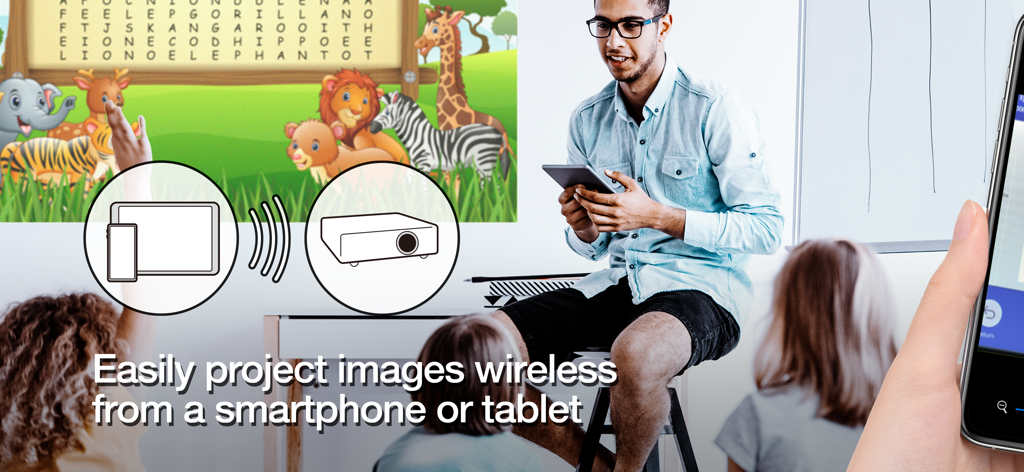
교사가 교실 환경에서 태블릿에서 화면으로 교육 콘텐츠를 무선으로 투사하고 있음
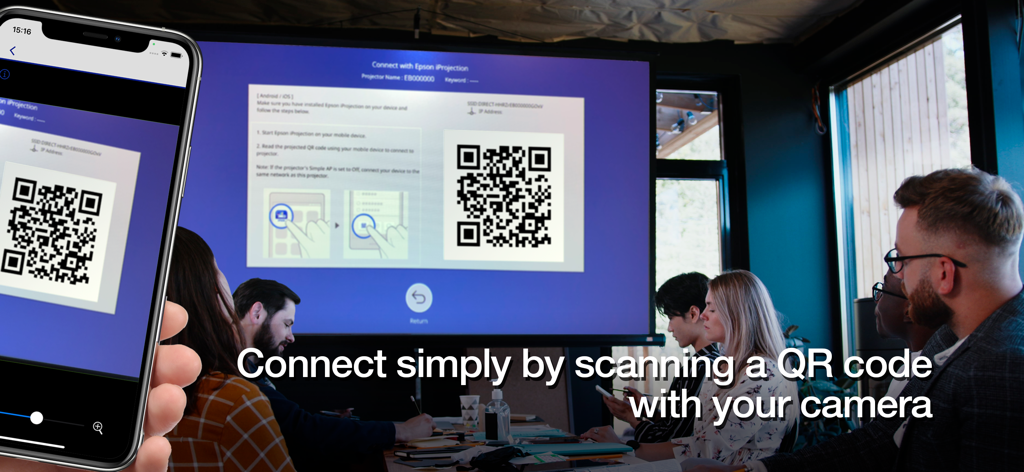
스마트폰이 전문 회의실에서 무선으로 연결하기 위해 대형 프로젝터 화면의 QR 코드를 스캔하고 있음
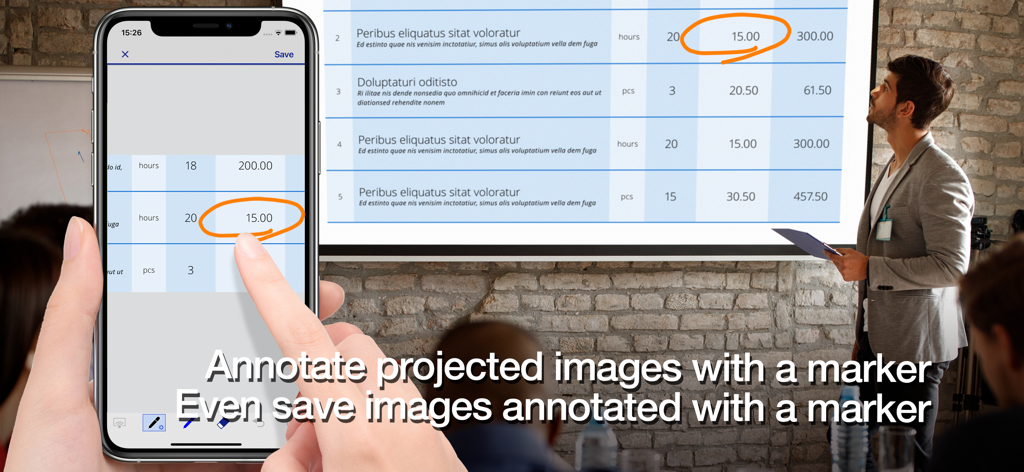
전문가가 Epson iProjection 앱을 사용하여 스마트폰으로 프로젝터 화면의 문서에 주석을 달고 있음
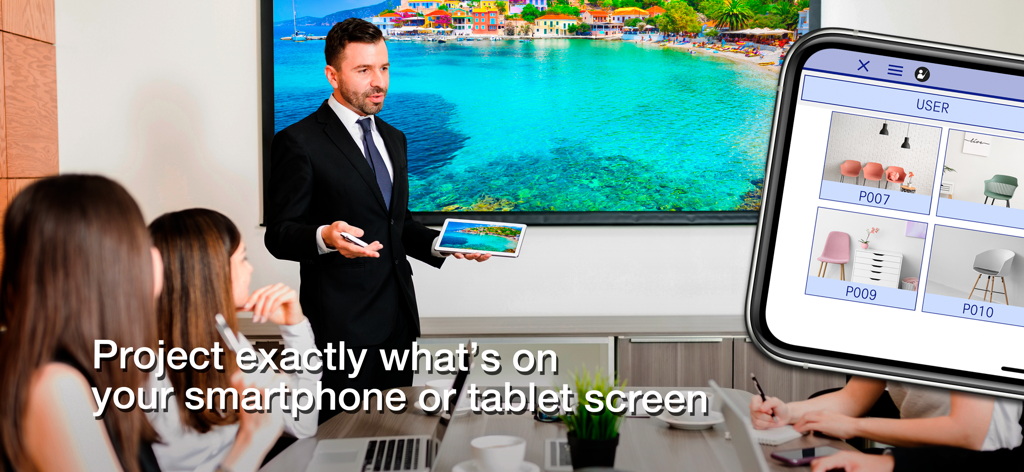
전문 프레젠터가 Epson iProjection을 사용하여 회의실의 대형 디스플레이에 태블릿 화면을 무선으로 미러링하고 있음
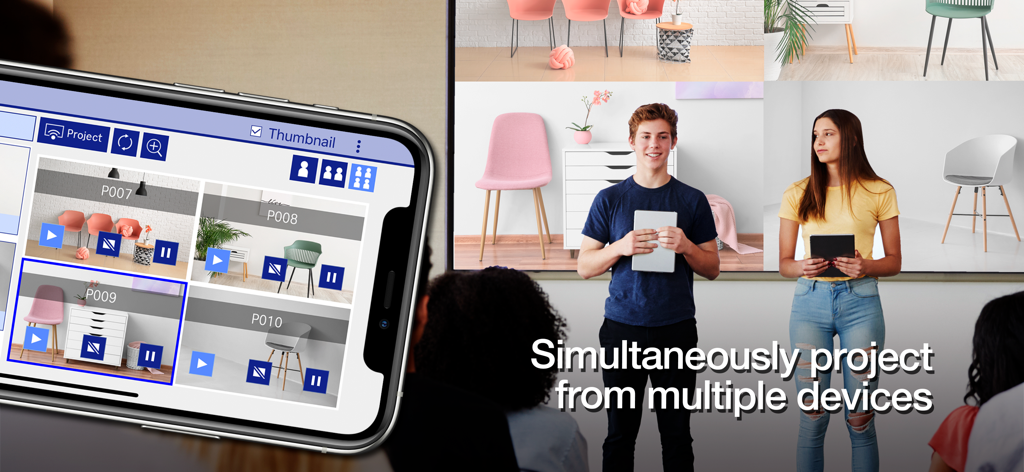
학생들이 Epson iProjection 앱을 사용하여 모바일 화면을 단일 대형 디스플레이에 동시에 투사하고 있음
설명
Download
비슷한 앱
유사한 기능과 사용자 경험을 가진 앱

DJI Mimo
SZ DJI TECHNOLOGY CO., LTD

DJI Ronin
SZ DJI TECHNOLOGY CO., LTD
Roku TV Remote Control & Cast
Aleh Piashkou
Remote for Hisense TV.
Duscov Stepan

Alpha Linker - Camera Transfer
恒茂 刘

MyCentsys Pro
Centurion Systems (Pty) Ltd
Roku TV Remote Control・
Artur Belov
Luminair
Synthe FX, LLC

FUJIFILM XApp
FUJIFILM Corporation
이 페이지는 앱이나 개발자의 공식 페이지가 아니며, 정보 제공 및 논평을 목적으로 작성된 독립 편집 간행물입니다. 명시적으로 달리 언급되지 않는 한, 해당 앱이나 개발자는 MWM, Apple, Google Play, 앱 퍼블리셔 또는 앱 개발자와 제휴, 보증, 후원, 승인 또는 공식적으로 연결되어 있지 않으며, 이 페이지의 어떤 내용도 해당 앱이 MWM의 서비스를 사용하여 개발되었음을 의미하지 않습니다. 모든 상표, 로고, 스크린샷 및 기타 콘텐츠는 해당 소유자의 자산입니다.