
이 페이지는 앱이나 개발자의 공식 페이지가 아니며, 정보 제공 및 논평을 목적으로 작성된 독립 편집 간행물입니다. 명시적으로 달리 언급되지 않는 한, 해당 앱이나 개발자는 MWM, Apple, Google Play, 앱 퍼블리셔 또는 앱 개발자와 제휴, 보증, 후원, 승인 또는 공식적으로 연결되어 있지 않으며, 이 페이지의 어떤 내용도 해당 앱이 MWM의 서비스를 사용하여 개발되었음을 의미하지 않습니다. 모든 상표, 로고, 스크린샷 및 기타 콘텐츠는 해당 소유자의 자산입니다.

spacedesk - USB Display for PC
iPad 또는 iPhone을 고성능 보조 디스플레이나 전문 드로잉 태블릿으로 바꿔보세요. 추가 하드웨어 없이 USB 또는 Wi-Fi 연결을 통해 지연 없는 환경에서 생산성을 극대화할 수 있습니다.
다운로드
3M+사용자 평점
총 평가 수
13K+개발사
카테고리
Productivity지원 언어
4최신 버전
2.1.3크기
16.7 MB출시일
2018년 1월 5일추가 하드웨어 없이 작업 공간 업그레이드
iPad 또는 iPhone을 Windows PC의 강력한 보조 디스플레이로 변환하세요. 카페에서 코딩을 하든 집에서 그림을 그리든, spacedesk는 기기 간의 간극을 메워줍니다.
Windows에서 경험하는 Sidecar
Apple 생태계를 벗어나세요. iPad를 Windows 데스크톱의 원활한 확장 모니터로 활용하여 원하던 듀얼 모니터 생산성을 누릴 수 있습니다.
전문가급 디지털 일러스트레이션
iPad와 Apple Pencil을 필압 감지가 가능한 Windows 드로잉 태블릿으로 활용하세요. 추가 비용 없이 Photoshop이나 GIMP에서 스케치, 채색 및 디자인 작업을 할 수 있습니다.
자주 묻는 질문
에 대해 알아야 할 모든 것 spacedesk - USB Display for PC
spacedesk란 무엇인가요?
spacedesk는 Windows 컴퓨터 데스크톱을 확장, 복제 및 원격 제어하는 도구로, iOS 장치를 고급 보조 디스플레이로 전환합니다. 화면 캐스팅 및 원격 제어와 같은 다양한 응용 프로그램을 지원합니다.
Windows PC 및 iOS 장치에 spacedesk를 설정하는 방법은 무엇인가요?
spacedesk를 설정하려면 먼저 Windows PC에 spacedesk DRIVER 소프트웨어를 설치하십시오. 그런 다음 iOS 장치에 spacedesk Viewer 앱을 설치하십시오. 마지막으로 Viewer 앱을 열고 Windows 기본 PC에 연결하십시오.
spacedesk 기본 컴퓨터는 어떤 운영 체제를 지원하나요?
spacedesk 기본 컴퓨터는 Windows 11, Windows 10 및 Windows 8.1을 지원합니다. Apple Mac은 spacedesk 드라이버 소프트웨어의 기본 컴퓨터로 지원되지 않습니다.
iPhone 또는 iPad를 spacedesk의 보조 디스플레이로 사용할 수 있나요?
예, iPad, iPhone 또는 spacedesk iOS 앱을 실행하는 모든 장치를 Windows 데스크톱을 확장하거나 복제하는 보조 컴퓨터 또는 장치로 사용할 수 있습니다.
데스크톱을 확장하기 위해 spacedesk에 인터넷 연결이 필요한가요?
아니요, spacedesk는 작동을 위해 인터넷 연결이 필요하지 않습니다. 드라이버와 뷰어가 동일한 로컬 네트워크에 있으면 USB, LAN 또는 WLAN을 통해 연결됩니다.
spacedesk는 디스플레이 확장을 위해 어떤 연결 유형을 지원하나요?
spacedesk는 USB, LAN(이더넷 포함) 및 WLAN(무선 근거리 통신망)을 통한 연결을 지원합니다. 네트워크 연결에는 TCP/IP 네트워크 프로토콜이 필요합니다.
Windows PC의 원격 액세스 및 제어를 위해 spacedesk를 사용할 수 있나요?
예, spacedesk는 USB, WiFi 및 LAN을 통한 원격 액세스를 제공합니다. 또한 터치스크린, 터치패드, 마우스, 키보드 및 압력 감지 스타일러스 입력을 포함한 원격 제어 기능을 제공합니다.
spacedesk는 Apple Mac을 기본 컴퓨터로 지원하나요?
아니요, spacedesk는 Apple Mac을 기본 컴퓨터로 지원하지 않습니다. spacedesk 드라이버를 실행하는 기본 컴퓨터는 Windows 11, 10 또는 8.1이 설치된 Windows PC여야 합니다.
spacedesk를 사용하여 iOS 장치를 Windows용 드로잉 태블릿으로 전환할 수 있나요?
예, spacedesk를 사용하면 iOS 태블릿을 드로잉 태블릿으로 사용하여 압력 감지 스타일러스 펜으로 Windows PC에 직접 그림을 그리거나 페인트할 수 있습니다.
지연을 피하기 위해 spacedesk의 최적 성능을 어떻게 달성할 수 있나요?
최적의 성능과 지연 없는 spacedesk 경험을 얻으려면 USB 또는 근거리 통신망을 통한 유선 연결을 사용하십시오. Windows PC 또는 iOS 장치를 WiFi 액세스 포인트로 구성하여 직접 연결하는 것도 도움이 됩니다.
다음 스크린샷과 설명은 앱의 공식 스토어 목록에서 직접 가져온 것이며 앱 개발자의 자산입니다.
앱 스토어
스크린샷
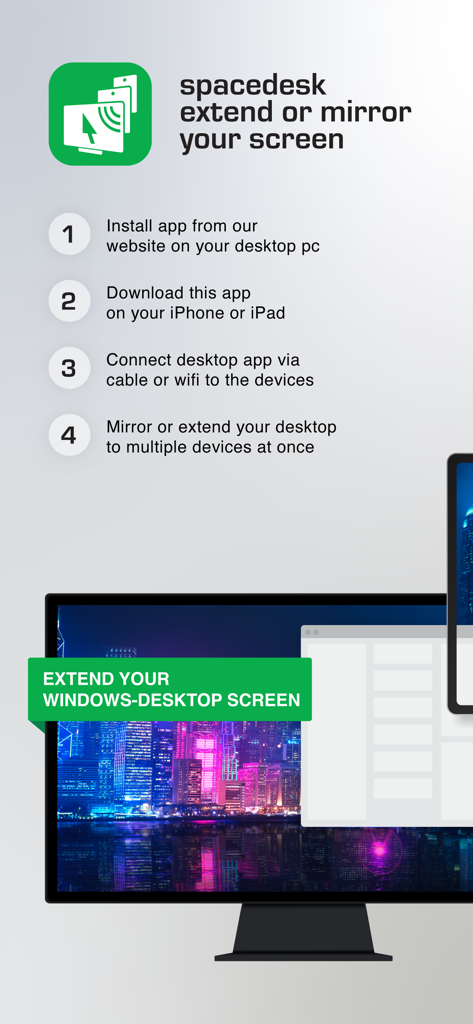
spacedesk를 사용하여 Windows 데스크톱 화면을 iOS 기기로 확장하거나 미러링하는 4단계 과정
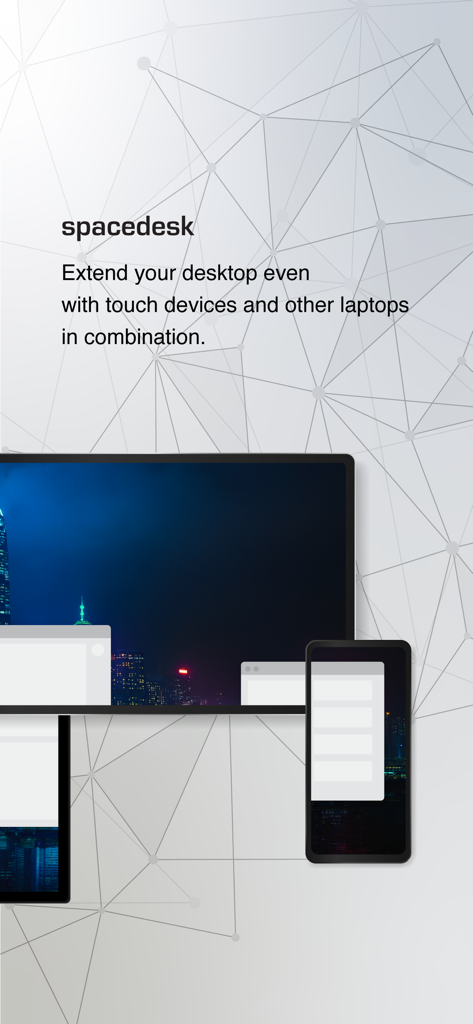
컴퓨터 데스크톱을 태블릿과 휴대폰으로 확장하는 spacedesk 앱
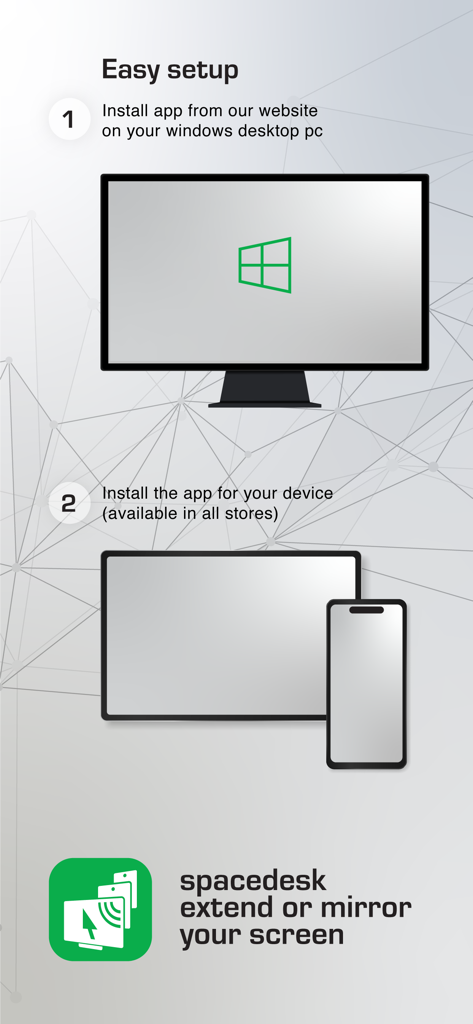
Windows PC 및 모바일 기기용 spacedesk 설정을 위한 단계별 지침
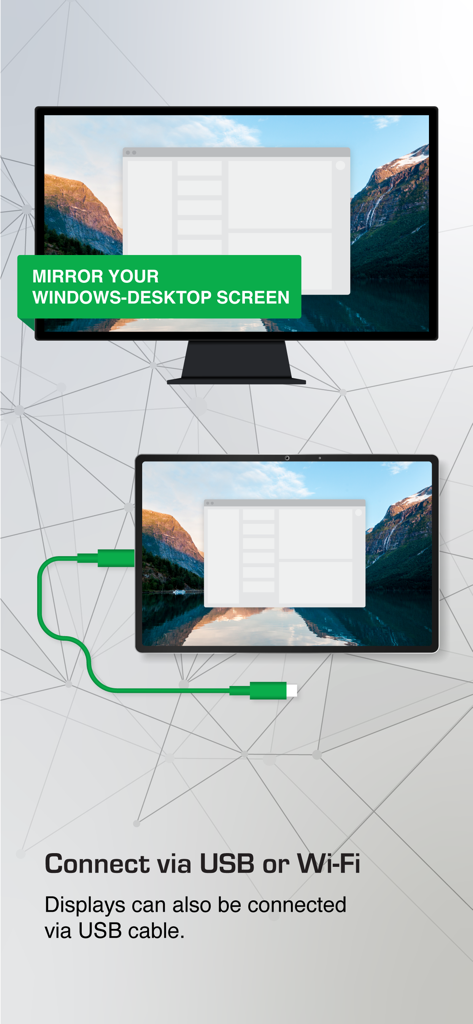
USB를 통한 Windows PC에서 태블릿으로의 spacedesk 화면 미러링
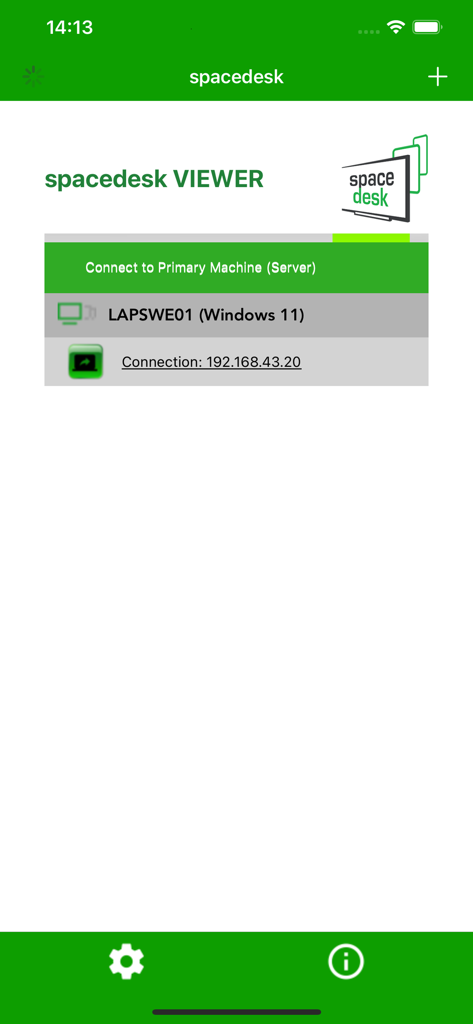
사용 가능한 Windows 11 기본 컴퓨터 연결을 보여주는 spacedesk 뷰어 앱 인터페이스
설명
Download
비슷한 앱
유사한 기능과 사용자 경험을 가진 앱

Mouse · Keyboard
Remote Sunrise LTD
Camo Camera
Reincubate Ltd

DroidCam Webcam & OBS Camera
DEV47 APPS LTD.

iVCam Webcam
俊红 柴
Remote Mouse
耀 阮
CamX - USB Camera
Touchbits Inc.
Genki Studio
Human Things, Inc

Astropad Studio Drawing Tablet
Astro HQ LLC
Remote Mouse & Keyboard
horhe dor
이 페이지는 앱이나 개발자의 공식 페이지가 아니며, 정보 제공 및 논평을 목적으로 작성된 독립 편집 간행물입니다. 명시적으로 달리 언급되지 않는 한, 해당 앱이나 개발자는 MWM, Apple, Google Play, 앱 퍼블리셔 또는 앱 개발자와 제휴, 보증, 후원, 승인 또는 공식적으로 연결되어 있지 않으며, 이 페이지의 어떤 내용도 해당 앱이 MWM의 서비스를 사용하여 개발되었음을 의미하지 않습니다. 모든 상표, 로고, 스크린샷 및 기타 콘텐츠는 해당 소유자의 자산입니다.