
이 페이지는 앱이나 개발자의 공식 페이지가 아니며, 정보 제공 및 논평을 목적으로 작성된 독립 편집 간행물입니다. 명시적으로 달리 언급되지 않는 한, 해당 앱이나 개발자는 MWM, Apple, Google Play, 앱 퍼블리셔 또는 앱 개발자와 제휴, 보증, 후원, 승인 또는 공식적으로 연결되어 있지 않으며, 이 페이지의 어떤 내용도 해당 앱이 MWM의 서비스를 사용하여 개발되었음을 의미하지 않습니다. 모든 상표, 로고, 스크린샷 및 기타 콘텐츠는 해당 소유자의 자산입니다.


TeamViewer QuickSupport
이 앱은 사용자에게 원격 제어 권한을 즉시 부여하며, 동시에 그 권한을 완벽하게 통제합니다. 접속자를 파악하고, 세션을 종료하며, 자신의 기기 보안을 확보하는 것이 확인됩니다.
다운로드
10M+사용자 평점
총 평가 수
14.1K개발사
카테고리
Productivity지원 언어
28최신 버전
15.76.1크기
58.6 MB출시일
2013년 7월 9일모바일 장치 원격 지원을 위한 핵심 도구의 심층 분석.
TeamViewer QuickSupport 앱 분석: 주요 기능 및 영향력 평가
원격 IT 지원 및 제어
이 도구는 사용자의 장치에 원격으로 연결하여 IT 지원을 제공하고 장치를 직접 제어할 수 있게 해줍니다.
강력한 보안 연결
이 앱은 256비트 AES 세션 암호화를 포함한 최고 수준의 보안 표준을 적용하여 모든 원격 연결의 안전을 보장합니다.
세션 제어 및 명시적 권한
사용자는 원격 파트너의 연결 요청을 수락하거나 거부할 수 있으며, 언제든지 세션을 종료하여 자신의 장치에 대한 완전한 제어권을 가집니다.
사용자 정보 투명성
이 앱은 연결 요청자의 이름, 이메일, 국가 및 라이선스 유형과 같은 세부 정보를 제공하여 사용자가 액세스 권한을 부여하기 전에 신원을 확인할 수 있도록 돕습니다.
상세 기기 정보 및 진단
이 도구는 IT 전문가가 원격으로 장치 정보 및 시스템 진단 데이터를 확인하여 문제를 신속하게 파악하고 해결할 수 있도록 지원합니다.
파일 전송 기능
이 앱은 사용자와 원격 지원 파트너 간에 파일을 손쉽게 주고받을 수 있게 하여 문제 해결에 필요한 문서나 도구 공유를 용이하게 합니다.
간편한 세션 코드 연결
이 도구는 간단한 세션 코드를 통해 원격 지원 파트너가 사용자의 장치에 빠르고 쉽게 연결할 수 있도록 해줍니다.
실시간 채팅
이 앱은 원격 지원 세션 중에 실시간 채팅 기능을 제공하여 사용자와 지원 전문가 간의 명확하고 즉각적인 의사소통을 가능하게 합니다.
Wi-Fi 설정 원격 조정
이 도구는 원격 파트너가 사용자의 Wi-Fi 설정을 확인하고 조정할 수 있게 하여 네트워크 관련 문제 해결을 효과적으로 돕습니다.
다크 모드 지원
이 앱은 다크 모드를 제공하여 사용자의 시각적 편안함을 높이고 배터리 수명을 절약하는 데 기여합니다.
자주 묻는 질문
에 대해 알아야 할 모든 것 TeamViewer QuickSupport
What is TeamViewer QuickSupport and its purpose?
TeamViewer QuickSupport is an app providing instant IT support for iPhones or iPads. It enables a trusted remote partner to connect to your device for assistance, facilitating tasks like file transfer and troubleshooting.
How do I initiate a remote support session with TeamViewer QuickSupport?
To start a support session, open the TeamViewer QuickSupport app. You either share your unique ID with your partner or enter a session code they provide. Then, you must accept the incoming connection request.
Can I transfer files using the TeamViewer QuickSupport app?
Yes, TeamViewer QuickSupport allows users to transfer files back and forth between their device and the remote partner. This feature is listed as a key capability for sharing data.
Does TeamViewer QuickSupport offer a dark mode feature?
Yes, TeamViewer QuickSupport includes a dark mode feature. This update provides a more comfortable visual experience and contributes to better battery life for your device.
Is using TeamViewer QuickSupport for remote connections safe and secure?
Yes, TeamViewer QuickSupport is secure. It uses 256 Bit AES Session Encoding and requires your explicit permission to accept every connection request, ensuring you always control access to your device.
Does TeamViewer QuickSupport allow me to control who connects to my device?
Yes, TeamViewer QuickSupport ensures you retain full control over sessions. It displays user details like name, email, country, and license type, allowing you to verify identity and explicitly grant or deny access.
Can TeamViewer QuickSupport connect from various types of devices?
TeamViewer QuickSupport supports receiving connection requests from any device, including desktops, web browsers, or other mobile devices, offering flexible remote support options.
Can I chat with my support partner during a TeamViewer QuickSupport session?
Yes, the TeamViewer QuickSupport app allows real-time communication via its integrated chat function during a support session. This enables instant interaction with your remote partner.
다음 스크린샷과 설명은 앱의 공식 스토어 목록에서 직접 가져온 것이며 앱 개발자의 자산입니다.
앱 스토어
스크린샷

이 앱은 사용자에게 고유한 ID를 제공하며, 사용자는 '세션 참여' 버튼을 통해 연결을 시작할 수 있습니다.
즉각적인 원격 지원
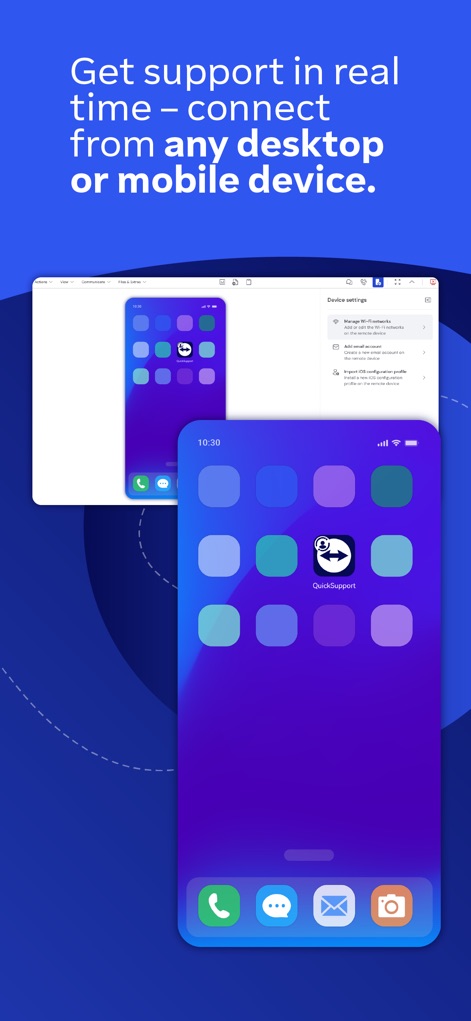
사용자는 모바일 기기 화면을 데스크톱 원격 뷰로 실시간 확인하며, 기기 설정 및 앱 아이콘을 통해 원격 지원을 받을 수 있습니다.
실시간 원격 연결
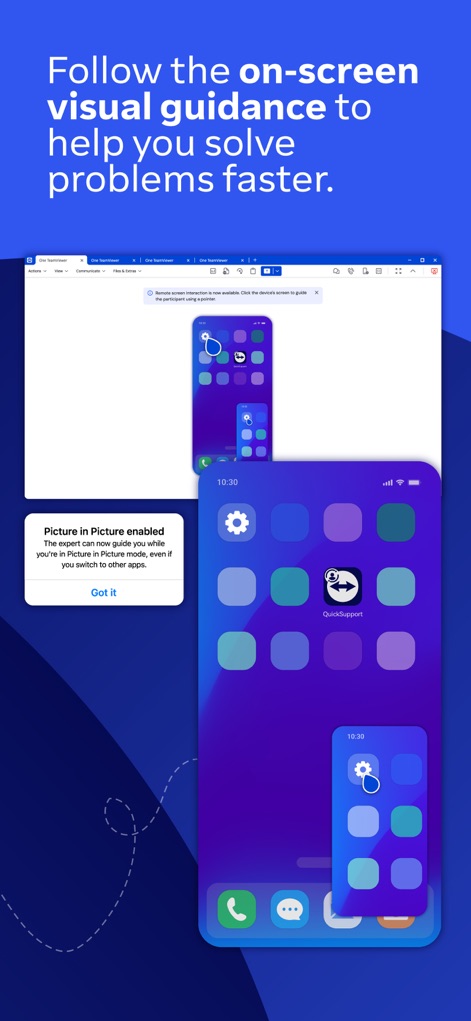
원격 지원 전문가는 화면 상의 시각적 안내를 통해 문제를 해결할 수 있으며, PiP(Picture-in-Picture) 기능을 통해 다른 앱 사용 중에도 지원을 받을 수 있습니다.
시각적 안내로 빠른 해결
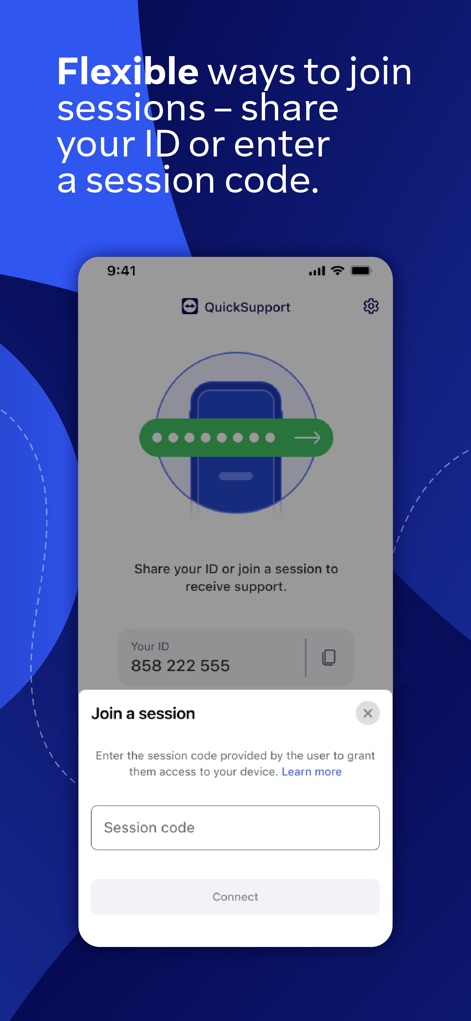
사용자는 자신의 ID를 공유하거나 '세션 코드'를 입력하여 유연하게 원격 지원 세션에 참여할 수 있습니다.
유연한 세션 참여
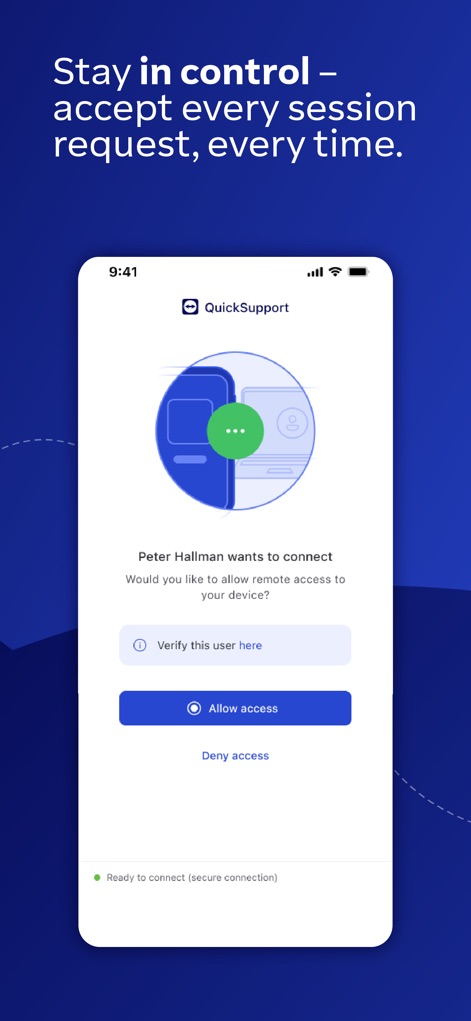
사용자는 '액세스 허용' 또는 '액세스 거부' 버튼을 통해 연결 요청을 명확히 제어하며, '이 사용자 확인' 링크를 통해 신뢰성을 확인할 수 있습니다.
세션 제어 및 승인
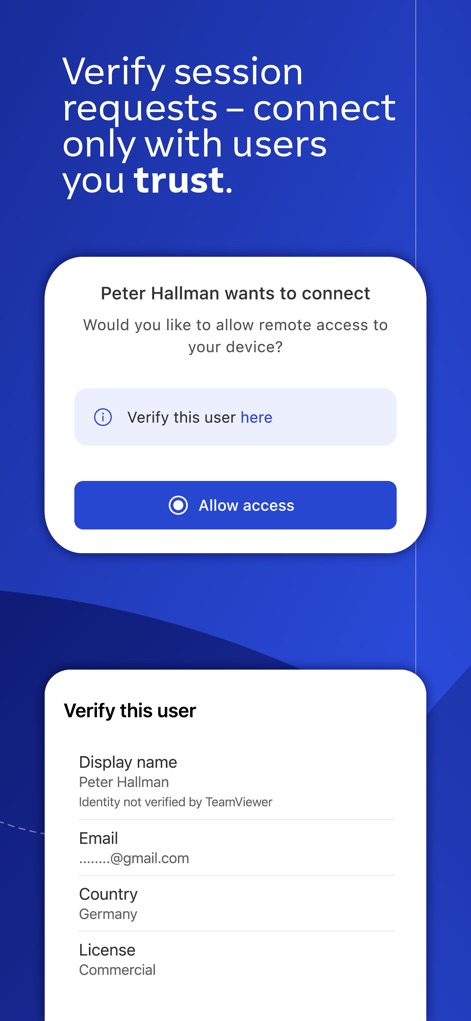
이 앱은 연결 요청을 보낸 사용자의 표시 이름과 이메일, 국가 및 라이선스 유형과 같은 상세 정보를 제공하여 사용자가 신뢰할 수 있는 연결만 수락하도록 돕습니다.
사용자 신원 확인
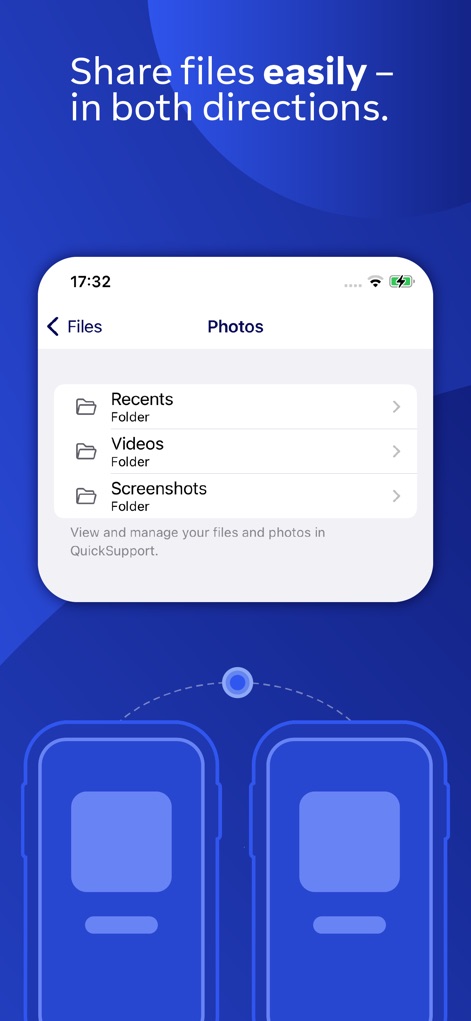
사용자는 '파일' 및 '사진' 탭을 통해 최근 항목, 동영상, 스크린샷 폴더에 접근하여 파일을 양방향으로 쉽게 전송할 수 있습니다.
간편한 파일 전송
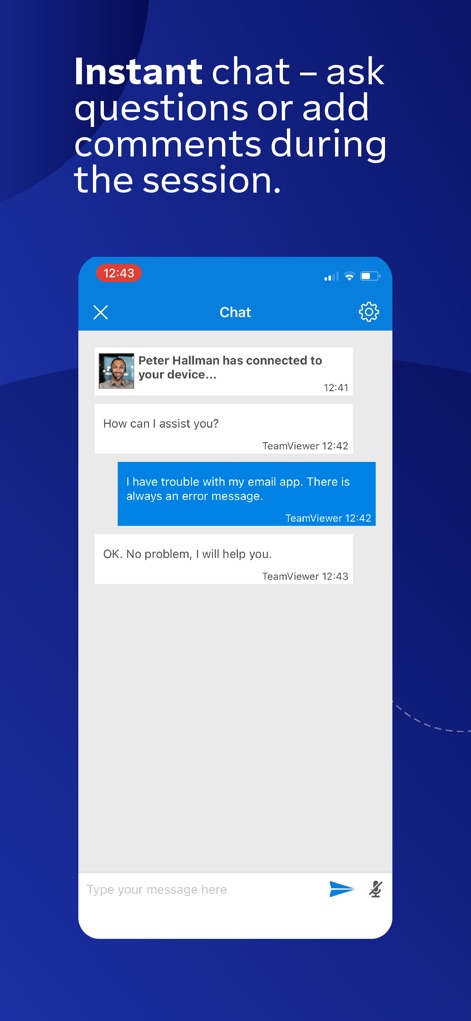
이 앱은 '채팅 인터페이스'를 통해 원격 지원 전문가와 실시간으로 소통하며, '대화 내용'을 통해 문제를 효과적으로 전달할 수 있습니다.
실시간 채팅 소통
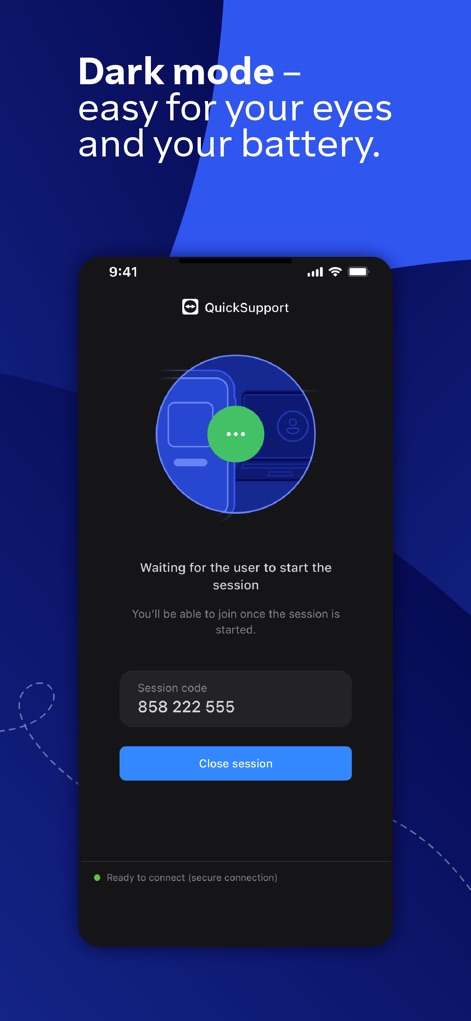
이 앱은 눈의 피로를 줄이고 배터리 효율을 높이는 '다크 모드'를 지원하며, 사용자는 세션 시작 대기 화면에서 '세션 코드'를 확인할 수 있습니다.
편안한 다크 모드
설명
Download
비슷한 앱
유사한 기능과 사용자 경험을 가진 앱

向日葵远程控制-Sunlogin remotecontrol
Shanghai best oray information s&t co.,ltd

UU远程-远程办公/游戏串流
Guangzhou NetEase Computer System Co.Ltd

AweSun Remote Desktop
AWERAY PTE. LTD.

AnyDesk Remote Desktop
AnyDesk Software GmbH

TeamViewer Remote Control
TeamViewer Germany GmbH

ToDesk远程控制
Hainan Youqu Technology Co., Ltd.

DeskIn Remote Desktop
ZULER TECHNOLOGY PTE. LTD.
Termius - Modern SSH Client
Termius Corporation
RealVNC Viewer: Remote Desktop
RealVNC Limited
이 페이지는 앱이나 개발자의 공식 페이지가 아니며, 정보 제공 및 논평을 목적으로 작성된 독립 편집 간행물입니다. 명시적으로 달리 언급되지 않는 한, 해당 앱이나 개발자는 MWM, Apple, Google Play, 앱 퍼블리셔 또는 앱 개발자와 제휴, 보증, 후원, 승인 또는 공식적으로 연결되어 있지 않으며, 이 페이지의 어떤 내용도 해당 앱이 MWM의 서비스를 사용하여 개발되었음을 의미하지 않습니다. 모든 상표, 로고, 스크린샷 및 기타 콘텐츠는 해당 소유자의 자산입니다.