Images Crawler

Images Crawler

Download on App Store
Logo of Images Crawler

Images Crawler: The Professional Tool for Instant Website Image Extraction

Stop manual saving and supercharge your creative workflow. Automatically crawl any URL to extract, filter, and organize high-quality visual assets into domain-ready folders.

Download on App Store

Publisher

Heng Jia Liang

Category

Photo & Video

Downloads

300

User Rating

1.0/5

Total Ratings

0

Locales

1

A Glimpse Inside

Discover the interface used by 300 users.
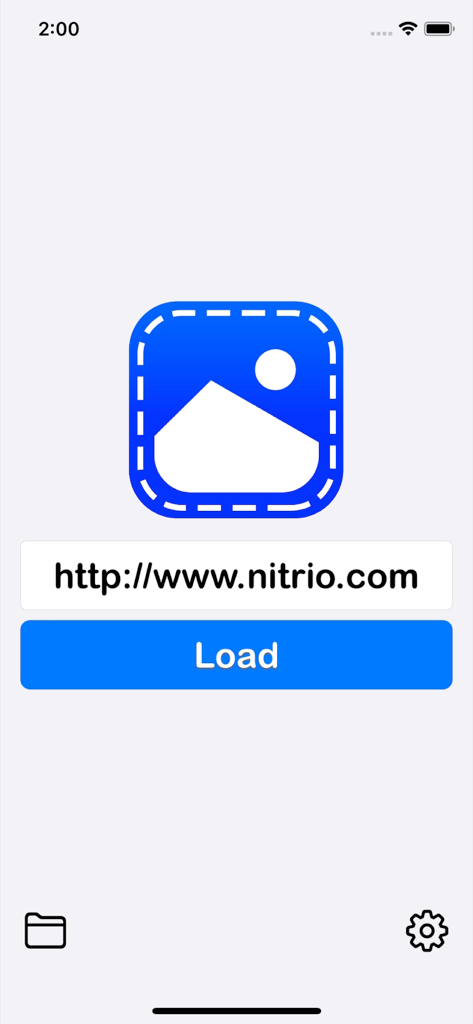
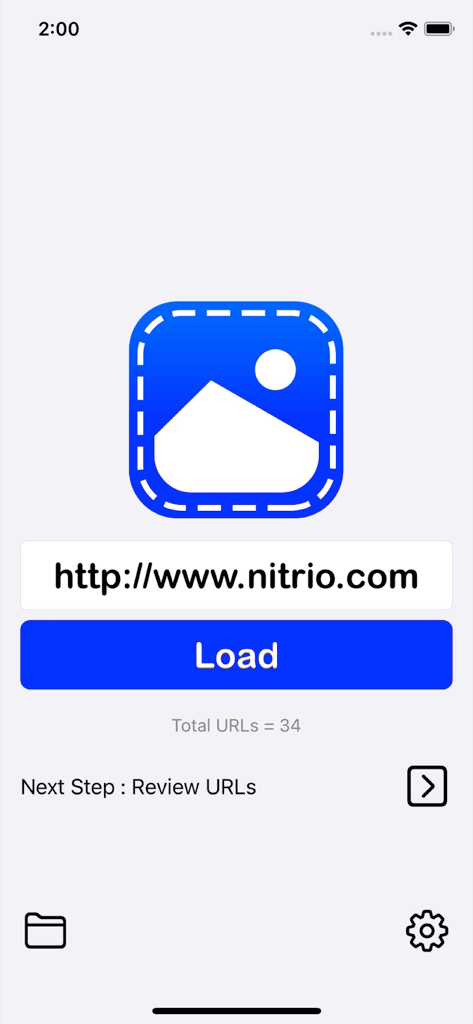
Home screen of the Images Crawler app with a URL input field and a blue Load button.

Home screen of the Images Crawler app with a URL input field and a blue Load button.

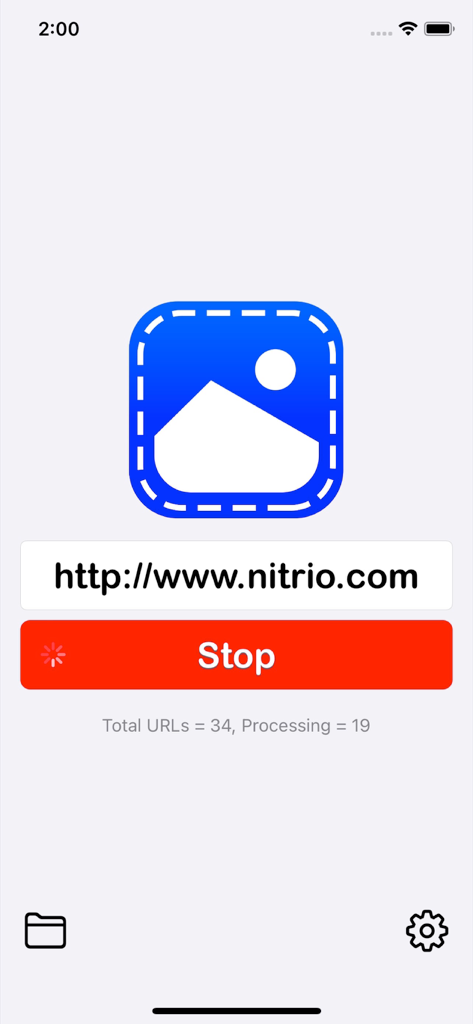
Images Crawler app screen showing a website URL being processed for image extraction

Images Crawler app screen showing a website URL being processed for image extraction

Main screen of Images Crawler app showing a URL input field and a blue Load button to start fetching website images

Main screen of Images Crawler app showing a URL input field and a blue Load button to start fetching website images

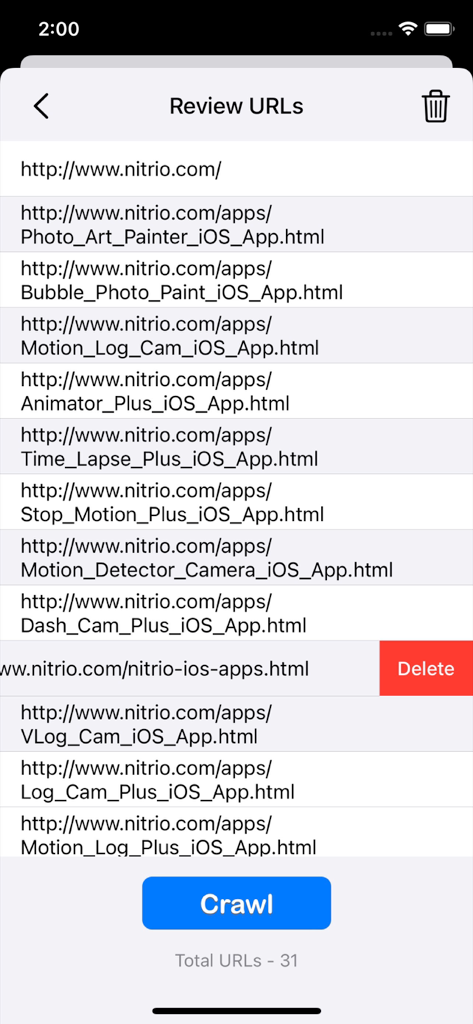
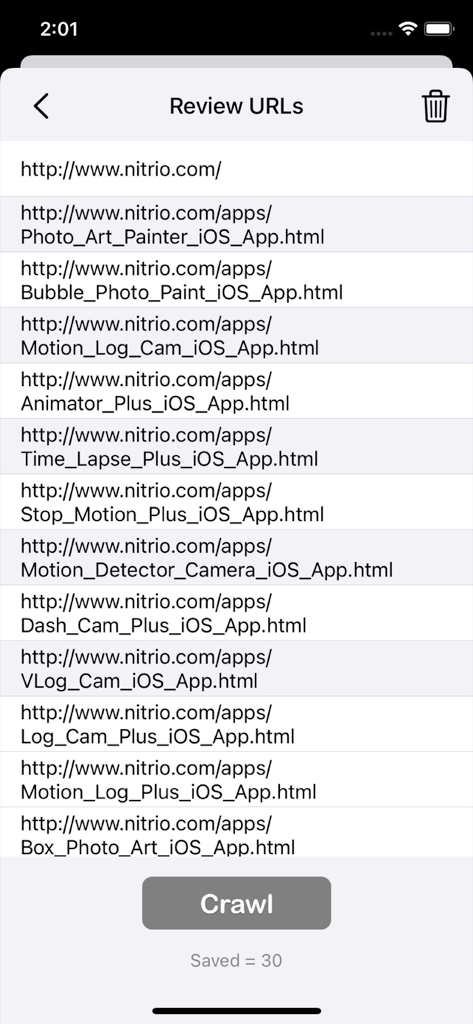
A mobile screen showing a list of website URLs with a crawl button and an option to delete specific links before image extraction

A mobile screen showing a list of website URLs with a crawl button and an option to delete specific links before image extraction

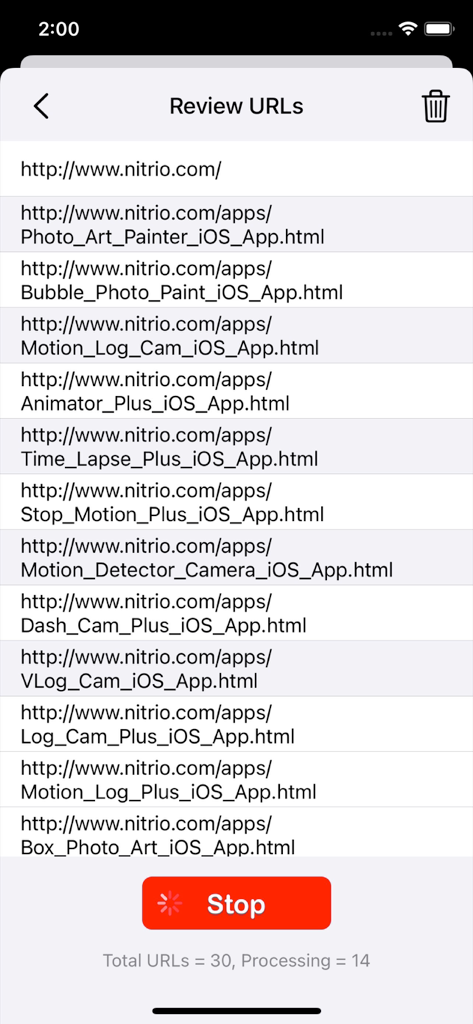
List of website URLs being reviewed and processed in the Images Crawler app.

List of website URLs being reviewed and processed in the Images Crawler app.

Review URLs screen in Images Crawler app showing a list of website links and a crawl button

Review URLs screen in Images Crawler app showing a list of website links and a crawl button

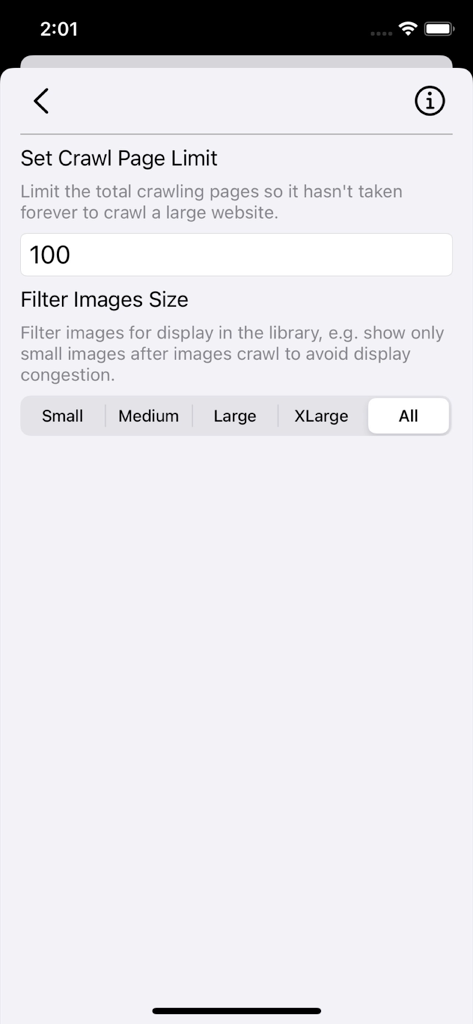
Images Crawler app settings screen showing page crawl limit and image size filter options.

Images Crawler app settings screen showing page crawl limit and image size filter options.

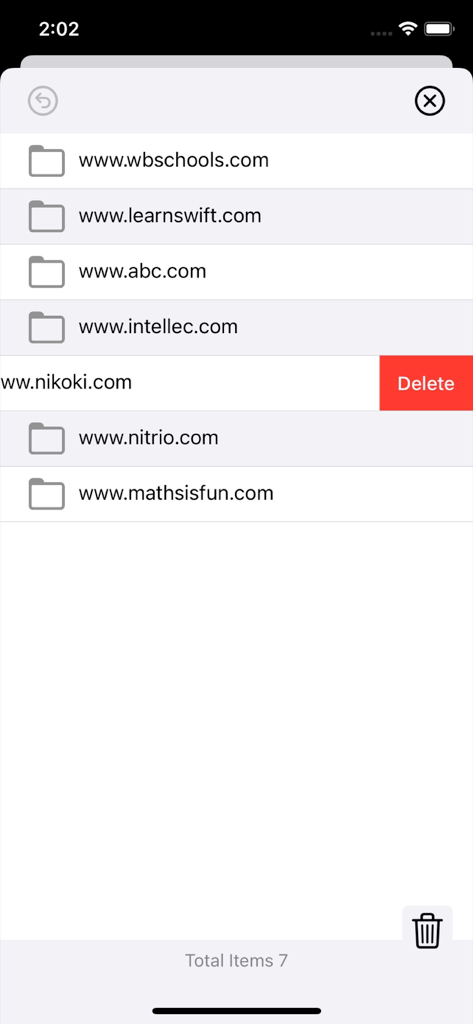
Library view of Images Crawler app showing image folders organized by website domain with a delete action.

Library view of Images Crawler app showing image folders organized by website domain with a delete action.

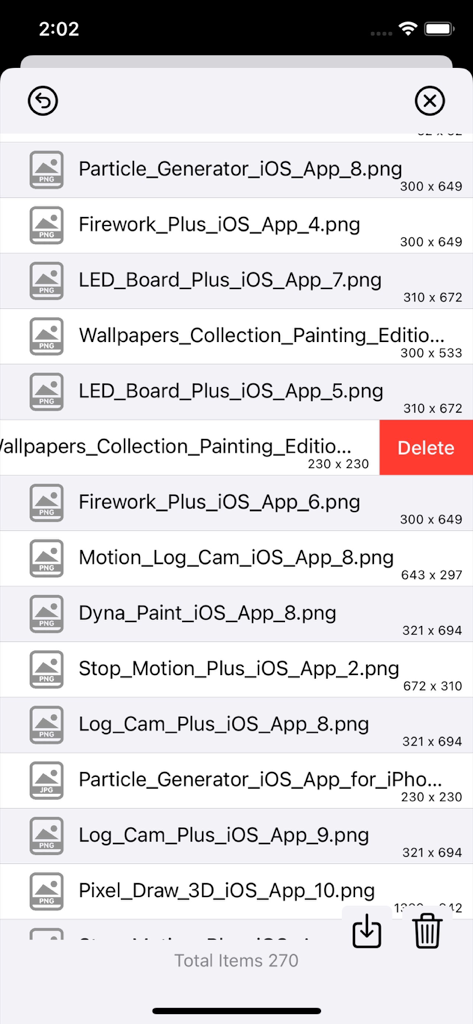
A screen showing a list of crawled images with their file names and resolutions in the Images Crawler app.

A screen showing a list of crawled images with their file names and resolutions in the Images Crawler app.

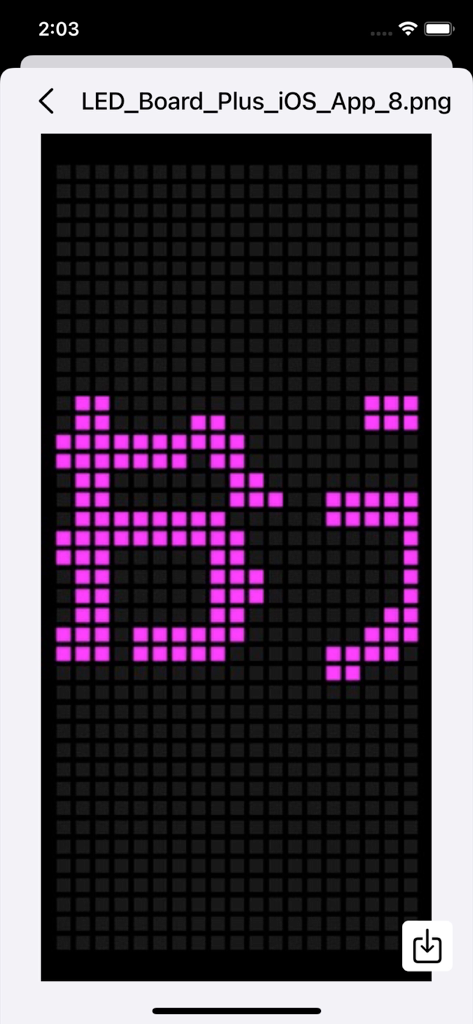
Interface of Images Crawler app showing a preview of a crawled pixelated graphic on a black background.

Interface of Images Crawler app showing a preview of a crawled pixelated graphic on a black background.

Streamline Your Creative Workflow

The tools that make this app stand out, trusted by 300 users.

🚀

Automated Batch Capture

Stop saving images one by one. Input any URL to crawl and capture every visual asset in seconds, perfect for building mood boards or competitive audits.

📁

Smart Domain Organization

Keep your workspace clutter-free. Images are automatically sorted into domain-specific folders and fully integrated with the iOS Files app for a pro workflow.

🔍

Precision Size Filtering

Target only high-resolution assets. Filter your crawl by image size (Small to X-Large) to ensure you only download the quality you need while saving storage space.

About the app

Everything you need to know about Images Crawler.

Description

Images Crawler is a simple app that lets you capture all images on any website url given. Just input the website URL and tap on load will crawl the entire images within the website. You can review the URLs before deep crawl are set to grab all the images within the web page. Features: • All crawl images are stored on your device so you can access it offline. • All images are stored in it's own domain folder for easy access. • You can preview the images on your device or export the image to the camera roll. • You can also export the entire domain folder to the camera roll. • Delete any image or folder in your device to save storage space. • All crawl images can be accessed via Files App. • Lightweight app with a small size, optimized for everyday use. Setting: Able to set maximum crawl pages so it will stop at any given limit. This will limit the total crawling pages so it hasn't taken forever to crawl a large website. Filter image size by small, medium, large, X-large or All. Filter images for display in the library, e.g. show only small images after images crawl to avoid display congestion. Quick Guide: 1. Input website URL. 2. Tap on Load button and wait to finish. 3. Next Step, Review URLs and remove unwanted URLs. 4. Start Crawl images by Tap on Crawl button. 5. After Finish, exist and go to the Library. 6. Tap on domain name and all images are listed. 7. All images can be saved to the camera roll. Note: Not all webpages/images can be crawled; for example, webpage/images containing complete code or Ajax may not be successfully crawled. Thanks for your support and do visit nitrio.com for more apps for your iOS devices.

Latest Version

1.1

Size

1.3 MB

First Released

Jul 27, 2022

Ready to Automate Your Visual Research?

Join the thousands of designers and marketers saving hours every week. Download Images Crawler today and turn any website into your personal asset library.

Download on App Store
FAQ

Frequently Asked Questions

Everything you need to know about Images Crawler

How does Images Crawler work?

Images Crawler captures website images by inputting a URL, tapping 'Load', reviewing URLs, and then initiating the crawl. This process extracts all images within the specified webpage.

Can I save crawled images from Images Crawler to my device?

Yes, Images Crawler stores all crawled images directly on your device. You can access them offline or export individual images or entire domain folders to your camera roll.

How does Images Crawler organize captured images?

Images Crawler organizes captured images by storing them in dedicated domain folders on your device. Users can access these folders through the app's library or via the Files App.

Can I manage storage space within the Images Crawler app?

Yes, Images Crawler allows users to delete any image or an entire domain folder from their device. This feature helps in saving storage space directly within the app.

Does Images Crawler allow setting a crawl page limit?

Yes, Images Crawler includes a setting to define a maximum crawl page limit. This function prevents the app from endlessly crawling large websites, offering better control.

Can I filter images by size in Images Crawler's library?

Yes, Images Crawler offers image size filtering options for the library. Users can choose to display small, medium, large, X-large, or all images after crawling to avoid display congestion.

Are there any limitations to what Images Crawler can crawl?

Yes, Images Crawler may not successfully crawl all webpages or images. Webpages containing complex code or Ajax content are examples of data that might not be captured.

What are the steps to crawl images with Images Crawler?

To crawl images, input a website URL, tap 'Load', review the listed URLs to remove unwanted ones, and then tap the 'Crawl' button.

Can I preview images within Images Crawler?

Yes, Images Crawler allows you to preview individual images directly on your device after they have been crawled. This includes an option to export the image.

Is Images Crawler optimized for daily use?

Yes, Images Crawler is designed as a lightweight app with a small size. It is optimized for everyday use, ensuring efficient performance on your device.

App information, icons, screenshots, and descriptions displayed on this page are sourced from the Apple App Store and are the property of their respective developers. Download estimates and rankings are based on MWM's proprietary models and may not reflect actual figures. This page is provided for informational and analytical purposes only.

Believe this page infringes your intellectual property? File a dispute