
This page is not an official page of the app or its developer, but an independent editorial publication created for informational and commentary purposes. Unless expressly stated otherwise, neither the app nor its developer is affiliated with, endorsed by, sponsored by, authorized by, or otherwise officially connected with MWM, Apple, Google Play, the app publisher, or the app's developer, and nothing on this page implies that the app was developed using MWM's services. Any trademarks, logos, screenshots, and other content remain the property of their respective owners.

RoByte: Remote for Roku TV App
Stop hunting for lost remotes. Effortlessly control your TV with a full keyboard for instant searching, touchpad navigation, and seamless volume control.
Downloads
9M+User Rating
Total Ratings
279K+Publisher
Category
UtilitiesLocales
1Latest Version
2.2.13Size
19.8 MBFirst Released
Apr 11, 2016Take Full Control of Your Roku
The most intuitive, feature-packed remote designed for busy households and power streamers.
Effortless Text Entry
Stop clicking through the alphabet. Use your iPhone keyboard to search for movies or log into apps in seconds.
Seamless Multi-TV Setup
Instantly connect and switch between all the Roku devices in your home with one simple tap.
Frequently Asked Questions
Everything you need to know about RoByte: Remote for Roku TV App
How does RoByte connect to my Roku device?
RoByte automatically scans your network to find your Roku device. Both your Roku and your iPhone/iPad must be connected to the same Wi-Fi network for RoByte to connect successfully.
Can I control multiple Roku players with the RoByte app?
Yes, the RoByte app can pair with multiple Roku players. It instantly finds your devices, allowing you to manage different Roku units from one app.
Does RoByte include a keyboard for text entry?
Yes, RoByte includes a keyboard for quick text entry, useful for channels like Netflix or Hulu. This feature is part of RoByte Premium.
What features are available in RoByte Free?
RoByte Free provides basic Roku remote control, including play/pause, fast forward, rewind functions, and the ability to pair with multiple Roku devices.
What premium features does the RoByte app offer?
RoByte Premium features include a channel switcher, volume control, keyboard and voice search, and a touchpad for enhanced navigation.
How do I enable mobile app control on my Roku TV for RoByte?
To enable control, go to Settings -> System -> Advanced System Settings -> Control by mobile apps on your Roku TV, then select "Enabled." This allows RoByte to communicate with your Roku device.
Can I change channels directly with the RoByte app?
Yes, the RoByte app allows you to easily change channels with one tap. This Channel Switcher feature is available with RoByte Premium.
Does RoByte require complex setup?
No, RoByte does not require complex setup. It automatically scans your network to find your Roku, making the connection process easy and straightforward.
Why is my RoByte app not connecting to my Roku?
Connection issues typically occur if the Roku and your mobile device are not on the same Wi-Fi network. Reinstalling RoByte or checking your Roku's Wi-Fi connection often resolves such problems.
The following screenshots and description are sourced directly from the app's official store listing and are the property of the app developer.
App Store
Screenshots
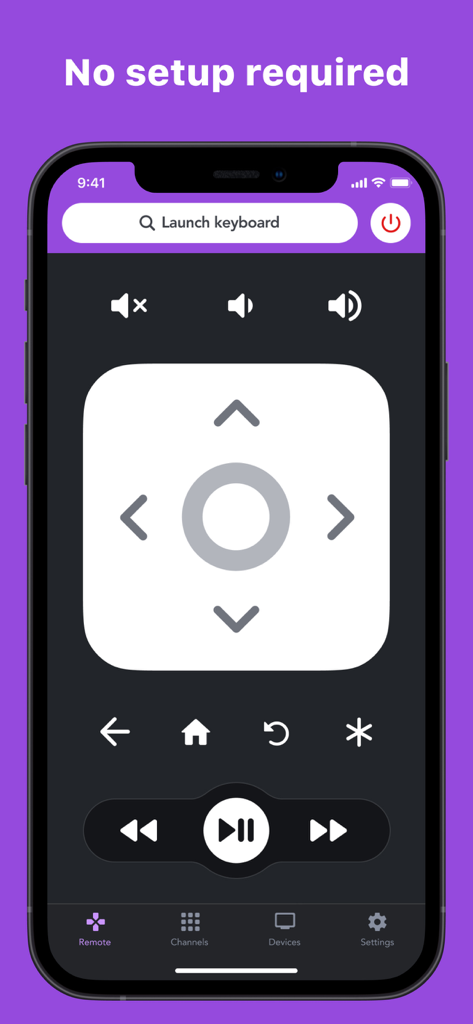
Interface of the RoByte Roku remote app on a smartphone screen featuring a directional pad and playback controls
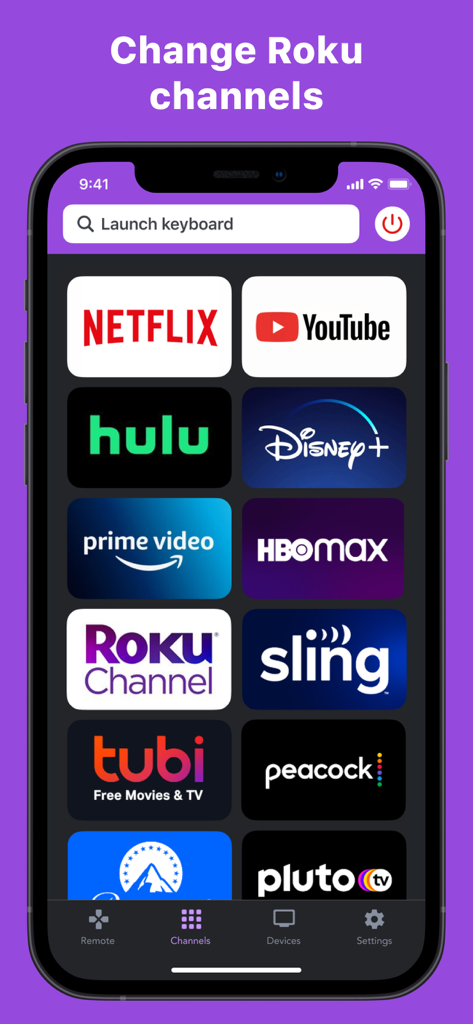
RoByte app interface showing a grid of streaming channel icons for quick selection on Roku TV
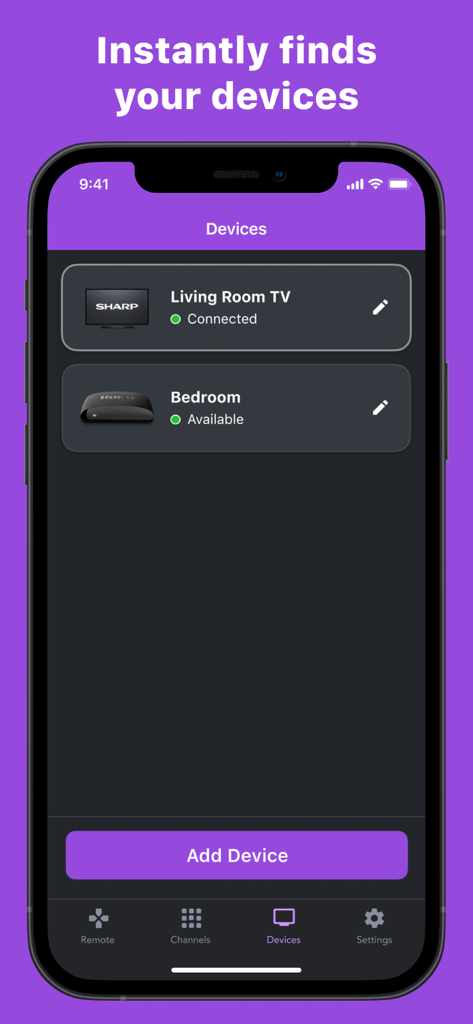
RoByte app interface showing a list of discovered and connected Roku devices in a home network
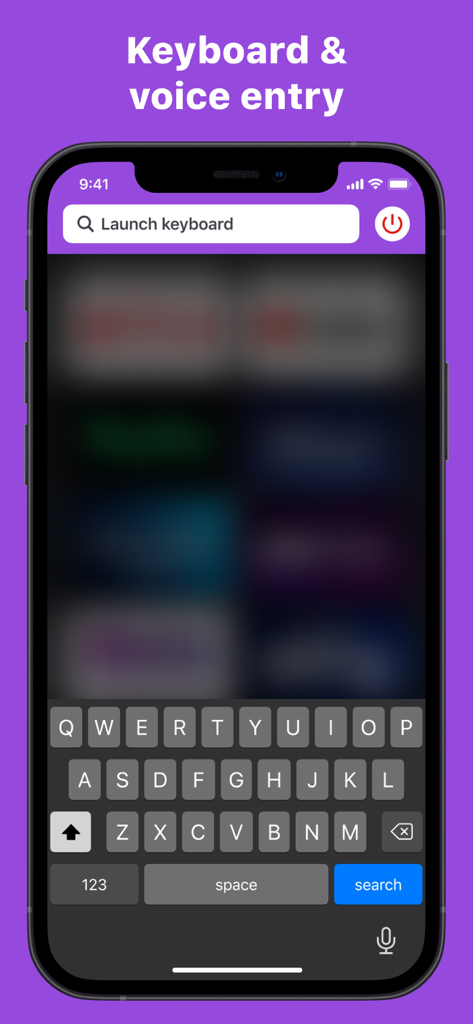
RoByte app interface showing keyboard and voice entry for Roku TV control
Description
Download
More Like This
Apps with similar features and user experience
Skylight App
Glimpse LLC.
Remote Control for Samsung TV・
Red Paket sp. z o.o.
BARDI Smart Home
nadi digital indonesia, pt
LG TV Remote Control Smart TVs
Aleh Piashkou

UPPAbaby Home
Thorley Industries LLC

Calex Smart
Electro Cirkel Retail BV
Remote Control for TV Stick
Pol Nadal Serra
Firestick・Fire TV Remote Stick
Jonathan Reed
Bravia Controller - Sony TV
YONGXING JIN
This page is not an official page of the app or its developer, but an independent editorial publication created for informational and commentary purposes. Unless expressly stated otherwise, neither the app nor its developer is affiliated with, endorsed by, sponsored by, authorized by, or otherwise officially connected with MWM, Apple, Google Play, the app publisher, or the app's developer, and nothing on this page implies that the app was developed using MWM's services. Any trademarks, logos, screenshots, and other content remain the property of their respective owners.