
このページはアプリまたはその開発者の公式ページではなく、情報提供および論評を目的として作成された独立した編集出版物です。明示的に別段の記載がない限り、アプリおよびその開発者は、MWM、Apple、Google Play、アプリのパブリッシャー、またはアプリの開発者と提携、承認、後援、認可、またはその他の公式的な関係はなく、このページのいかなる内容も、アプリがMWMのサービスを使用して開発されたことを意味するものではありません。すべての商標、ロゴ、スクリーンショット、その他のコンテンツはそれぞれの所有者の財産です。

Notepad - Simple Notes & Memo
究極の集中力を削がないノート作成ツールを体験してください。即座に使えるロック画面ウィジェットで一日を整理し、データはクラウドではなくデバイス上にのみ保存されるため、安心してご利用いただけます。
ダウンロード
4M+ユーザー評価
評価数
277K+開発元
カテゴリ
Business対応言語
35最新バージョン
4.0.2サイズ
49.7 MBリリース日
2015年7月14日シンプルさのための設計、スピードのための構築
肥大化した生産性ツールの複雑さはもう不要。このメモ帳は、ノイズを排除し、思考やリストを記録するためのクリーンでプライベート、かつ電光石火の速さを提供します。
瞬時のクイック記録
ログイン不要、読み込み画面なし、摩擦なし。開いてすぐに入力するだけで、会議の議事録、買い物リスト、または突然のひらめきをすぐに記録できます。
一目でわかるウィジェット
iPhoneのロックを解除しなくても整理された状態を維持。ロック画面とホーム画面のウィジェットを使用して、最も重要なタスクを常に前面に表示します。
よくある質問
について知っておくべきこと Notepad - Simple Notes & Memo
Notepad - Simple Notes & Memo でメモを削除するにはどうすればよいですか?
はい、Notepad - Simple Notes & Memo でメモを削除できます。メモを左にスワイプすると、削除ボタンが表示されます。または、「編集」ボタンをタップし、削除したいメモの横にある赤い記号をタップして削除ボタンにアクセスすることもできます。
Notepad - Simple Notes & Memo アプリでメモの順序を変更できますか?
はい、ユーザーは Notepad - Simple Notes & Memo でメモの順序を変更できます。メモを移動するには、長押ししてから上下にドラッグします。または、「編集」ボタンをタップし、メモの右側にあるタブをピンチして移動することもできます。
iOS 16 で Notepad - Simple Notes & Memo のロック画面ウィジェットを設定するにはどうすればよいですか?
iOS 16 で Notepad - Simple Notes & Memo のロック画面ウィジェットを設定するには、デバイスを iOS 16 以降にアップデートしてください。ロック画面を長押しし、「カスタマイズ」をタップし、「ロック画面」を選択し、「ウィジェットを追加」をタップし、このアプリを選択し、目的のウィジェットを選択します。
Notepad - Simple Notes & Memo アプリのホーム画面ウィジェットを追加するにはどうすればよいですか?
Notepad - Simple Notes & Memo のホーム画面ウィジェットを追加するには、ホーム画面の空いている領域を長押しし、[+] ボタンをタップします。Notepad ウィジェットを選択し、3 つのサイズから選択して、「追加」をタップします。複数のウィジェットを追加できます。
Notepad - Simple Notes & Memo でメモの色を変更するにはどうすればよいですか?
はい、ユーザーは Notepad - Simple Notes & Memo でメモの色を変更できます。メモを右にスワイプして、6 つの異なる色から選択します。この機能は、メモを明るくするのに役立ちます。
Notepad - Simple Notes & Memo ウィジェットに表示するメモを選択するにはどうすればよいですか?
Notepad - Simple Notes & Memo ホーム画面ウィジェットに表示する特定のメモを選択するには、ウィジェットを長押しします。次に、表示されるオプションの「ウィジェットを編集」->「メモ」から目的のメモを選択します。
Notepad - Simple Notes & Memo アプリのユーザーデータは安全ですか?
はい、Notepad - Simple Notes & Memo のユーザーデータは安全です。このアプリは、ユーザーが入力したテキストを外部サーバーやソースに収集または送信することはありません。すべてのユーザーデータは、アプリ自体内にのみ保存されます。
Notepad - Simple Notes & Memo アプリは無料で利用できますか?
はい、Notepad - Simple Notes & Memo アプリは無料で利用できます。広告を通じて収益を上げ、アプリ内購入も提供しています。
Notepad - Simple Notes & Memo はダークモードに対応していますか?
はい、Notepad - Simple Notes & Memo アプリはダークモードに対応しています。この機能は、ユーザーエクスペリエンスを向上させるためのコア機能の 1 つとしてリストされています。
Notepad - Simple Notes & Memo には自動保存機能がありますか?
はい、Notepad - Simple Notes & Memo には自動メモ保存機能が搭載されています。これにより、ユーザーの手動操作なしでメモが確実に保存されます。
Notepad - Simple Notes & Memo アプリは文字数カウントを提供しますか?
はい、Notepad - Simple Notes & Memo アプリには文字数カウント機能が含まれています。これにより、ユーザーはメモや作成中のドラフトの長さを追跡できます。
以下のスクリーンショットと説明は、アプリの公式ストアリスティングから直接取得されたものであり、アプリ開発者の所有物です。
アプリストア
スクリーンショット
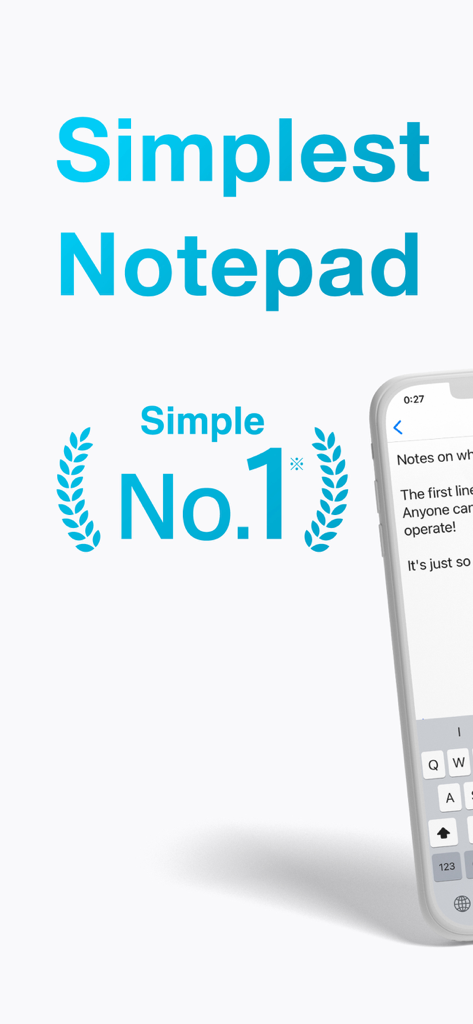
ミニマリストなインターフェースとシンプルさ第1位の評価を特徴とする、メモ帳アプリのプロモーション用グラフィック
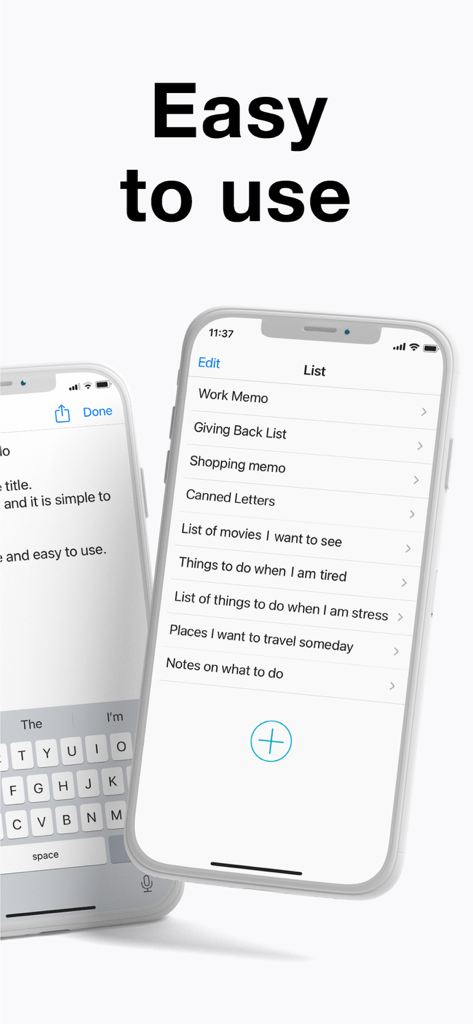
iPhone上のメモリストを表示しているシンプルなメモ帳アプリのインターフェース
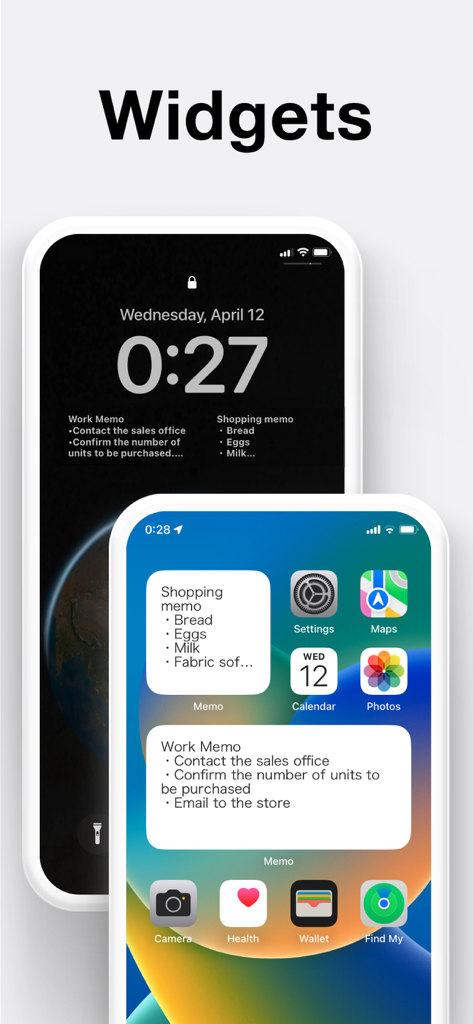
iOSのホーム画面とロック画面に配置された、買い物や仕事のメモ用メモ帳アプリウィジェット
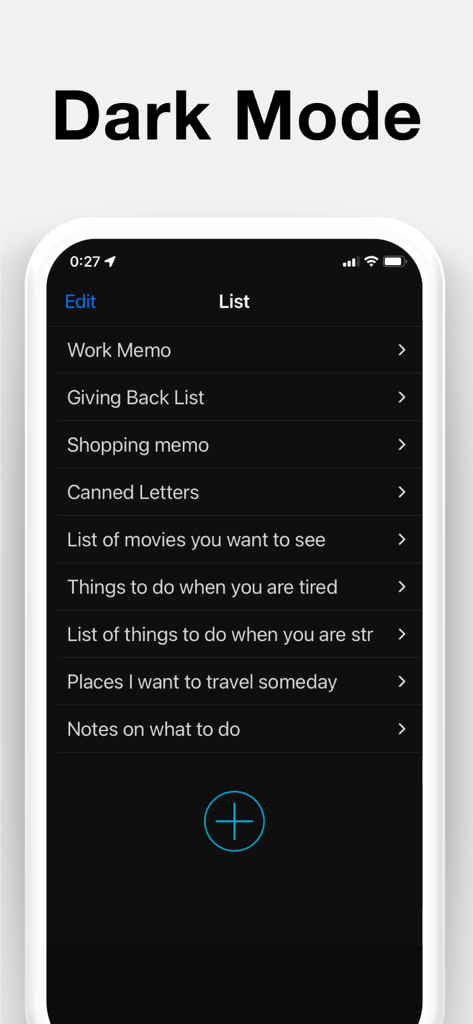
メモリストを表示しているダークモードのシンプルなメモ帳アプリインターフェース
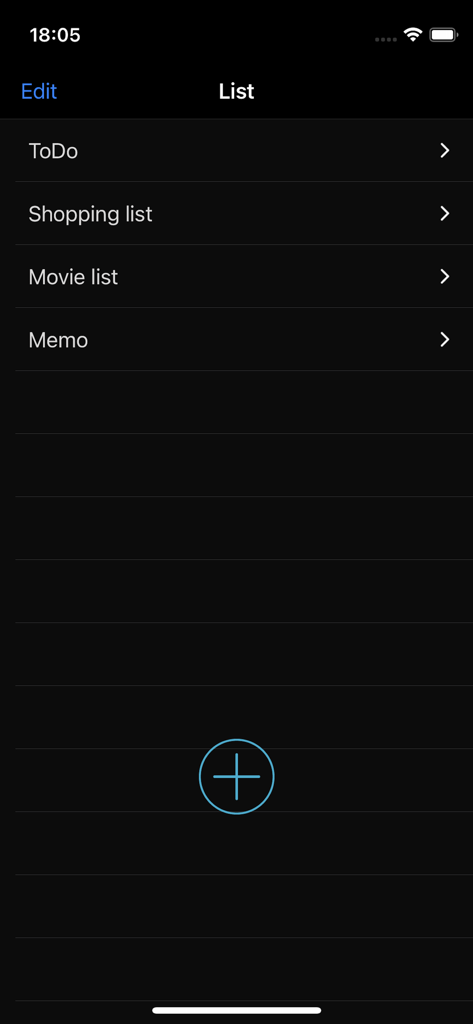
ダークモードでToDoや買い物リストなどのカテゴリを表示しているメモ帳アプリのメインリスト画面
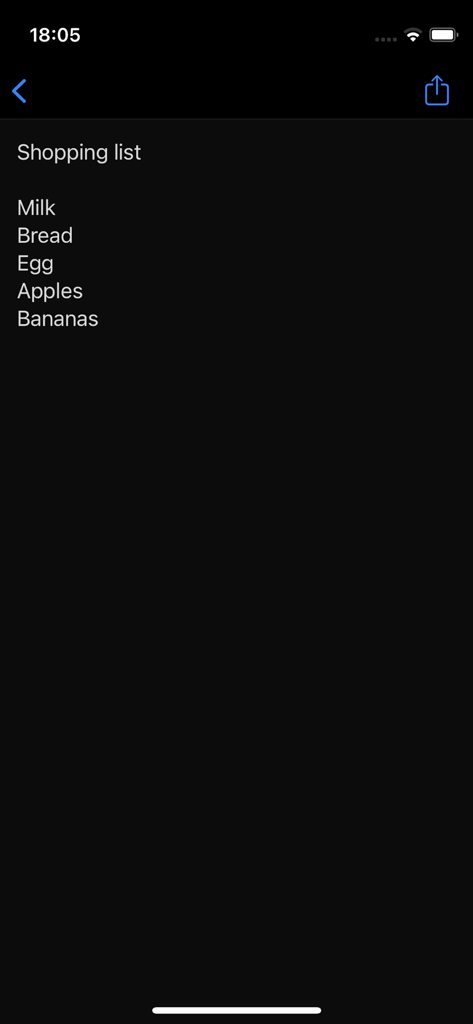
メモ帳アプリのダークモードインターフェース上のシンプルな買い物リスト
説明
Download
類似アプリ
似た機能とユーザー体験を持つアプリ
Notion: Notes, Tasks, AI
Notion Labs, Incorporated

Freenotes®: AI Notes Taking
Hangzhou Free Notes Technology Co., Ltd
Structured - Daily Planner
unorderly GmbH
Google Tasks: Get Things Done
Google LLC
TickTick:To-Do List & Calendar
Appest Limited

Noteful: Notes & PDF Markup
Noteful Technologies Ltd
Todoist: To Do List & Calendar
Doist Inc.
To do list MinimaList & Widget
Inner Grow Limited
monday.com - Work Platform
monday.com Ltd.
このページはアプリまたはその開発者の公式ページではなく、情報提供および論評を目的として作成された独立した編集出版物です。明示的に別段の記載がない限り、アプリおよびその開発者は、MWM、Apple、Google Play、アプリのパブリッシャー、またはアプリの開発者と提携、承認、後援、認可、またはその他の公式的な関係はなく、このページのいかなる内容も、アプリがMWMのサービスを使用して開発されたことを意味するものではありません。すべての商標、ロゴ、スクリーンショット、その他のコンテンツはそれぞれの所有者の財産です。