Bullet Journal: Strategic Planning from Vision to Daily Execution
Bridge the gap between your long-term goals and daily tasks. Built for high-achievers, this digital system uses Objectives and Strategies to turn your annual vision into actionable daily logs.
Publisher
Satoshi Sato
Category
Utilities
Downloads
0
User Rating
1.0/5
Total Ratings
0
Locales
2
Strategic Planning at a Glance
Discover the interface used by 0 users.
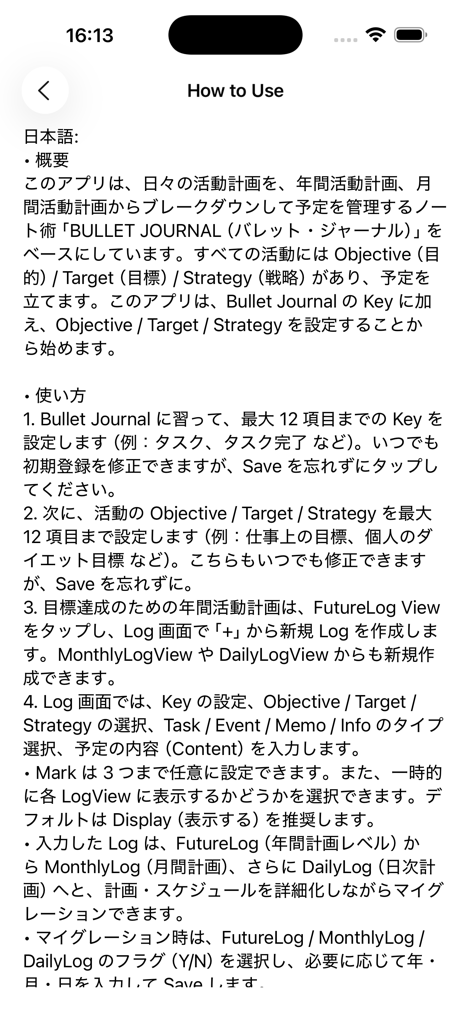
A Japanese language instruction screen for the Bullet Journal app explaining how to set objectives and manage task logs.
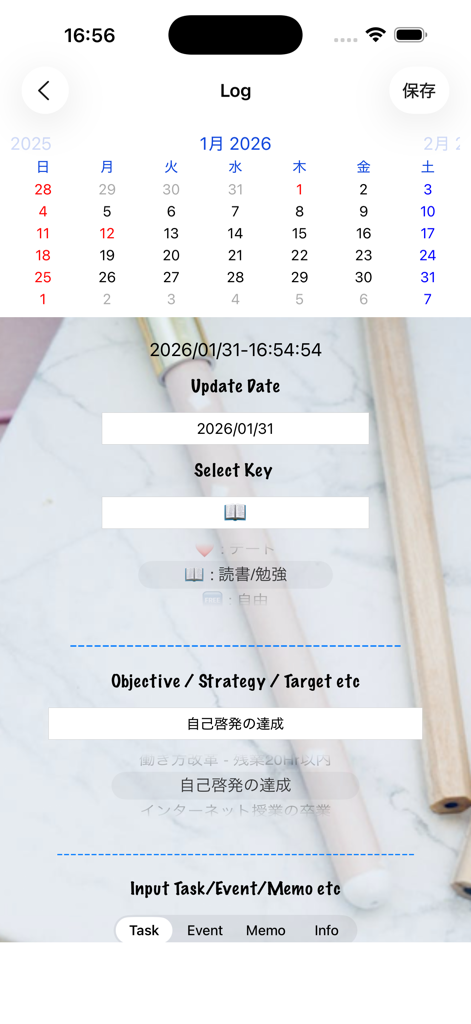
Bullet Journal app screen showing the log entry interface with a calendar and objective setting fields
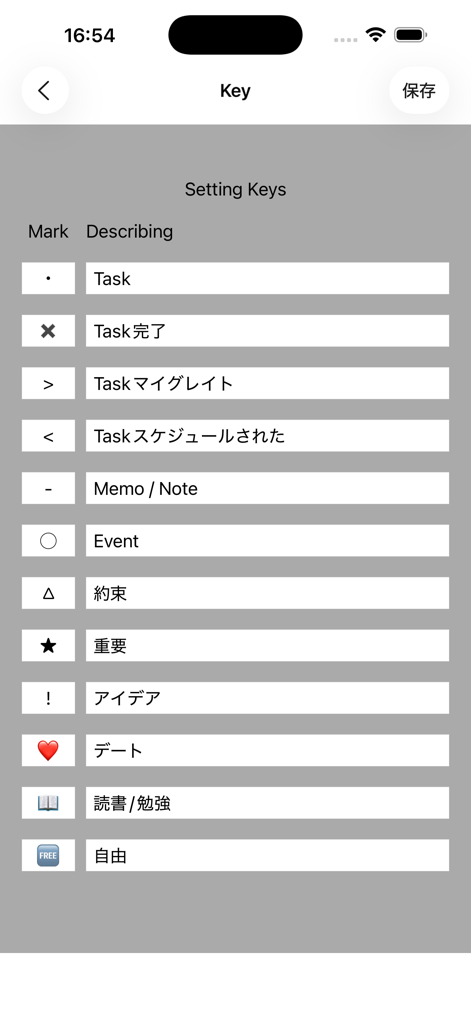
A settings screen in the Bullet Journal app for customizing task symbols and descriptions like Task, Memo, and Event.
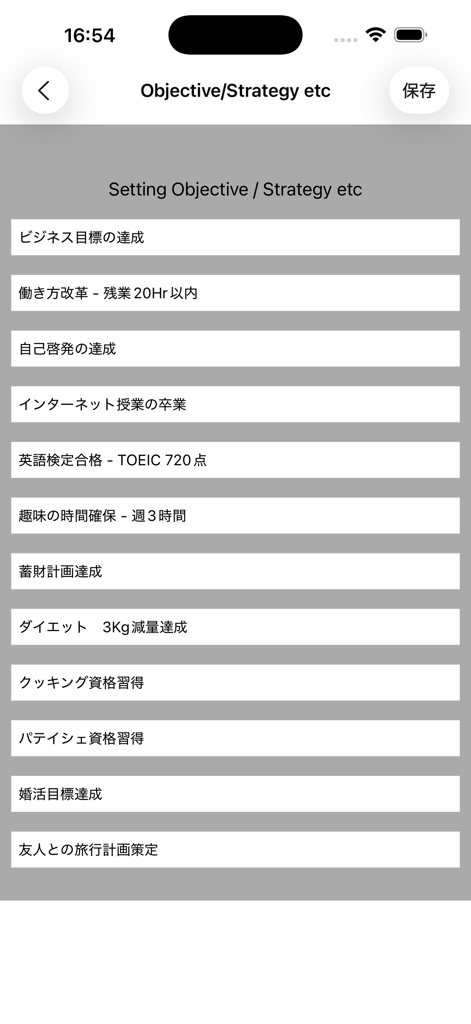
Setting up personal objectives and strategies in the Bullet Journal app
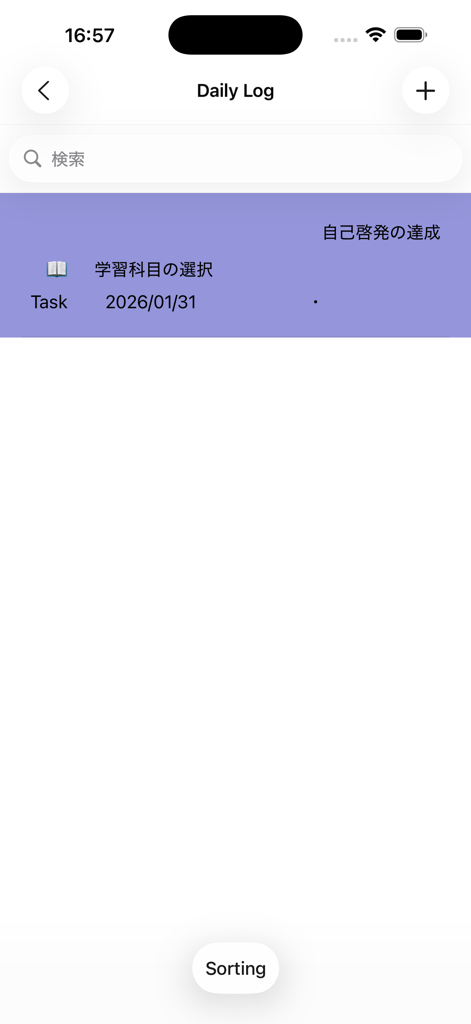
Daily Log screen of the Bullet Journal app showing a scheduled task and minimalist interface
From Vision to Execution
The tools that make this app stand out, trusted by 0 users.
🎯
Hierarchical Planning
Drill down from annual logs to daily tasks. Our migration system ensures your high-level strategy stays at the forefront of your daily focus.
🧠
Outcome-Driven Logic
Go beyond simple checklists. Categorize every log by Objective and Strategy to ensure every action aligns with your core professional goals.
🛠️
Custom Productivity Keys
Tailor the app to your unique life. Create up to 12 personalized keys and marks to track tasks, events, and insights exactly how you work best.
About the app
Everything you need to know about Bullet Journal.
Description
このアプリは、日々の活動計画を、年間活動計画、月間活動計画からブレークダウンして、予定を管理するノート術、BULLET JOURNAL(バレット・ジャーナル)をベースにしています。
全ての活動には、Objective(目的) / Target (目標)/Strategy (戦略) / があって予定を立てます。このアプリは、Bullet JournalのKeyに加え、Objective/Target/Strategy/をセットすることから始めます。
使い方は、
1. Bullet Journalに習って、最大12項目までのご自分のKeyを設定します。 例えば、タスク、タスク完了とか。いつでも初期登録を修正できますが、Saveをタップして下さい。
2. 次に、ご自分の活動の、Objective/Target/Strategy/を最大12項目まで設定します。 例えば、仕事上の目標 とか、個人のダイエット目標とか、、初期登録をいつでも修正できますが、Saveを忘れずに。
3. 次に、その目標を実現するための、年間活動計画をFutureLog Viewをタップして、「+」で新規のLogを Log画面で設定します。なお、MonthlyLogViewまたはDailyLogViewからも新規Logを作成できます。
4. Log画面では、Keyの設定, Objective/Target/Strategy/の選択、Task, Event, Memo, Infoのタイプの選択、活動なりの予定のContentを記入します。
Markは、3つまで利用者が任意に設定できます。
また、一時的に各LogViewに表示するか、しないかを選択できます。デフォルトは、Display(表示する)でいいと思います。
さらに、入力したLogは、最初のFutureLog,すなわち年間計画のレベルから、MonthlyLogの月間計画、さらに、DailyLog(日次計画)へマイグレート(計画、スレジュールを詳細化すること)してきます。
マイグレートした時、 FutureLog, MonthlyLog, DailyLogのフラグY/Nを選択、さらに、年、月、日と必要に応じて入力し、Saveをします。
DailyLogの日付設定は、Log画面上部のカレンダーの日付けをタップするか、フィールドをタップすると選択できます。
5. 各Logは、一件ごとに管理され、それらをFutureLogView, MonthlyLogView, DailyLogViewと AllLogViewで閲覧できるようになっています。
6. Logは、修正するたびにSaveをタップしてデータ保存をして下さい。
7. すでにSaveしたLogは、FutureLog, MonthlyLog, DailyLog, AllLogのいずれの画面からも、セルをタップするとLog画面に移動し、修正ができます。
8. Logを削除したい場合は、LogViewの画面の対象セルをスワイプするとDeleteが表示され、タッブして削除します。
また、FutureとMonthlyとDailyLogViewの画面で、並べ替えも可能としました。
This app is based on the BULLET JOURNAL (Bullet Journal), a daily activity plan that breaks down from an annual activity plan and a monthly activity plan and manages the schedule.
Every activity has an Objective / Target / Strategy / to schedule. This app starts by setting Objective / Target / Strategy / in addition to the Bullet Journal Key.
Usage is
1. Learn about Bullet Journal and set up your own keys for up to 12 items. For example, tasks and task completion. You can modify the initial registration at any time, but tap Save.
2. Next, set up to 12 items of Objective / Target / Strategy / for your activity. For example, you can always modify your initial goals, such as work goals or personal diet goals, but don't forget to save.
3. Next, tap FutureLog View on the annual activity plan to achieve that goal, and set a new log on the Log screen with “+”. You can also create a new log from MonthlyLogView or DailyLogView.
4. On the Log screen, enter Key settings, Objective / Target / Strategy / selection, Task, Event, Memo, Info type selection, and the content of the activity schedule.
Up to three Marks can be set by the user.
Also, you can select whether or not to temporarily display each LogView. The default should be Display.
In addition, the entered log is migrated from the first FutureLog, that is, the level of the annual plan, to MonthlyLog's monthly plan and then to DailyLog (detailed plan and schedule).
When migrating, select the FutureLog, MonthlyLog, and DailyLog flags Y / N, and enter the year, month, and day as required, and then save.
You can select the date setting for DailyLog by tapping the calendar date at the top of the Log screen or tapping the field.
5. Each Log is managed on a case-by-case basis and can be viewed with FutureLogView, MonthlyLogView, DailyLogView and AllLogView.
6. For Log, tap Save to save data each time you modify.
7. Logs that have already been saved can be modified by tapping a cell from any of the FutureLog, MonthlyLog, DailyLog, and AllLog screens.
8. If you want to delete a log, swipe the target cell on the LogView screen and Delete will appear. Tap to delete it.
In addition, it is possible to rearrange on Future, Monthly, and DailyLogView screens.
Latest Version
3.1
Size
4.9 MB
First Released
Sep 11, 2019
Ready to Bridge the Gap Between Vision and Action?
Stop managing chores and start executing your strategy. Download the digital Bullet Journal designed for high-achievers and align your daily logs with your annual ambitions today.
App information, icons, screenshots, and descriptions displayed on this page are sourced from the Apple App Store and are the property of their respective developers. Download estimates and rankings are based on MWM's proprietary models and may not reflect actual figures. This page is provided for informational and analytical purposes only.
Believe this page infringes your intellectual property? File a dispute