
This page is not an official page of the app or its developer, but an independent editorial publication created for informational and commentary purposes. Unless expressly stated otherwise, neither the app nor its developer is affiliated with, endorsed by, sponsored by, authorized by, or otherwise officially connected with MWM, Apple, Google Play, the app publisher, or the app's developer, and nothing on this page implies that the app was developed using MWM's services. Any trademarks, logos, screenshots, and other content remain the property of their respective owners.

QuiltSize
Designing the perfect quilt should be about creativity, not calculations. Instantly visualize your layout, set your mattress size, and get exact block counts in seconds without the scratch paper.
Downloads
51K+User Rating
Total Ratings
0Publisher
Category
LifestyleLocales
1Latest Version
2.5.2Size
14.6 MBFirst Released
Dec 21, 2015Design Your Dream Quilt Without the Headaches
QuiltSize handles the complex math so you can focus on the creative side of quilting. Plan your layout, check the fit, and start your next project with confidence.
Tailored to Every Bed
Select standard mattress sizes or create custom dimensions with precise side drops and pillow tucks for a professional fit.
Instant Visual Feedback
See your diagram update in real-time as you experiment with straight or on-point layouts, sashing, and multiple border options.
The following screenshots and description are sourced directly from the app's official store listing and are the property of the app developer.
App Store
Screenshots
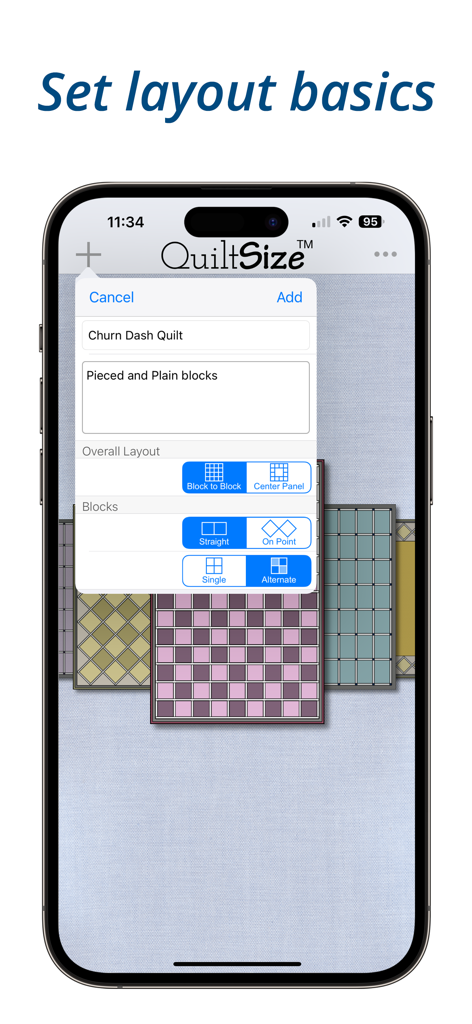
Interface of the QuiltSize app for configuring quilt layout basics and block patterns
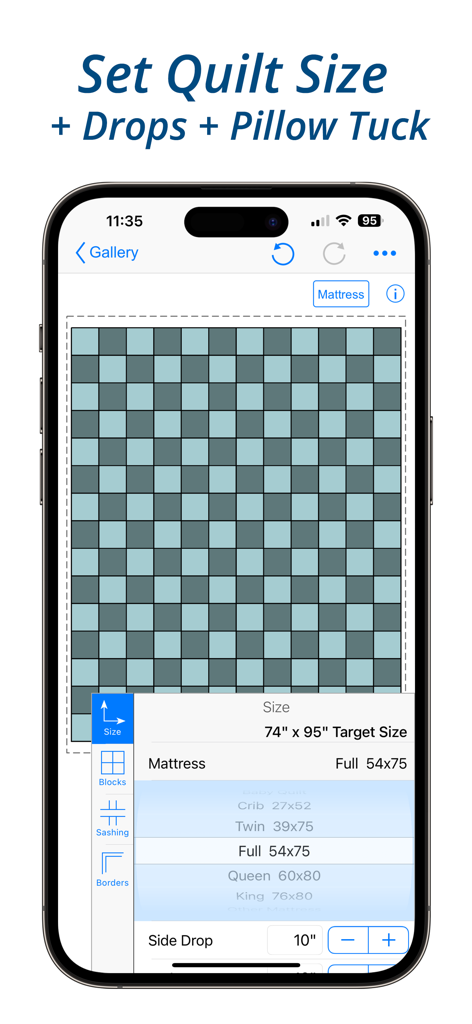
QuiltSize app interface showing quilt layout and mattress size options
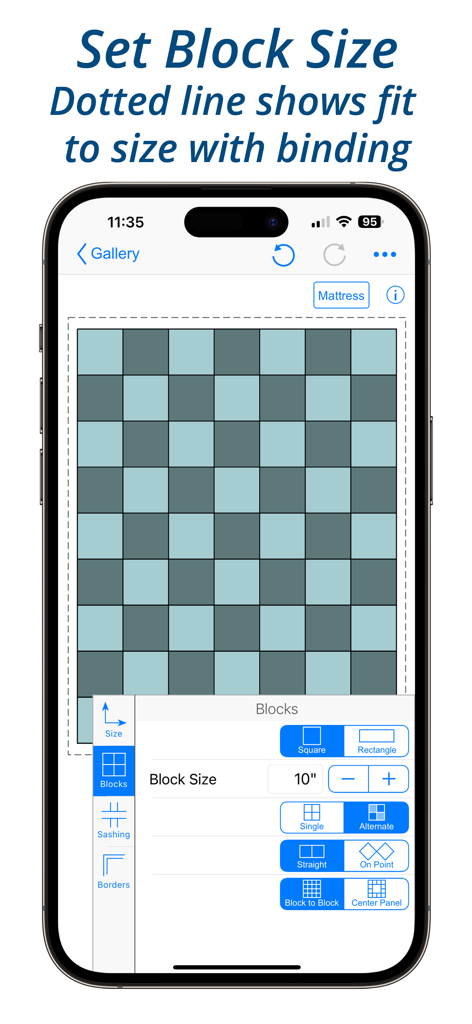
Smartphone screen displaying the QuiltSize app with quilt block layout options and a preview diagram
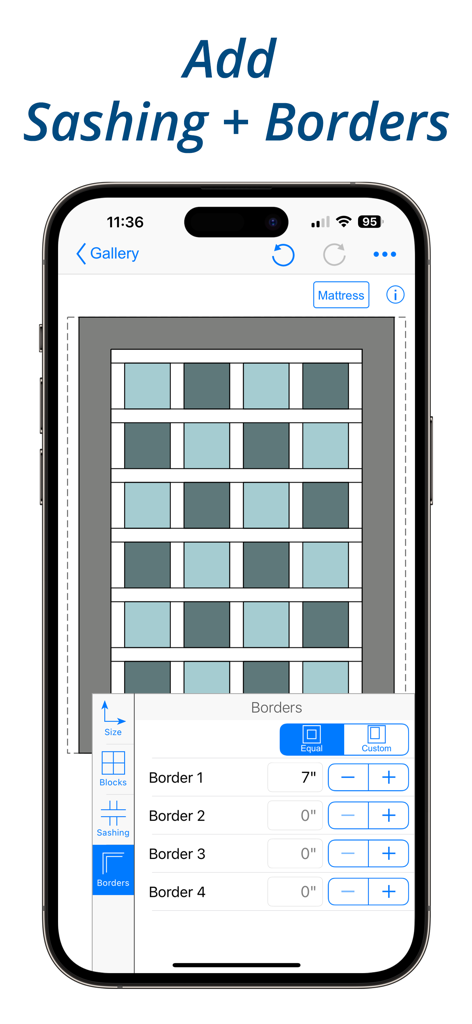
Interface of the QuiltSize app showing a quilt layout diagram with options to customize sashing and border widths
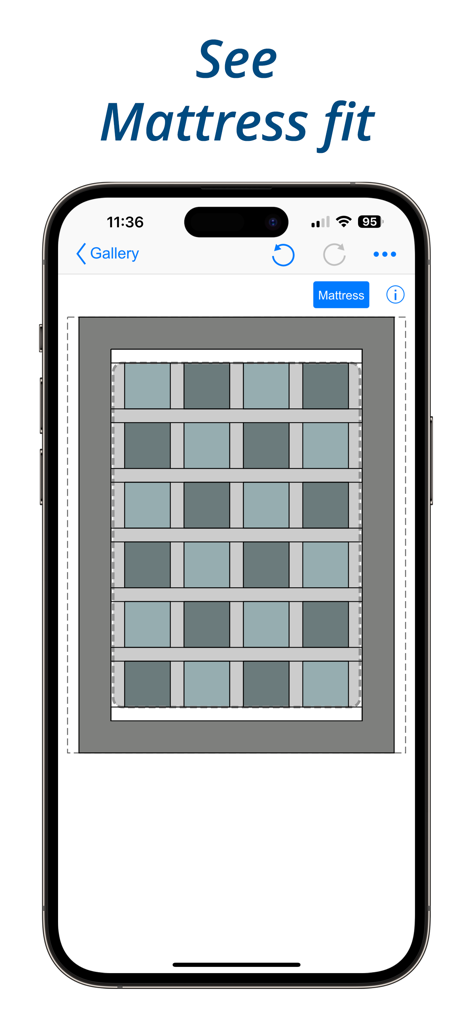
A quilt layout diagram showing the mattress fit visualization in the QuiltSize app
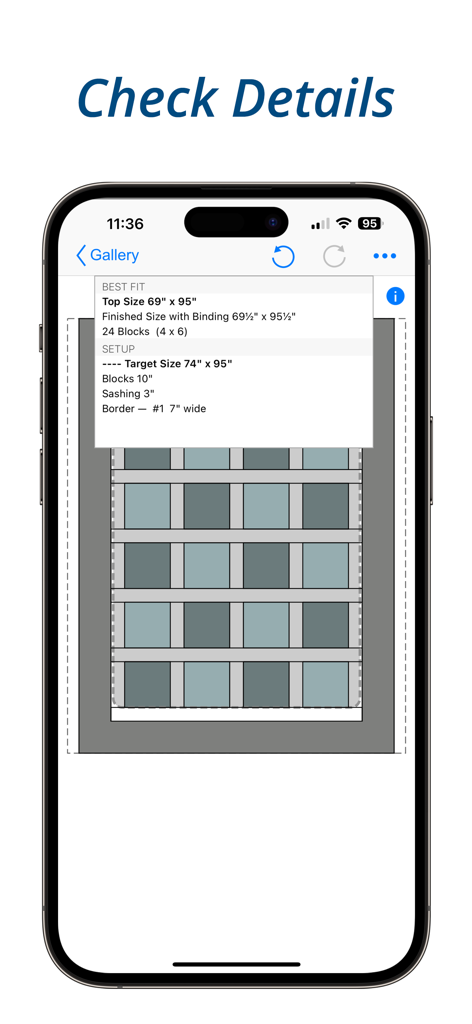
Mobile screen showing quilt dimensions and block layout details in the QuiltSize app
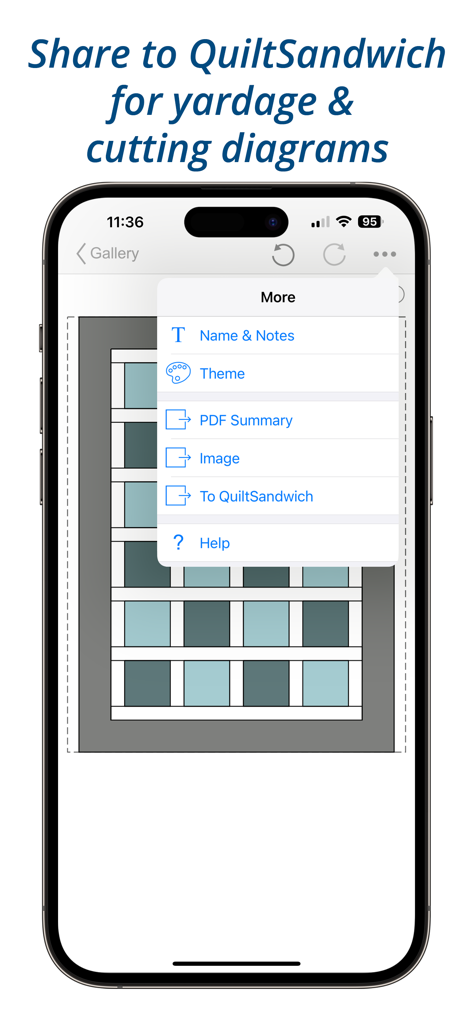
A smartphone displaying the QuiltSize app menu with an option to share a quilt layout to QuiltSandwich for yardage and cutting diagrams.
Description
Download
More Like This
Top-ranked apps in the same category

Pinterest, Inc.

Alipay - Simplify Your Life
Alipay (Hangzhou) Technology Co., Ltd.

Dianping: Discover Good Places
Hanhai Information Technology (Shanghai) Co.Ltd

美团-美好生活小帮手
Sankuai Technology Co., Ltd.

Lemon8 - Lifestyle Community
TIKTOK PTE. LTD.

Xiaomi Home
Beijing Xiaomi Co., Ltd

Tinder Dating App: Date & Chat
Tinder LLC

SmartThings
Samsung Electronics Co., Ltd.

VNeTraffic
GLOBAL TECHNOLOGY - TELECOMMUNICATIONS CORPORATION
This page is not an official page of the app or its developer, but an independent editorial publication created for informational and commentary purposes. Unless expressly stated otherwise, neither the app nor its developer is affiliated with, endorsed by, sponsored by, authorized by, or otherwise officially connected with MWM, Apple, Google Play, the app publisher, or the app's developer, and nothing on this page implies that the app was developed using MWM's services. Any trademarks, logos, screenshots, and other content remain the property of their respective owners.