RemoteView.

RemoteView.

Download on App Store
Logo of RemoteView.

RemoteView. The Professional-Grade Remote Desktop Solution for IT Experts.

Experience seamless, high-speed control of your office workstations and servers from your iPhone or iPad. Built with patented VRVD technology, Intel vPro support, and multi-monitor compatibility to bridge the gap between your mobile device and mission-critical desktop applications.

Download on App Store

Publisher

RSupport

Category

Utilities

Downloads

0

User Rating

3.3/5

Total Ratings

0

Locales

5

Command Your Desktop

Discover the interface used by 0 users.
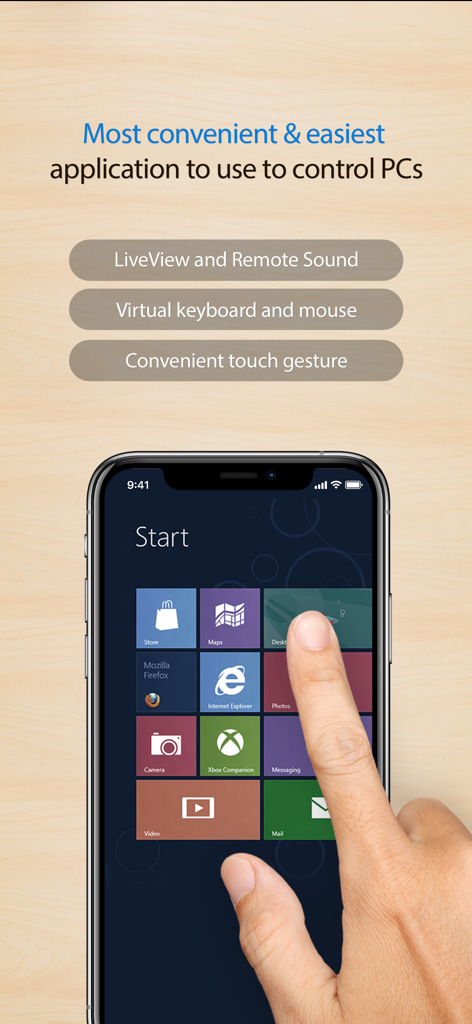
RemoteView mobile app showing remote control of a computer desktop via touch interface

RemoteView mobile app showing remote control of a computer desktop via touch interface

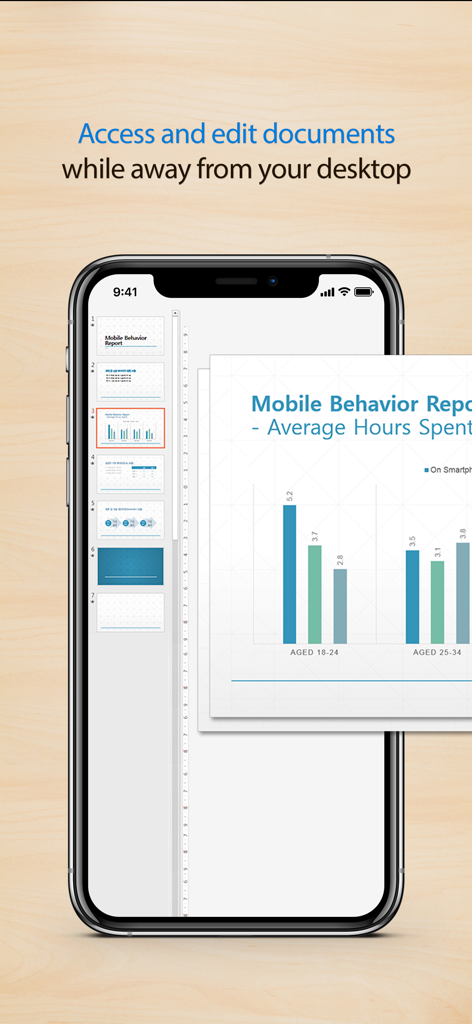
iPhone screen displaying a presentation via RemoteView for remote document editing

iPhone screen displaying a presentation via RemoteView for remote document editing

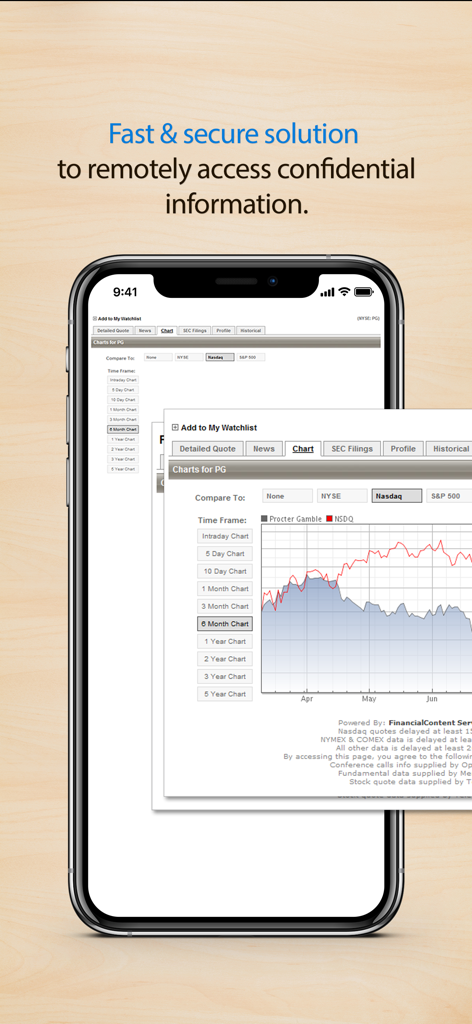
RemoteView app on a smartphone displaying a secure connection to a financial desktop chart.

RemoteView app on a smartphone displaying a secure connection to a financial desktop chart.

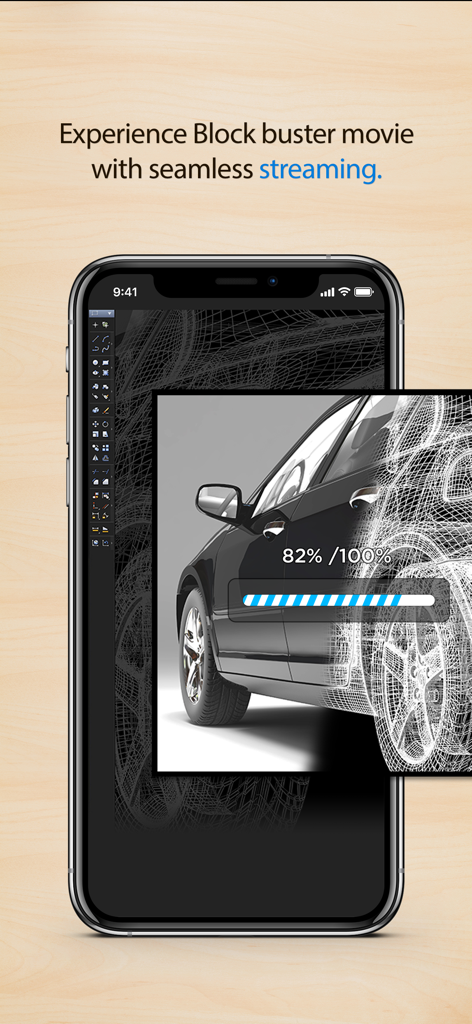
RemoteView app on a smartphone displaying a high quality 3D car model rendering with a progress bar and seamless streaming text

RemoteView app on a smartphone displaying a high quality 3D car model rendering with a progress bar and seamless streaming text

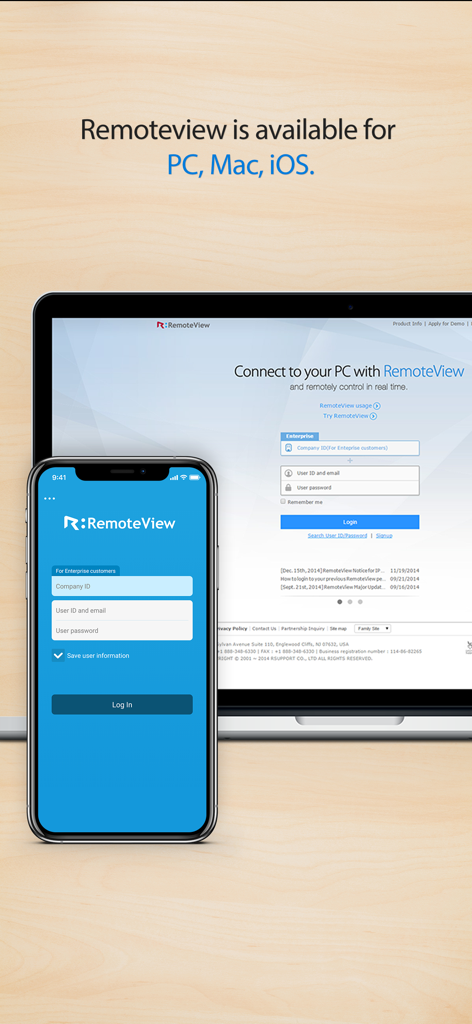
RemoteView login interface displayed on both an iPhone and a laptop computer

RemoteView login interface displayed on both an iPhone and a laptop computer

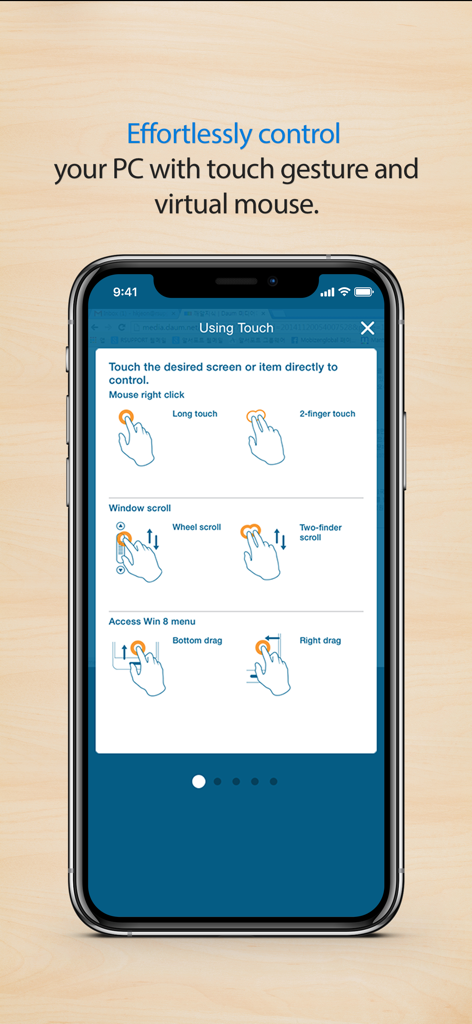
RemoteView app interface showing touch gesture guides for remote PC control including mouse right click and scrolling

RemoteView app interface showing touch gesture guides for remote PC control including mouse right click and scrolling

Professional Remote Access for Power Users

The tools that make this app stand out, trusted by 0 users.

Blazing-Fast VRVD Performance

Experience lag-free remote control and high-speed stability powered by patented VRVD technology, designed to penetrate even the strictest corporate firewalls.

🔌

Enterprise Power Management

Take total command of your hardware with remote Wake-on-LAN and Intel vPro support, allowing you to power on or reboot machines from anywhere.

🖥️

Desktop-Class Productivity

Master complex workflows with full multi-monitor support and high-resource app compatibility, all optimized for intuitive touch and gesture control.

About the app

Everything you need to know about RemoteView..

Description

RemoteView is a service from RSupport that lets you remotely control computers located either at home, at the office, or anywhere else as long as there is live Internet connection. All you have to do is this: (1) Install an agent on a computer you want to access remotely; (2) Install a RemoteView App on your iPhone or iPad. Voila! You’re ready to start! You can use all the resource-heavy applications that usually require a full-on computer, from the convenience of a smartphone or a tablet by using RemoteView. That’s it! [Special Features] - Faster remote control speed and connection stability delivered by the patented VRVD technology. - Works under multiple network environments: Dynamic IP; DHCP, Private IP, Private and corporate firewalls. - Ease of Use: Assume control over a remote mouse and keyboard from mobile devices; Multi Touch, Scroll and Zoom are all supported. - Language Input: Any language input method available on the remote computer will be supported. - Common UX: You can use RemoteView from an iOS device (iPhone/iPad) as well as PC seamlessly. - Virtual Environments Supported: Hyper-V; VMware; Virtual PC; Citrix Xen -- All supported. - Other Notable Features: Multi Monitor Support; Screen Lock Out; Remote Power On/Off via Intel vPro Chipset. - You can manage power of a turned off PC which has Wake On LAN based technology. [Rview Application Areas] - When you want to recreate an office IT work environment. - When you want to work at your office PC from home. - When you want to access your files located at home from your office - When you want to save files onto your PC from different places as you are on the move. - When you have to have immediate access into your servers located inside a secure and hard to access places like the IDC. - When you have a “One-to-Many” asset management needs. [How To] - Agent Installation Process 1. Go to RemoteView website on the PC you want to remote control. 2. In the RemoteView website, enter your ID and password to log in. 3. On the “Remote PC Manage My” screen click “Add PC” or “Install” button. 4. Installation will begin after setting Remote PC access ID and password. - Remote Control a Computer from a smart device 1. Download RemoteView app on the App Store and launch it. 2. Enter RemoteView web ID and password to log 3. Select remote PC you want to remote control. 4. Enter Remote PC access ID and password to log in. 5. Remote control your remote PC

Latest Version

8.3.20011

Size

202.4 MB

First Released

Sep 14, 2010

Your Entire Workstation, Now in the Palm of Your Hand

Download RemoteView to securely access resource-heavy apps and manage enterprise servers with patented VRVD stability and Intel vPro support.

Download on App Store

App information, icons, screenshots, and descriptions displayed on this page are sourced from the Apple App Store and are the property of their respective developers. Download estimates and rankings are based on MWM's proprietary models and may not reflect actual figures. This page is provided for informational and analytical purposes only.

Believe this page infringes your intellectual property? File a dispute