Video 2 CameraRoll  Home Video
Video 2 CameraRoll Home Video
Download on App Store

This page is not an official page of the app or its developer, but an independent editorial publication created for informational and commentary purposes. Unless expressly stated otherwise, neither the app nor its developer is affiliated with, endorsed by, sponsored by, authorized by, or otherwise officially connected with MWM, Apple, Google Play, the app publisher, or the app's developer, and nothing on this page implies that the app was developed using MWM's services. Any trademarks, logos, screenshots, and other content remain the property of their respective owners.


Logo of Video 2 CameraRoll  Home Video
Download on App Store

Video 2 CameraRoll Home Video

Tired of your favorite memories being trapped in the Apple TV or Videos app? Easily move your synced PC and iTunes home movies directly to your Camera Roll so you can edit them, post to social media, or share with family in seconds.

Key Figures

Downloads

191K+

User Rating

2.5/5

Total Ratings

200

Publisher

TAIKI HIRATA

Category

Photo & Video

Locales

2

Latest Version

1.9

Size

3.8 MB

First Released

Jul 27, 2015
Features

Take Control of Your Video Library

Stop letting your precious memories get stuck in the TV app. Move your home movies to the Camera Roll so you can finally edit, share, and enjoy them on your own terms.

Unlock iTunes Home Videos

Break through Apple's restrictive folders by moving videos from the Apple TV library directly to your Photos app with a single tap.

Ready for Social & Editing

Finally make your PC-synced footage visible to apps like Instagram, WhatsApp, and mobile editors that can only access your Camera Roll.

The following screenshots and description are sourced directly from the app's official store listing and are the property of the app developer.

App Store

Screenshots

Video 2 CameraRoll  Home Video - Promotional graphic showing the conversion of home videos to the iPhone camera roll
Promotional graphic showing the conversion of home videos to the iPhone camera roll

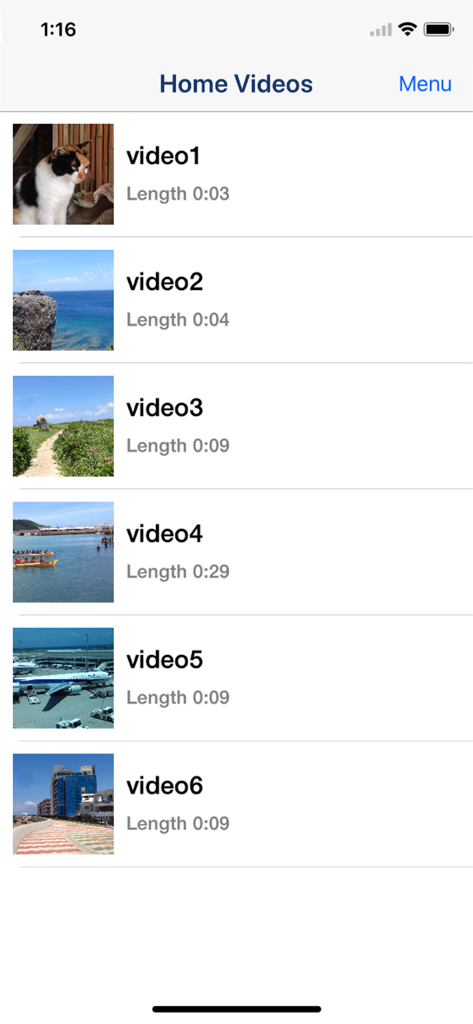
Video 2 CameraRoll  Home Video - Interface showing a list of home videos with thumbnails and durations
Interface showing a list of home videos with thumbnails and durations

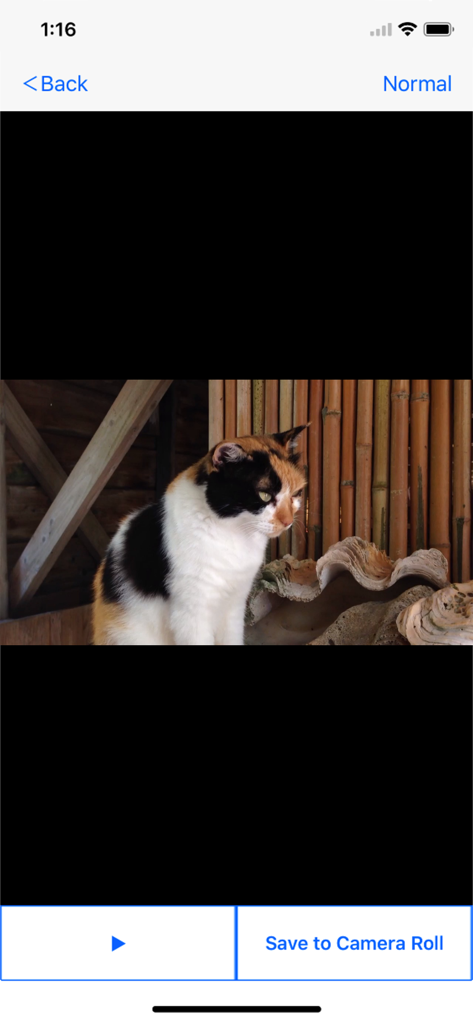
Video 2 CameraRoll  Home Video - Interface of the Video 2 CameraRoll app showing a video preview and a button to save it to the camera roll
Interface of the Video 2 CameraRoll app showing a video preview and a button to save it to the camera roll

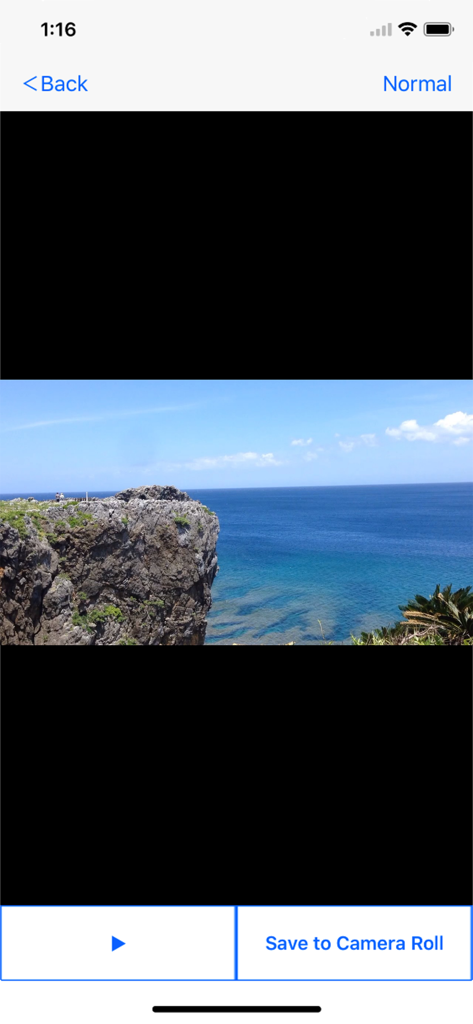
Video 2 CameraRoll  Home Video - Interface showing a scenic ocean video with a button to save to camera roll
Interface showing a scenic ocean video with a button to save to camera roll

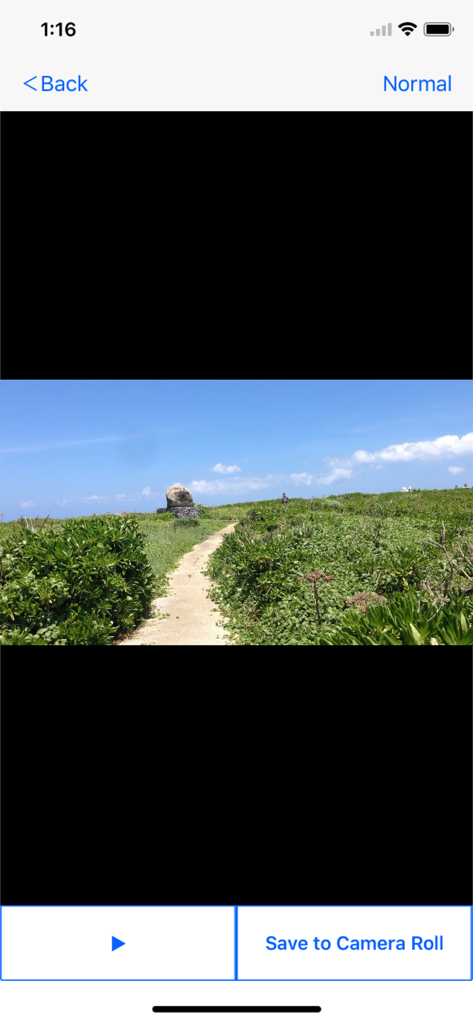
Video 2 CameraRoll  Home Video - App interface displaying a landscape video and a button to save it to the camera roll

App interface displaying a landscape video and a button to save it to the camera roll
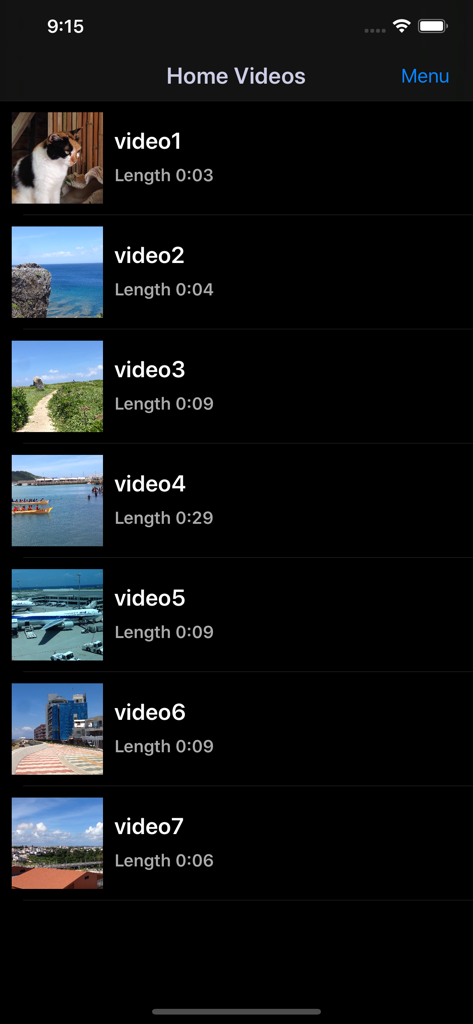
Video 2 CameraRoll  Home Video - Mobile app interface showing a list of synced home videos with thumbnails and durations ready to be saved to the camera roll

Mobile app interface showing a list of synced home videos with thumbnails and durations ready to be saved to the camera roll

Description

Save Home Video Movie to iPhone/iPad Camera Roll. You can save iTunes / Apple TV app library Home Videos to Camera Roll by "Video 2 CameraRoll"! Do you want to edit video taken by video camera and movie stored on PC by iPhone/iPad movie editor app? But most of movie editor app can use only videos in Camera Roll. So, you can not edit iTunes / Apple TV app library Home Videos that you transferred from your PC. In such a case, please use this app "Video 2 CameraRoll". You will be able to transfer and save iTunes / Apple TV app library Home Videos to Camera Roll by this app! And you will be able to edit video taken by video camera and movie stored on PC by iPhone/iPad movie editor app! ■About Watermark App watermark is displayed in the lower left corner on the video. You can remove app watermark by purchasing "Remove watermark" Add-on. ■About In-app Advertising Banner Advertising is displayed in bottom of screen. Full Screen Advertising will be displayed, after you have saved video to Camera Roll. You can hide these Advertising by purchasing "Remove watermark" Add-on. ■Workflow of how to save video to Camera Roll. 1. Add video to Home Videos of iPhone/iPad by iTunes / Apple TV app on PC. 2. Save video in Home Videos to Camera Roll by "Video2CameraRoll". ■1. Add video to Home Videos of iPhone/iPad by iTunes / Apple TV app on PC. ・For Windows PC or macOS 10.14 or earlier 1. Save the video file that you want to transfer and save to Home Videos of iPhone/iPad to your PC that iTunes is installed. 2. Start iTunes on your PC, after connecting your iPhone/iPad to your PC. 3. Select "Movies" from the upper left icons, and select "Home Videos" > "Library". 4. Select "File" > "Add to Library", and select the video that you want to add. 5. Select the "Home Videos", and check the video was added to Home Videos. 6. Select "Device (iPhone/ipad)" from the upper left icons. 7. Select the "Movies" from "Settings" on the left side of the screen. 8. Make sure that is checked the box of "Sync Movies", and check the box of video that you want to add to "Home Videos" of iPhone/iPad. 9. Start synchronization by "Sync・Apply" button at the bottom right. 10. When the synchronization is complete, check the video was saved to Home Videos by following way. For iOS 12.3 or later Launch the "TV" app on your iPhone / iPad and select "Library" -> "Home Video". For iOS 12.2 or earlier Launch the "Video" app on your iPhone / iPad and open "Home Video". ・For macOS 10.15 Catalina 1. Save the video file that you want to save to Home Videos of iPhone/iPad to your PC that Apple TV app is installed. 2. Start Apple TV app on your PC, after connecting your iPhone/iPad to your PC. 3. When the Apple TV app starts, select "Library". 4. Drag and drop the video you want to add to Home Video onto the Apple TV app. 5. Select "Home Videos" from the side menu and check the video was added. 6. Select the connected iPhone / iPad from "Devices" in the side menu and click "Sync Settings". 7. When the sync setting screen opens, select "Movies", check "Sync movies onto (device name) and "Video you want to sync (the video you just added)", and click "Apply" Start synchronization. 8. When the synchronization is complete, check the video was saved to Home Videos by following way. For iOS 12.3 or later Launch the "TV" app on your iPhone / iPad and select "Library" -> "Home Video". For iOS 12.2 or earlier Launch the "Video" app on your iPhone / iPad and open "Home Video". ■2. Save video in Home Videos to Camera Roll by "Video2CameraRoll". 1. Start "Video2CameraRoll". 2. Select the video you want to transfer and save to Camera Roll from the list of Home Video in the app. 3. When the playback screen is displayed, touch "Save to Camera Roll" button, and start saving to the camera roll. 4. When the success dialog is displayed, saving to Camera Roll is a successful.

Download

Download on App Store

This page is not an official page of the app or its developer, but an independent editorial publication created for informational and commentary purposes. Unless expressly stated otherwise, neither the app nor its developer is affiliated with, endorsed by, sponsored by, authorized by, or otherwise officially connected with MWM, Apple, Google Play, the app publisher, or the app's developer, and nothing on this page implies that the app was developed using MWM's services. Any trademarks, logos, screenshots, and other content remain the property of their respective owners.