
This page is not an official page of the app or its developer, but an independent editorial publication created for informational and commentary purposes. Unless expressly stated otherwise, neither the app nor its developer is affiliated with, endorsed by, sponsored by, authorized by, or otherwise officially connected with MWM, Apple, Google Play, the app publisher, or the app's developer, and nothing on this page implies that the app was developed using MWM's services. Any trademarks, logos, screenshots, and other content remain the property of their respective owners.

VMouse - VNC Remote Mouse
Take full control of your Windows, macOS, or Linux PC from the couch. Experience seamless Wi-Fi navigation with multi-touch gestures, custom combo keys, and international keyboard support—no extra hardware needed.
Downloads
0User Rating
Total Ratings
0Publisher
Category
ProductivityLocales
1Latest Version
3.7Size
26.9 MBFirst Released
Apr 29, 2017Command Your Desktop from Anywhere
Transform your iPhone into a high-performance Wi-Fi trackpad and keyboard designed for power users and home theater enthusiasts.
Intuitive Multi-Touch Gestures
Navigate desktop OSs with ease using natural iOS gestures for scrolling, right-clicking, and dragging without a physical mouse.
Full Power-User Keyboard
Input text and execute complex combo keys like Ctrl+Shift+F12 to manage system volume, launch apps, or troubleshoot servers.
The following screenshots and description are sourced directly from the app's official store listing and are the property of the app developer.
App Store
Screenshots

VMouse app trackpad interface for remote HTPC control
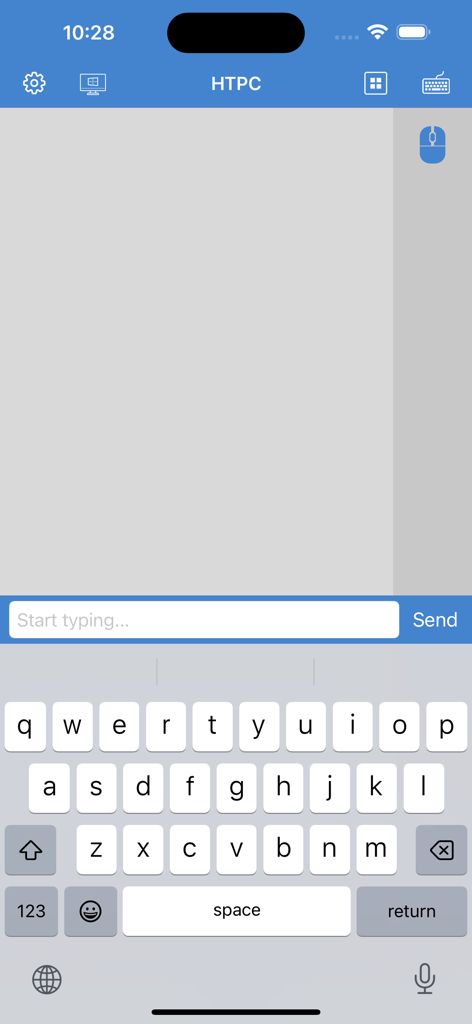
VMouse app interface featuring a remote keyboard and trackpad for HTPC control
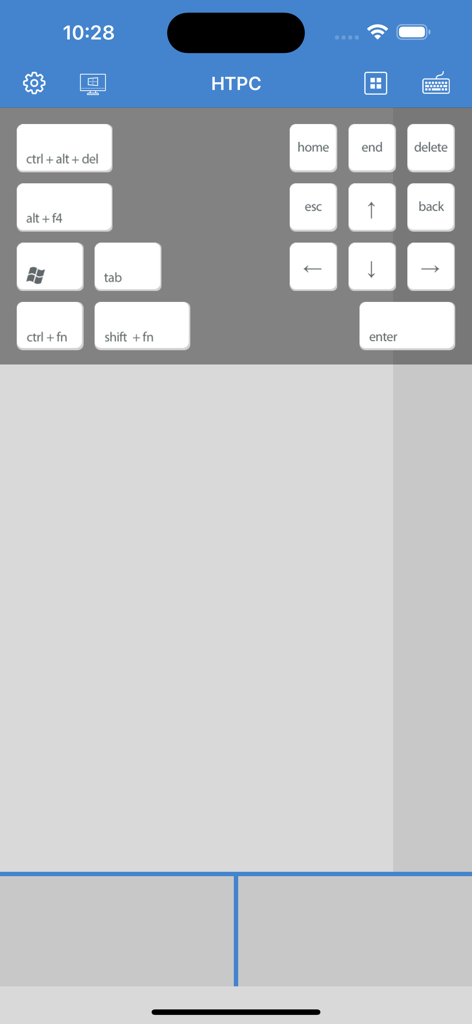
VMouse app interface with PC shortcut keys and trackpad for remote HTPC control
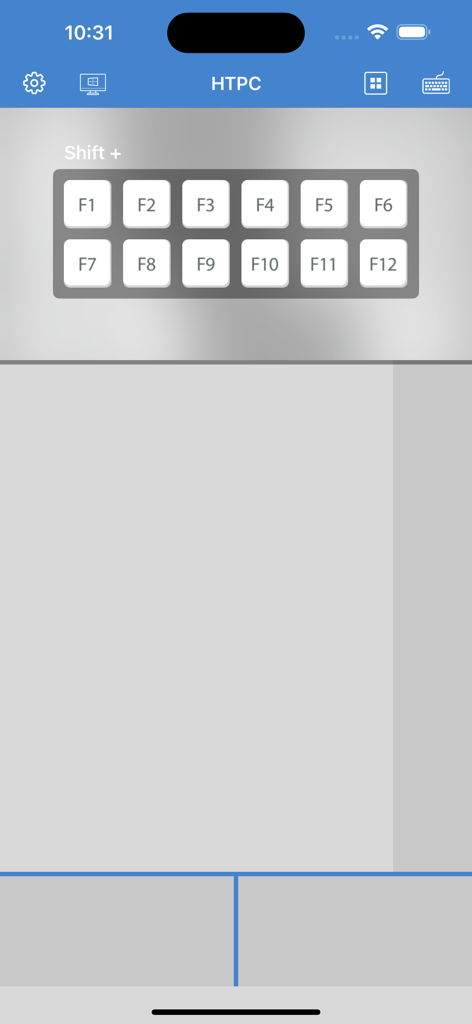
VMouse app interface showing function keys F1 to F12 and a trackpad for remote HTPC control
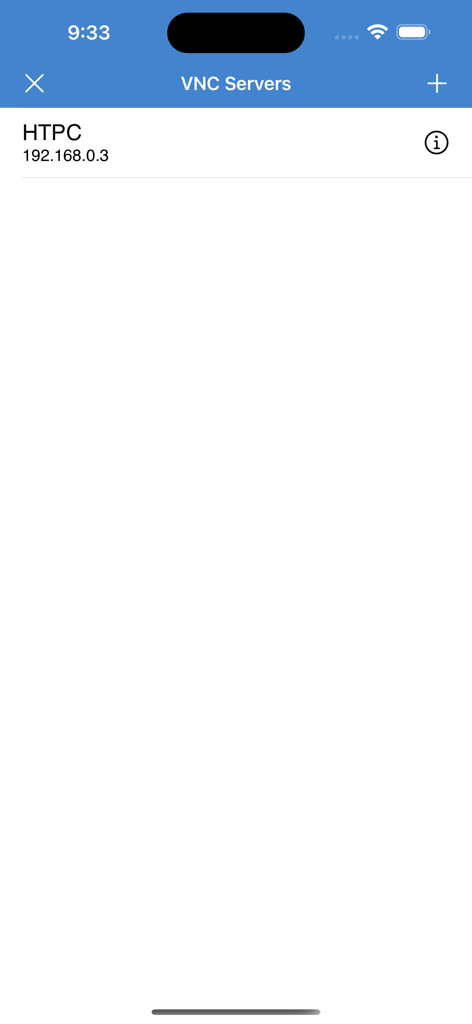
List of configured VNC servers in the VMouse app showing an HTPC connection
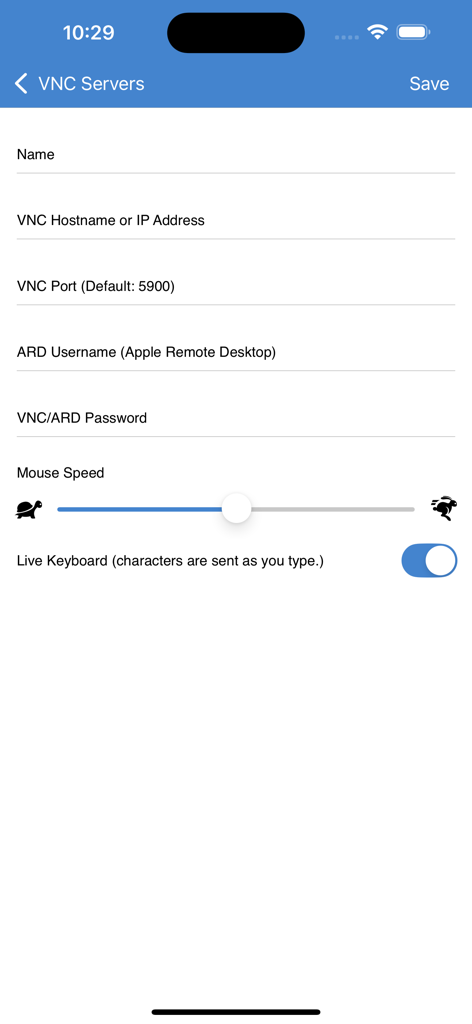
VNC server configuration screen in the VMouse app with fields for hostname and port

VMouse app interface showing the trackpad and mouse buttons for HTPC control
Description
Download
More Like This
Top-ranked apps in the same category
ChatGPT
OpenAI OpCo, LLC
Google Gemini
Google LLC

Claude by Anthropic
Anthropic PBC

Gmail - Email by Google
Google LLC

千问 - 阿里最强大模型官方AI助手
Shanghai Zhixin Puhui Technology Co., Ltd.

Grok
X.AI Corporation
Google Drive
Google LLC

Microsoft Authenticator
Microsoft Corporation
Google Sheets
Google LLC
This page is not an official page of the app or its developer, but an independent editorial publication created for informational and commentary purposes. Unless expressly stated otherwise, neither the app nor its developer is affiliated with, endorsed by, sponsored by, authorized by, or otherwise officially connected with MWM, Apple, Google Play, the app publisher, or the app's developer, and nothing on this page implies that the app was developed using MWM's services. Any trademarks, logos, screenshots, and other content remain the property of their respective owners.