
This page is not an official page of the app or its developer, but an independent editorial publication created for informational and commentary purposes. Unless expressly stated otherwise, neither the app nor its developer is affiliated with, endorsed by, sponsored by, authorized by, or otherwise officially connected with MWM, Apple, Google Play, the app publisher, or the app's developer, and nothing on this page implies that the app was developed using MWM's services. Any trademarks, logos, screenshots, and other content remain the property of their respective owners.

DoCast: Screen Mirroring to TV
Stream your favorite photos, videos, and apps to Roku, Chromecast, or Fire TV with ultra-low latency. The perfect universal bridge from your iPhone to the big screen—no Apple TV required.
Downloads
563K+User Rating
Total Ratings
4K+Publisher
Category
UtilitiesLocales
11Latest Version
5.5Size
47.0 MBFirst Released
Jun 1, 2023Bridge the Gap Between Your iPhone and Your TV
Experience the freedom of universal connectivity. DoCast lets you mirror your screen and stream personal media to Roku, Fire TV, Chromecast, and more—with zero hassle and high-definition quality.
One App for Every Screen
Connect seamlessly to Roku, Fire TV, Chromecast, and major Smart TVs. No matter the brand, DoCast bridges the gap between your iPhone and your home hardware.
Real-Time Screen Mirroring
Enjoy ultra-low latency mirroring for social media browsing, presentations, or sharing apps with a high-performance connection that keeps delays under one second.
Frequently Asked Questions
Everything you need to know about DoCast: Screen Mirroring to TV
What is DoCast: Screen Mirroring to TV?
DoCast is a screen mirroring app for iPhone and iPad. It mirrors your device screen to any Smart TV or streams media content like music, videos, and photos with high quality and low delay.
How do I screen mirror my iPhone to a Smart TV using DoCast?
First, open DoCast and select your TV. Then, press the "Screen" button, configure settings, and tap "Start mirroring." Tap "Stop mirroring" on the app screen to end the session.
Does DoCast work with Samsung Smart TVs?
Yes, DoCast is compatible with Samsung Smart TVs. The app supports a wide range of Smart TVs, including Samsung, LG, Sony, Hisense, Panasonic, and other DLNA-enabled TVs.
Can I cast photos and videos for free with DoCast?
Yes, DoCast allows free, unlimited photo casting. Video sessions are limited to 3 minutes, and music sessions to 15 minutes in the free version. Screen mirroring requires the paid version.
What devices are compatible with the DoCast app?
DoCast connects with Smart TVs (Samsung, LG, Sony), Roku, Chromecast, Fire TV devices, Xiaomi Mi Box, Nvidia Shield TV, and other Android TV boxes.
Does DoCast support streaming copyrighted content from services like Netflix?
No, DoCast does not support streaming copyrighted content from platforms like Netflix, Apple TV+, or Amazon Prime. These restrictions are due to streaming service limitations, not the app itself.
Is screen mirroring available in the free version of DoCast?
No, the screen mirroring feature in DoCast is exclusively available in the paid version of the app. The free version offers limited casting for photos, music, and videos.
What is the latency like when screen mirroring with DoCast?
DoCast provides low-latency screen mirroring. Delays are typically lower than one second when using a robust Wi-Fi connection, ensuring real-time interaction.
How do I ensure a good connection for DoCast screen mirroring?
For optimal performance, ensure your iPhone or iPad is connected to the same router and Wi-Fi network as the cast device (Smart TV or streaming device).
The following screenshots and description are sourced directly from the app's official store listing and are the property of the app developer.
App Store
Screenshots
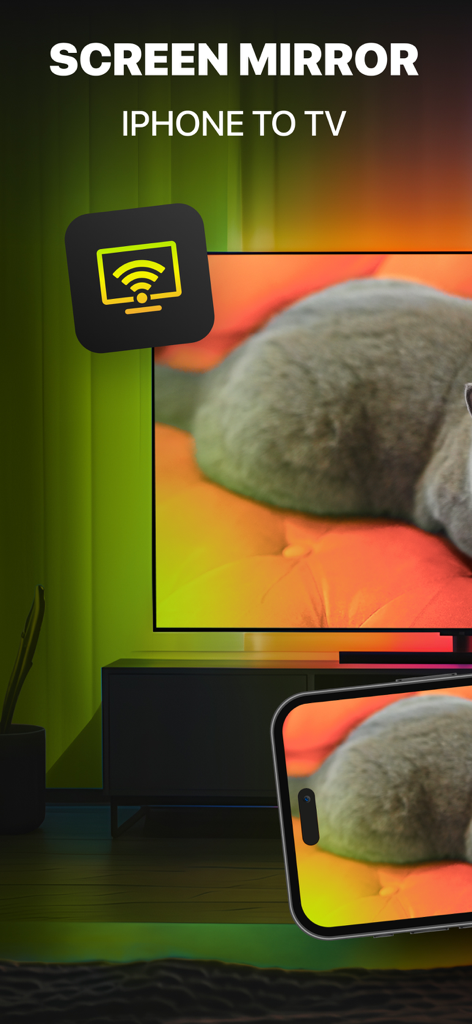
An iPhone screen mirroring a photo of a cat to a large Smart TV using the DoCast app
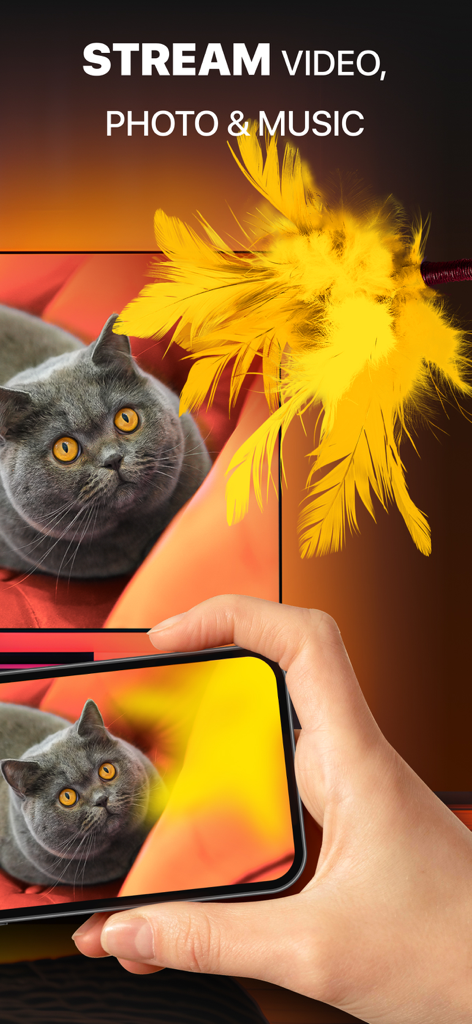
A person using DoCast to mirror a photo of a cat from an iPhone to a large TV screen
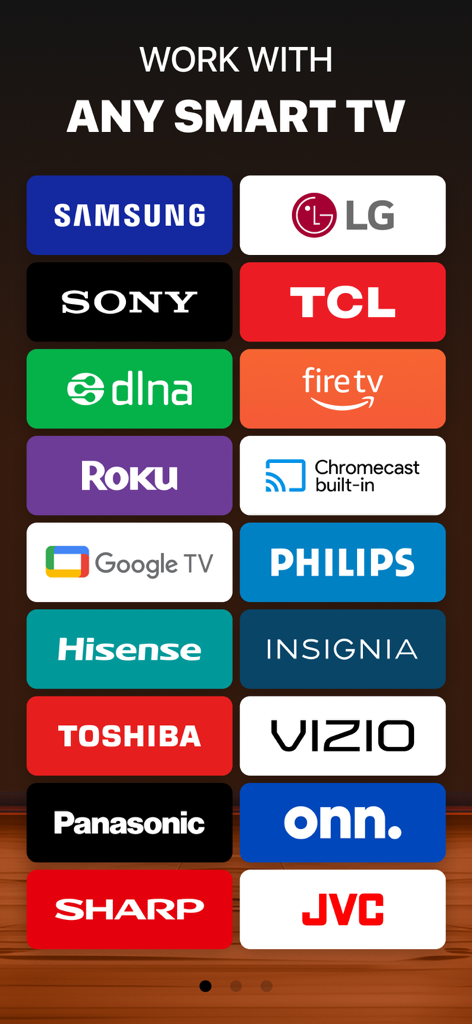
List of compatible smart TV brands for DoCast screen mirroring including Samsung LG Roku and Fire TV
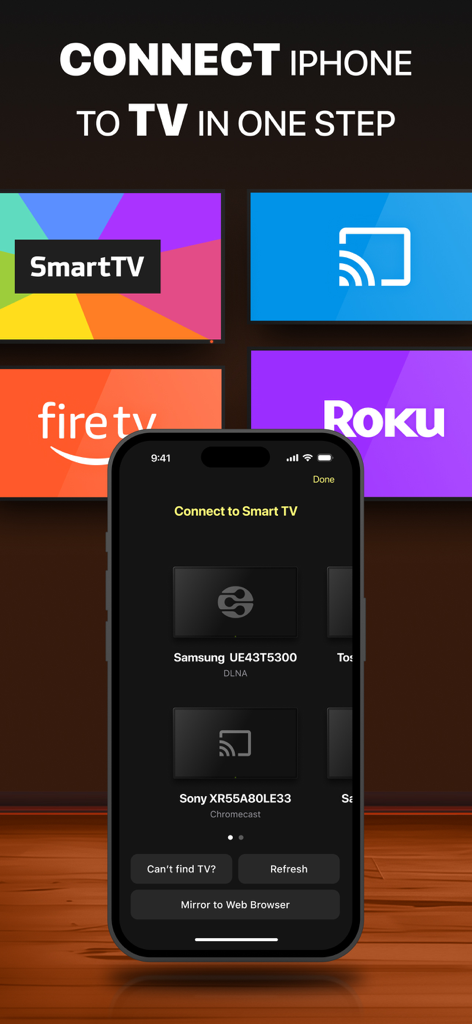
Interface of DoCast app on an iPhone displaying available smart TV devices for screen mirroring
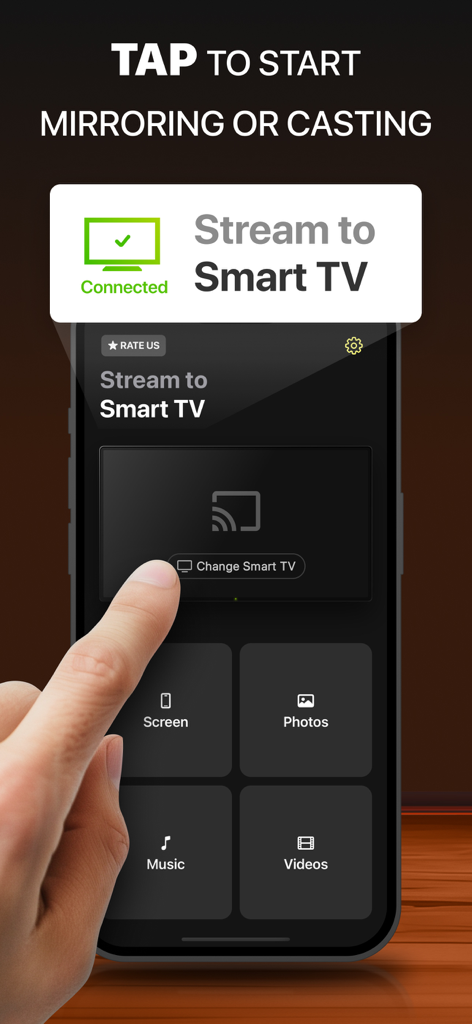
Interface of DoCast app on iPhone showing options to mirror screen and cast media to a connected Smart TV
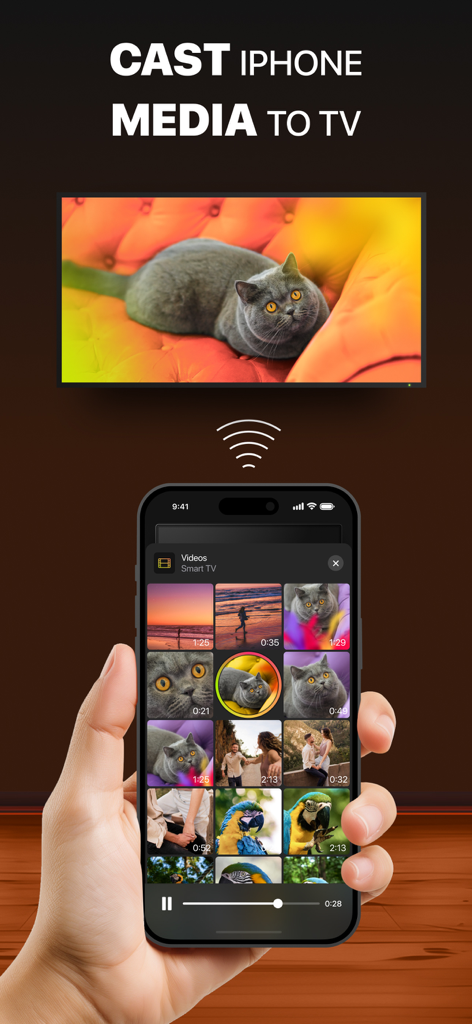
An iPhone casting a video of a cat to a smart TV
Description
Download
More Like This
Apps with similar features and user experience
Web Video Cast | Browser to TV
InstantBits Inc
PigeonCast:Send by Google Cast
Sichuan FalconAI Technology Co., Ltd.
Screen Mirroring • Smart TV
Mihkel Pikk
Screen Mirroring | Cast to TV
Ozuna Limited
Screen Mirroring・Smart View TV
TOGGLE APPS SP Z O O
UbeCast: Music Streamer & PiP
AER SOFTWARE COMPANY LIMITED
AirDroid Cast-screen mirroring
SAND STUDIO CORPORATION LIMITED
Miracast: Screen Mirroring TV
Hainan Delta Software Co., Ltd
Screen Mirroring・Air Cast TV
Dalma Innovation Solutions d.o.o.
This page is not an official page of the app or its developer, but an independent editorial publication created for informational and commentary purposes. Unless expressly stated otherwise, neither the app nor its developer is affiliated with, endorsed by, sponsored by, authorized by, or otherwise officially connected with MWM, Apple, Google Play, the app publisher, or the app's developer, and nothing on this page implies that the app was developed using MWM's services. Any trademarks, logos, screenshots, and other content remain the property of their respective owners.