
This page is not an official page of the app or its developer, but an independent editorial publication created for informational and commentary purposes. Unless expressly stated otherwise, neither the app nor its developer is affiliated with, endorsed by, sponsored by, authorized by, or otherwise officially connected with MWM, Apple, Google Play, the app publisher, or the app's developer, and nothing on this page implies that the app was developed using MWM's services. Any trademarks, logos, screenshots, and other content remain the property of their respective owners.


MovStash - Blur Video Editor
Privacy on demand. This app empowers users to control exactly what their audience sees, transforming raw footage into polished, private narratives with absolute precision.
Downloads
1M+User Rating
Total Ratings
761Publisher
Category
Photo & VideoLocales
9Latest Version
6.1Size
41.5 MBFirst Released
Nov 17, 2015Evaluating Core Functionalities for Mobile Video Privacy and Creative Blurring.
Key Features Analysis: MovStash - Blur Video Editor
Automatic Face Tracking
It allows users to automatically detect and blur faces within their videos, significantly simplifying the process of anonymizing individuals for privacy or creative effects.
Timeline-Controlled Blurring
This tool features a timeline mode that enables precise control over blur effects, allowing users to apply blur to specific areas only during selected time ranges within the video.
Intuitive Blur Area Adjustments
The app provides intuitive controls for adjusting the position, size, and blurriness of effects directly on the screen, offering flexibility in how blur is applied.
Diverse Blur Effects
It allows users to choose from four distinct types of blur, providing creative versatility to match different aesthetic preferences or privacy needs.
Static Blur Simple Mode
This tool features a simple mode for quickly applying a static blur to a specified area for the entire duration of the video, ideal for straightforward privacy needs or constant obfuscation.
Adjustable Blur Shapes
The app provides the ability to change the shape of the blur area, offering more control over the visual presentation and targeted obfuscation.
The following screenshots and description are sourced directly from the app's official store listing and are the property of the app developer.
App Store
Screenshots

This tool enables users to apply distinctive mosaic blur patterns and adjust blur size directly through on-screen icons.
Mosaic Blur Control

Discover creative masking options, including the heart-shaped blur and a variety of other geometric shape selections available for application.
Creative Shape Masks

The app offers a comprehensive gallery of blur effects such as Pixellate and Crystal, alongside a precise slider for fine-tuning blur intensity.
Diverse Effect Gallery

Users can achieve refined blurriness levels for effects like Gaussian blur, with precise numerical feedback and adjustments.
Refined Blurriness Level

Gain granular control over blur effects, including pixelated blur, by separately adjusting horizontal and vertical blur axes.
Advanced Blur Dimensions
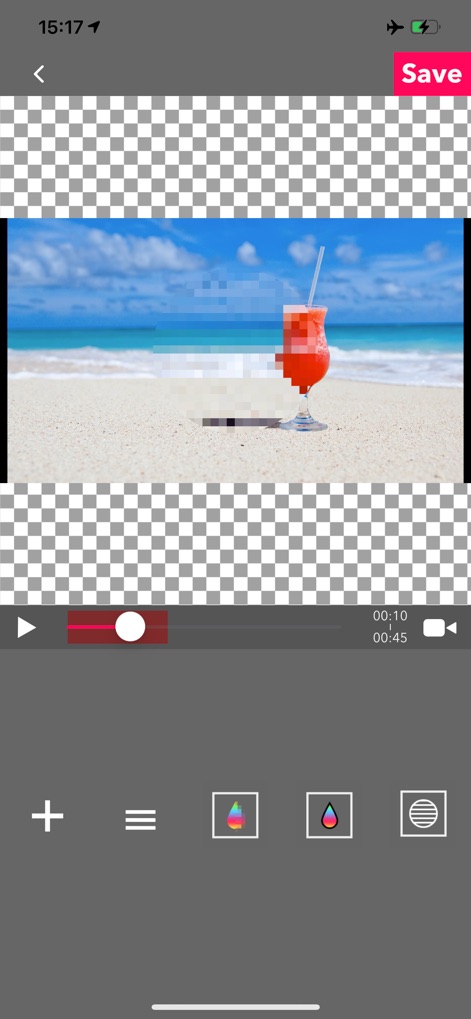
The intuitive timeline allows for temporal editing of blur effects, enabling users to add new blur areas precisely across video segments.
Temporal Blur Editing
Description
Download
More Like This
Top-ranked apps in the same category

CapCut: Photo & Video Editor
BYTEDANCE PTE. LTD.

Instagram, Inc.

YouTube
Google LLC

Canva: AI Photo & Video Editor
Canva Pty Ltd

Snapchat
Snap, Inc.

快手
Beijing Kwai Technology Co., Ltd.

Edits: Video Editor
Instagram, Inc.

Meitu- AI Photo & Video Editor
Xiamen Meitu Technology Co., Ltd.
Google Photos: Backup & Edit
Google LLC
This page is not an official page of the app or its developer, but an independent editorial publication created for informational and commentary purposes. Unless expressly stated otherwise, neither the app nor its developer is affiliated with, endorsed by, sponsored by, authorized by, or otherwise officially connected with MWM, Apple, Google Play, the app publisher, or the app's developer, and nothing on this page implies that the app was developed using MWM's services. Any trademarks, logos, screenshots, and other content remain the property of their respective owners.