Phakchi - Thai Keyboard -
Download on App Store

This page is not an official page of the app or its developer, but an independent editorial publication created for informational and commentary purposes. Unless expressly stated otherwise, neither the app nor its developer is affiliated with, endorsed by, sponsored by, authorized by, or otherwise officially connected with MWM, Apple, Google Play, the app publisher, or the app's developer, and nothing on this page implies that the app was developed using MWM's services. Any trademarks, logos, screenshots, and other content remain the property of their respective owners.


Logo of Phakchi - Thai Keyboard -
Download on App Store

Phakchi - Thai Keyboard -

Finally, a Thai keyboard designed for the iPhone screen. Our unique 6x8 layout and color-coded keys provide larger touch targets and visual cues, making typing effortless for native speakers and learners alike.

Key Figures

Downloads

2K+

User Rating

1.0/5

Total Ratings

0

Publisher

Takayuki Imai

Category

Utilities

Locales

3

Latest Version

8.0

Size

1.9 MB

First Released

Mar 24, 2016
Features

Precision Typing for Every Thai Speaker

Stop struggling with tiny keys. Phakchi optimizes the traditional Thai layout for mobile screens, making it easier to type whether you are a native speaker or a language learner.

Ergonomic 6x8 Layout

Say goodbye to 'fat-fingering' with enlarged keys designed specifically for iPhone screens to eliminate mistaps and boost your speed.

Smart Visual Aids

Color-coded vowels and dictionary-order options help learners find characters instantly and master the Thai script with confidence.

The following screenshots and description are sourced directly from the app's official store listing and are the property of the app developer.

App Store

Screenshots
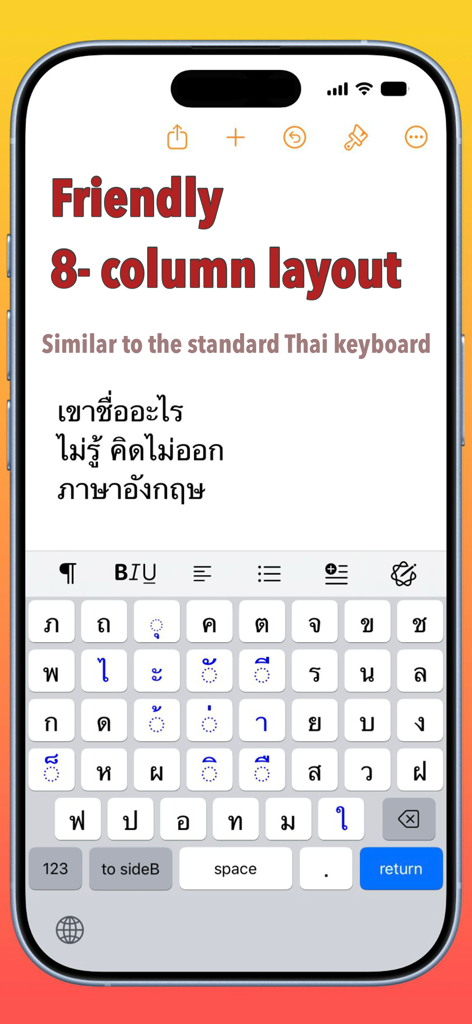
Phakchi - Thai Keyboard - - Phakchi Thai keyboard featuring a friendly 8 column layout and color coded characters on an iPhone

Phakchi Thai keyboard featuring a friendly 8 column layout and color coded characters on an iPhone
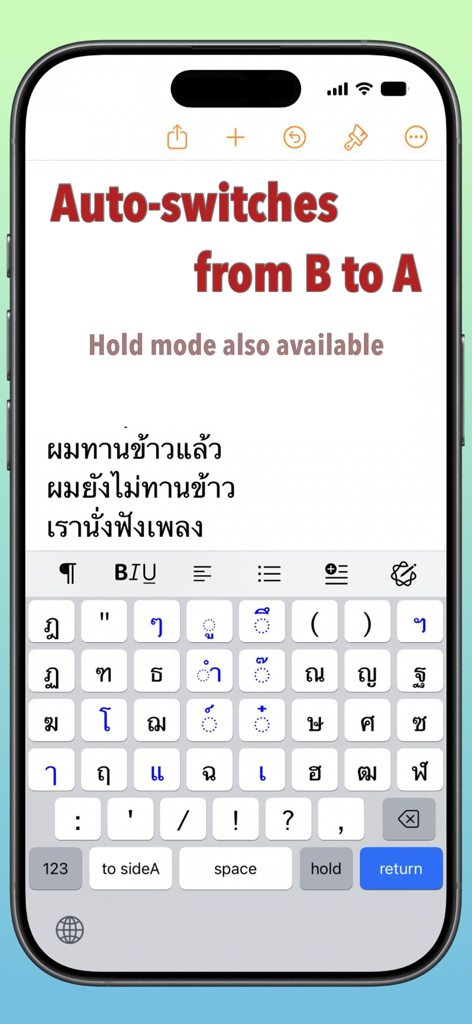
Phakchi - Thai Keyboard - - Screenshot of Phakchi Thai keyboard showing the automatic switching feature from side B back to side A and the hold mode option
Screenshot of Phakchi Thai keyboard showing the automatic switching feature from side B back to side A and the hold mode option

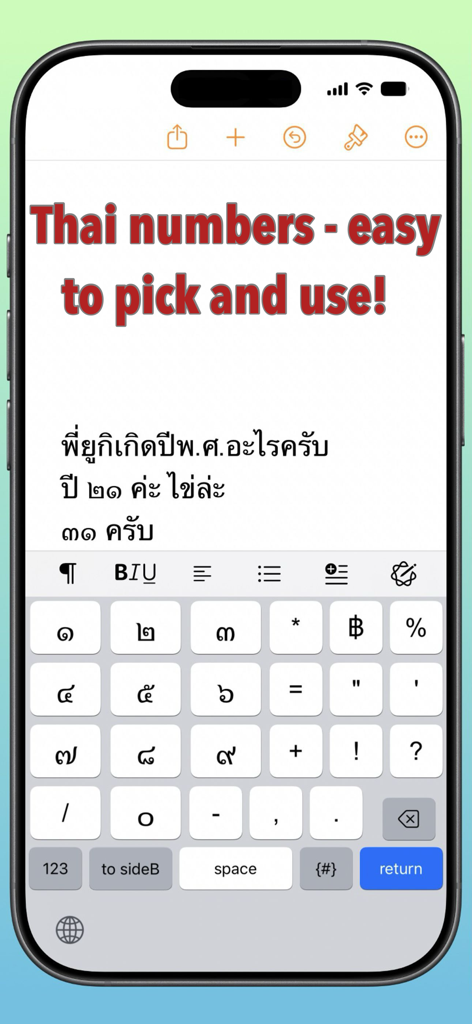
Phakchi - Thai Keyboard - - Smartphone screenshot showing the Phakchi keyboard with Thai numerals and mathematical symbols for easy typing.
Smartphone screenshot showing the Phakchi keyboard with Thai numerals and mathematical symbols for easy typing.

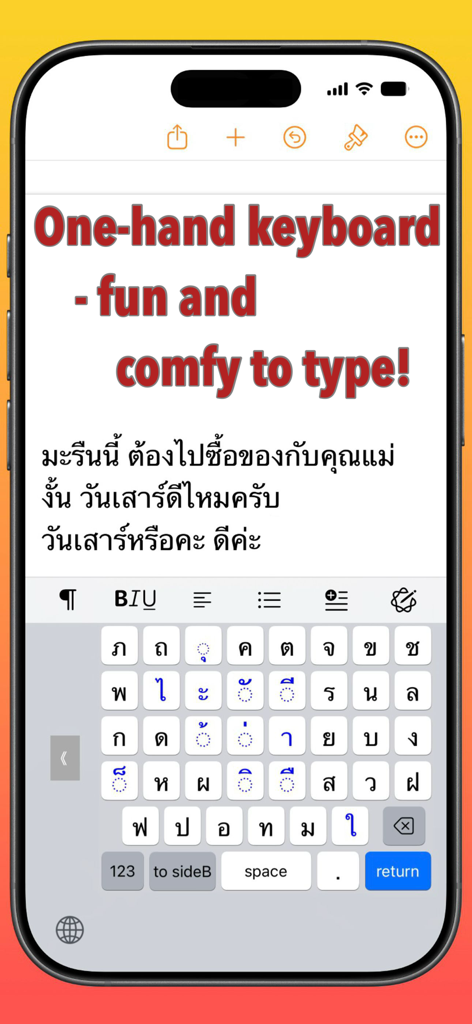
Phakchi - Thai Keyboard - - iPhone screen showing Phakchi Thai keyboard in one handed mode with color coded keys
iPhone screen showing Phakchi Thai keyboard in one handed mode with color coded keys

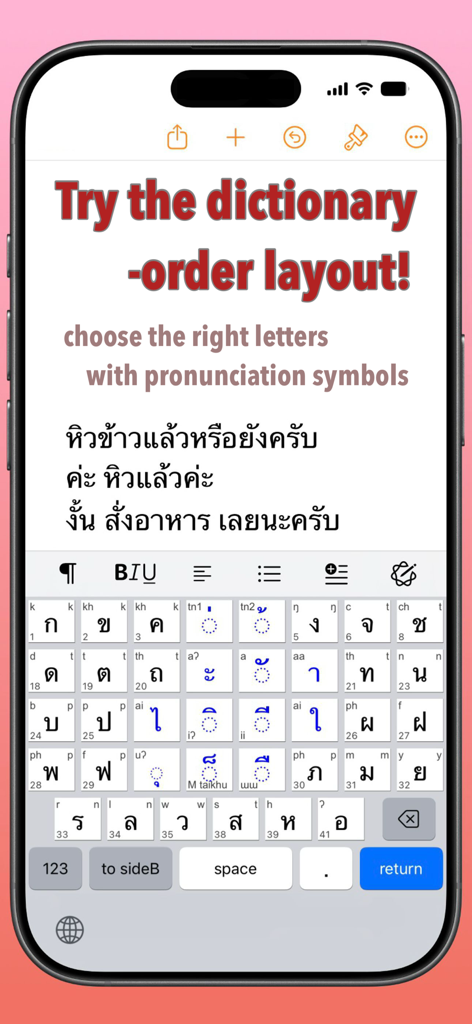
Phakchi - Thai Keyboard - - Phakchi Thai keyboard app interface showing the dictionary order layout with pronunciation symbols on keys.
Phakchi Thai keyboard app interface showing the dictionary order layout with pronunciation symbols on keys.

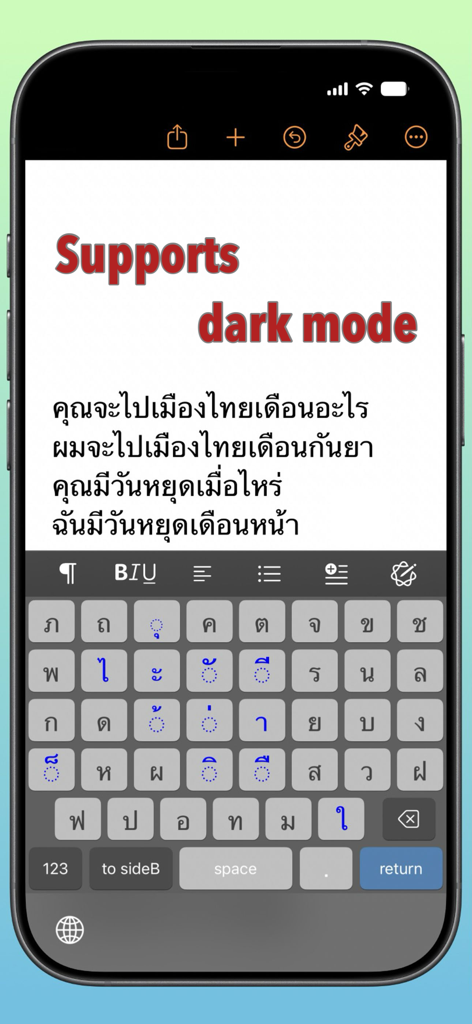
Phakchi - Thai Keyboard - - Phakchi Thai keyboard interface in dark mode featuring a color-coded 6x8 key layout
Phakchi Thai keyboard interface in dark mode featuring a color-coded 6x8 key layout

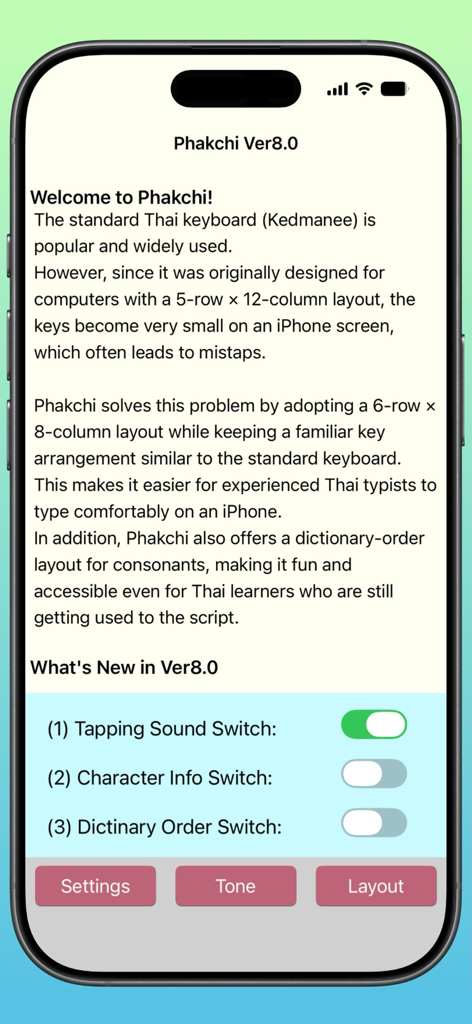
Phakchi - Thai Keyboard - - Welcome screen for the Phakchi Thai Keyboard app showing version 8.0 settings and feature description.

Welcome screen for the Phakchi Thai Keyboard app showing version 8.0 settings and feature description.

Description

. Welcome to Phakchi! The standard Thai keyboard (Kedmanee) is popular and widely used. However, since it was originally designed for computers with a 5-row × 12-column layout, the keys become very small on an iPhone screen, which often leads to mistaps. Phakchi solves this problem by adopting a 6-row × 8-column layout while keeping a familiar key arrangement similar to the standard keyboard. This makes it easier for experienced Thai typists to type comfortably on an iPhone. In addition, Phakchi also offers a dictionary-order layout for consonants, making it fun and accessible even for Thai learners who are still getting used to the script. 2. Features (1) Easy Thai typing on iPhone – Thanks to the 6×8 key layout. (2) Familiar key arrangement – Similar to the standard Thai keyboard, so you can type fast right away. (3) Color-coded keys – Consonants are black, vowels and tone marks are blue, making characters easier to find. (4) Dictionary-order layout option – Great for Thai learners. (5) Helpful key labels – Shows dictionary-order numbers on consonants and pronunciation marks on all characters. (6) One-handed typing – Available via the L, C, and R keys shown on the first screen.* (7) Six input modes – A-side and B-side (for frequently/less frequently used Thai letters), numbers, symbols, Thai numerals, and English letters. *The L/C/R keys temporarily disappear while typing in Thai, but they reappear after rotating the iPhone and returning it to the normal position. 3.Compatibility etc. (1)Compatibility ·iPhone: Compatible with iPhone SE (2nd generation) to iPhone 17 series ·iPad: Compatible with iPad (5th generation) to iPad with A16 chip (2)Operating System ·iOS: Supports iOS 15.0 – iOS 18.x and iOS 26.x ·iPadOS: Supports iPadOS 15.0 – iPadOS 26.x (3)Interface Languages English, Thai, Japanese (Information as of November 2025) 4.Initial Settings [1] Keyboard Setup ·On the iOS Home screen, tap the Settings icon. ·Go to General → Keyboard → Add New Keyboard... ·Tap Phakchi to add it to your keyboards. [2] Enabling Key Tap Sounds (Allow Full Access) ·Go to Settings → Accessibility → Keyboards and Input. ·Tap Full Keyboard Access. ·Turn on the Full Keyboard Access switch. ·Once this setting is enabled, you can control key tap sounds on or off from the switch inside the host app. 5.Usage Tips • To switch between Side A and Side B, use the key labeled [to sideB] or [to sideA]. • After typing a character on Side B, the keyboard automatically returns to Side A. • If you want to type multiple keys on Side B, tap the hold key first, then tap the characters you want to enter. • Side B hold mode can be canceled by tapping the hold key again or switching to another mode. • To enter Thai numerals, tap the [T123] key. On iPhone, you can access this from the [123] number mode. 6. About the Developer ·Name: Takayuki Imai ·Email: snowysap@gmail.com ·Support Website: https://superscript.sakura.ne.jp/ 7. Privacy Policy ·The app does not transmit any information typed on the keyboard over the Internet. ·The developer will never disclose or sell any personal information such as your name, email address, or communication content without your consent.

Download

Download on App Store

This page is not an official page of the app or its developer, but an independent editorial publication created for informational and commentary purposes. Unless expressly stated otherwise, neither the app nor its developer is affiliated with, endorsed by, sponsored by, authorized by, or otherwise officially connected with MWM, Apple, Google Play, the app publisher, or the app's developer, and nothing on this page implies that the app was developed using MWM's services. Any trademarks, logos, screenshots, and other content remain the property of their respective owners.