
This page is not an official page of the app or its developer, but an independent editorial publication created for informational and commentary purposes. Unless expressly stated otherwise, neither the app nor its developer is affiliated with, endorsed by, sponsored by, authorized by, or otherwise officially connected with MWM, Apple, Google Play, the app publisher, or the app's developer, and nothing on this page implies that the app was developed using MWM's services. Any trademarks, logos, screenshots, and other content remain the property of their respective owners.


QuickStar
Break free from list fatigue. Map your day on a clock-like infinity loop and turn your iPad into a dedicated, always-on mission control for your most important tasks.
Downloads
0User Rating
Total Ratings
0Publisher
Category
ProductivityLocales
1Latest Version
11.3Size
25.9 MBFirst Released
Jul 31, 2024Master Your Day with Visual Precision
QuickStar replaces overwhelming lists with an intuitive, clock-like timeline designed for visual thinkers and professionals who need to see their day at a glance.
Visual Clock Timeline
Map your tasks onto a circular interface that mirrors a real clock. Perfect for overcoming 'time blindness' and managing your flow without the anxiety of a vertical list.
Always-On Desk Mode
Transform your iPad into a dedicated productivity dashboard. Keep your timeline visible and your focus locked in with a screen that never sleeps while you work.
The following screenshots and description are sourced directly from the app's official store listing and are the property of the app developer.
App Store
Screenshots
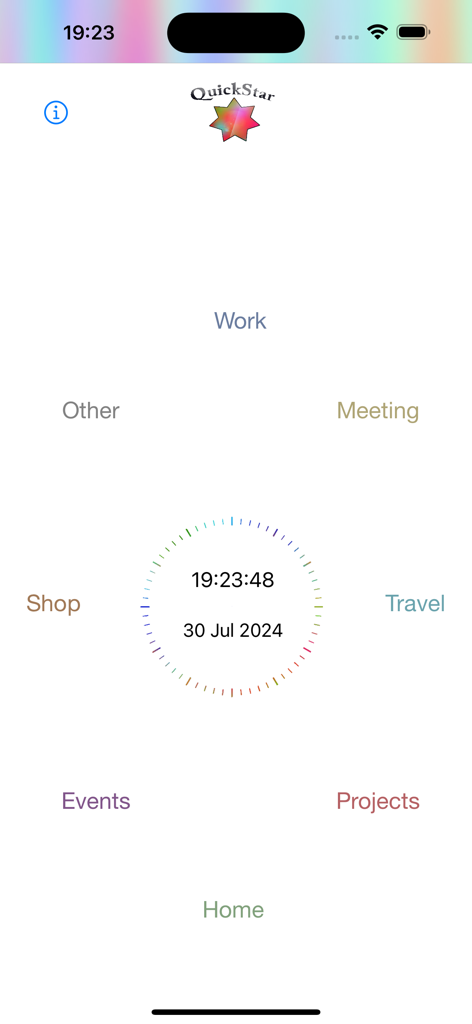
The QuickStar app home screen showing a circular layout of categories like Work Home and Projects surrounding a central digital clock and date
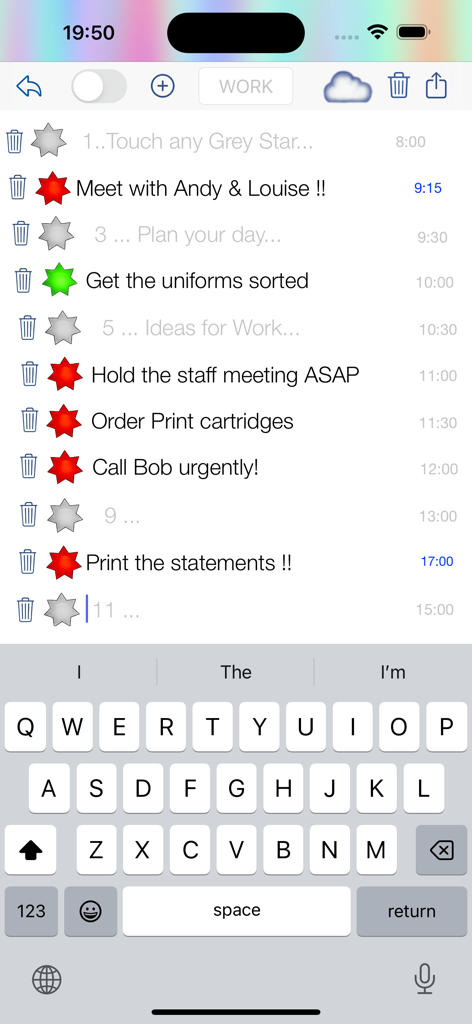
QuickStar app mobile interface showing a work task list with red and green status stars and an active keyboard
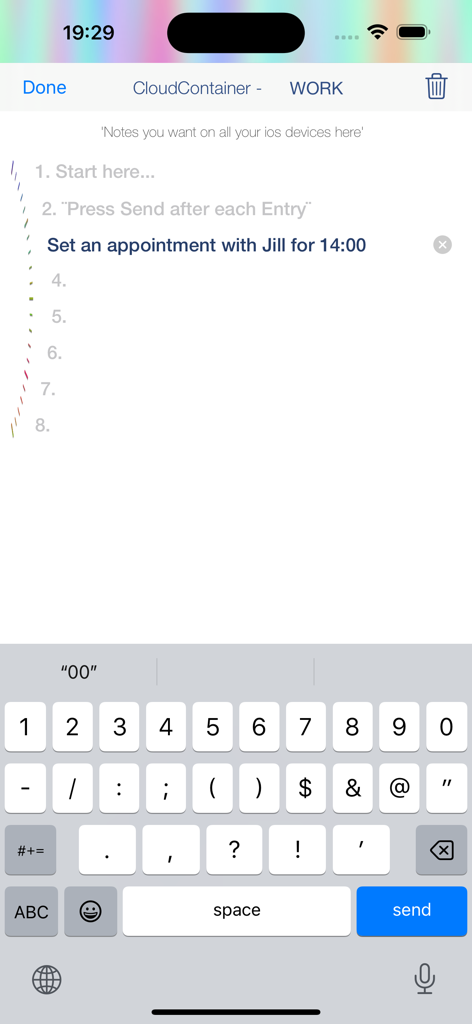
Interface of the QuickStar app on iPhone showing a user adding a work appointment for 1400 hours with the keyboard active.
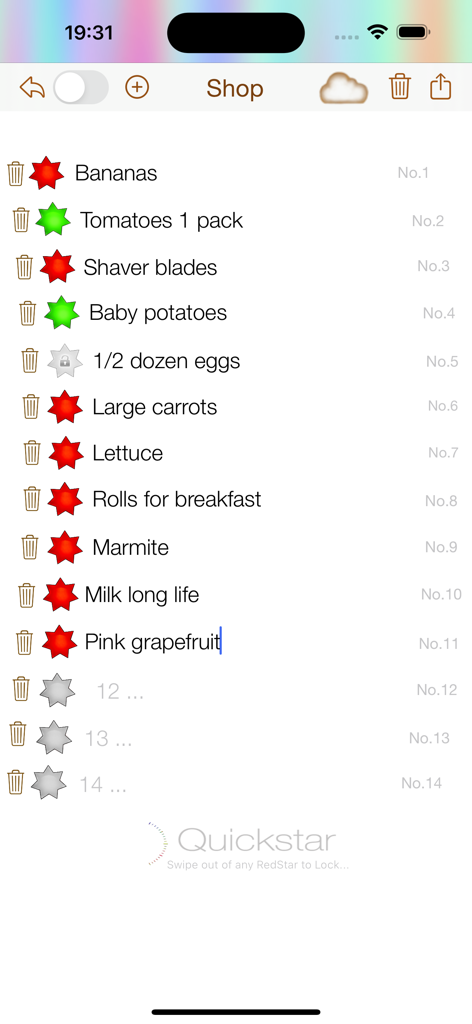
QuickStar app interface showing a grocery shopping list with red and green completion stars
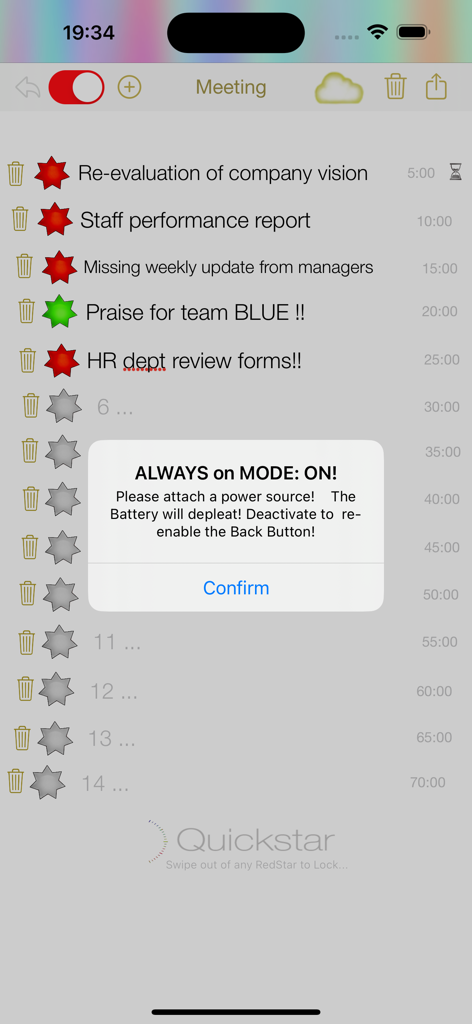
QuickStar app interface showing a task list with red and green stars and an Always on Mode notification
Description
Download
More Like This
Top-ranked apps in the same category
ChatGPT
OpenAI OpCo, LLC
Google Gemini
Google LLC

Grok
X.AI Corporation

Gmail - Email by Google
Google LLC

千问 - 阿里最强大模型官方AI助手
Shanghai Zhixin Puhui Technology Co., Ltd.
Google Drive
Google LLC

Microsoft Authenticator
Microsoft Corporation
Google Sheets
Google LLC
Google Docs
Google LLC
This page is not an official page of the app or its developer, but an independent editorial publication created for informational and commentary purposes. Unless expressly stated otherwise, neither the app nor its developer is affiliated with, endorsed by, sponsored by, authorized by, or otherwise officially connected with MWM, Apple, Google Play, the app publisher, or the app's developer, and nothing on this page implies that the app was developed using MWM's services. Any trademarks, logos, screenshots, and other content remain the property of their respective owners.