
This page is not an official page of the app or its developer, but an independent editorial publication created for informational and commentary purposes. Unless expressly stated otherwise, neither the app nor its developer is affiliated with, endorsed by, sponsored by, authorized by, or otherwise officially connected with MWM, Apple, Google Play, the app publisher, or the app's developer, and nothing on this page implies that the app was developed using MWM's services. Any trademarks, logos, screenshots, and other content remain the property of their respective owners.


Sticky Notes - Simple Version
The ultimate notepad for those tired of feature-bloat. Write, edit, and delete your thoughts instantly with a distraction-free interface designed for speed and clarity.
Downloads
1K+User Rating
Total Ratings
0Publisher
Category
ProductivityLocales
1Latest Version
1.1.1Size
24.3 MBFirst Released
Jun 2, 2023Simplicity Without the Noise
Ditch the complex folders and overwhelming menus. Sticky Notes is the digital equivalent of a physical scratchpad—designed for quick capture and total mental clarity.
Instant Capture
Open and write in seconds. Perfect for those fleeting ideas and urgent reminders before they slip away during your busy day.
Distraction-Free Design
No folders, no tags, and no feature bloat. Just a clean space to write and edit, keeping your digital cognitive load at zero.
Frequently Asked Questions
Everything you need to know about Sticky Notes - Simple Version
How to create a new sticky note in the Sticky Notes app?
Users create a new sticky note in the Sticky Notes app by tapping the '+' button. This opens a new memo screen where they can input a title and memo text.
Can users edit existing notes in the Sticky Notes - Simple Version app?
Yes, users can edit existing notes in the Sticky Notes - Simple Version app. Tapping a note opens it, and an edit icon allows modifications to the title and memo text.
How do you delete a note in the Sticky Notes - Simple Version application?
Users delete a note in the Sticky Notes - Simple Version app by tapping the trash can icon when viewing an individual note. A confirmation dialog asks "Are you sure to delete the note?".
What are the main features of the Sticky Notes - Simple Version app?
The Sticky Notes - Simple Version app allows users to write, edit, and delete notes. It provides a simple user interface for managing these functions efficiently.
Can users change the color of their sticky notes in the Sticky Notes app?
Yes, users can change the color of their sticky notes. When editing a note, a color palette icon provides options to select from various memo colors like White, Red, Orange, Yellow, Lime, and Blue.
Does the Sticky Notes app have a complicated user interface?
No, the Sticky Notes app does not have a complicated user interface. Its design emphasizes simplicity, offering straightforward functions for writing, editing, and deleting notes.
How can I change the color of a memo in Sticky Notes?
To change a memo's color in Sticky Notes, open the note, tap the edit icon, then select the color palette icon. Choose your desired color from the "Select Memo Color" options.
The following screenshots and description are sourced directly from the app's official store listing and are the property of the app developer.
App Store
Screenshots
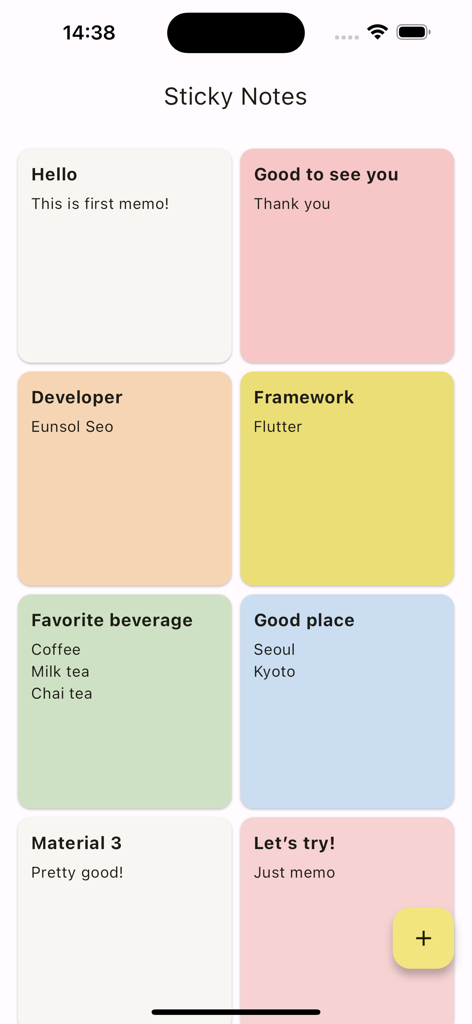
Interface of Sticky Notes app showing a colorful grid of digital memos.
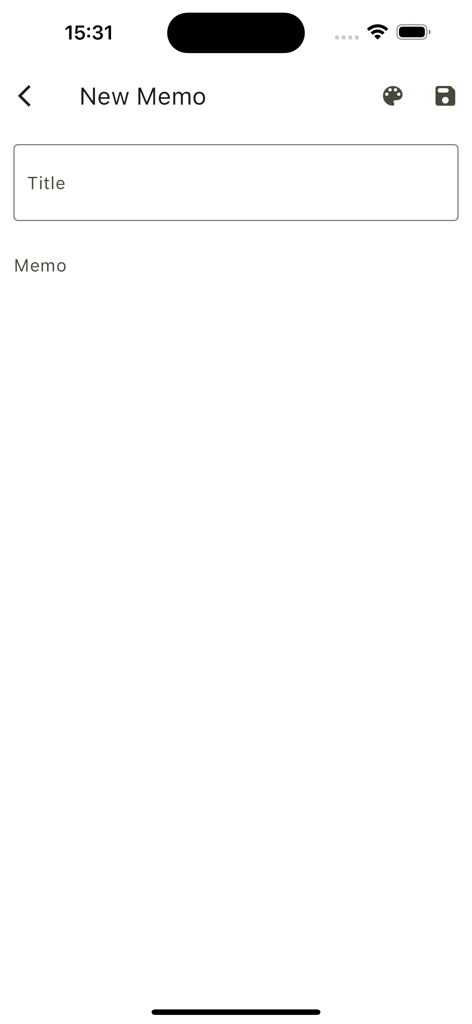
Minimalist user interface for creating a new memo in the Sticky Notes app showing a title field and note area.
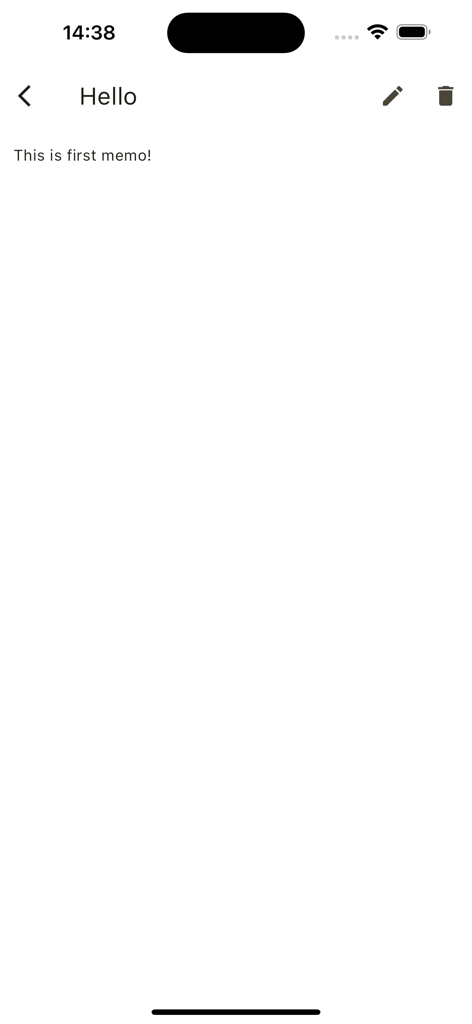
Minimalist screen of the Sticky Notes app showing a text memo
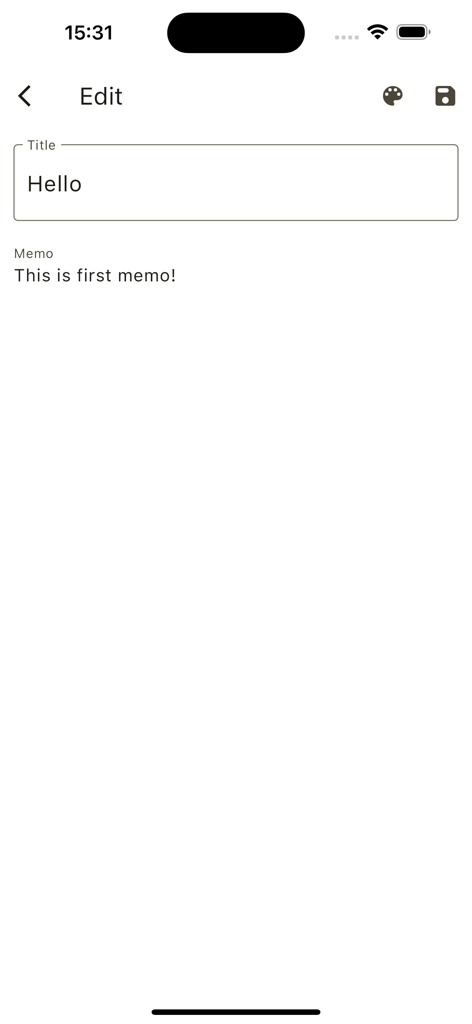
Clean and simple note editing screen for Sticky Notes app
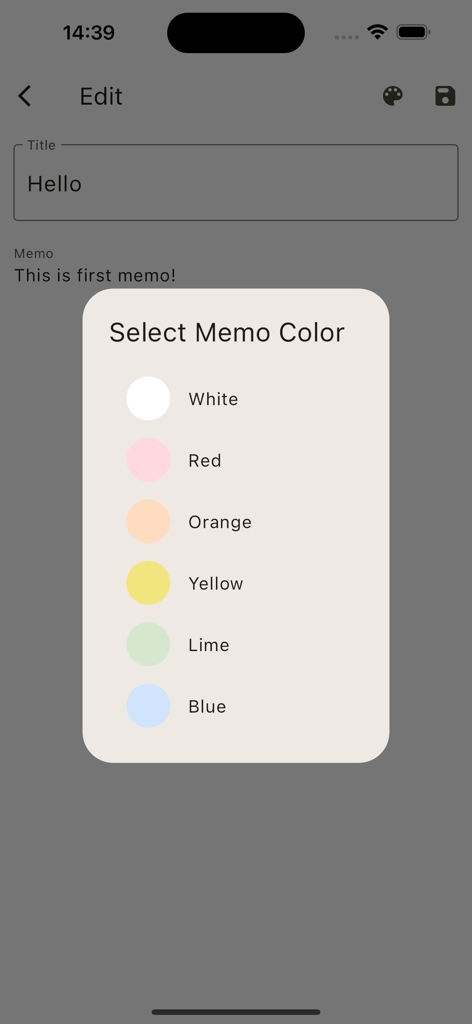
A color selection menu for digital sticky notes with options for white red orange yellow lime and blue
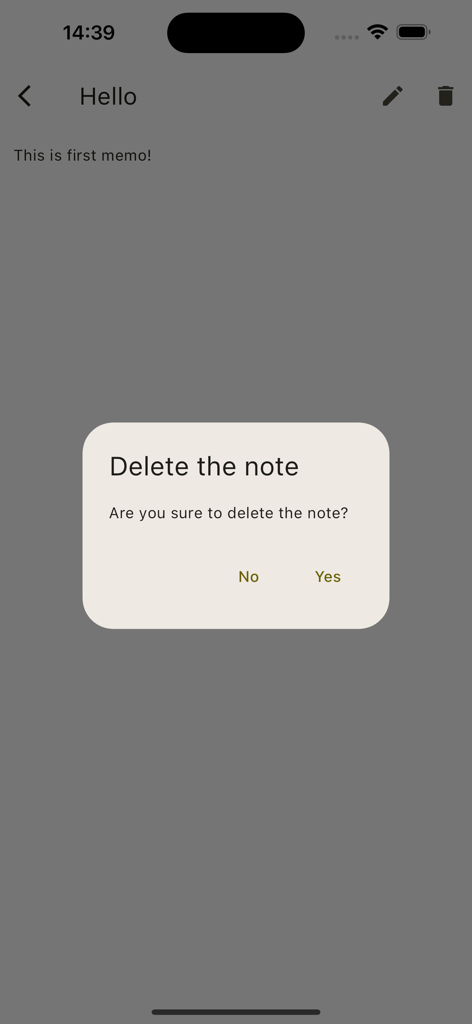
A simple delete note confirmation dialog in the Sticky Notes app
Description
Download
More Like This
Top-ranked apps in the same category
ChatGPT
OpenAI OpCo, LLC
Google Gemini
Google LLC

Grok
X.AI Corporation
Gmail - Email by Google
Google LLC

千问 - 阿里最强大模型官方AI助手
Shanghai Zhixin Puhui Technology Co., Ltd.
Google Drive
Google LLC

Microsoft Authenticator
Microsoft Corporation
Google Sheets
Google LLC
Google Docs
Google LLC
This page is not an official page of the app or its developer, but an independent editorial publication created for informational and commentary purposes. Unless expressly stated otherwise, neither the app nor its developer is affiliated with, endorsed by, sponsored by, authorized by, or otherwise officially connected with MWM, Apple, Google Play, the app publisher, or the app's developer, and nothing on this page implies that the app was developed using MWM's services. Any trademarks, logos, screenshots, and other content remain the property of their respective owners.