XPS-to-PDF
XPS-to-PDF
Download on App Store

This page is not an official page of the app or its developer, but an independent editorial publication created for informational and commentary purposes. Unless expressly stated otherwise, neither the app nor its developer is affiliated with, endorsed by, sponsored by, authorized by, or otherwise officially connected with MWM, Apple, Google Play, the app publisher, or the app's developer, and nothing on this page implies that the app was developed using MWM's services. Any trademarks, logos, screenshots, and other content remain the property of their respective owners.

Logo of XPS-to-PDF
Download on App Store

XPS-to-PDF

Securely transform XPS and OXPS documents into high-fidelity, searchable PDFs. Preserve text, vector graphics, and hyperlinks with native, on-device processing designed for the mobile professional.

Key Figures

Downloads

0

User Rating

1.0/5

Total Ratings

0

Publisher

RootRise Technologies Private Limited

Category

Productivity

Locales

1

Latest Version

2.0

Size

3.7 MB

First Released

Apr 11, 2018
Features

Seamless Document Conversion

Transform legacy XPS and OXPS files into high-quality, searchable PDFs directly on your iPhone or iPad with professional-grade precision.

Secure On-Device Processing

Keep sensitive documents private. All conversions happen natively on your device without ever uploading your data to external servers.

Professional Vector Quality

Retain every detail. Our engine preserves text, searchable metadata, and hyperlinks in high-resolution vector format for a perfect read.

The following screenshots and description are sourced directly from the app's official store listing and are the property of the app developer.

App Store

Screenshots
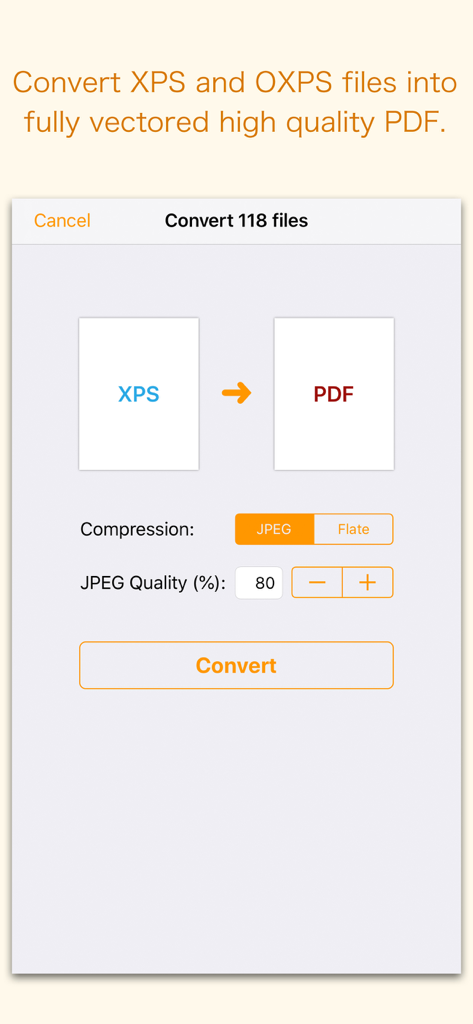
XPS-to-PDF - XPS-to-PDF app screen showing batch conversion settings for multiple files with options for JPEG or Flate compression and quality control.
XPS-to-PDF app screen showing batch conversion settings for multiple files with options for JPEG or Flate compression and quality control.

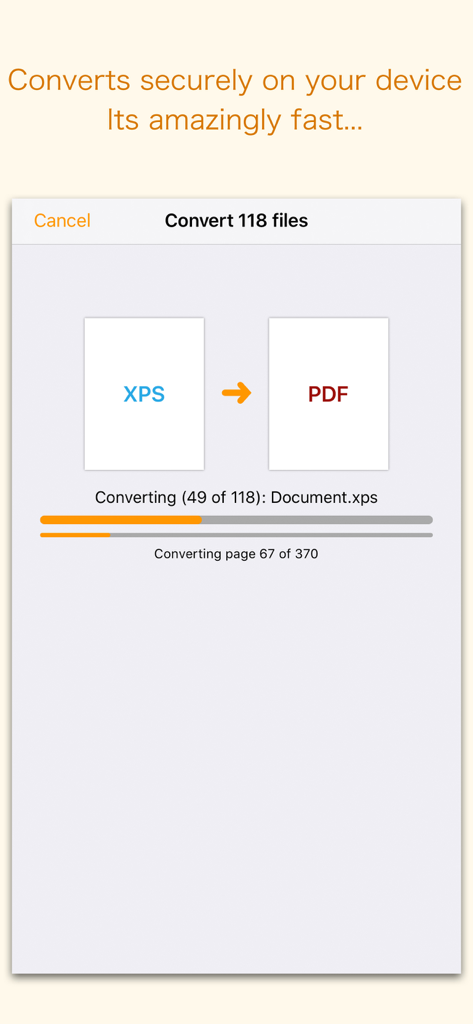
XPS-to-PDF - A mobile screen displaying the batch conversion progress of multiple XPS files to PDF format
A mobile screen displaying the batch conversion progress of multiple XPS files to PDF format

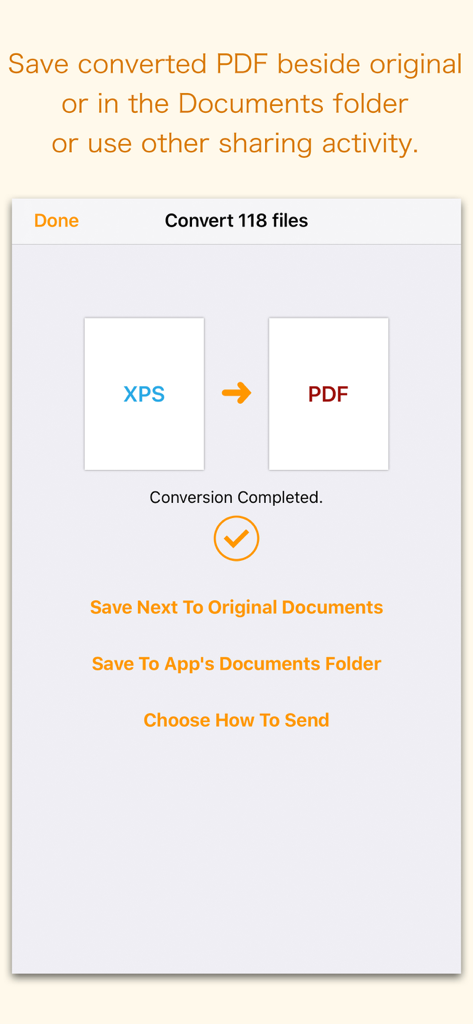
XPS-to-PDF - Interface showing successful completion of XPS to PDF file conversion with options to save or share documents.
Interface showing successful completion of XPS to PDF file conversion with options to save or share documents.

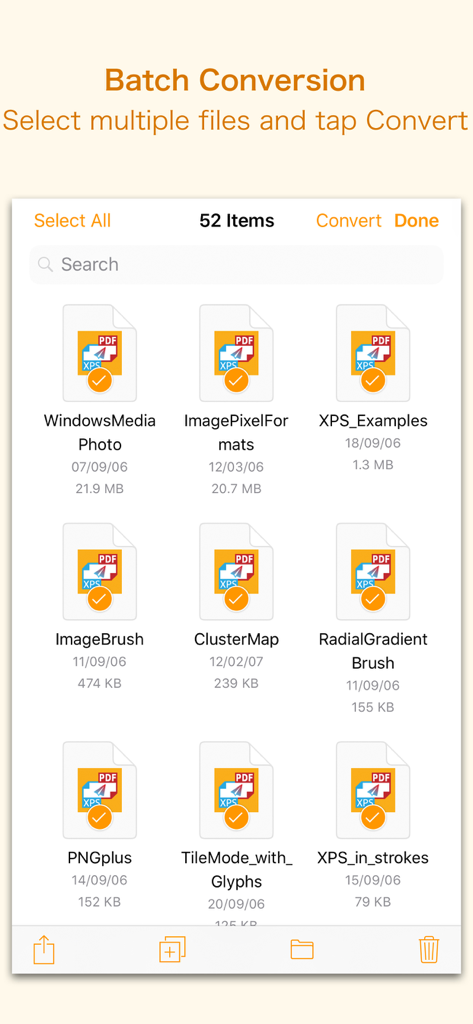
XPS-to-PDF - XPS-to-PDF app batch conversion screen showing multiple selected files
XPS-to-PDF app batch conversion screen showing multiple selected files

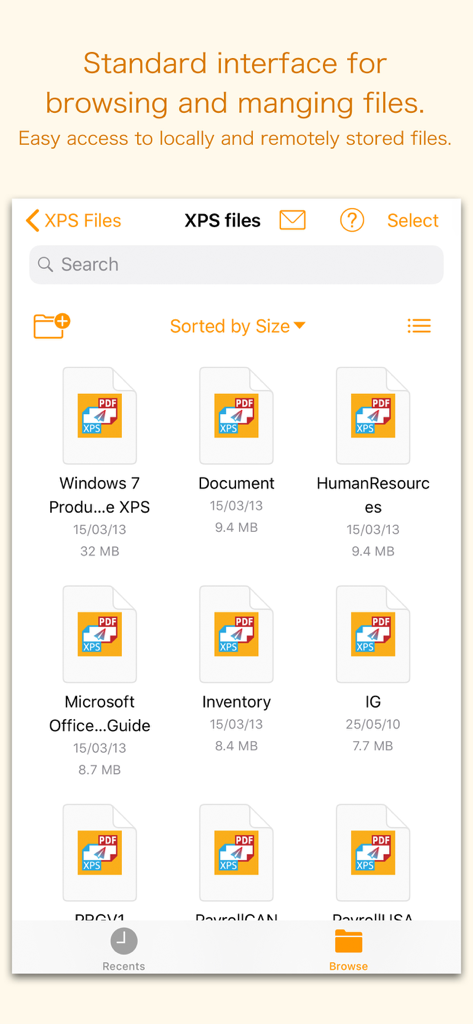
XPS-to-PDF - XPS to PDF file management interface showing a list of documents for conversion

XPS to PDF file management interface showing a list of documents for conversion

Description

XPS-to-PDF is a simple, efficient and fast way to batch convert XML Paper Specification (.xps) and OpenXPS (.oxps) documents into fully vectored high quality PDF files on iPhone and iPad. XPS-to-PDF supports JPEG and Flate image compression types and JPEG quality settings for PDF conversion. Do not found decent XPS/OXPS reader on your iPhone and iPad? Simply convert XPS/OXPS documents into quality PDF documents and read in your favorite PDF reader. XPS-to-PDF supports batch conversion. Select multiple XPS/OXPS files in document browser view and tap Convert button at top to start batch conversion. XPS to PDF CONVERSION FEATURES: - Converts XPS to fully vector-PDF documents. Preserves text, vector graphics and raster images as editable PDF contents. - Preserves Bookmarks (Outline). - Preserves XPS internal and external topic hyperlinks into PDF. It automatically maintains XPS topic and page navigation links into PDF compatible annotations. - Supports PDF conversion using JPEG and Flate image compression methods. Can set image quality for JPEG image compression. - Preserves metadata properties. DESTINATION PATH : Convenient options to store converted PDF files at your easily accessible location. Choose from following Save Next to Original Documents - Tap this button to save a converted file into the same location and directory as an existing original document. The converted document with unique name will be saved beside original document. Save to App’s Documents Folder - Tap this button to save a converted file with unique name into XPS-to-PDF Documents folder. Choose How to Send - Tap on this button to popup standard iOS activity controller. Tap one of the option in activity controller for sending, saving or posting a converted PDF. Choose a location, or provide the requested information (for example, an email address if you are sending an email) then send or post a copy of converted PDF. DOCUMENT MANAGEMENT - The inbuilt document browse view automatically gives you the option to share documents using the Share button or a drag-and-drop action. It also provides a standard interface for browsing and managing documents. - Automatically handles access to iCloud for you within the app. It also provides access to documents managed by third-party storage service extensions installed on your device. - Browse, find and sort documents to help you locate the document you want. Tap the XPS/OXPS file that you want to convert. - You can move, delete, duplicate and rename a document with document manager in browser view. - In the document manager, you can group related documents into folders so they’re easy to find. Note: XPS-to-PDF is a standalone application running natively to open and convert XPS and OXPS documents securely right on your iOS device. You can refer inbuilt User Manual for any assistance Or Contact Support.

Download

Download on App Store

This page is not an official page of the app or its developer, but an independent editorial publication created for informational and commentary purposes. Unless expressly stated otherwise, neither the app nor its developer is affiliated with, endorsed by, sponsored by, authorized by, or otherwise officially connected with MWM, Apple, Google Play, the app publisher, or the app's developer, and nothing on this page implies that the app was developed using MWM's services. Any trademarks, logos, screenshots, and other content remain the property of their respective owners.