
このページはアプリまたはその開発者の公式ページではなく、情報提供および論評を目的として作成された独立した編集出版物です。明示的に別段の記載がない限り、アプリおよびその開発者は、MWM、Apple、Google Play、アプリのパブリッシャー、またはアプリの開発者と提携、承認、後援、認可、またはその他の公式的な関係はなく、このページのいかなる内容も、アプリがMWMのサービスを使用して開発されたことを意味するものではありません。すべての商標、ロゴ、スクリーンショット、その他のコンテンツはそれぞれの所有者の財産です。

spacedesk - USB Display for PC
iPadやiPhoneを高性能なサブディスプレイやプロ仕様の液タブに変身。USBまたはWi-Fiによるシームレスな接続で、追加のハードウェアなしで遅延のない快適な作業環境を実現します。
ダウンロード
3M+ユーザー評価
評価数
13K+開発元
カテゴリ
Productivity対応言語
4最新バージョン
2.1.3サイズ
16.7 MBリリース日
2018年1月5日追加のハードウェアなしでワークスペースをアップグレード
iPadやiPhoneをWindows PCの強力なサブディスプレイに変えましょう。カフェでのコーディングから自宅でのイラスト制作まで、spacedeskがデバイス間の壁をなくします。
WindowsでSidecarのような体験を
Appleのエコシステムを飛び出しましょう。iPadをWindowsデスクトップのシームレスな拡張画面として活用し、お好みのデュアルモニター環境で生産性を向上させます。
プロ級のデジタルイラスト制作
iPadとApple Pencilを、筆圧感知に対応したWindows用の液タブに。PhotoshopやGIMPでのスケッチ、ペイント、デザインを、新たな機材コストなしで楽しめます。
よくある質問
について知っておくべきこと spacedesk - USB Display for PC
spacedeskとは何ですか?
spacedeskは、Windowsコンピューターのデスクトップを拡張、ミラーリング、リモート化し、iOSデバイスを高度なセカンダリディスプレイに変えるツールです。画面キャストやリモートコントロールなどのさまざまなアプリケーションをサポートしています。
Windows PCとiOSデバイスでspacedeskをセットアップするにはどうすればよいですか?
spacedeskをセットアップするには、まずWindows PCにspacedesk DRIVERソフトウェアをインストールします。次に、iOSデバイスにspacedesk Viewerアプリをインストールします。最後に、Viewerアプリを開き、WindowsプライマリPCに接続します。
spacedeskプライマリマシンはどのオペレーティングシステムをサポートしていますか?
spacedeskプライマリマシンは、Windows 11、Windows 10、Windows 8.1をサポートしています。Apple Macは、spacedeskドライバーソフトウェアのプライマリマシンとしてはサポートされていません。
iPhoneまたはiPadをspacedeskのセカンダリディスプレイとして使用できますか?
はい、iPad、iPhone、またはspacedesk iOSアプリを実行している任意のデバイスを、Windowsデスクトップの拡張またはミラーリングのためのセカンダリマシンまたはデバイスとして使用できます。
デスクトップを拡張するためにspacedeskはインターネット接続が必要ですか?
いいえ、spacedeskは機能するためにインターネット接続を必要としません。ドライバーとビューアが同じローカルネットワーク上にあれば、USB、LAN、またはWLAN経由で接続します。
spacedeskはディスプレイ拡張のためにどのような接続タイプをサポートしていますか?
spacedeskは、USB、LAN(イーサネットを含むローカルエリアネットワーク)、およびWLAN(無線ローカルエリアネットワーク)経由の接続をサポートしています。ネットワーク接続にはTCP/IPネットワークプロトコルが必要です。
spacedeskはWindows PCのリモートアクセスと制御に使用できますか?
はい、spacedeskはUSB、WiFi、LAN経由のリモートアクセスを提供します。また、タッチスクリーン、タッチパッド、マウス、キーボード、筆圧感知スタイラス入力などのリモートコントロール機能も提供します。
spacedeskはApple Macをプライマリコンピューターとしてサポートしていますか?
いいえ、spacedeskはApple Macをプライマリコンピューターとしてサポートしていません。spacedeskドライバーを実行するプライマリマシンは、Windows 11、10、または8.1を実行するWindows PCである必要があります。
spacedeskを使用してiOSデバイスをWindows用の描画タブレットに変えることはできますか?
はい、spacedeskを使用すると、iOSタブレットを描画タブレットとして使用でき、筆圧感知スタイラスペンをサポートしているため、Windows PC上で直接描画やペイントができます。
lagを避けるためにspacedeskで最高のパフォーマンスを実現するにはどうすればよいですか?
spacedeskで最適なパフォーマンスとゼロラグを実現するには、USBまたはローカルエリアネットワーク経由のケーブル接続を使用してください。Windows PCまたはiOSデバイスをWiFiアクセスポイントとして構成して直接接続することも役立ちます。
以下のスクリーンショットと説明は、アプリの公式ストアリスティングから直接取得されたものであり、アプリ開発者の所有物です。
アプリストア
スクリーンショット
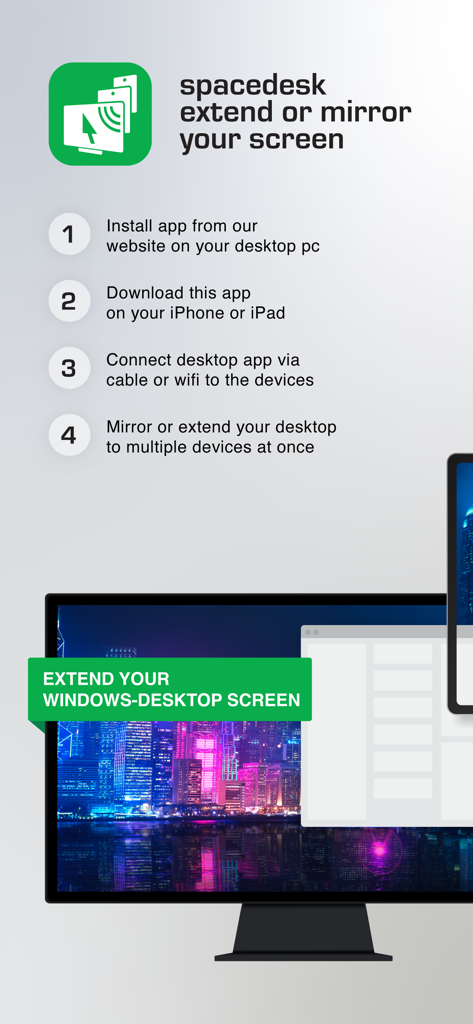
spacedeskを使用してWindowsデスクトップ画面をiOSデバイスに拡張またはミラーリングするための4つのステップ
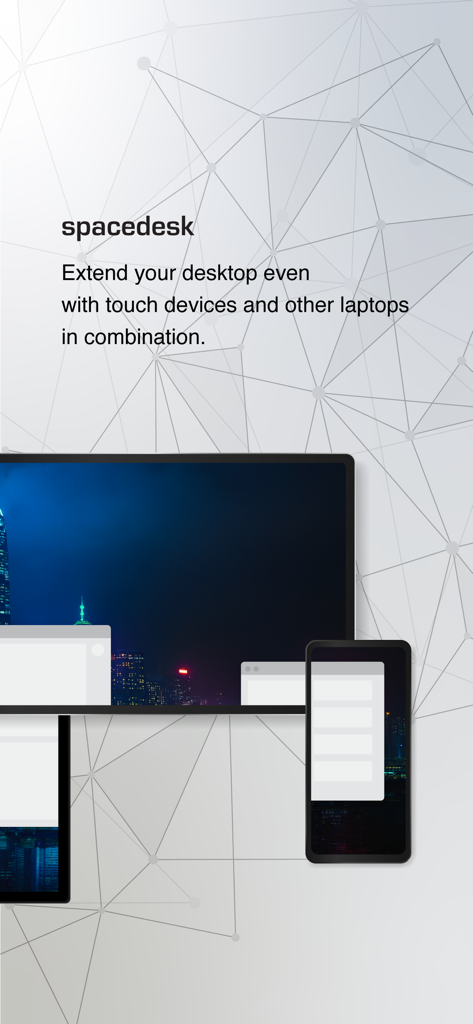
コンピューターのデスクトップをタブレットやスマートフォンに拡張しているspacedeskアプリ
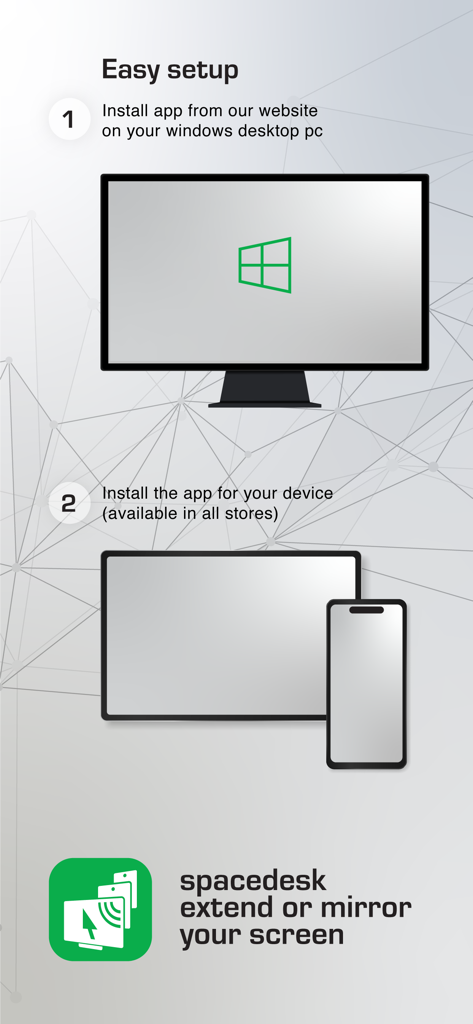
Windows PCとモバイルデバイスでspacedeskをセットアップするためのステップバイステップガイド
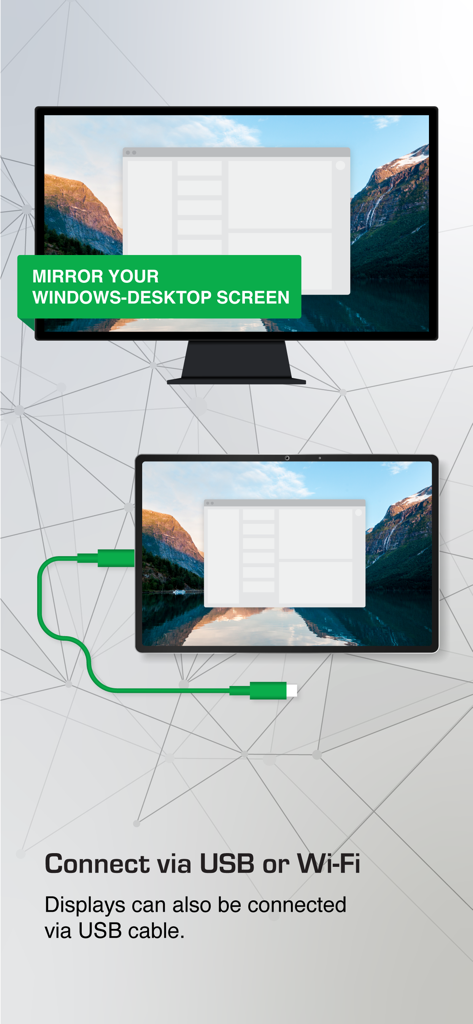
USB経由でWindows PCからタブレットへ画面をミラーリングするspacedesk
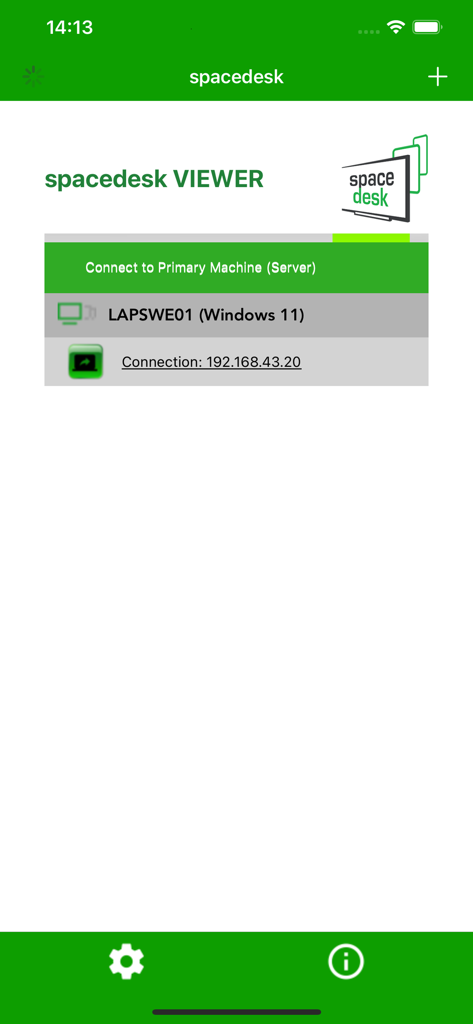
接続可能なWindows 11プライマリマシンを表示しているspacedesk Viewerアプリのインターフェース
説明
Download
類似アプリ
似た機能とユーザー体験を持つアプリ

Mouse · Keyboard
Remote Sunrise LTD
Camo Camera
Reincubate Ltd

DroidCam Webcam & OBS Camera
DEV47 APPS LTD.

iVCam Webcam
俊红 柴
Remote Mouse
耀 阮
CamX - USB Camera
Touchbits Inc.
Genki Studio
Human Things, Inc

Astropad Studio Drawing Tablet
Astro HQ LLC
Remote Mouse & Keyboard
horhe dor
このページはアプリまたはその開発者の公式ページではなく、情報提供および論評を目的として作成された独立した編集出版物です。明示的に別段の記載がない限り、アプリおよびその開発者は、MWM、Apple、Google Play、アプリのパブリッシャー、またはアプリの開発者と提携、承認、後援、認可、またはその他の公式的な関係はなく、このページのいかなる内容も、アプリがMWMのサービスを使用して開発されたことを意味するものではありません。すべての商標、ロゴ、スクリーンショット、その他のコンテンツはそれぞれの所有者の財産です。