
This page is not an official page of the app or its developer, but an independent editorial publication created for informational and commentary purposes. Unless expressly stated otherwise, neither the app nor its developer is affiliated with, endorsed by, sponsored by, authorized by, or otherwise officially connected with MWM, Apple, Google Play, the app publisher, or the app's developer, and nothing on this page implies that the app was developed using MWM's services. Any trademarks, logos, screenshots, and other content remain the property of their respective owners.


File Viewer for All
View any format from Office docs to WebP animations and seamlessly transfer files between your PC and iPhone. The ultimate secure, cloud-free workspace for tech-savvy professionals.
Downloads
300User Rating
Total Ratings
0Publisher
Category
UtilitiesLocales
2Latest Version
5.9Size
38.9 MBFirst Released
Jun 8, 2022Master Your Digital Workflow
The all-in-one solution for power users to view, manage, and transfer any file type across Windows, Mac, and iOS without the cloud.
High-Speed Wireless Transfer
Bridge the gap between Windows and iPhone. Turn your device into a mobile hard drive and move files instantly via HTTP or WebDAV without cables.
Universal Format Viewer
Stop app-switching. Open everything from PDFs and Office docs to GIFs and WebP in a stunning, fluid waterfall layout designed for efficiency.
The following screenshots and description are sourced directly from the app's official store listing and are the property of the app developer.
App Store
Screenshots

Waterfall gallery view of nature photos in the File Viewer for All app

Full screen landscape photo displayed in the File Viewer for All app interface
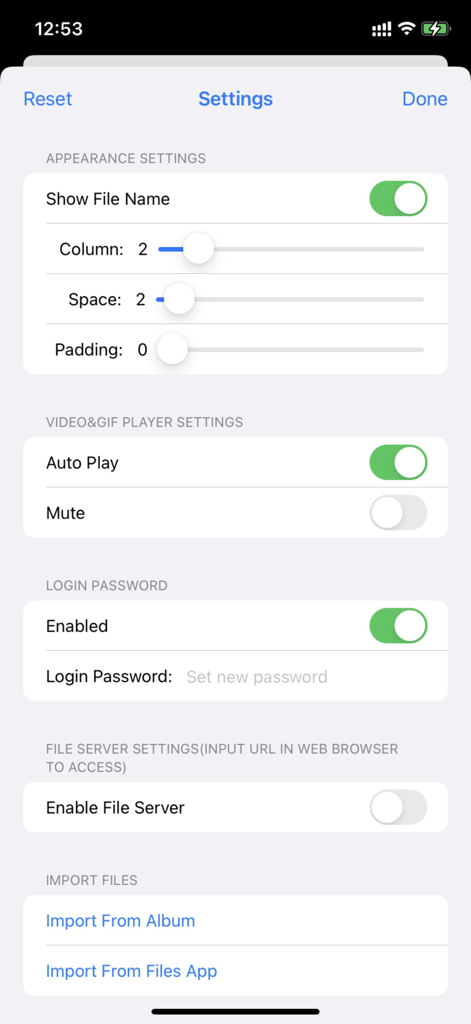
Settings screen of the File Viewer for All app showing customization options for layout, security passwords, and file server activation.

Welcome screen of File Viewer for All app with password protection and login button
Description
Download
More Like This
Top-ranked apps in the same category

Google LLC

Google Chrome
Google LLC

中国移动(手机营业厅)
China Mobile Online Services Co., Ltd.

Google Authenticator
Google LLC

CNH do Brasil
Servicos e Informacoes do Brasil

Cleanup: Phone Storage Cleaner
DEEP FLOW SOFTWARE SERVICES - FZCO

gov.br
Servicos e Informacoes do Brasil

Microsoft Edge: AI Browser
Microsoft Corporation

Super VPN Fly 2026
YUNFAN TECHNOLOGY CO., LIMITED
This page is not an official page of the app or its developer, but an independent editorial publication created for informational and commentary purposes. Unless expressly stated otherwise, neither the app nor its developer is affiliated with, endorsed by, sponsored by, authorized by, or otherwise officially connected with MWM, Apple, Google Play, the app publisher, or the app's developer, and nothing on this page implies that the app was developed using MWM's services. Any trademarks, logos, screenshots, and other content remain the property of their respective owners.