
This page is not an official page of the app or its developer, but an independent editorial publication created for informational and commentary purposes. Unless expressly stated otherwise, neither the app nor its developer is affiliated with, endorsed by, sponsored by, authorized by, or otherwise officially connected with MWM, Apple, Google Play, the app publisher, or the app's developer, and nothing on this page implies that the app was developed using MWM's services. Any trademarks, logos, screenshots, and other content remain the property of their respective owners.

Notepad - Simple Notes & Memo
Experience the ultimate distraction-free note-taking tool. Organize your day with instant lock-screen widgets and total peace of mind—your data stays private on your device, never in the cloud.
Downloads
4M+User Rating
Total Ratings
277K+Publisher
Category
BusinessLocales
35Latest Version
4.0.2Size
49.7 MBFirst Released
Jul 14, 2015Designed for Simplicity, Built for Speed
Ditch the complexity of bloated productivity tools. Notepad provides a clean, private, and lightning-fast way to capture your thoughts and lists without the noise.
Instant Quick Capture
No logins, no loading screens, and no friction. Just open and type to capture meeting minutes, grocery lists, or sudden inspirations immediately.
At-a-Glance Widgets
Stay organized without even unlocking your iPhone. Use Lock Screen and Home Screen widgets to keep your most important tasks front and center.
Frequently Asked Questions
Everything you need to know about Notepad - Simple Notes & Memo
How do I delete notes in Notepad - Simple Notes & Memo?
Yes, you can delete notes in Notepad - Simple Notes & Memo. Swipe left on a note to reveal the Delete button. Alternatively, tap the Edit button, then tap the red symbol next to the note to access the Delete button.
Can I reorder notes in the Notepad - Simple Notes & Memo app?
Yes, users can reorder notes in Notepad - Simple Notes & Memo. Tap and hold the note to move it, then drag it up or down. Users can also tap the Edit button and pinch the tab on the right of the note to move it.
How do I set up a Lock Screen widget for Notepad - Simple Notes & Memo on iOS 16?
To set up a Lock Screen widget for Notepad - Simple Notes & Memo on iOS 16, update your device to iOS 16 or later. Touch and hold the Lock Screen, tap Customize, select Lock Screen, tap Add Widgets, select this app, then choose the desired widget.
How do I add a Home Screen widget for the Notepad - Simple Notes & Memo app?
To add a Home Screen widget for Notepad - Simple Notes & Memo, tap and hold an empty area on your Home Screen, then tap the [+] button. Select the Notepad widget, choose from three sizes, and tap Add. You can add multiple widgets.
How do I change the color of notes in Notepad - Simple Notes & Memo?
Yes, users can change note colors in Notepad - Simple Notes & Memo. Swipe right on the note to select from six different colors. This feature helps to brighten up your notes.
How do I select which note to display in a Notepad - Simple Notes & Memo widget?
To select a specific note to display in a Notepad - Simple Notes & Memo Home Screen widget, tap and hold the widget. Then, choose the desired note from "Edit Widget" - "Notes" in the options that appear.
Is user data secure in the Notepad - Simple Notes & Memo app?
Yes, user data is secure in Notepad - Simple Notes & Memo. The app never collects or sends any text entered by the user to external servers or sources. All user data is stored exclusively within the app itself.
Is the Notepad - Simple Notes & Memo app free to use?
Yes, the Notepad - Simple Notes & Memo app is free to use. It generates revenue through advertising and offers in-app purchases.
Does Notepad - Simple Notes & Memo support dark mode?
Yes, the Notepad - Simple Notes & Memo app supports dark mode. This feature is listed among its core functionalities to enhance user experience.
Does Notepad - Simple Notes & Memo have an auto-save feature?
Yes, Notepad - Simple Notes & Memo includes an automatic note saving feature. This ensures that your notes are saved consistently without requiring manual intervention from the user.
Does the Notepad - Simple Notes & Memo app provide a word count?
Yes, the Notepad - Simple Notes & Memo app includes a word count feature. This allows users to track the length of their notes and written drafts.
The following screenshots and description are sourced directly from the app's official store listing and are the property of the app developer.
App Store
Screenshots
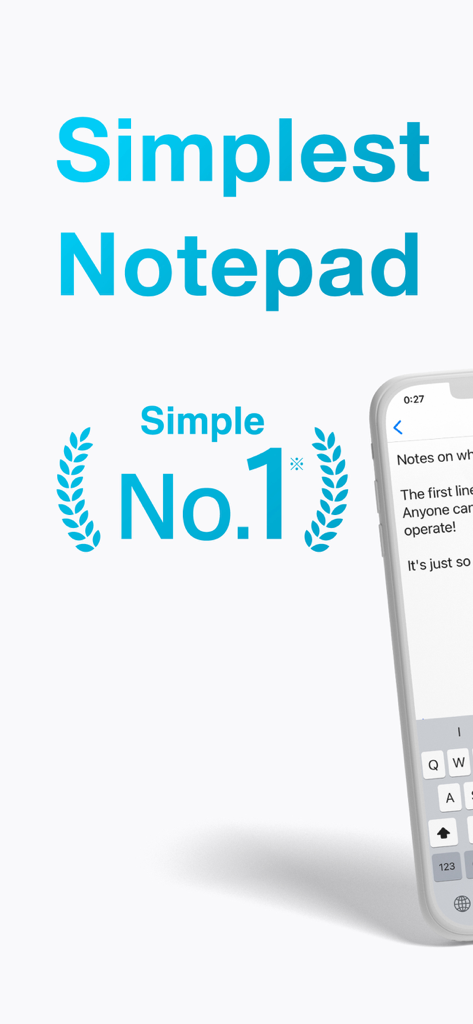
Promotional graphic for the Notepad app featuring its minimalist interface and No 1 simple rating
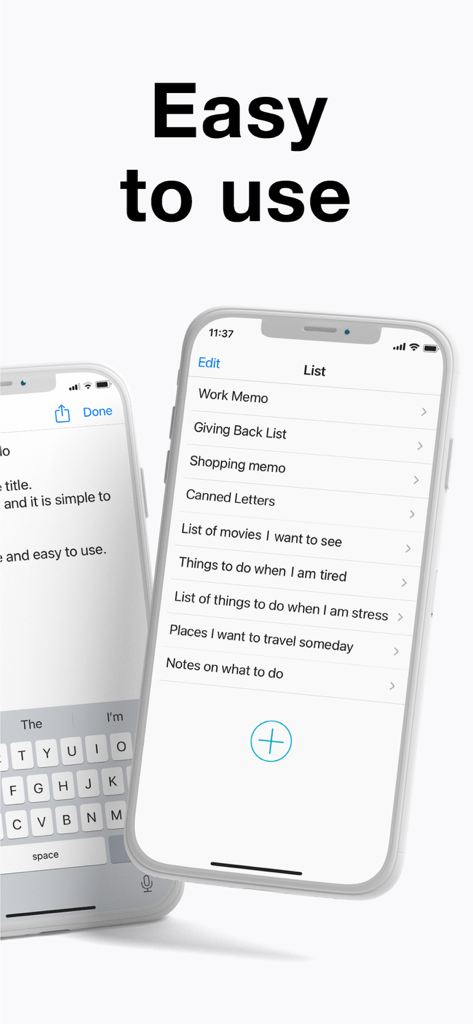
Simple notepad app interface showing a list of notes on an iPhone
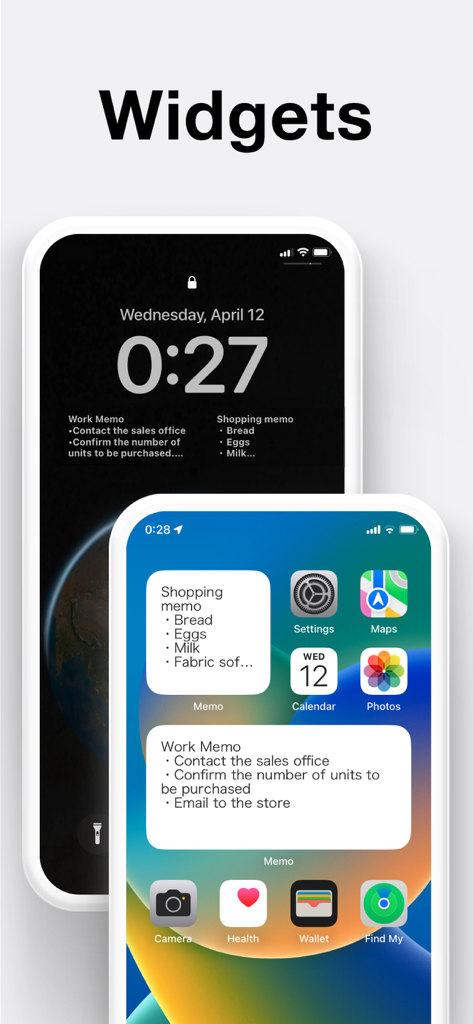
Notepad app widgets for shopping and work memos on iOS home and lock screens
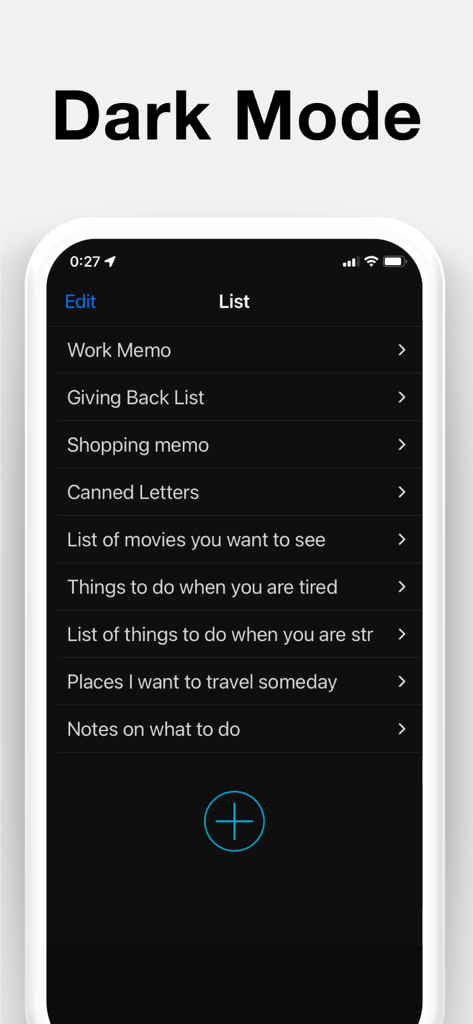
Simple notepad app interface in dark mode showing a list of notes
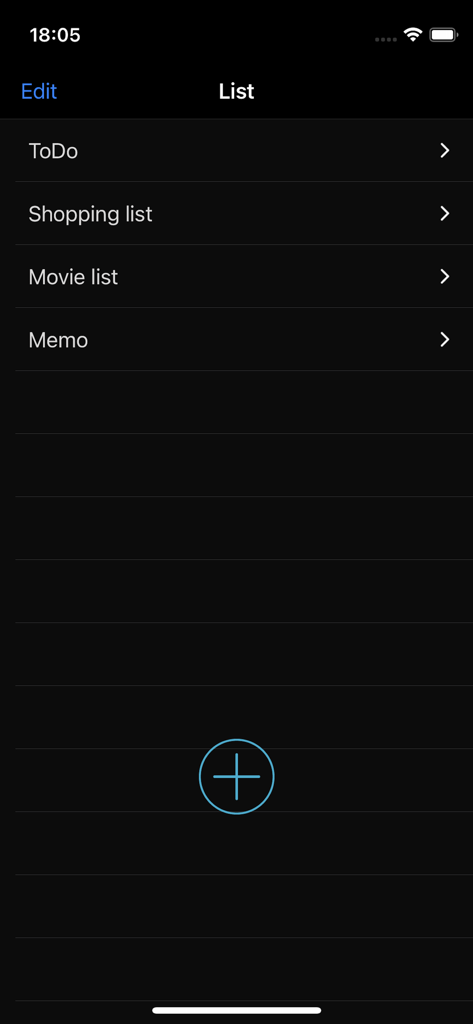
Main list screen of the Notepad app showing categories like ToDo and shopping list in dark mode.
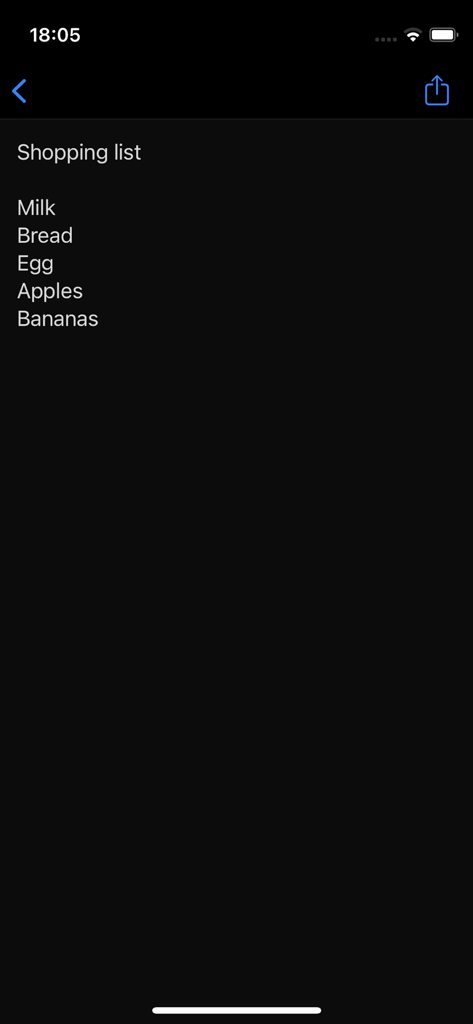
Simple shopping list on the Notepad app dark mode interface
Description
Download
More Like This
Apps with similar features and user experience
Notion: Notes, Tasks, AI
Notion Labs, Incorporated

Freenotes®: AI Notes Taking
Hangzhou Free Notes Technology Co., Ltd
Structured - Daily Planner
unorderly GmbH
Google Tasks: Get Things Done
Google LLC
TickTick:To-Do List & Calendar
Appest Limited

Noteful: Notes & PDF Markup
Noteful Technologies Ltd
Todoist: To Do List & Calendar
Doist Inc.
To do list MinimaList & Widget
Inner Grow Limited
monday.com - Work Platform
monday.com Ltd.
This page is not an official page of the app or its developer, but an independent editorial publication created for informational and commentary purposes. Unless expressly stated otherwise, neither the app nor its developer is affiliated with, endorsed by, sponsored by, authorized by, or otherwise officially connected with MWM, Apple, Google Play, the app publisher, or the app's developer, and nothing on this page implies that the app was developed using MWM's services. Any trademarks, logos, screenshots, and other content remain the property of their respective owners.